Participating Frequently
March 22, 2019
Answered

InDesign Orange Boxes???

  • March 22, 2019
  • 3 replies
  • 7647 views

Hello, I have been using inDesign but today I opened the file and all of my pages are suddenly filled with orange boxes, the background of the page also has a slight tint of orange.

I created a new page thinking there was an error but as soon as I paste something into the page there's more orange boxes!

When I export the file as a pdf and view it, the orange boxes DO disappear but it's quite annoying having to edit my pages with this occurring.

Could someone please guide me into how to fix this? Examples uploaded as picture.

Thanks!
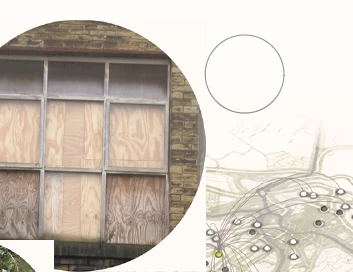
This topic has been closed for replies.
Correct answer Laubender

Reset preferences still the same problem


Hi Michael,

your color mangement is turned off.

That's the main cause, I think.

Regards,
Uwe

3 replies

Participating Frequently
March 24, 2019

I have checked all my colour settings in photoshop and in indesign and everything seems to be perfectly white.

When I place the picture into inDesign it changes to orange. Still doing it, I've tried changing the settings to RGB in photoshop too and still the same problem.

When I export the indesign document the orange boxes show and it's really affecting my university work... Any other suggestions? In quite a panic at the moment

manal shanableh
Legend
March 24, 2019

Please send one image that we can check, also you can send an indesign file with 1 image linked.

You can send via wetransfer.com

Participating Frequently
March 25, 2019

Hi Michael,

your color mangement is turned off.

That's the main cause, I think.

Regards,
Uwe


Laubender​, That worked! My work shows no more orange boxes. Hopefully it is the same when I attempt to print it.

Thank you all for your help, much appreciated!

I turned the setting to Off and it didn't show the orange boxes anymore.

manal shanableh
Legend
March 22, 2019

Check the display performance, View> Display Performance> High Quality.

Bill Silbert
Community Expert
Community Expert
March 22, 2019

Open your swatch Panel and double-click on the swatch called "Paper". When the Swatch Options dialog then opens make sure that the CMY&K values for it are all zero. InDesign does not have a color called white. Instead it uses this paper swatch to simulate what the paper that the job is printed on will look like. The default for it should be zero for all four process colors (simulating white) but it sounds like yours may have been altered.

Participating Frequently
March 22, 2019

Thanks Bill, I did what you said but unfortunately it still didn't work.

Any other suggestions?

Thanks!

*EDIT****

I just set the pages to RGB and put it white. The sheets are now white, however there are still orange boxes around the objects within it.

Any ideas?

Thanks.

jane-e
Community Expert
Community Expert
March 22, 2019

I'm confused. All of your photos appear to be of actual boxes?