Yes, the TOC panels work wonderfully. But after these comments, I have deleted the Character Styles and the problem is gone. I will just manually set the TOC styles. It's better than all the frustration.
Hi Debs0305. That's totally fine—sometimes we just need to do what we need to do to get the job out the door and meet our deadlines. But this works, when set up correctly.
Here's my workflow. I focus first on the paragraph styles (in a TOC or anywhere else) because they set the look for the entire paragraph. Once the paragraph is set up, then add the character styles.
In a TOC, I use this sequence:
- Generate the TOC without referencing styles in any way.
- Highlight TOC Title, format as desired, save as a paragraph style.
- Highlight the first occurrence of each TOC level, format as desired, save as a paragraph style. (Repeat for each level.)
- Return to the TOC dialog box to assign the styles:
- Assign the TOC Title style (my first orange box)
- Assign TOC styles for the various levels (2nd/3rd orange boxes). Repeat for each level. This TOC collects Heading1s, Heading2s and Heading3s so I need to do this three times.
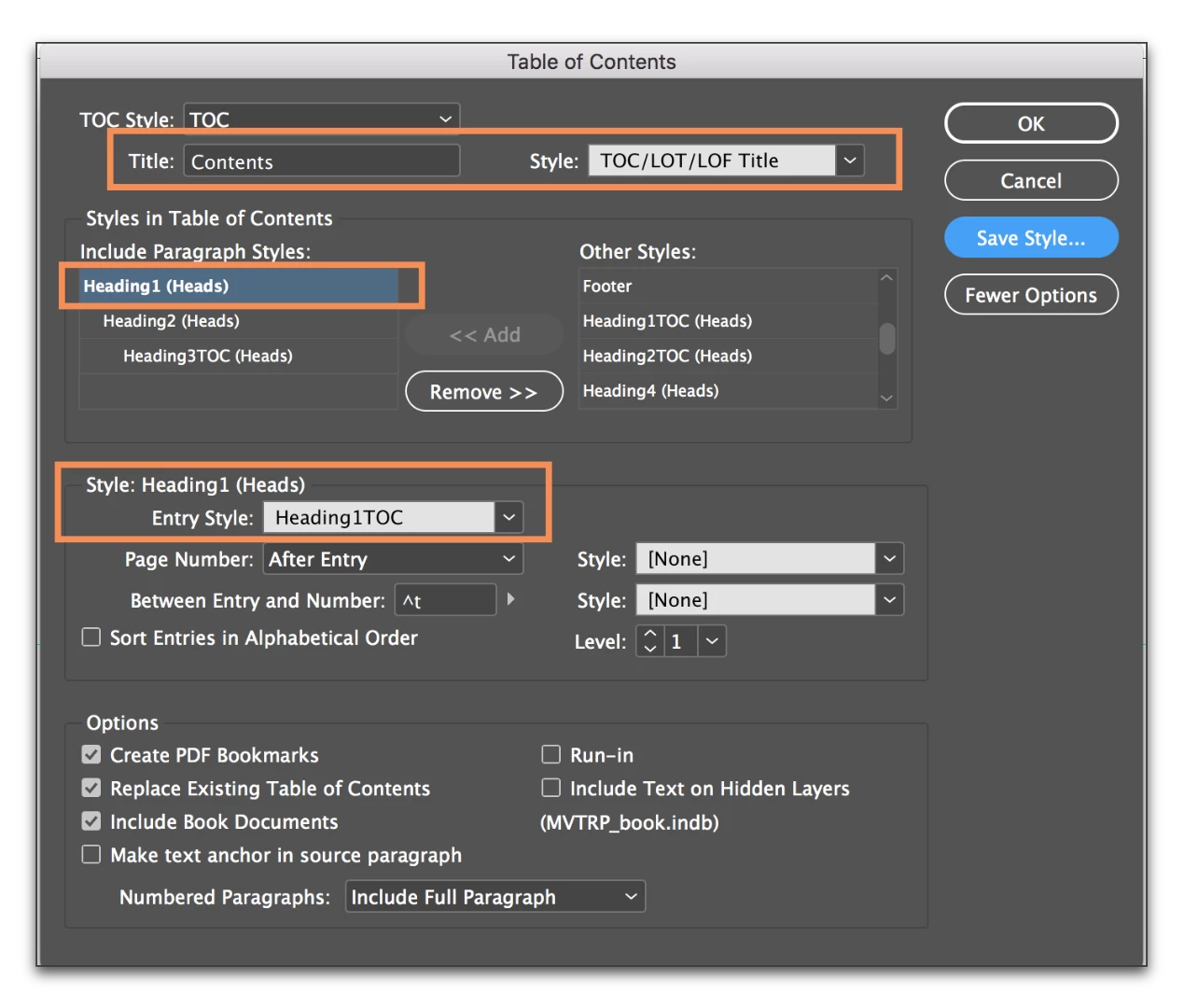
- Click on OK to ensure that all styles are being assign automatically.
Once that is working, then shift I shift my focus to the character level. For example, I want a bold font for the top TOC level, but want the leaders and the page numbers to match levels 2 and 3. So I highlight the leaders and the page number, change the font and size and save that as a character style called Leaders/PgNos.
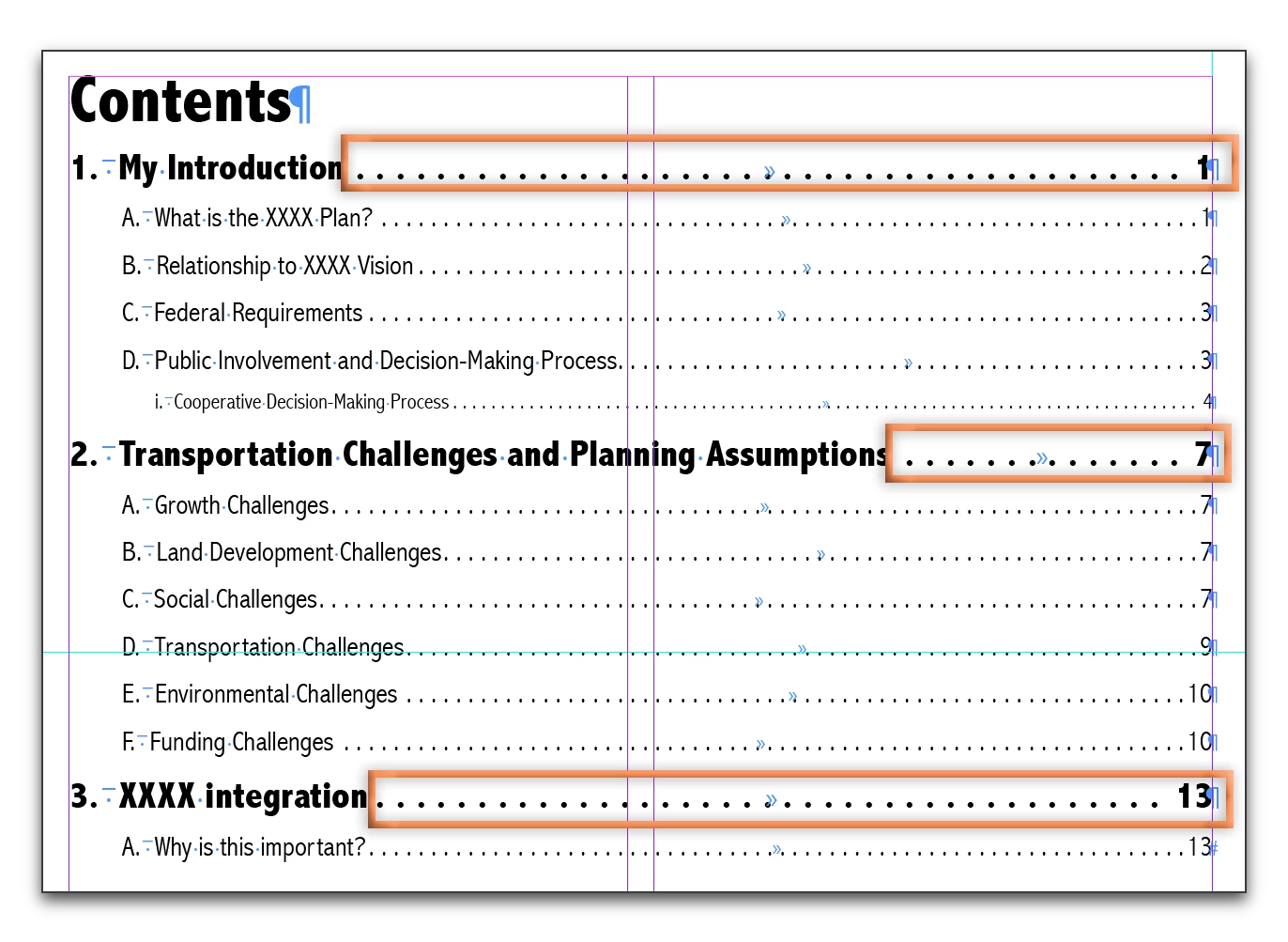
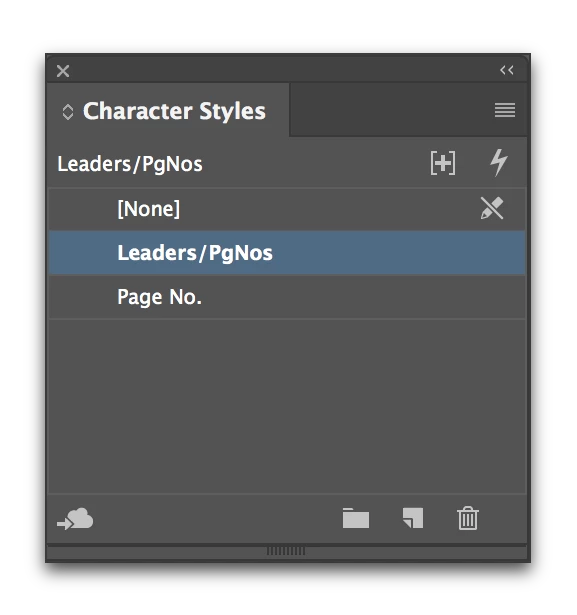
Back in Layout > Table of Contents, I need to pick my heading level (in my case Heading1) and then assign the character styles. I am using the same one for both, but they can be different. Repeat for each level—I only need to change one.
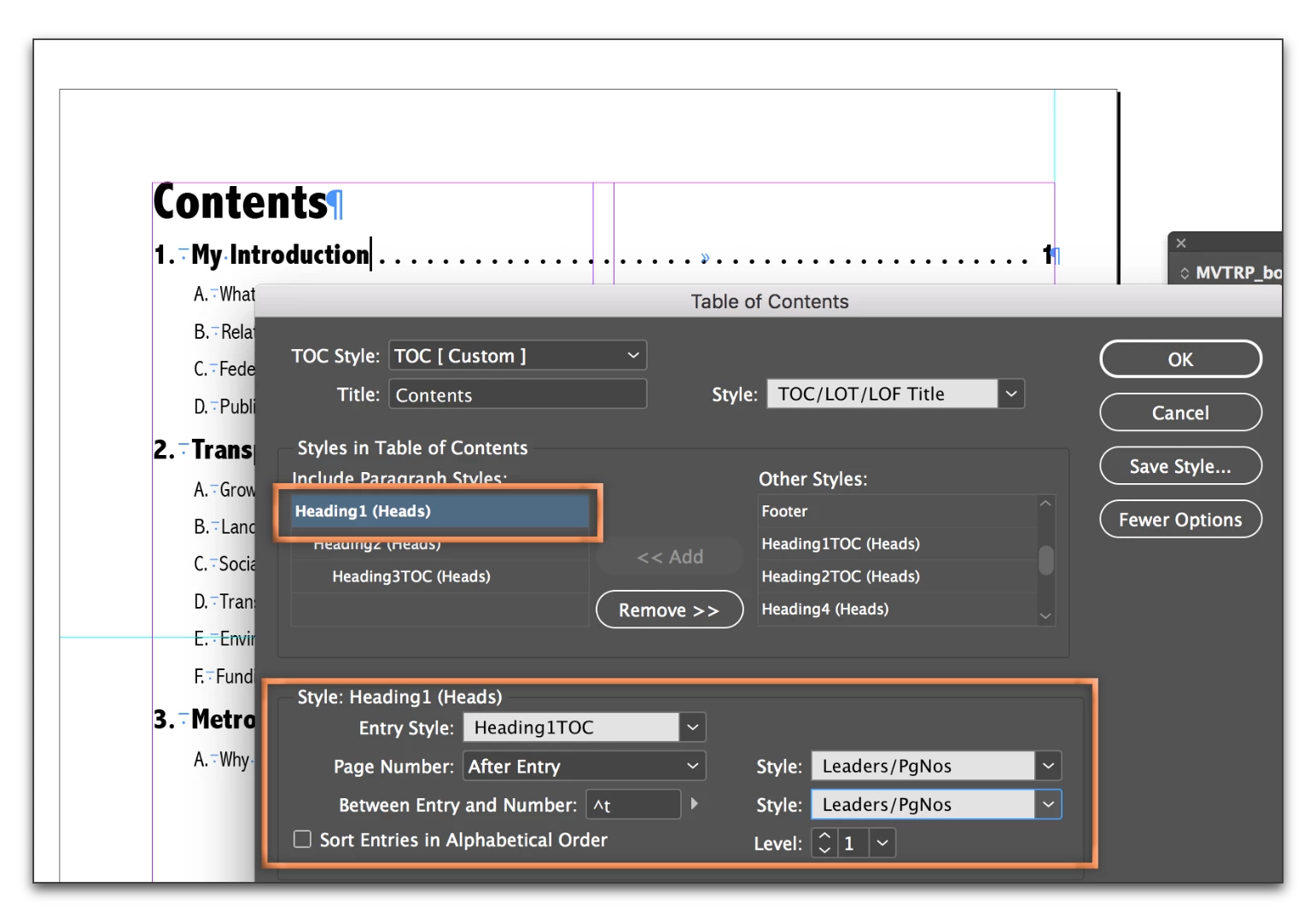
Click OK to see the results.
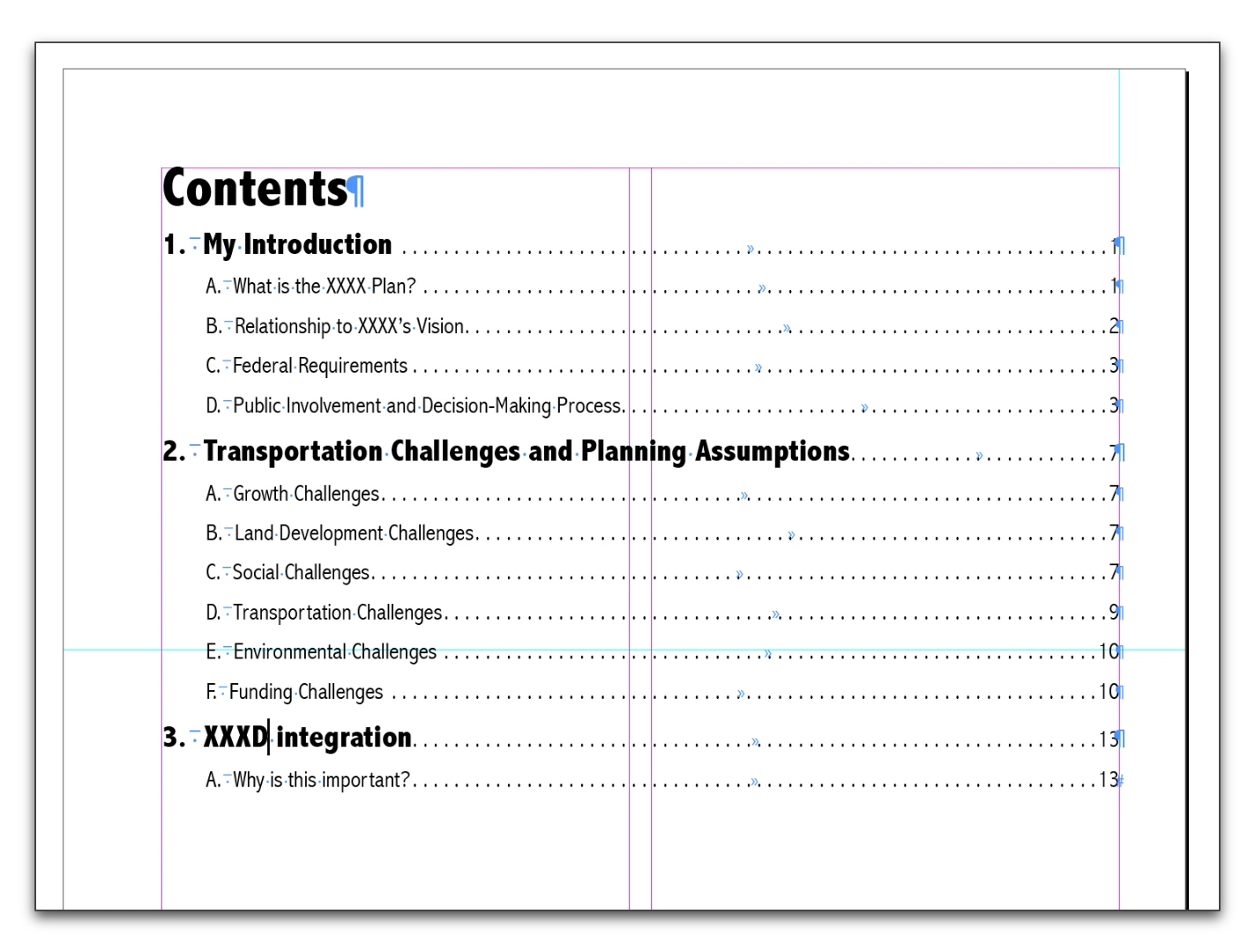
Once set up correctly, it's totally automatic and I can update my TOC after any edits and not lose any time with manual formatting.
~Barb


 AdChoices