


- Home
- InDesign
- Discussions
- Re: Indesign rendering/ display issue
- Re: Indesign rendering/ display issue

Copy link to clipboard
Copied
Hi, I'm looking for any tips on how to speed up performance in indesign
when working with a vector file that, apparently, wants to use huge amounts
of computer resources, or something.
the illustrator file (from a freelancer) is only 3.5MB in actual file size,
but it has LOTS AND LOTS of very small pieces in it, that i guess Indesign
is trying to render. It takes FOREVER and slows everything down. When the
application (file?) or the object is set to Display Performance > Typical,
it works just fine.
HOWEVER
1) Object-level display settings aren't persistent. When i reopen the
document, or (as just now) tried to use the "crop to front cover" script,
the display reverted to "high" for everything everything screeched to a
halt. nb: View > Display Performance is set to "allow object-level display
settings."
2) with "typical" on, the jpeg i created (using the export function)
doesn't contain all of the image data, rather it matches the screen
display. Is this expected behavior?
What can I do to speed up working with this file?


 1 Correct answer


It's not surprising you are having problems with this–there are literally thousands of vector objects in the .ai/.pdf file. Even if you can live with a typical Display performance, there will likely be problems at output. I think the best option would be to open the PDF/x-4 version in Photoshop at 300-400ppi and save as a .PSD. If you plan to scale up in InDesign, save with enough res so the ID Effective res is over 300ppi. That will rasterize the vectors and retain the Illustrator transparency.

 15
Replies
15
15
Replies
15


Copy link to clipboard
Copied
With no document open go to the Display Performance section of InDesign's preferences and choose Typical for your Default View and check "Preserve Object-Level Display Settings". Click OK and then quit InDesign. These settings should then become the default for any new documents that you create. For already created documents you will have to make these same adjustments for them individually.
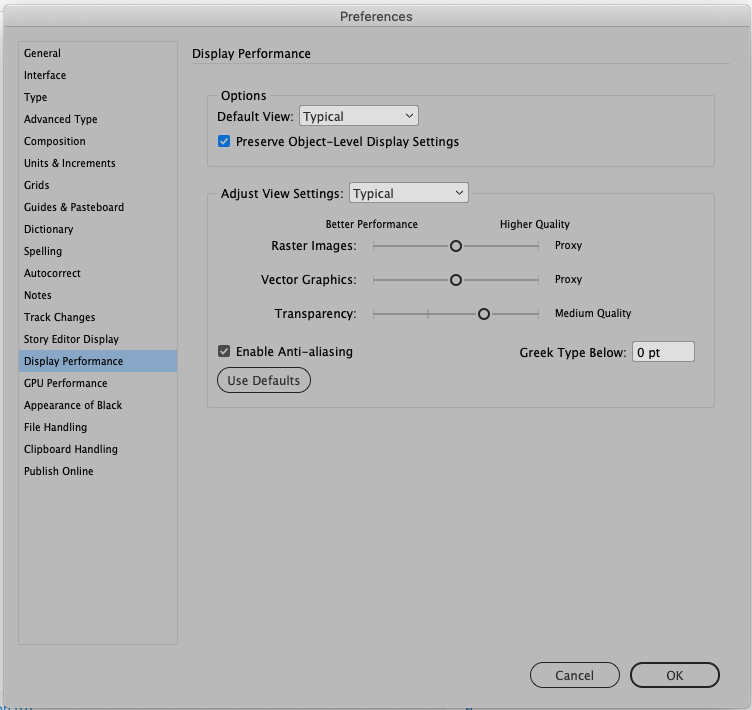
Generally InDesign will always run more efficiently (quickly) when in Typical Screen Mode. This is especially true when complicated Illustrator files or very high resolution Photoshop images are in the file. This will, of course, vary from computer to computer. It may also vary depending on which version of InDesign and which operating system that you are using (it would be very helpful if you include that information if you need any more help).
InDesign's speed may also be affected by third party plug-ins. You should make sure that any that you might be using are compatible with your version of InDesign and/or your operating system.

Copy link to clipboard
Copied
Try closing all documents, and go to Preferences > Display Performance. For Default View, choose Typical. If you want to Preserve Object-Level Display Setting, check it.
Then reopen your document.
Hope this works.
Copy link to clipboard
Copied
We've all ready done that. What about the Export jpeg reflecting the view setting? is that common? Ive not seen export settings too reflect view settings. (25 years of prepress) Due to the files being an unreleased book jacket I cannot post the jpgs....
Copy link to clipboard
Copied
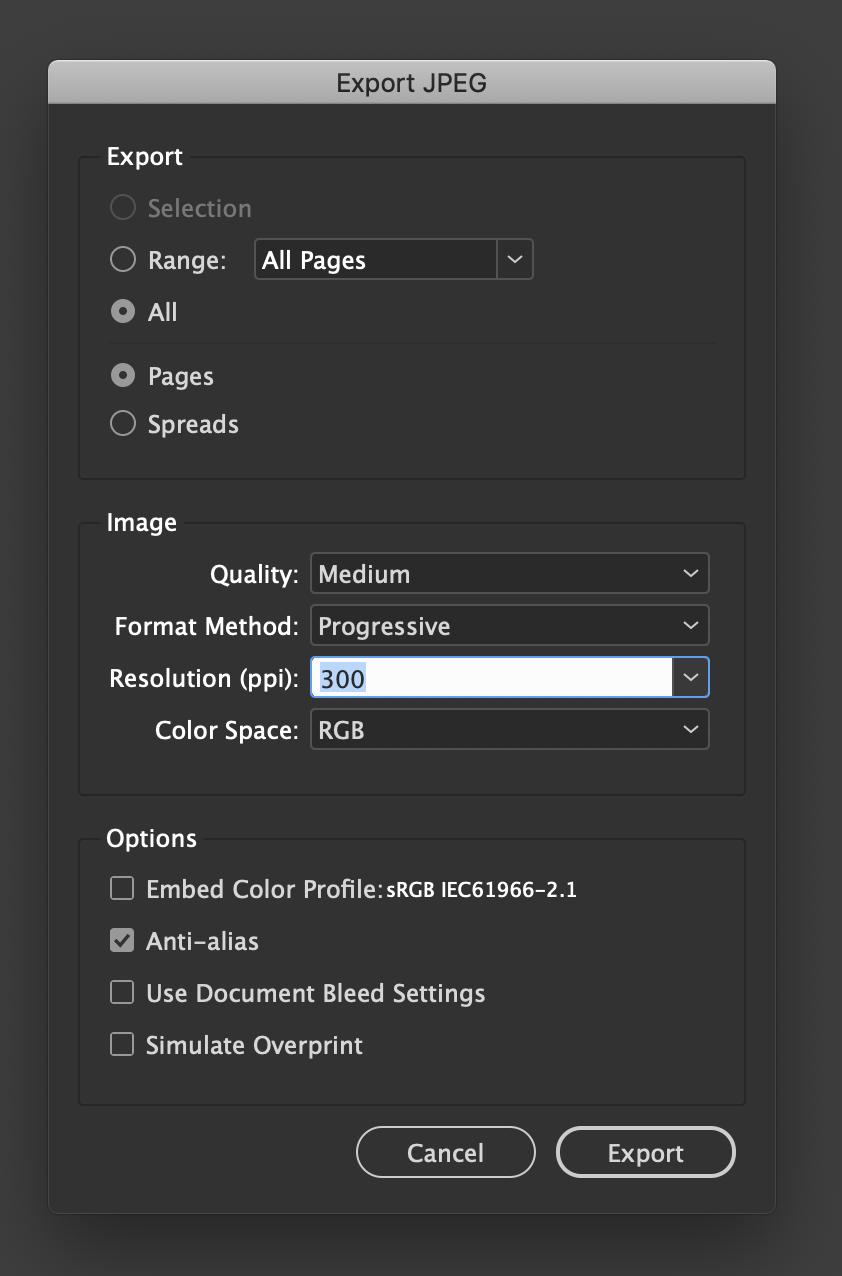
From my understanding, Resolution of a JPEG is not connected to Display Performance.
When you go to File > Export and choose JPEG as the Format and press Save, a dialog opens which allow you to specify Resolution. Choose your Resolution and press Export.
See screenshot below.
Copy link to clipboard
Copied
It is set to High, progressive. here are very cropped jpegs. The only difference is the view settings.when the view setting is changed to typical the type even rasterizes incorrectly where the illustrator files lies.

Copy link to clipboard
Copied
And from my 25+ years of prepress, I would not think either that the quality of the export was influenced by the view settings.. SMH
Copy link to clipboard
Copied
the illustrator file (from a freelancer) is only 3.5MB in actual file size,
but it has LOTS AND LOTS of very small pieces in it
Is the file you are placing an .ai file with the images embedded (the freelancer included the links when she saved the file)?
What happens if you resave the .ai file as a PDF/X-4 file, and place the PDF?
Copy link to clipboard
Copied
Here is just the Illustrator file, placed in Indesign and the pdfx file on the left. Same results. Its a very complex ai file.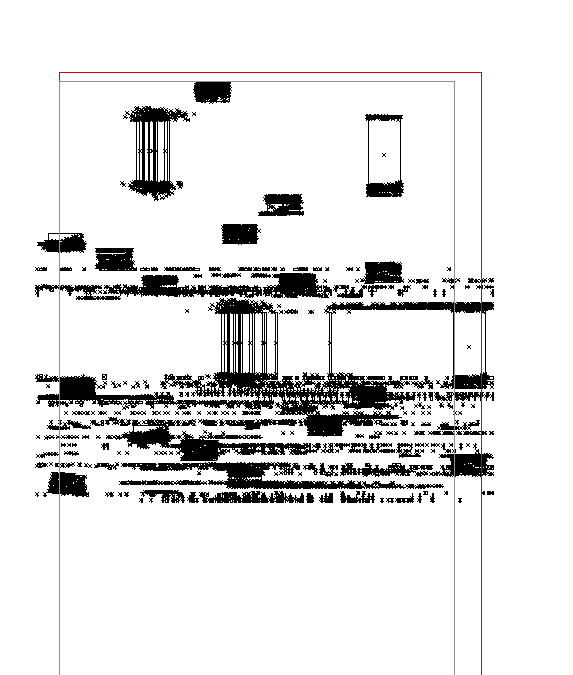 https://www.dropbox.com/s/2c6kb9xpfiiisfr/Illustrator_pdfx%20Folder.zip?dl=0
Copy link to clipboard
Copied
It's not surprising you are having problems with this–there are literally thousands of vector objects in the .ai/.pdf file. Even if you can live with a typical Display performance, there will likely be problems at output. I think the best option would be to open the PDF/x-4 version in Photoshop at 300-400ppi and save as a .PSD. If you plan to scale up in InDesign, save with enough res so the ID Effective res is over 300ppi. That will rasterize the vectors and retain the Illustrator transparency.
Copy link to clipboard
Copied
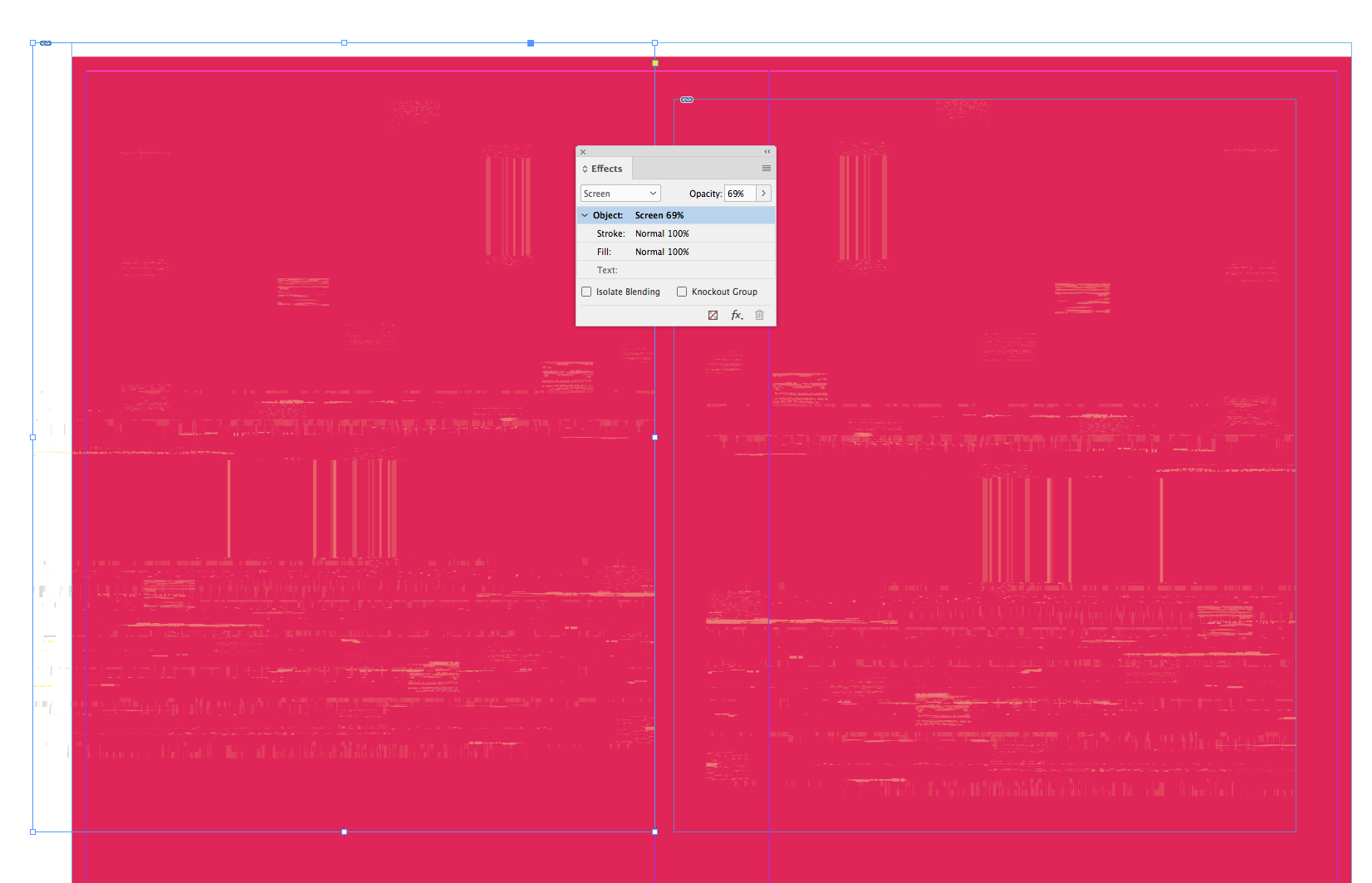
Another note on this: your free lancer is using transparency in the .ai file and applying an over all Screen blending mode. To get a match I had to open the .ai file in Photoshop, save as a .PSD, place the .PSD, and apply the Screen blending mode in InDesign.
So, the .AI saved as a PSD placed to the left of your PDF/X-4 example with a Normal blending mode:

With Screen applied I get a match:
Copy link to clipboard
Copied
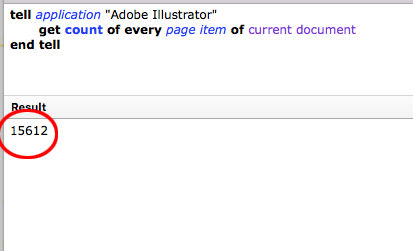
There are 15,612 page items!
Copy link to clipboard
Copied
Thank you !!
Copy link to clipboard
Copied
Also, make sure Preflight is turned off. I also don't have a problem with the .ai file, but I had to turn off preflight.
Copy link to clipboard
Copied
my MacBook Pro (Retina, 15-inch, Mid 2015 16 GB 1600 MHz DDR3,2.8 GHz Intel Core i7, doesn't either, all the designers have different specs Ill check,. My Mac is not really lagging with the file either. Thanks for all the help

Copy link to clipboard
Copied
AmybethMenendez wrote
Hi, I'm looking for any tips on how to speed up performance in indesign
when working with a vector file that, apparently, wants to use huge amounts
of computer resources, or something.
…
Hi AmybethMenendez ,
may I ask what your hardware specs are?
I see only slightly degradation of speed when working with the AI file.
InDesign CC 2018.1 on Windows 10.
Regards,
Uwe


Get ready! An upgraded Adobe Community experience is coming in January.
Learn more
 AdChoices