
Inspiring
November 3, 2020
Answered

indesign - thin white border showing between photo (black) and transparent part

  • November 3, 2020
  • 2 replies
  • 4723 views

When placing this photo (TIFF saved in Photoshop) into indesign there is a thin lighter line showing up between the photo and the transparent part. This only happens on this photo when slightly turned (if it is completely square and place at exactly 90 degrees, there is no thin lighter line. Does anyone know why this can be?

The screenshoot showing the transparent areas is from Photoshop and the screenshot where I have circled the problem area in red is from Indesign.
 

This topic has been closed for replies.
Correct answer Jens Trost

att present, my quick-fix, is to drav black rectangles in indesign which I let overlap the edges of the photo, thus hiding the white line 🙂


Hi @Chris201Chris,
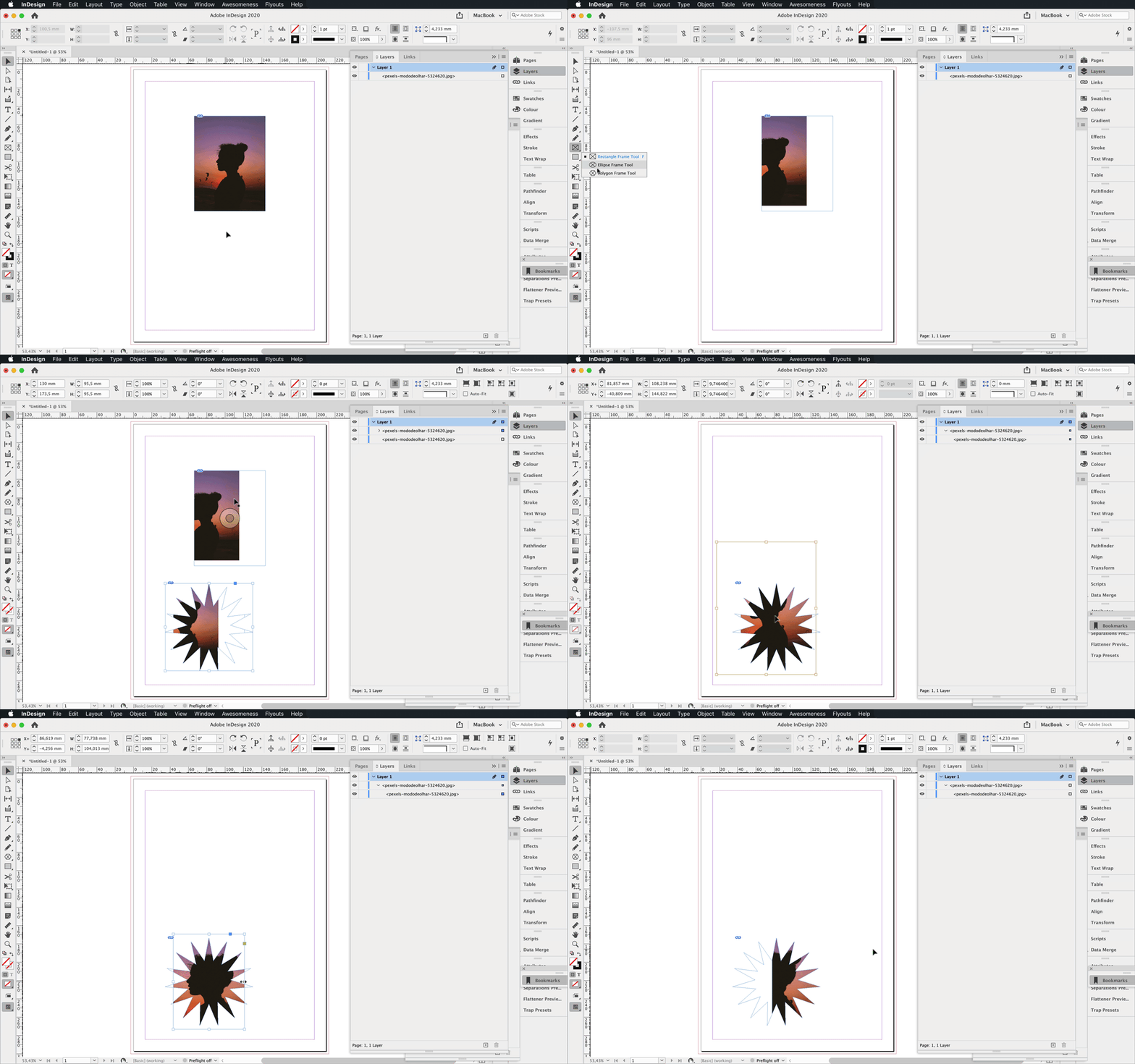
you need to understand the principle how InDesign works with images.

There are (usually) two frames involved:
– the outer frame, in my screenshot a few posts up it is the blue rectangle. This can have whatever shape you can draw (and close) with the pen tool. Rectangle, Circle, Star, Bunny, whatever...
– the inner image itself, this is always a rectangle and has the same size as your canvas in Photoshop

Now if you want to rotated AND crop your image, you have to rotate your inner image. You can select that via the direct selection tool (keyboard shortcut A) or by hovering over the middle of the image where you see that circle overlay.

Why did I say usually? Because you can paste frames into frames into frames into... that way you can crop ever futher if it becomes neccessary.

Maybe it becomes clearer with that little screencap:

2 replies

Jens Trost
Inspiring
November 3, 2020

When you rotate the image you could end up with bisected pixels. Those need to be filled again to get full pixels and since PS has no color information (= transparent) it assumes white, resulting in that lighter color.
See a close up of your image rotated, the lighter parts are where PS needs to fill in the half pixels:


In InDesign you should be fine if you just crop in a bit more.

Inspiring
November 3, 2020
Thanks! Is it possible to crop at non-perpendicular angles in indesign?
Jens Trost
Inspiring
November 3, 2020

Not sure what you mean, just make your outer image frame a little bit smaler?

In case you just have one frame which also is used as your black background – you may have to use two frames.
– create one frame with your black fill
– place your image on top and rotate the image itself (not the outer graphic frame, use the direct selection tool (shortcut A) for this)

Legend
November 3, 2020

I can see lighter colored pixels in the area you have circled in both photos. I would probably rotate them in Photoshop until they are square, then either crop out the unwanted pixels or clone some adjacent pixels that have the color you want.