Participant
November 13, 2023
Answered

Indesign uses Typographers Quote when Placing text

  • November 13, 2023
  • 4 replies
  • 1852 views

Indesign automatically uses typographer quotes when placing word files even after unchecking the 'use typographers quote' in preferences > type. When copying and pasting it doesn't apply but every other text style replaces to basic paragraph style. I want to keep the fonts and other styles as it is and use straight quotes, not typographers' quotes. 
This topic has been closed for replies.
Correct answer rob day

Indesign automatically uses typographer quotes when placing word files


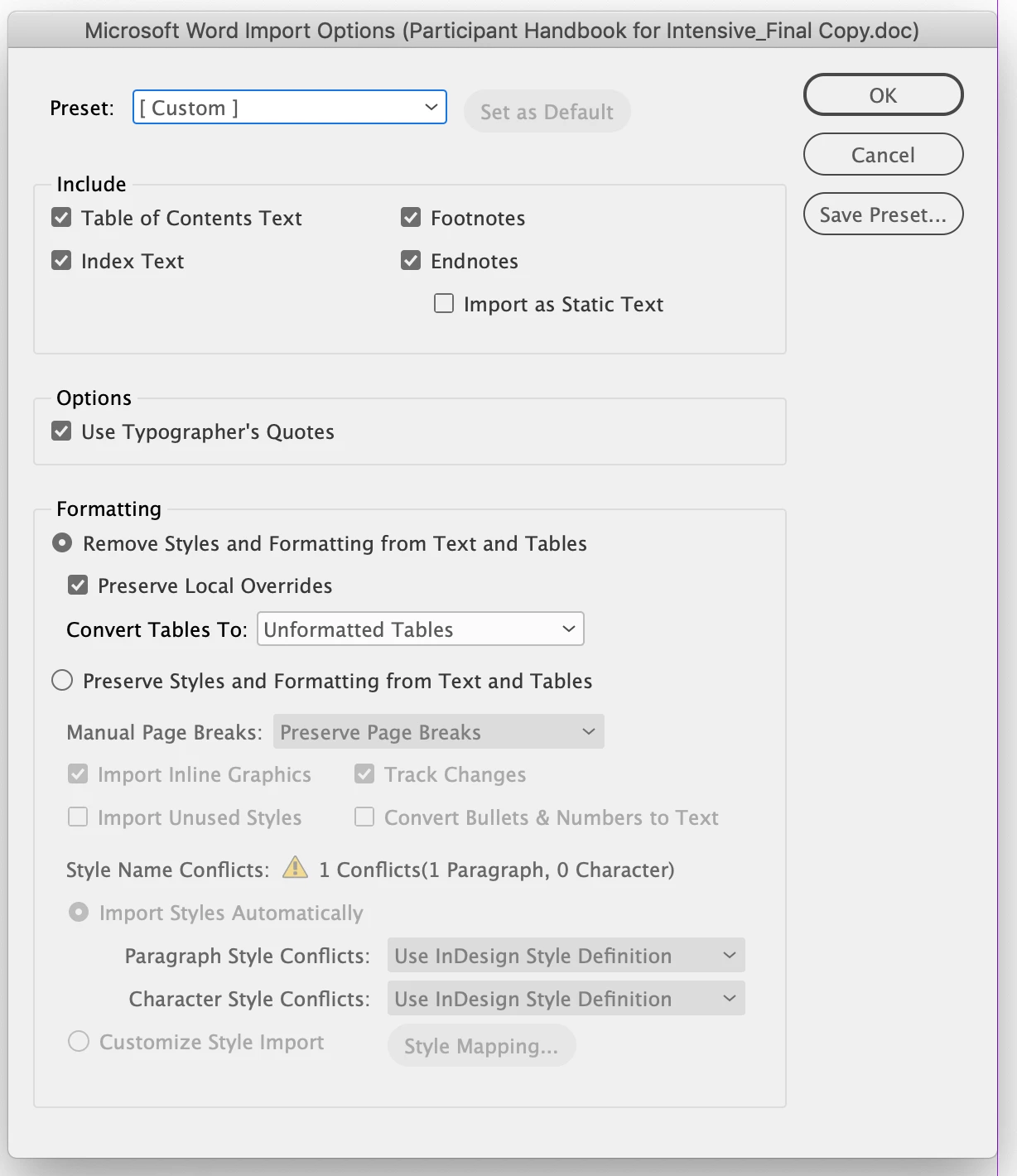
Hi @Sagara Perera , When you Place the Word file, check Show Import Options—the Options dialog has a Use Typographer’s Quotes check box:


4 replies

rob day
Community Expert
rob dayCommunity ExpertCorrect answer
Community Expert
November 13, 2023

Indesign automatically uses typographer quotes when placing word files


Hi @Sagara Perera , When you Place the Word file, check Show Import Options—the Options dialog has a Use Typographer’s Quotes check box:


jane-e
Community Expert
Community Expert
November 13, 2023

@rob day


Did you see the OP's last sentence?

"I want to keep the fonts and other styles as it is and use straight quotes, not typographers' quotes. "


Jane


James Gifford—NitroPress
Legend
November 13, 2023

I think the key point here is whether the quotes are straight or typo in Word, and thus whether InDesign is actually changing them to typographic or simply being precise in importing the text as-is.


There are many ways to fix quotes, with F/R and GREP, after pasting. But if ID is converting straight quotes to typographical, and a setting can't fix that, I'd say it's a bug.


If it's the case that ID does not have a setting to "keep styles and formatting" but convert quotes to straight... is not, IMHO, a reasonable expectation. There are far too many variations in text import to have a one-click solution for all of them.

Willi Adelberger
Community Expert
Community Expert
November 13, 2023

If you want to keep streight quotes create a paragraph style with [No language], select that paragraph and paste yor text into it. Later you can apply any other paragraph style and the quotes remain as they are.

James Gifford—NitroPress
Legend
November 13, 2023

Are they typographical or straight quotes from Word? I can't see any case where ID would override imported text, even to 'correct' it to your chosen composition settings.


And, as jane-e notes, straight quotes are... something to be left behind with typewriter ribbons and Wite-Out. 🙂

jane-e
Community Expert
Community Expert
November 13, 2023

@Sagara Perera 


Straight quotes are leftovers from the days typewriters and do not belong in a professional publication — unless you are indicating feet or inches. Using inch marks for text is unprofessional. Are you sure you want to proceed?


If you are positive that you do, you can use Find/Change. It's quick.

  • Choose Glyph (the 3rd tab in Find/Change)
  • Select and right click the open quote in your document > choose the command from the shortcut menu to put it into the Find Glyph area of Find/Change
  • Insert an inch mark from the Insert menu into your document > Select > Right Click > put it in the Change Glyph area.


I don't remember the exact command you see when you right-click the glyph in the document, but it's the easiest way to fill out the Glyph section of Find / Change and you'll spot it.


Repeat for the close quote.


Harder directions are here:

https://helpx.adobe.com/indesign/using/find-replace-glyphs.html


Jane

jane-e
Community Expert
Community Expert
November 13, 2023


@Sagara Perera 


The commands I couldn't remember the names earlier for are:

1. Load Selected Glyph in Find


2. and Load Selected Glyph in Change"


I've found that this is the easiest way to fill out this dialog:


The close quote is a different glyph, but the inch mark is the same.


Jane