Inspiring
June 9, 2023
Answered

InDesign - Windows 10 - Missing font that is active in Adobe Fonts - Myriad Pro Semibold

  • June 9, 2023
  • 4 replies
  • 1634 views

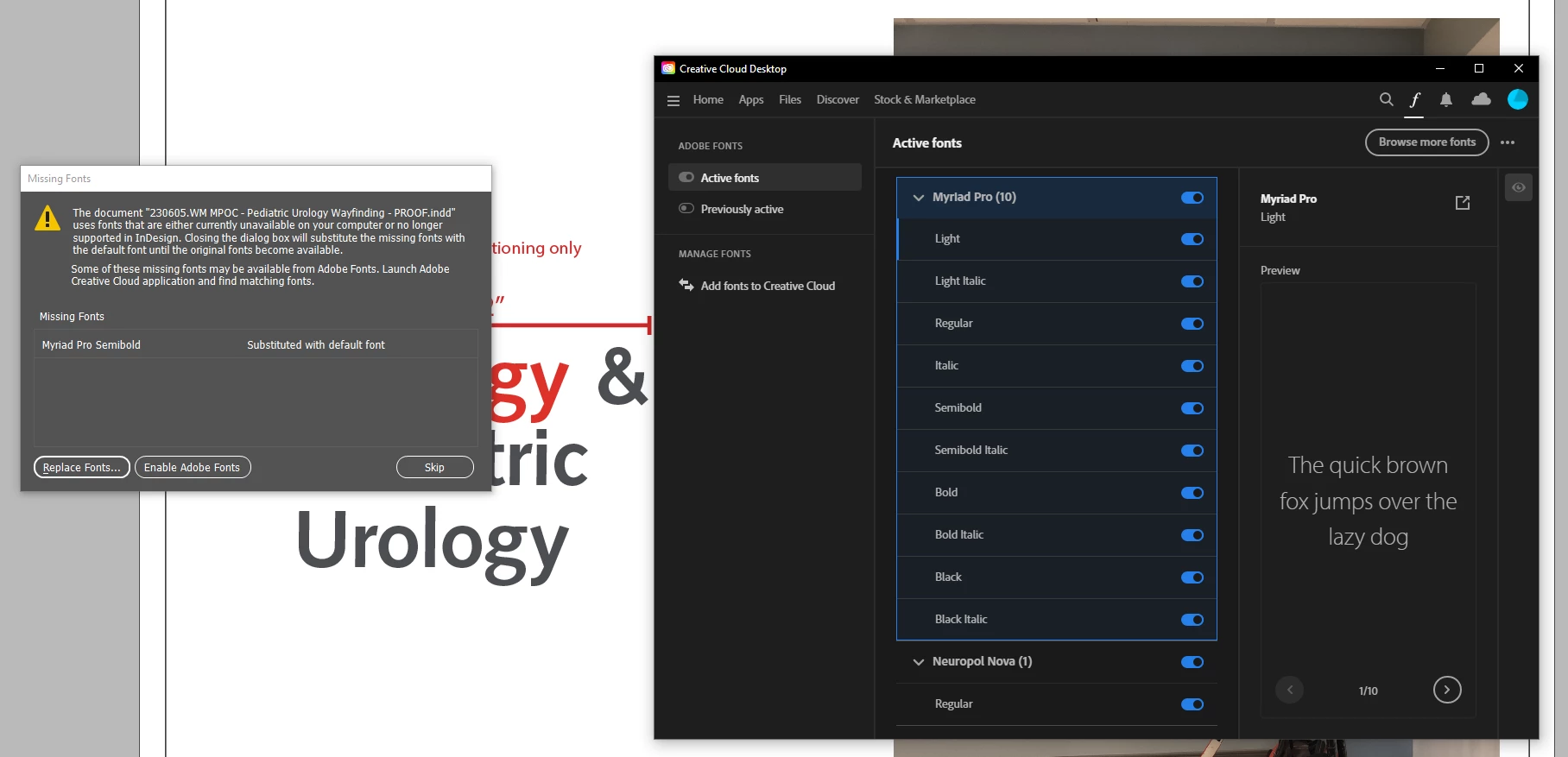
I've been lurking for a few days, trying to find solutions to this missing fonts issue, but I have tried everything I can think of and cannot find anything that works, so it's time to ask:


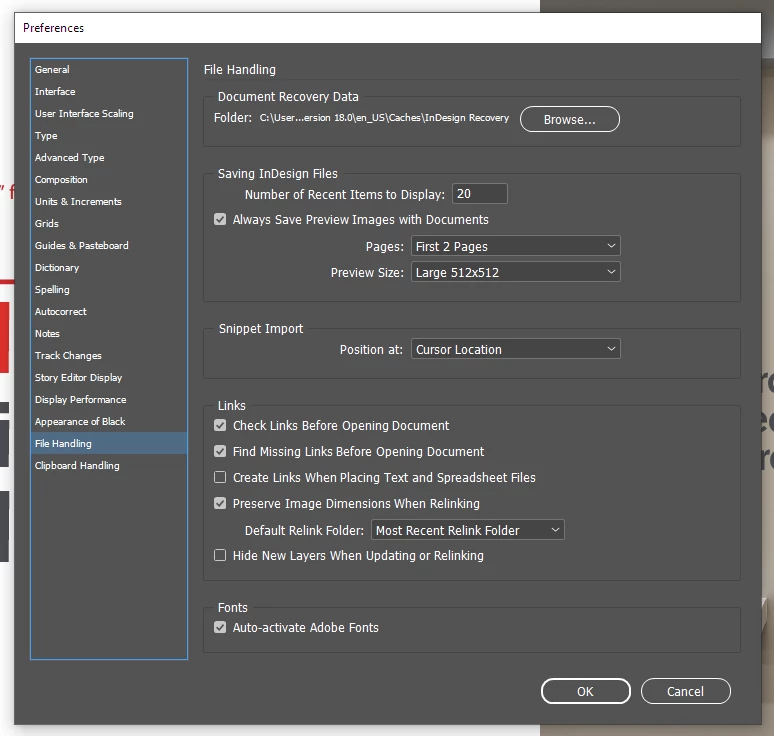
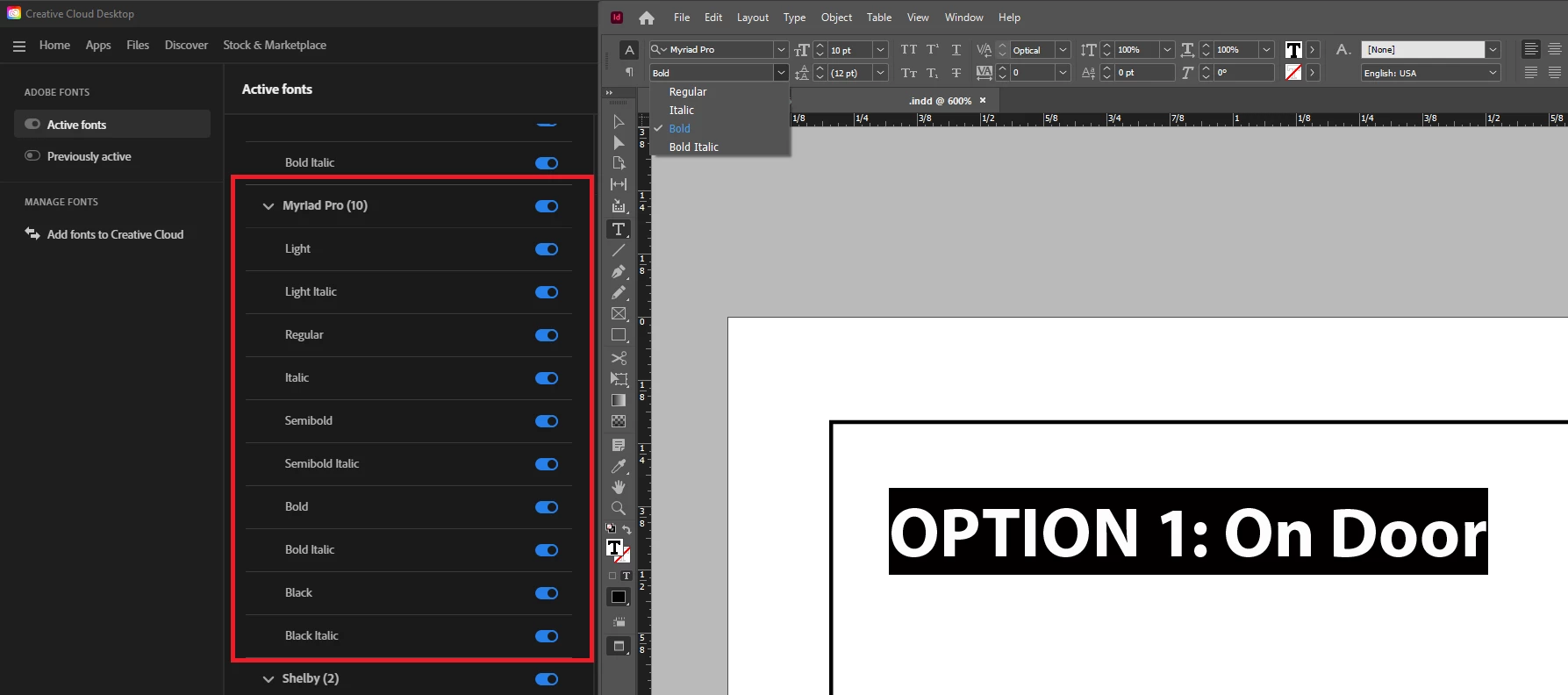
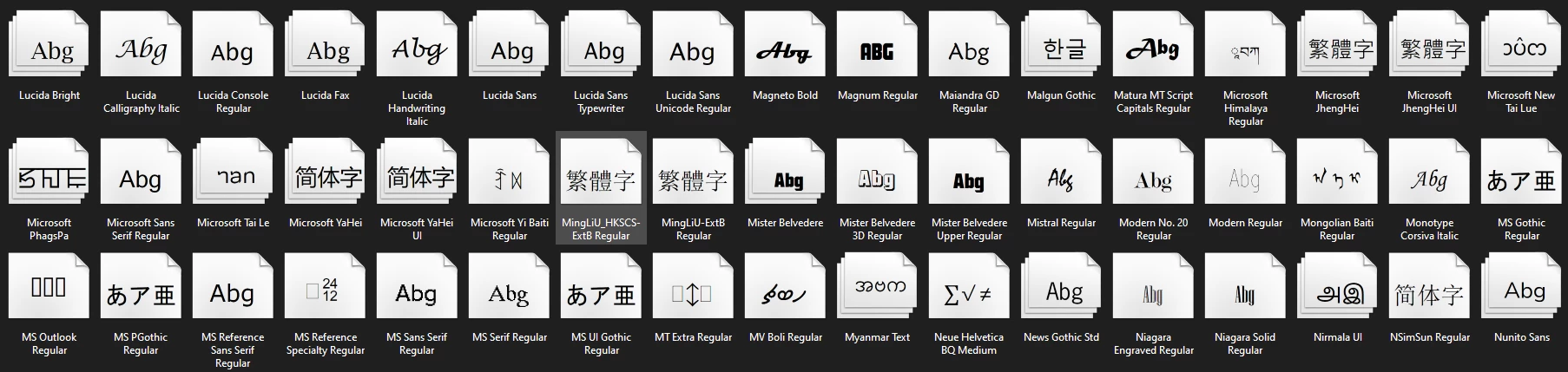
How can I resolve this issue? -- I have an problem with some of the Myriad Pro weights/styles not loading into InDesign upon opening a file that uses those particular weights/styles (usually via double-clicking the file to open it), even though they are active in Creative Cloud. I end up quitting and restarting InDesign two or three times, after having launched the separate Creative Cloud app, to confirm that they are indeed turned on. This usually resolves it, but it's so annoying to have to keep doing that. These fonts are turned on in my account. I have enabled Adobe Fonts auto-activation. I have made sure I don't have these fonts already installed in my Windows Fonts folder (to rule out conflicts). You can see, attached, some side-by-side screenshots showing all of the Myriad Pro weights/styles turned on, as well as all of the "M" fonts installed on my PC, but only the default set (Regular, Italic, Bold, Bold Italic) is appearing in the drop-down until I restart InDesign multiple times.


I've also reset my preferences recently.


Nothing is working.


Like I said, I am able to finally get these to load, after multiple restarts, but I shouldn't have to do that.


Any ideas on how to make these load correctly without having to restart InDesign all the time?


Thank you!


System: Windows 10 (22H2)

InDesign 18.3 (18.3.0.50)
 

This topic has been closed for replies.
Correct answer BriGuyOSC

I spoke too soon. Back to not working again today, after deleting the Adobefnt*.lst files and logging out of CC/restarting computer/logging back in.


Not loading that font again today.


Rinse and repeat..........

4 replies

BriGuyOSCAuthorCorrect answer
Inspiring
June 21, 2023

I spoke too soon. Back to not working again today, after deleting the Adobefnt*.lst files and logging out of CC/restarting computer/logging back in.


Not loading that font again today.


Rinse and repeat..........

Peter Spier
Community Expert
Community Expert
June 10, 2023

You can also try logging out of the Crerative Cloud Desktop App, restart tyhe computer, and log in again.

Brad @ Roaring Mouse
Community Expert
Community Expert
June 10, 2023

The Adobe CC Apps all come with a set of "Required Fonts" as part of the install. Myriad Pro is one of them, but only the four basic styles. These do not show up in the Windows font folder since they are meant to be only available (necessarily) to the Adobe apps, so you cannot use them in other apps in general beacuse of that. However if you open a document using Myriad Pro, it will use them first because InDesign finds them. This, of course, creates the missing style issue since SemiBold isn't in that folder.

Adobe's recent addition of Auto Activate works for the most part, but it seems to look for "family" activation. So despite you having it checked, it sees that Myriad is already activated "as a family" from the Resource folder and will not activate any further. i.e., it won't auto activate just the Semibold weight from CC to fill in the set... and this is probably for the best since then you'll end up with font conflicts galore. However, if go to CC, activate the entire family, and give it time to download and sync with your Win system (it can take a few moments), then InDesign should now pop the missing weights back into place, in fact should now draw all of them from CC as that now has priority over the Required folder.

You shouldn't have to even close and reopen the document, but it wouldn't hurt.

Then check where your fonts are loaded from in the Find/Change panel.

panel


Brad @ Roaring Mouse
Community Expert
Community Expert
June 10, 2023

Ironically, Creative Suite installs of the past provided the entire family.

John Mensinger
Community Expert
Community Expert
June 9, 2023
  1. Close all your Adobe apps.
  2. Search your hard drive(s) for Adobefnt*.lst
  3. Delete all found files.
  4. Launch InDesign.
BriGuyOSCAuthor
Inspiring
June 19, 2023

In addition to logging out of CC, restarting and logging back into CC, I also followed this suggestion. Thank you!