
Participant
March 8, 2020
Answered

InDesign won't recognize Apple Photos to Place Images

  • March 8, 2020
  • 6 replies
  • 13735 views

I am trying to place images into InDesign from Apple Photos using the File > Place command. It allows me to select PHOTOS under the Media List, but then says to "OPEN PHOTOS TO SEE YOUR PHOTOS FROM THE LIST" – I did that and opened the actual Photos program, too. It still will not show my photos or albums in order to select images and place them in the ID file (see screen shot). You can't drag from Apple Photos into InDesign either.
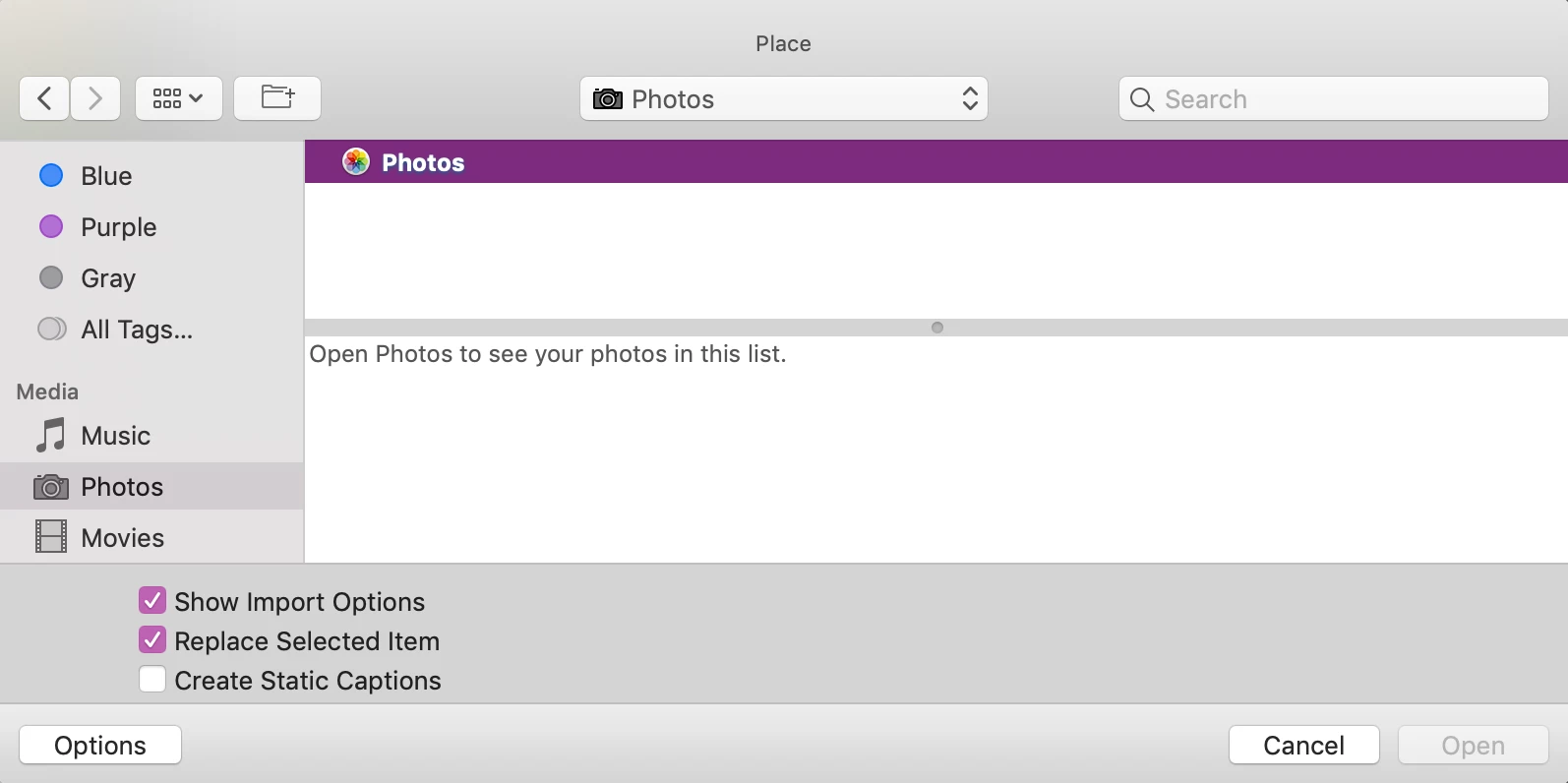


I also tried to go thru Bridge, navigating through pictures to the Photos Library, but it wants to open Photos instead of letting me navigate to a folder inside Bridge. Any help would be appreciated.


macOS Mojave 10.14.6

Adobe ID 2020 15.0.2

    This topic has been closed for replies.
    Correct answer Dave Creamer of IDEAS

    For newer images, I believe Apple is now using HEIC (and HEVC) compression--although it won't convert older images. I do not think ID supports those formats yet. If this is the case, you can use a batch conversion with either Photoshop, Bridge, or Adobe Media Encoder.

    6 replies

    Participant
    May 14, 2020

    i just want to empathize about how maddening and un-intuitive this whole mac Photo/indesign incompatibility is. [don't get me started on what iphoto did to my decades old archive] but my quick work around is to just drag the photo(s) i want to add out of Photos onto my desktop. they instantly become a jpeg and then i can drag them into my indesign file. i know this may not be suitable for all situations but if you are trying to quickly add them, this works.

    rob day
    Community Expert
    Community Expert
    May 15, 2020

    I would consider using Bridge or Lightroom for asset management. Apple’s Photos seems designed to fill the startup disk, and make editing with Adobe products very difficult.

    Dave Creamer of IDEAS
    Community Expert
    Dave Creamer of IDEASCommunity ExpertCorrect answer
    Community Expert
    March 8, 2020

    For newer images, I believe Apple is now using HEIC (and HEVC) compression--although it won't convert older images. I do not think ID supports those formats yet. If this is the case, you can use a batch conversion with either Photoshop, Bridge, or Adobe Media Encoder.

    David Creamer: Community Expert (ACI and ACE 1995-2023)
    Steve Werner
    Community Expert
    Community Expert
    March 8, 2020

    You're correct about InDesign not recognizing HEIC images. If you look at my screen capture, the JPEG files show black and  the HEIC images show but are grayed  and not selectable for placing in InDesign:


    Dave Creamer of IDEAS
    Community Expert
    Community Expert
    March 8, 2020

    Correct--but it wasn't explicity stated in the text of the post so I thought it should clearly stated. Of course, I don't know if that is the actual issue or not. 


    (Also, screen captures are really tiny on a 4K monitor--your first screen capture was about 1/12 the size of my 27 inch monitor. Too small for me to see much detail without knowing what to look for. 😁)

    David Creamer: Community Expert (ACI and ACE 1995-2023)
    Steve Werner
    Community Expert
    Community Expert
    March 8, 2020

    The Media Browser feature has been around in InDesign on a Mac since 2009 because here's a post by David Blatner in InDesignSecrets.com about it:


    https://indesignsecrets.com/using-the-mac-os-media-browser-in-indesign.php


    Here's a tech support article from Apple about why photos may not appear in the Media Browser:


    https://support.apple.com/en-us/HT204669


    The previews must be located on your Mac, not in iCloud. 


    Participant
    March 8, 2020

    Yep, everything is located directly on the machine I'm trying to pull from – nothing is in the cloud.

    Steve Werner
    Community Expert
    Community Expert
    March 8, 2020

    Does it happen only in one file or in all files? If only one file, you can try saving the InDesign file as IDML and reopening to deal with corruption.


    If all files, try restoring your InDesign preferences:


    Set preferences in Adobe InDesign - Adobe Supporthelpx.adobe.com › indesign › using › setting-preferences


    If neither of those work, see if it works in other Adobe or non-Adobe applications. If it does not, then it may be a problem about which to ask in the Apple forum.

    Steve Werner
    Community Expert
    Community Expert
    March 8, 2020

    I'm running Catalina (10.15.3) and latest InDesign (15.0.2), and I still have the MEDIA section appear in my Place dialog which has been there through different versions of InDesign and OS X. It appears like this:


    Choosing from the Photos app gives me all the images in Photos as .JPG files which appear at their original resolution from my iPhone.


    I know some people don't see this sometimes, and I've never investigated it, but it's been available for a long time.

    Participant
    March 8, 2020

    Yes, this is exactly what I'm trying to do - but the photos will not display or render in the place window so that I can select one to place.

    rob day
    Community Expert
    Community Expert
    March 8, 2020

    To get at the Photos images you would have to right click the Photos icon and choose Show Package Contents:


    The images are stored in the Masters folder, and if you can find them, you could drag and drop them into an InDesign layout. After choosing Show Package Contents, you should be able to navigate into the Photos folder via Place. I’m guessing that in the end it will be easier to simply export the images you want to use:


    Participant
    March 8, 2020

    Thank you, I tried this, but of course the masters folder is not as easy to navigate as the albums in Photos.

    Barb Binder
    Community Expert
    Community Expert
    March 8, 2020

    I just export the photo I want to use from the Photos app on my MacBook (File > Export), move it to the Links subfolder in my project folder, (then correct the image in Lightroom or Photoshop, but of course you can skip that), and then use File > Place to add it to my InDesign layout.


    I don't think there is a way to import the image into InDesign without exporting it first.


    ~Barb

    ~Barb at Rocky Mountain Training
    Participant
    March 8, 2020

    Thank you. This is how I have been doing it, but I have 1000s of photos to work with and this is a quite a few extra steps to go through everytime I find what I need. Not to mention, it duplicates the files on my machine when it exports from Photos. I liked having the ability to link the image where it was while I built the project in ID, then package contents to a project folder once I selected all the images.

    rob day
    Community Expert
    Community Expert
    March 8, 2020

    If you are doing a lot of InDesign/Photoshop work you might consider moving to Bridge or Lightroom for content management. You can drag and drop from Bridge into an ID layout, and Bridge acts more like the Finder—you are not forced by the app to store the assets in one place, or save duplicates. I gave up on Photos years ago, the Adobe content management apps are much better.