
Known Participant
May 19, 2020
Answered

Indesign Workspace Separated

  • May 19, 2020
  • 4 replies
  • 2732 views

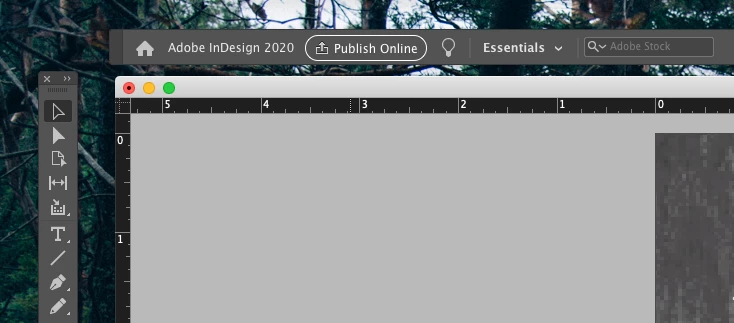
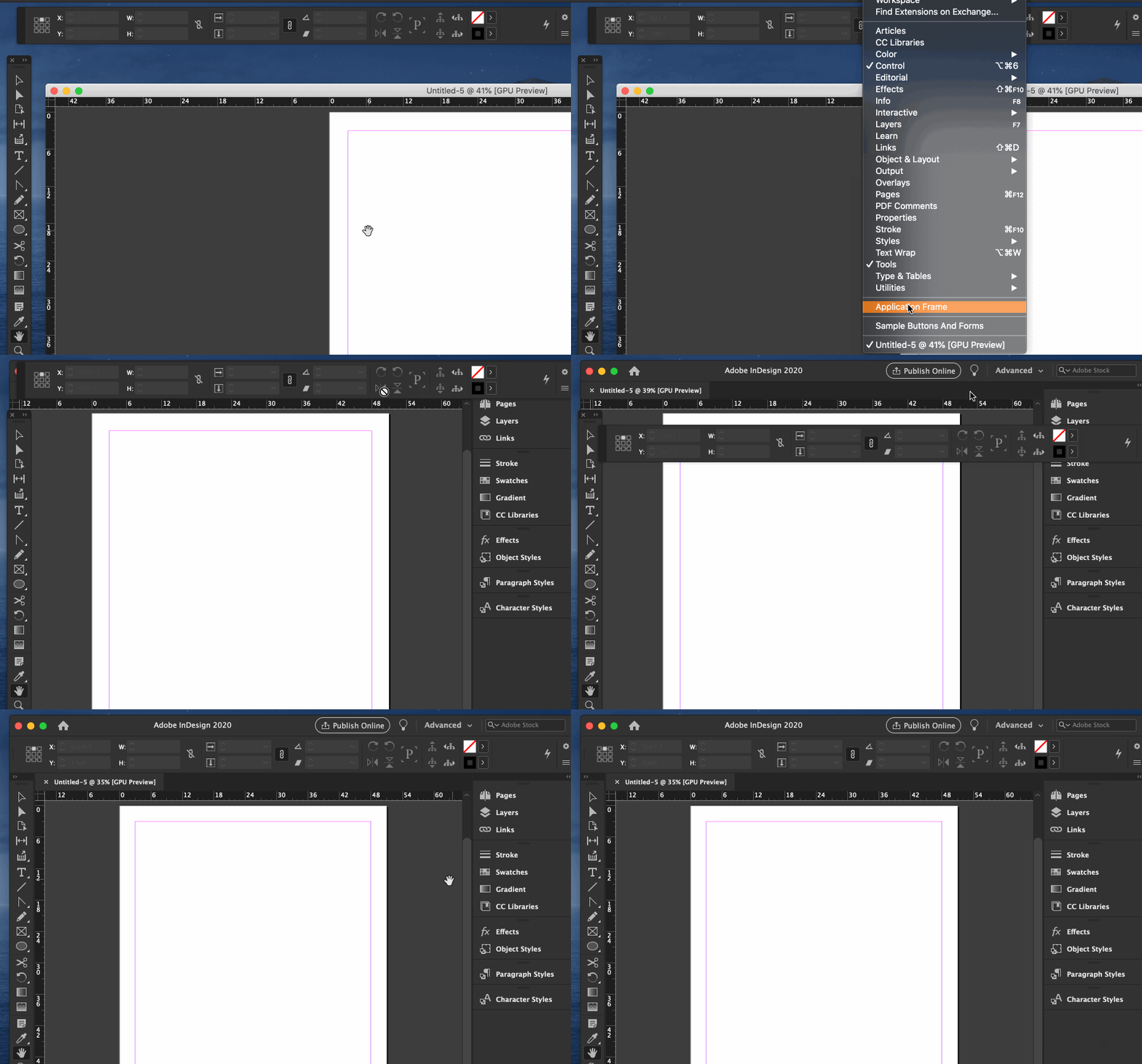
My InDesign panels and windows seem to be disconnected and I can't seem to get my workspace back to normal. I've tried resetting my workspace, dragging and dropping, restarting the program altogether, going into display settings etc and can't seem to find the root issue. Does anyone know a way to help get my workspace back to normal. For context, the properties, character, paragraph, swatches and other panels that normally appear on the righthand side are also missing or disconnected.


Thanks!
This topic has been closed for replies.
Correct answer Barb Binder

You just need to enable the Application Frame in Windows menu, then reset the workspace.


~Barb


4 replies

Ashutosh_Mishra
Inspiring
May 22, 2020

Hi there,


Sorry to hear about your experience. I hope your issue is resolved now. If it is, I'd request marking the answer correct.
Manan, Bill and Barb have given great suggestions in earlier responses.
If you still have issues, You may try steps below:

  • Close all adobe applications 
  • Go to Locations:  
  • ~/Library/Caches 
  • ~/Library/Preferences 
  • Rename Adobe InDesign and com.adobe.indesign to Adobe InDesign.old and com.adobe.indesign.old 
  • Launch InDesign from the CC 


**Please note that resetting preferences will remove all the custom settings and InDesign will launch with default settings. This way all your old settings will be saved in .old folders and InDesign will recreate new folders with default settings.


You may also check out more information about Application Frame on https://indesignsecrets.com/learn-love-application-frame.php
Hope it helps.


Regards,

Ashutosh

Barb Binder
Community Expert
Barb BinderCommunity ExpertCorrect answer
Community Expert
May 19, 2020

You just need to enable the Application Frame in Windows menu, then reset the workspace.


~Barb


~Barb at Rocky Mountain Training
Participant
March 28, 2023

thank you

Bill Silbert
Community Expert
Community Expert
May 19, 2020

Problems with the interface can usually be fixed by trashing your InDesign cache files which is not the same as trashing preferences.

To do so:

For Macintosh Users: The User Library folder in which InDesign’s cache files are stored is hidden by default on most Macintoshes. To access it make sure that InDesign is closed and click on the desktop to launch a Finder Window (Command-N). With this window in column view follow the path User>Home folder (it’s the folder with an icon that looks like a house—it may have the user’s name rather than “Home”) and click on the Home folder. With the Option Key pressed choose Library from the Finder Go Menu. “Library” will now appear within the Home folder. Within the Library folder find the “Caches” folder. Within the Caches folder find and delete the entire folder “Adobe InDesign”. I find that deleting the InDesign cache folder completely leads to a lasting change.

For Windows Users: On Windows 7 and above the caches files are hidden. To find them go to the Control Panel and open Folder Options and then click the View tab. Then select “Show hidden files and folders” or “Show hidden files, folders or drive options” in Advanced Settings. Then delete (or rename) the folder at the end of this path: C:\Users\[User Name]\AppData\Local\Adobe\InDesign\Version [#]\<Language>\Cache.

Community Expert
May 19, 2020

Try resetting the preferences


-Manan

-Manan