Participant
January 31, 2023
Answered

Inner Crop Mark

  • January 31, 2023
  • 4 replies
  • 1690 views

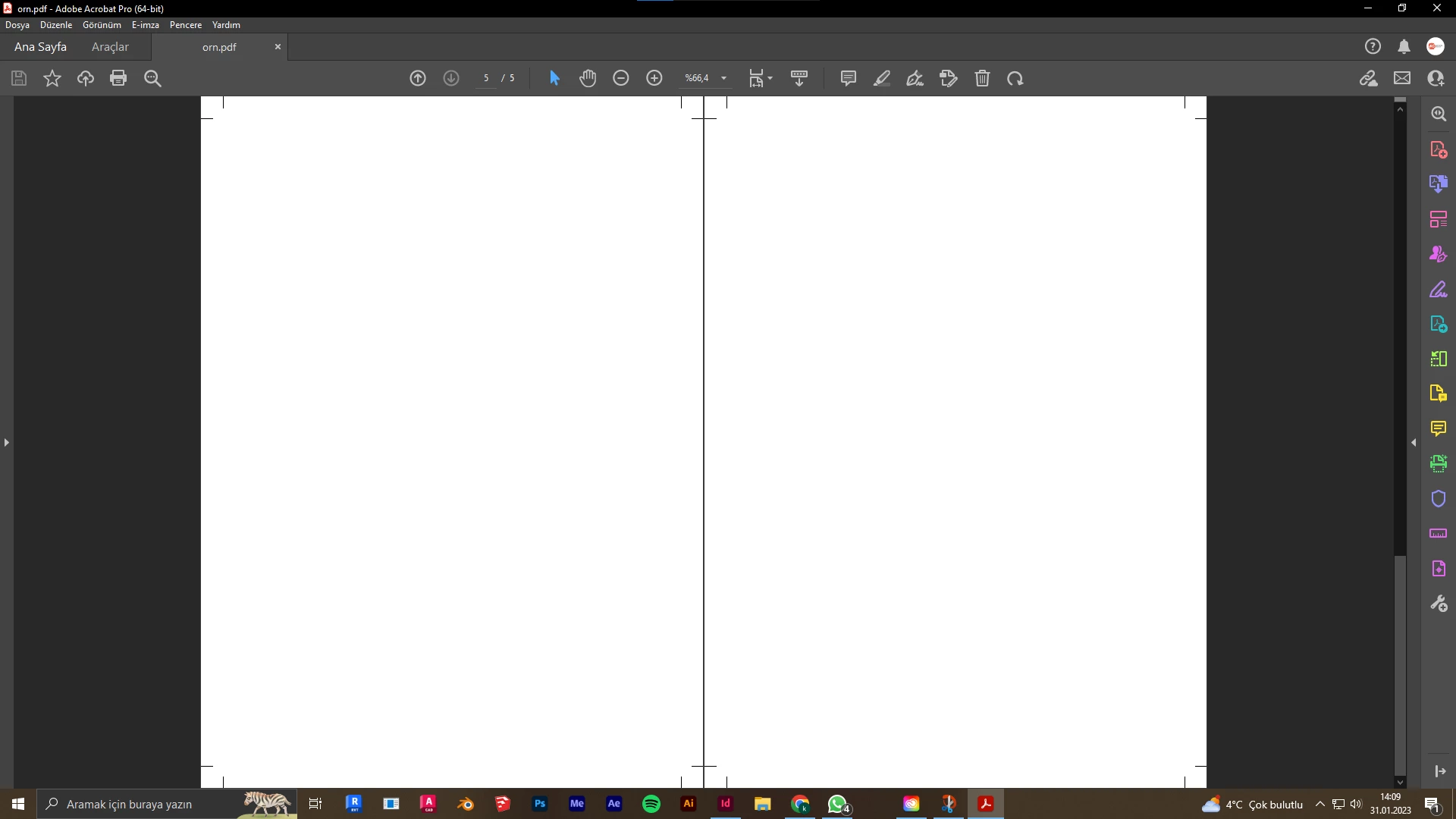
I have a problem while using Adobe Indesign product exporting. Even though my inner crop mark is 0 mm, there is always a 5 mm crop mark inner side. Also this the newest version of product. It is the same situation on another computer or another document. Indesign is not detecting my document in dual page view. How can i solve this problem quickly?


This topic has been closed for replies.
Correct answer Luke Jennings3

No. You are confusing the bleed amount with the offset for crop marks. You can set the bleed distance independently for each side, but crop marks are set to a single offset amount from the trim edge, controlled by the offset filed in the upper right corner of the export dialog.

Crop offset should always be set to a minimum of the largest bleed allowance to be sure the marks cannot appear in the trimmed document in case of a cutter misalignment. Your PDF page size will always be equal to the trim size of the document, plus any bleed, plus any amount of offset larger than the bleed plus the length of the crop marks. You cannot eliminate extra page area in the PDF unless you eliminate marks.


You will need to manually add crop marks, as Peter has already stated. Here is a link to a related discussion, with instructions to create a pdf with no bleed or crop marks on the inside:

https://community.adobe.com/t5/acrobat-discussions/booklet-and-bleed/m-p/9737476

 

4 replies

Participant
August 9, 2023

Marking light room 

Community Expert
January 31, 2023

@Berna Üstündağ said: "Even though my inner crop mark is 0 mm, there is always a 5 mm crop mark inner side."


Hi,

I do not think you can avoid that.

We have no individual control for the distances of the crop marks to the crop area.

Just one single setting for all. In your case that's the 5 mm you set.


Regards,
Uwe Laubender
( Adobe Community Expert )

Participant
January 31, 2023

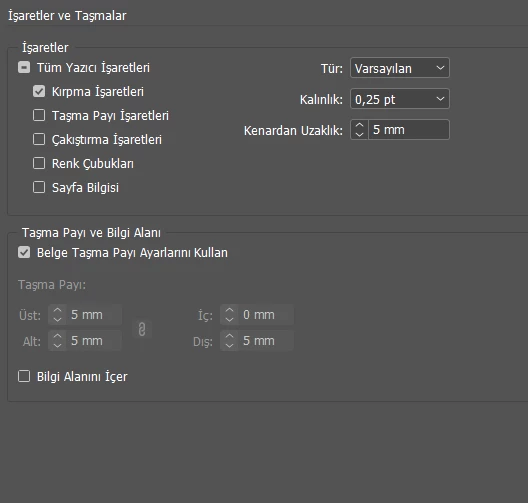
Actually there are different options for the distances of the crop marks (top, bottom, inner and outer). You can see on my screenshoot. 

Luke Jennings3
Community Expert
Luke Jennings3Community ExpertCorrect answer
Community Expert
January 31, 2023

No. You are confusing the bleed amount with the offset for crop marks. You can set the bleed distance independently for each side, but crop marks are set to a single offset amount from the trim edge, controlled by the offset filed in the upper right corner of the export dialog.

Crop offset should always be set to a minimum of the largest bleed allowance to be sure the marks cannot appear in the trimmed document in case of a cutter misalignment. Your PDF page size will always be equal to the trim size of the document, plus any bleed, plus any amount of offset larger than the bleed plus the length of the crop marks. You cannot eliminate extra page area in the PDF unless you eliminate marks.


You will need to manually add crop marks, as Peter has already stated. Here is a link to a related discussion, with instructions to create a pdf with no bleed or crop marks on the inside:

https://community.adobe.com/t5/acrobat-discussions/booklet-and-bleed/m-p/9737476
 

Peter Spier
Community Expert
Community Expert
January 31, 2023

That said, it's really impossible to tell what's going on from the screen shot of a blank page. Crop marks will always be added on all four sides outside the page area and increase the size of the media in the PDF. If you don't want to have inside crop marks showing on your PDF add a slug on three sided to the layout and manually draw crop marks where you want them in the slug area on your Parent/Master pages, then turn them off in the export dialog while checking the box to include the slug area.

Participant
January 31, 2023

I actually have tried with shapes on blank page. There are different crop mark settings for inner and outer. (for inner 0 mm, for outer 5 mm) But it is still included inner crop mark


Peter Spier
Community Expert
Community Expert
January 31, 2023

It looks to me like your document bleed settings (which are defined in the document setup dialog and selected by the checkbox in the export dialog) are actually set to have the same inside and outside bleed .