Alexandre Brandt
Inspiring
December 30, 2018
Answered

Is my document actually centered for proper folding ?

  • December 30, 2018
  • 3 replies
  • 3744 views

Hello all,

So I've got a layout I made for a printed pamphlet. It's an A5 pamphlet, printed on A4 which is folded.

Below is an export with the fold & crop marks. Things seem correct.
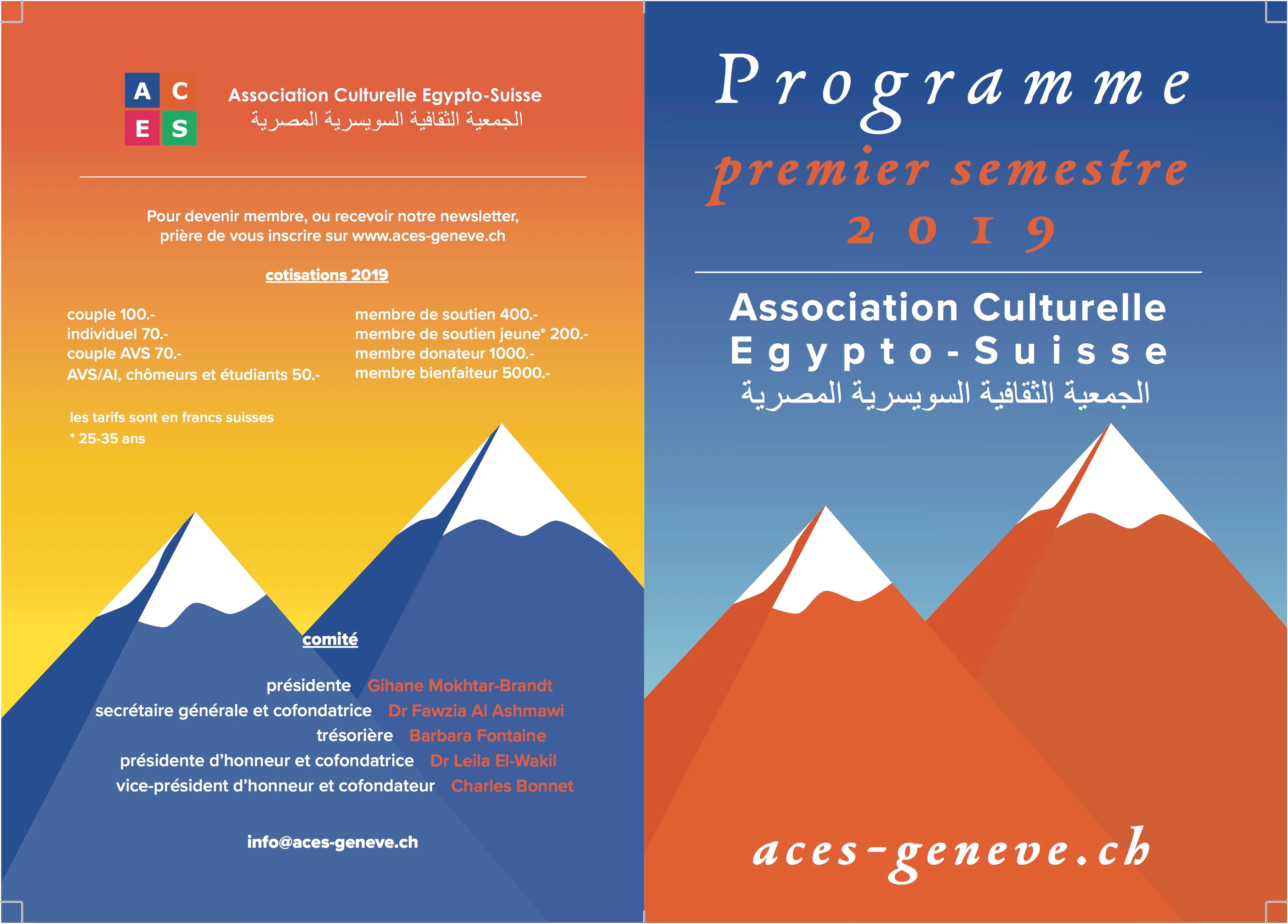
I got the proof print to check things are good before production. I realize that when folding the sheet, the print is not exactly centered.

The back page (on the left) creeps over the fold on the 1st page (right).

When I check the rulers the InDesign document, I do notice something, however.
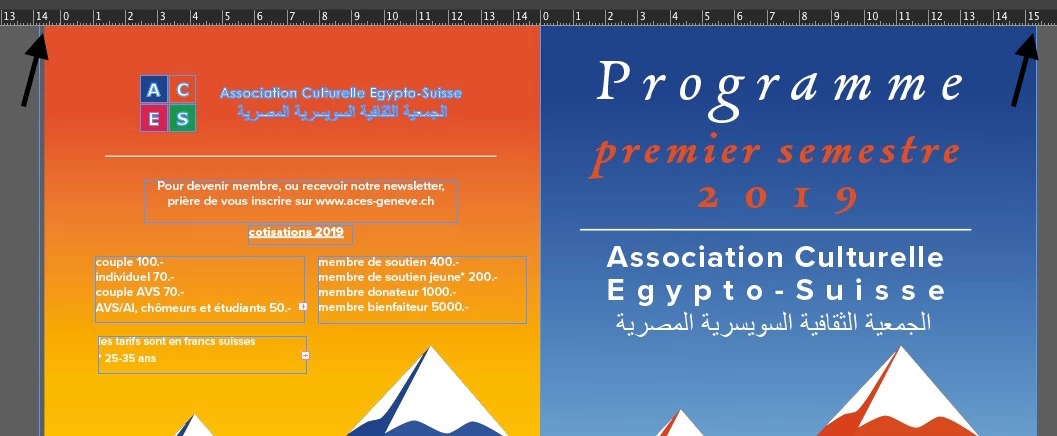
On the left side I've got 15cm + 7mm

On the right side, there is 15cm + 3mm

You can see that with the black arrows.

That means that the right and left page don't have the same width.

I'm confused...

Can someone shed some light?
    This topic has been closed for replies.
    Correct answer rob day

    Hey Chad,

    Thanks for the tips.

    I was able to change the page numbers. But the spreads are still not aligned to the spine


    But the spreads are still not aligned to the spine

    It really shouldn't be necessary for you to construct printer spreads in the page layout. Any competent printer would be able to impose your reader pages at output, and shouldn't be asking you to do it.

    So rather than fighting InDesign, you can just layout and export reader pages, and let the printer setup the press sheet as printer spreads when they make plates.

    3 replies

    Lorrieann
    Inspiring
    February 21, 2023

    When I set up spreads like this, I turn the bleed off on the adjoining edges.   When I set my bleed for those pages I untick the 'link' and set each edge individually, making the joined edges 0.  This prevents on page bleeding into another, and puts the fold right where I want it.     

    rob day
    Community Expert
    Community Expert
    December 30, 2018

    Can you share the ID document via Dropbox or your CC account?

    Alexandre Brandt
    Inspiring
    December 31, 2018

    Hello Rob,

    Thanks for offering your help.

    I sent you a PM with a CC link to the file.

    Alexandre

    rob day
    Community Expert
    Community Expert
    December 31, 2018

    with a CC link to the file:

    Adobe Creative Cloud

    I don't see a problem—the trimmed pages are equal widths.

    However, you haven't extended the artwork on the left page completely to the bleed, so if you are trying to fold or measure a proof that includes the bleed the pages would be uneven.

    It doesn't seem likely that will be a problem with a 4 page document—the printer should be able to hit the trim mark when they trim, but you might want to note that to the printer:

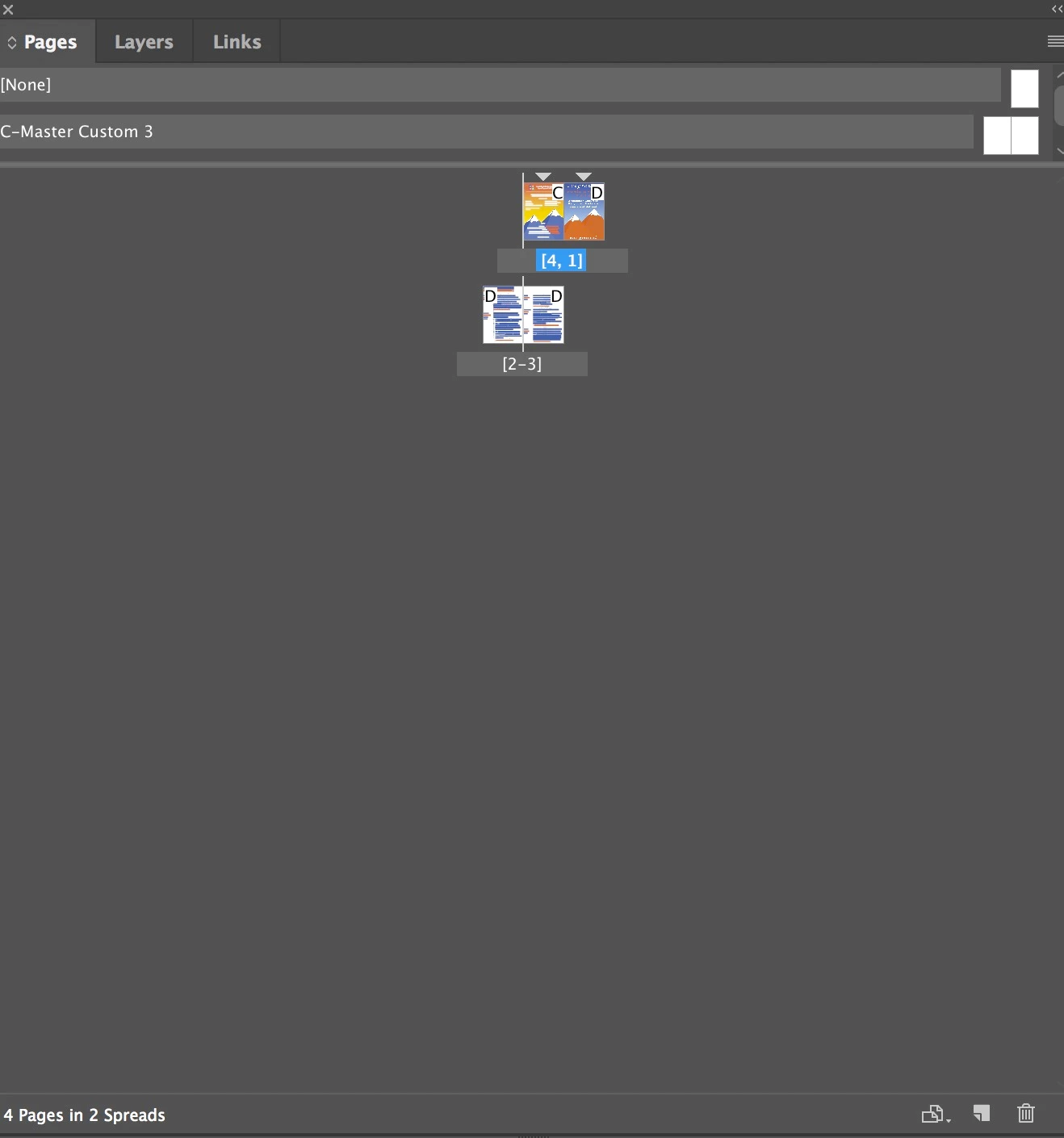
    Also, you've set the cover and back cover pages up as a gatefold—both pages are to the right of the spine. I don't think that is a problem in this case, but you could have set the front and back cover spread pages so the fold is on the spine.

    Select all the pages in the Pages panel and uncheck Allow Selected Spreads to Shuffle and Allow Document Pages to Shuffle from the panel flyout. Then in the panel you can move the spread to the spine:

    Derek Cross
    Community Expert
    Community Expert
    December 30, 2018

    Why not put a guide in at 148mm (not including bleed) and align your images to it.

    Also, your crop marks should not overlap on to the image – how to offset them was explained to you in your previous post.

    If you're printing to your own desk-top printer it will need to be able to print a larger sheet than A4, to allow for bleed. And you may have problems registering the back up duplex printing on an office printer.

    Alexandre Brandt
    Inspiring
    December 31, 2018

    Hello Derek,

    Thanks for your suggestions but there are a few things I don't understand.

    Before I go into the details, I'd like to say that the InDesign document I used, is from a pamphlet I designed earlier this year which I got printed at the same printing company in 300 copies. There was no issue regarding bleeds and folds. So when designing the 2019 version I started working from a copy of my previous Indesign project so start on good grounds.

    Regarding the guide at 148mm. I don't understand why I would align my pictures to the corner with a guide. Can't I trust the Indesign document set up to be correct regarding document size and center and place my images accordingly on the A5 page ??

    Regarding crop marks. Before going into the details, I'd like to underline that what the printing company is asking to deliver as a PDF document is : two different PDF documents, one for one side of the A4 sheet (with page 4 and 1) and one PDF for the other side of the sheet with page 2 and 3. I believe that's a pretty standard way in the printing industry, hens the spread system in Indesign.

    I went back to your previous comments on my other posts, that's what you wrote:

    Just to add to Bob's suggestion – that's two A4 landscape pages (pages 4 and 1 for one side and pages 2 and 3 for the other) with 3mm bleed on each edge. Untick Facing pages, and increase the margins to suit the design you've shown.

          Place your images in RGB color mode and export your document to PDF, using the InDesign Preset PDF/X-4 (unless you've been given a different spec by your printer), tick Crop Marks and tick Use Document Bleed Settings, both found under the Marks and Bleeds tab in the Export Adobe PDF dialogue box"

    I currently got 5mm bleed on each edge. That's what the printing company is asking me.

    I did have the *Facing pages ticked" on and I just unticked that but I didn't see any changes in my Indesign document, neither on the page window or the artwork itself. But again, here I don't understand why I would untick that if the aim is to output two sheets with facing pages... as mentioned above and why I insist using spreads and not individual pages.

    For the margins. Are you saying margins to prevent the text from being to close to the edge? Or are you talking about other margins ?

    Then you say that I place my images in RGB color. Again, here it doesn't make any senses to work in RGB color if I'm designing for CMYK printing. My images are an illustrator document that has been set up in CMYK as well. In any case, RGB and CMYK color mode should not be impacting bleeds and crop marks, would it ??

    When I exported I did tick "Crop Marks" and "Use Document Bleeds Settings".

    I just re-exported now with following your indications to check what results I would get. Below is the first page.

    There are two clear problems.

    1. I'm only getting separate pages and not spreads which is what I need to deliver to the printing company.

    2. As you can see on the left, page 1 is bleeding over page 4...

    It seems to me that my way of exporting was closer to an actual working PDF.

    I'm sorry to say but the crop marks overlapping in my previous export is less of an issue that the current what I get when following your guideline.

    I'm open to trying things out but I wanted to explain with all the above that what you are suggesting is just not working.

    Derek Cross
    Community Expert
    Community Expert
    December 31, 2018

    You can either set this 4 page leaflet up as four A5 upright pages or two A4 landscape pages – the choice is yours.

    Regarding why 148mm, that's half of A4 landscape (A5).

    You don't need to bother with margins with the design you have shown if it confuses you.

    When you export from RGB using PDF/X-4 it converts the document to CMYK (this is the correct way to do the conversion).

    Much of what you ask about was dealt with when you posted these questions a week or two ago.