Participating Frequently
December 11, 2017
Answered

ISOnewspaper26v4 profile ink limit issue once exported from Indesign

  • December 11, 2017
  • 4 replies
  • 9655 views

Hi

This has been a long existing irritation for me. The issue I have is that the ink limits viewed in Acrobat do not match what I have in Photoshop and InDesign.

Here is my workflow:

1 - In photoshop "convert to profile" all images using the ISOnewspaper26v4 profile.

2 - Check the ink limit in Indesign through the Flattener Preview (note that I am selecting the ISOnewspaper26v4 under "View" - "Proof setup")

3 - Export the PDF using the ISOnewspaper26v4 profile

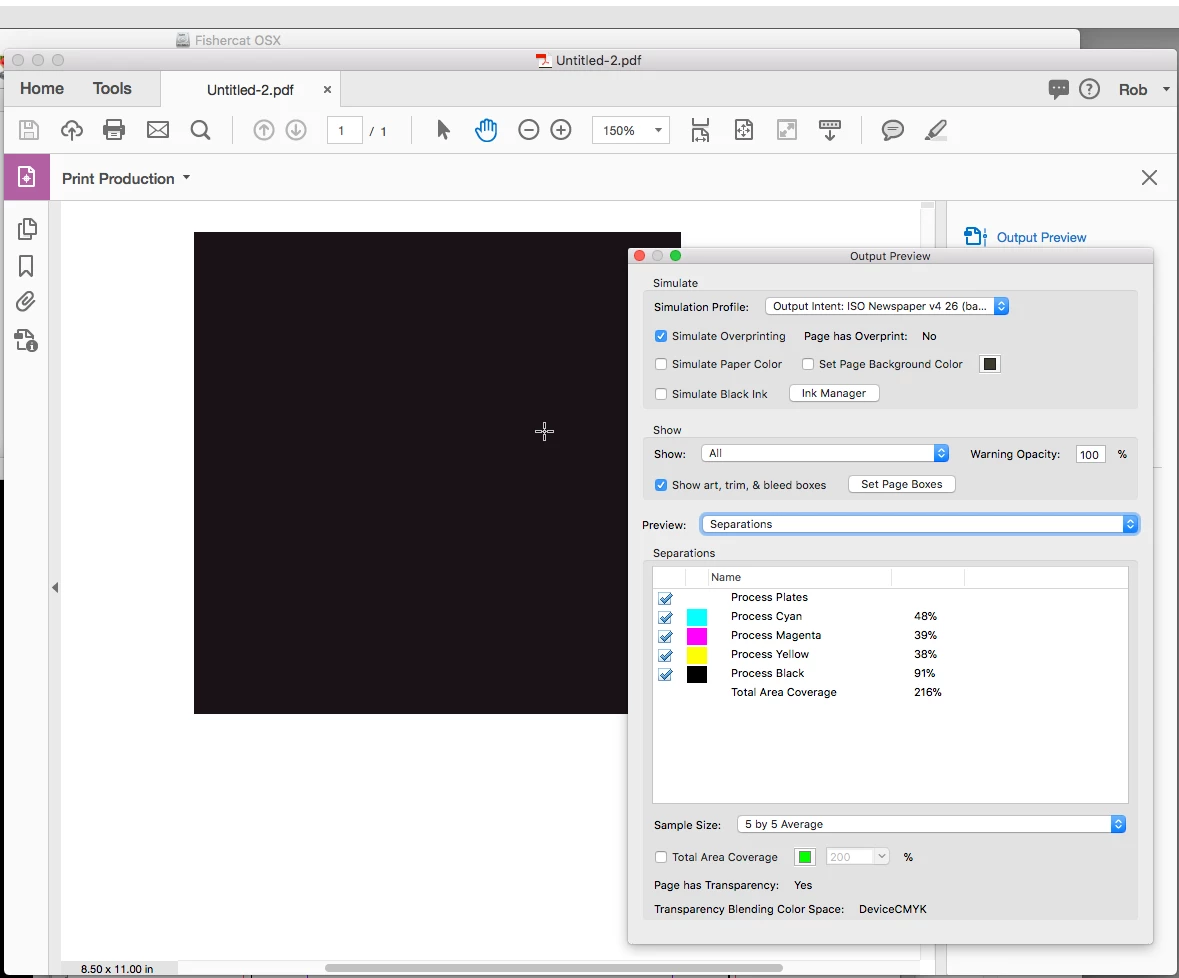
4 - View the Total Area Coverage in Acrobat 9 (set to 200) and it is higher than what I see in Photoshop and InDesign (note I also select the ISOnewspaper26v4 profile in the Simulation Profile menu).

I have tried numerous combinations of colour conversion settings in InDesign and nothing I do yields the correct results.

I also have the same issue with the Pass4Press profiles, despite following the documentation that illustrates all the correct settings.

Conversely, the only profile that actually works as expected is the NewspaperAds_1v4_IND4 profile. It even automatically selects the correct Colour Conversion profile in Acrobat.

So, any ideas? The fact that one profile works makes me believe that there isn't anything wrong with my workflow, but maybe I am wrong?

Thanks in advance
    This topic has been closed for replies.
    Correct answer rob day

    Despite looking at the help above I am still having ink limit issues.

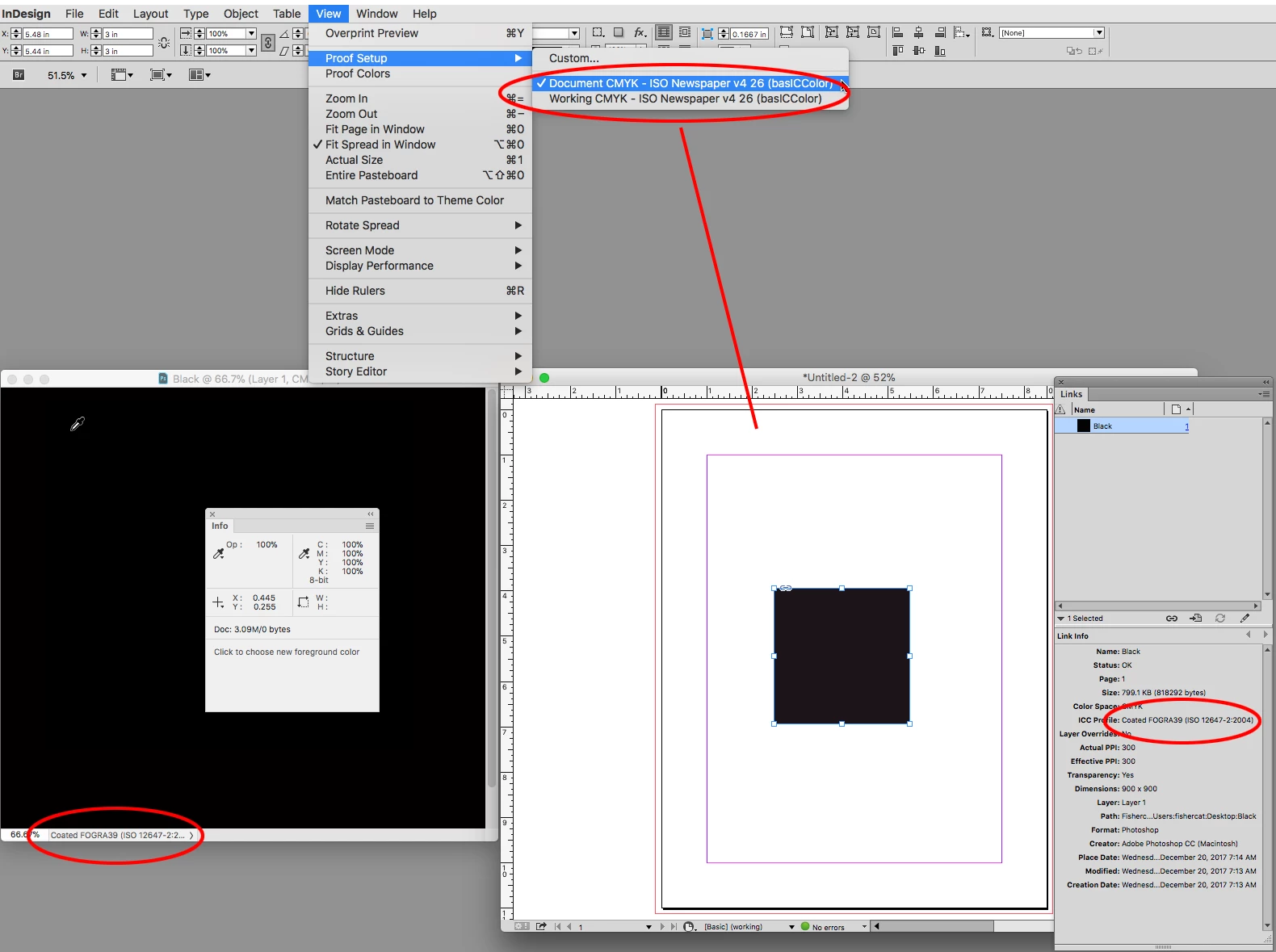
    I performed a test by creating a simple PS file with a white background and a shape layer with 400% colour fill (cmyk Fogra)

    I then placed this into a new InDesign document and went to "Edit" - "Assign Profile" and selected "ISOnewspaper26v4" in the CMYK profile section.

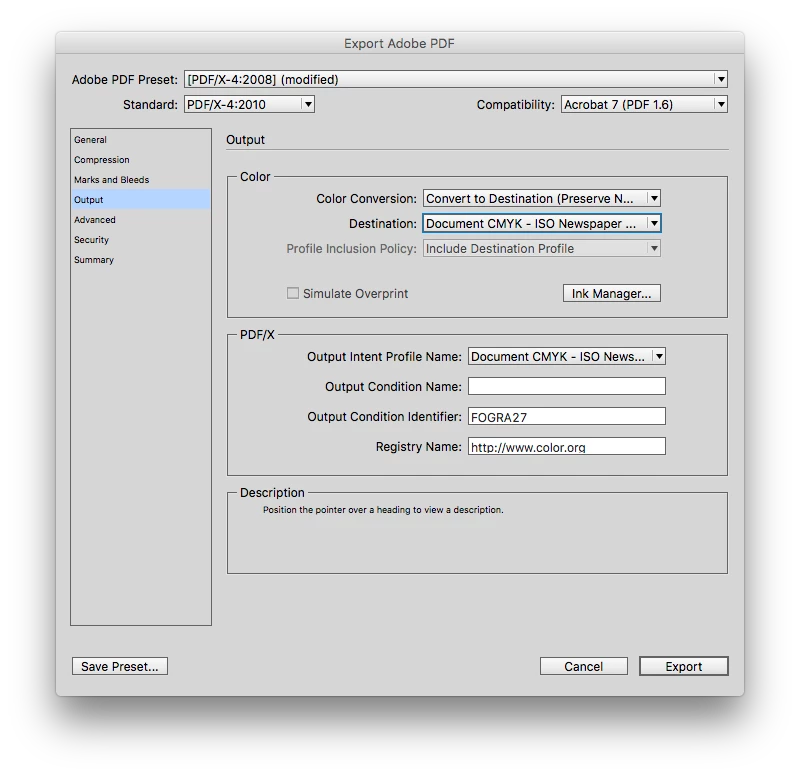
    I export a pdf with colour conversion set to "convert to destination (preserve numbers)" and destination set to "document CMYK - ISOnewspaper..."

    When you look at the ink limit in the pdf it's still 400%. Same result if I use "Destination ISOnewspaper26v4".

    If it had worked correctly I would have expected the ink limit to have been reduce to 240 (as it would if I had "Converted to profile" in Photoshop.

    Most of the images I work with have already been converted to Fogra 39.


    I performed a test by creating a simple PS file with a white background and a shape layer with 400% colour fill (cmyk Fogra)

    If you really have no choice and are forced to place Fogra images, you have to make sure the Fogra profile is embedded with the image, and ID honors that profile in order to get a conversion on export.

    So when you save the black test make sure you check include profile. Also, when you create the InDesign file, make sure the Color Settings CMYK Color Management Policy is set to Preserve Embedded. If you choose either Off or Preserve Numbers (Ignore Linked Profiles) then ID will ignore any embedded profiles and you will not be able to force the conversion to the newsprint on export.

    4 replies

    rob day
    Community Expert
    Community Expert
    December 20, 2017

    This has been a long existing irritation for me...

    If it had worked correctly I would have expected the ink limit to have been reduce to 240 (as it would if I had "Converted to profile" in Photoshop.

    Also, the Color Settings CM Policy setting is saved with the document when it is created, which could be creating problems for existing documents in your workflow, where placed CMYK images could have their profiles ignored and wouldn't get converted on export.

    You can easily change an existing document's profile assignments via Edit>Assign or Convert to Profile, but the CM Policies are harder to change. You have to turn on the Ask warnings in Color Settings and create a conflict in order to change the document's policy when it is opened. This can be a real pain in a high volume workflow. It's easier to make the change via scripting.

    rob day
    Community Expert
    Community Expert
    December 20, 2017

    The ink limits are only enforced when you make the conversion to CMYK—there’s nothing in the profile that stops you from exceeding the limit with a post conversion edit in either PS or ID. If you make a be RGB doc, fill with 0|0|0, then convert to your newsprint profile, the ink limit will be honored.

    You could convert from fogra to the newsprint profile and get the limit, but in general that’s bad practice. You really want to keep the images as RGB until you know the destination.

    rob day
    Community Expert
    Community Expert
    December 11, 2017

    Also watch out for transparency, some blending mode color combinations can exceed ink limits.

    rob day
    Community Expert
    Community Expert
    December 11, 2017

    1 - In photoshop "convert to profile" all images using the ISOnewspaper26v4 profile.

    You don't have to make the conversion in Photoshop. If you assign the ISOnewspaper26v4 profile to your InDesign Document via Edit>Assign Profiles, you can place RGB images and make the same conversion on export when you set the Output>Destination to Document CMYK (which will be ISOnewspaper26v4 because of the assignment). This will lessen the chance of an additional CMYK-to-CMYK conversion somewhere in the workflow due to conflicting profiles.

    If you are uncomfortable placing RGB, use Preserve Numbers (Ignore Linked Profiles) as the InDesign Color Setting's CMYK Policy when you create the document. Again make sure the document assignment is ISOnewspaper26v4 and export to Document CMYK.

    Also when you export use one of the PDF/X presets. If you want to force an all CMYK PDF use the PDF/X-4 preset with DocumentCMYK as the Destination

    Participating Frequently
    December 14, 2017

    Thanks for this, I haven't had time to experiment yet but I will post my results when I do.

    Also, as an FYI, I made a typo in my first post. The ink limit for the newspaper profiles is 240.

    rob day
    Community Expert
    Community Expert
    February 1, 2018

    Thanks for looking at this Rob.

    Firstly, I don't understand why the link was showing as missing. Also, I can't recreate a situation where the missing links info is looking for RGB. Mine states the SWOP profile (I'm using 2018 FYI).

    As for the working space. I was under the impression that the working space didn't matter when you manually selected the image's colour settings?

    "If I open your .PSD CMYK file in Photoshop its profile assignment is US SWOP Coated, but I'm pretty sure the SWOP profile wasn't used to make the conversion because the black pixels are running around 330% and SWOP has a limit of 300%:"

    Maybe this is where the problem lies?

    "So I'm guessing in order to get the 300% total ink limit in your PDF X-1a, you set your InDesign CMYK Working Space to US SWOP Coated or something other than  ISOcoated_v2_300_eci and forced a CMYK conversion of all the CMYK color by setting the Destination to ISOcoated_v2_300_eci?"

    I left my working space as Fogra 39. Manually changed the image's colour settings to US SWOP V2, then exported using the ISOcoated_v2_300_eci (convert to destination preserve numbers).

    I have now tried again, but changing my working space to US SWOP Web Coated V2 and honouring colour profiles, then exported using ISOcoated_v2_300_eci and I still get limits over 300%. I also tried again after converting the image to US SWOP V2, but this yielded the same results.

    Interestingly, when I export the exact same file using ISOnewspaper26v4 the ink limit is below 20% as expected.

    Could there be an issue with the profile itself?


    I left my working space as Fogra 39. Manually changed the image's colour settings to US SWOP V2, then exported using the ISOcoated_v2_300_eci (convert to destination preserve numbers).

    The reason I brought up the document profiles and policies is it seems like you are fighting the color management system—sacrificing color appearance in order to fix some images that have been converted to the wrong CMYK space and may or may not exceed the press ink limit.

    When you setup a document headed for the  ISOcoated_v2 press, you want the document to have that profile assigned—it's the document's profile assignment and not the working space that color manages the native colors.

    Because you are getting a mix of different CMYK images with and without source profiles from clients, you want the CMYK Policy to be Preserve Profiles and not Preserve Numbers (Ignore Linked profiles). So the Color Settings before creating a document should be something like this:

    If you were to export this file to the default PDF/X-1a preset where the Destination is Document CMYK, the only potential total ink problems would be placed CMYK files with no embedded profile or files that have been edited after the conversion to exceed the limit.

    Images converted to ISOcoated_v2 with an embedded profile, would export with no conversion (numbers unchanged). All placed RGB or CMYK images with conflicting profiles will get converted to the destination's total ink.

    When the Policy is Preserve, only placed CMYK images with no profile get listed as DocumentCMYK in the links panel, so they are easy enough to find and it could be scripted.

    Your example image has US SWOP Coated assigned, so in this case you wouldn't have to do anything and it would get converted on export.