
Participant
January 26, 2023
Question

italics dropped for diacritic characters when importing Word docs

  • January 26, 2023
  • 5 replies
  • 2736 views

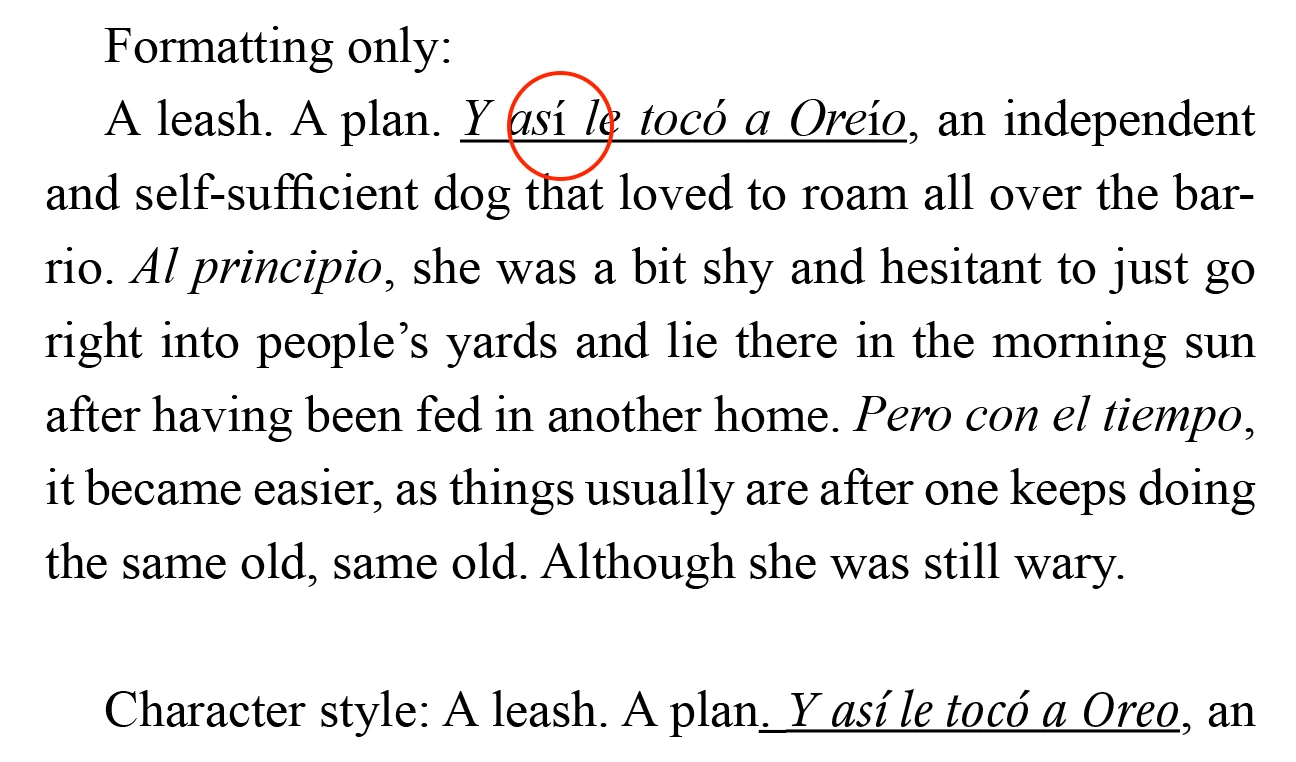
Problem: When importing Word documents (.doc, .docx, or .rtf) into InDesign, words that contained special diacritics such as “í” (accented lowercase i) and were formatted as italic, the í would come in roman. The Word document shows the entire word formatted as italic.


[Import options selected: “Remove styles and formatting” with “preserve local overrides” checked.]


A friend suggested that I apply a character style (called “italic”) with italics as its only attribute to the word. I explained that I didn’t want to import with “Preserve styles…” selected because I didn’t want all the garbage styles in my InDesign document. But I tried it and added that style to the word and it worked, even though I was still importing with the “remove styles” option selected! The word imported with the “italic” character style applied!


I’m glad that there’s a solution, but it shouldn’t have worked. I’m assuming I’m missing something. Has anyone encountered this and doesn’t anyone have an explanation?

This topic has been closed for replies.

5 replies

Community Expert
January 31, 2023

Hi together,

please vote for fixing the bug at InDesign Uservoice:


Word Import | BUG | Diacritic characters change language and formatting
Uwe Laubender, Jan 31, 2023
https://indesign.uservoice.com/forums/601180-adobe-indesign-bugs/suggestions/46249882-word-import-bug-diacritic-characters-change-la


FWIW: Could be that this one was already years ago at InDesign Prerelease.


Thanks,
Uwe Laubender
( Adobe Community Expert )

Rene Andritsch
Community Expert
Community Expert
January 31, 2023

Voted!

Community Expert
January 27, 2023

What worked for me:

I opened the docx file in Word, copied the text and pasted it formatted to InDesign.


To do that I temporarily changed InDesign's preferences:


Preferences > Clipboard Handling >

When Pasting Text and Tables from Other Applications

Paste:

[ x ] All Information (Index Markers, Swatches, Styles etc.)


InDesign document attached:

CopyPastedContentFromWord-INDD-v18.1.indd


Regards,
Uwe Laubender
( Adobe Community Expert )

Participant
January 27, 2023

If the problem does not occur with new blank document, please go to Styles (Ctrl + Alt + Shift + S) to check if there is a certain style set italic for content. You could also copy all content to a new blank document, then choose Keep Text Only in Paste Option. Reset the style for your papers.

Community Expert
January 27, 2023

Hi @Rene Andritsch ,

as far as I can see from the history of the provided InDesign document, it is saved with InDesign 18.1.0.51 on macOS 12.6.2.

Well, I can see the issue as well when I do the import of the docx file with my German InDesign 18.1.0.51 on Windows 10.

The import options are the default ones.


The file Explorer's preview of the docx file on Windows shows no issue:


My German InDesign import options; as far as I know, they are the defaults after you installed InDesign:


The imported text is showing the issue. Also fascinating that some of the character styles imported are with no name:


Below the list of character styles after the import to a totally new document. A list that I compiled using a script.

Num	ID	Name	Imported
0	124	[Ohne]	false
1	276		true
2	277		true
3	280		true
4	287		true
5	294	italic	true


So yes, that's the proof that character styles with no names can be imported.

And that character styles with the same name can exist in the root folder of the panel.


Hm. And here I see a known bug. The diacritic character was imported with the wrong language formatting. It turned to Arabic where all other characters are with language "English: USA".


Regards,
Uwe Laubender
( Adobe Community Expert )

Participant
January 27, 2023

Ah, thank you Uwe. I didn't know about that known bug. That said the language in my word doc shows as English. 


Community Expert
January 27, 2023

Yes it does. Your source document is formatted with language English (US).

InDesign is importing the diacritic character in Arabic. That's another bug.

Maybe also related to the other formatting bug.


Regards,
Uwe Laubender
( Adobe Community Expert )

Rene Andritsch
Community Expert
Community Expert
January 27, 2023

Can you please provide the InDesign version you are using and even provide a screenshot of the whole import options dialogue. That would be of great help. Im using version 18.1 and the diacritics carry over normally in italic. With the options “Remove styles and formatting” and “preserve local overrides” checked InDesign does not import the style but keeps the formatting in place where a style was applied.

Also: In your test document everything is in Times New Roman except for the things you wanted to test which is in Adobe Text Pro Italic which is the default font in this document. (which is missing if not installed)


As the import options are sticky, take care what the settings are. If “preserve local overrides” was unchecked first that would have brought in everything in Roman style.

It is also good practice to use Character and Paragraph Styles in Word Documents as those can be mapped to InDesign Styles with the last option at the bottom of the Import Options Dialogue.

Participant
January 27, 2023

I am using 18.1 as well on a Mac (Monterey 12.6.2). screen shot of import options attached. 

James Gifford—NitroPress
Legend
January 26, 2023

It's hard to say exactly what's going on here, but using defined styles for bold and italics is a pro-level move. Word has the nasty habit of creating bolded and italicized text using multiple sloppy methods, and only occasionally will actually substitute, say, Minion Italic for Minion Regular. And if a font only has one or two faces, it will just fake italics, bold, etc., and even "bold Bold" fonts. This can result in unusable text if Word's hacks don't represent exportable text.


I'd create two character styles, "Bolded" and "Italix" and use search/replace to change all app-applied styles for the defined ones.


You can also filter and map Word styles on import so that all those "garbage styles" aren't dragged in. Select Place, and in the file menu, check "Use Import Options." You will get a comprehensive import control menu. But cleaning up the Word doc first is — IMHO — the superior method.