
Participant
February 4, 2021
Answered

Italics spotty from imported Word documents

  • February 4, 2021
  • 7 replies
  • 3073 views

Hi Everyone,


I have a bit of a problem with imported Word files. This issue is new-ish to me, I never had it before a couple of month ago.


Some italicised text in the Word document (italicised with the "I" button) doesn't make it through after being imported into InDesign (import dialogue set to preserve incoming local overrides), the other instances are imported just fine.


I have tried troubleshooting this issue using different ID versions (from CC 2018 to CC 2021), fonts, paragraph language but none of these helped.


I attach a jpg which highlights the spotty behaviour (Word document in foreground, ID document with the newly imported document in the background) and a test Word document.


Do you have any suggestions? Any idea is VERY much appreciated, thanks!
This topic has been closed for replies.
Correct answer vladan saveljic

Try to save your word file as rtf and then place it in InDesign

7 replies

Willi Adelberger
Community Expert
Community Expert
May 30, 2021
  1. Did you work in Word with paragraph Styles and Character Styles? Both should be applied. Avoid manual formatting.
  2. Check if your used font has these characters defined. Some fonts are incomplete. Look into InDesign’s Glyph Panel. 
Brad @ Roaring Mouse
Community Expert
Community Expert
May 29, 2021

Soooo.. I tried a couple of things:

Other than the .rtf route, which works, I tried a couple of other things:

1. I saved the document backwards to an old-school .doc file, and it imported just fine.

2. I modified your Style for the footnotes in the original Word file to a different font (ANY font other than Palatino Linotype), and saved that as a .docx... THAT imported fine.


So, something doesn't like that Palatino Linotype

sunny.sunny
Inspiring
May 30, 2021

From my experience, I have to admit that .rtf is the safest solution.

Barb Binder
Community Expert
Community Expert
February 5, 2021

😂 

@vladan saveljic that is a much faster solution! Marking it as correct, as it worked with the test file.


~Barb 

~Barb at Rocky Mountain Training
Participant
May 28, 2021

Yes, that is a great solution for random italic losses but now the footnotes are lost when I import the rtf file into InDesign. Why is that happening?


Easty

vladan saveljic
Inspiring
May 28, 2021

you should check if the best result you get by placing doc, docx or rtf format for your file

Barb Binder
Community Expert
Community Expert
February 5, 2021

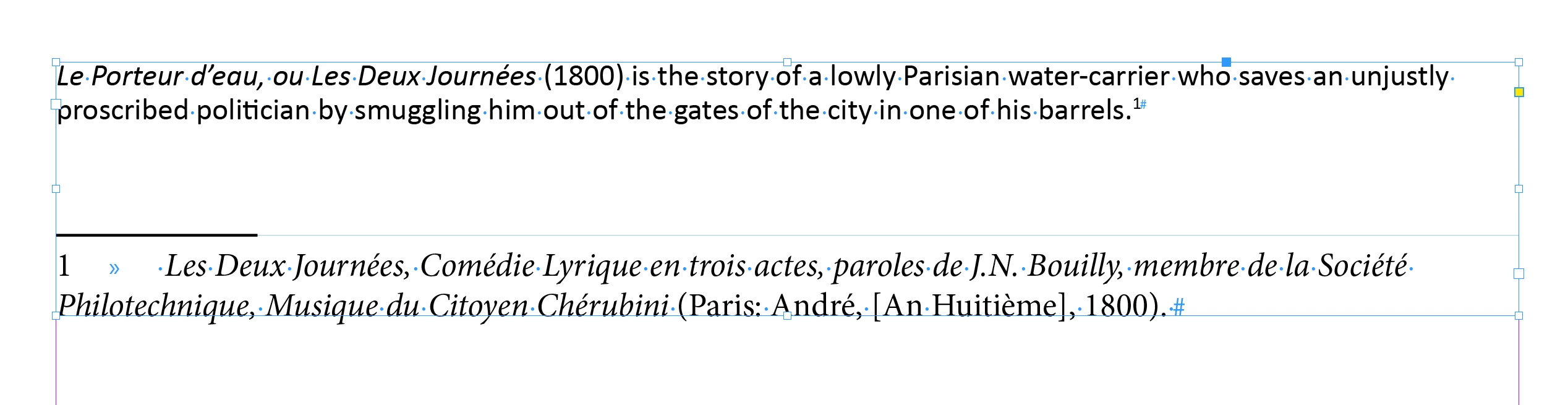
Ah. I see the issue. The accented characters in the footnote are using Palatino Linotype in Word, but mapping to Arial Italic and Regular when placed in InDesign. 


You can address this either in Word or in InDesign.

  • To fix it prior to import, just create a character style in Word— perhaps call it Italics—and assign it to the italics text prior to import. Create a character style in InDesign with the same name. Then use InDesign's style mapping to map the Word character style to the InDesign character style. (Screen shots below.)
  • If you want to handle this in InDesign, you will need to Find/Change the italics to an italics character style, use Tyep Find/Replace Font to find Arial regular and Arial italic and change it to your desired font and then clear overrides. 


~Barb 


~Barb at Rocky Mountain Training
vladan saveljic
vladan saveljicCorrect answer
Inspiring
February 5, 2021

Try to save your word file as rtf and then place it in InDesign

Barb Binder
Community Expert
Community Expert
February 4, 2021

It comes in just fine for me, using the default settings, meaning that Import options isn't checked in Place dialog box.


~Barb 

~Barb at Rocky Mountain Training
jrjg1Author
Participant
February 5, 2021

Thanks for this, Barb!


Unfortunately, I can see that you also have issues with the with the 'é' and 'été' occurences in the footnote.

hammer0909
Community Expert
Community Expert
February 4, 2021

Are you able to share the Word document by any chance? Are you able to determine if there's a difference in formatting within Word between the elements that are and are not working?

jrjg1Author
Participant
February 5, 2021

Thanks for this!


Please, find a sample word document attached to the first post.


Great question! The text seems to be evenly italicised using the "I" button. So I would said the italics is being applied consistently? Is there something else I should pay attention to?