
Participant
January 23, 2019
Answered

Letters display partially as grey when exported to PDF

  • January 23, 2019
  • 3 replies
  • 3406 views

I want to have greyscale PDF for print on offset. Greyscale images, black text.

I choose press quality, standard PDF/X-4, convert to destination, dot gain 15%.

Now after exporting I open it in Acrobat Reader and as a result I see on my computer screen weird text display.

In scale 100% text partially is in grey, partially black. At least I see this.
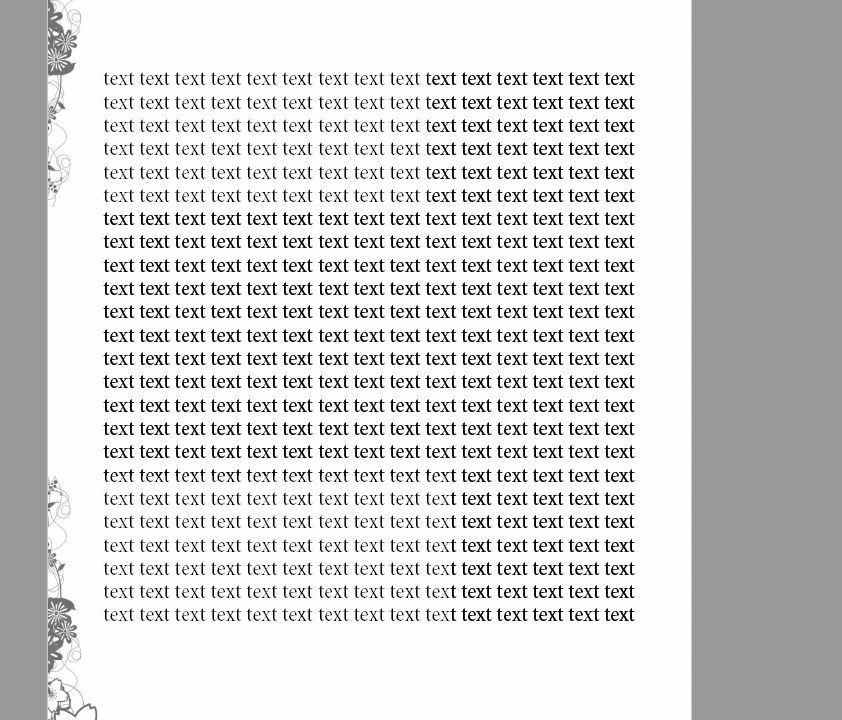
When I change to 200% I see this. Some letters still are somehow grey but it is not so visible. But still you can see left top letters grey (all 6 lines, 9 words)
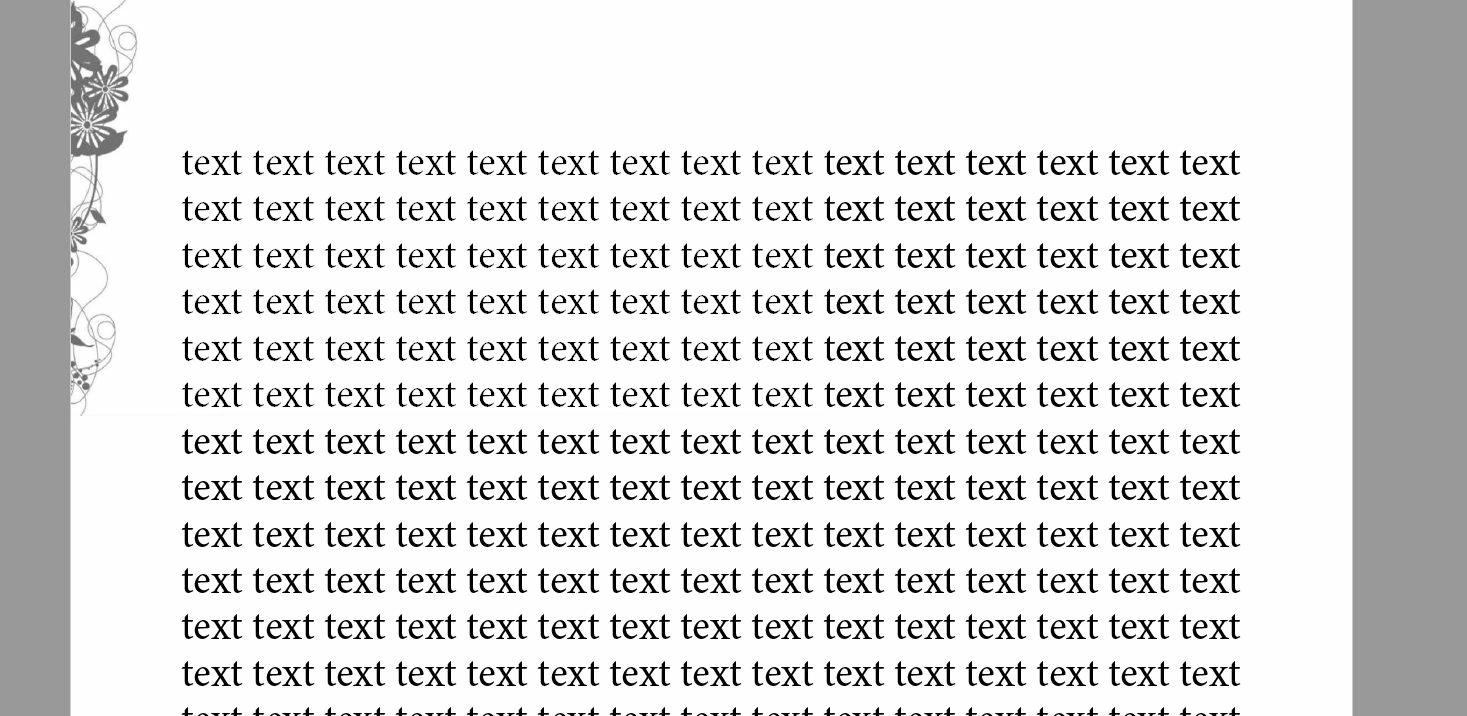
Should I worry about this? Is this only computer screen error and false display or is there any real error with exporting?

When I export without standard PDF/X-4 (standard none) I get normal black color for all letters. Can I send it to a printer?

    This topic has been closed for replies.
    Correct answer BobLevine

    Put the text on a layer above the graphic. That's about the best you can do to separate them.

    3 replies

    shawnm68608109
    Participating Frequently
    January 23, 2019

    Also use the Output Preview function in Acrobat to see if the text is actually black or a tint of black. If it is 100% black it probably an issue listed by the other users or how the font renderers. What font is it?

    Shawn

    www.direct.shapco.com

    Srishti Bali
    Community Manager
    Community Manager
    January 23, 2019

    Hi there

    Sorry to hear about this issue. What happens if you actually zoom into one of these words? Does the problem magically disappear? If the answer is yes, the problem is the PDF viewer and not the PDF file.

    May I please know which know which application you are using to view PDF?

    Regards,

    Srishti

    Participant
    January 24, 2019

    I use the newest updated Acrobat Reader DC 19.010.20069.

    I zoomed the file and saw no grey text - all letters are pure black. So as you all write this is definitely display settings.

    But what I found by chance is that the area with grey text is exactly the same as the size of the corner flowers image background!

    Selected flower image object, please see. Only text within the area were grey.

    Corner flower images were embedded in Indesign.I changed it. I added links to external flower files jpg or eps instead of it and it did not help. Then I changed the background to transparent finally in psd and linked to it and it works. All text looks like black now.

    So this error was probably due to display issues in Acrobat Reader - pure white background somehow coincided with pure black letters in display. Am I right? Flowers in Indesign were on master pages, text on regular pages.

    BobLevine
    Community Expert
    BobLevineCommunity ExpertCorrect answer
    Community Expert
    January 24, 2019

    Put the text on a layer above the graphic. That's about the best you can do to separate them.

    rob day
    Community Expert
    Community Expert
    January 23, 2019

    Check your Acrobat Page Display Preferences. The rendering settings have an affect on text anti-aliasing. Check the text at a higher zoom level—800% or higher

    Also, why set the PDF/X-4 standard to None? Without it the PDF has no Output Intent, which can affect the PDF soft proof color display and be useful info at the print end.