Participant
December 18, 2024
Resuelto

lines appearing at the top and bottom of text

  • December 18, 2024
  • 6 respuestas
  • 1144 visualizaciones

Hey,  hoping someone can help.  im experienncing issues when using the font dirty headline in indesgn.  im getting lines connecting come letters at the top and the bottom of text.  this appears to only happen in indesign, text in illistarator or photoshop doesnt display the same.  i have turn off ligatures with no effect.


if i convert to outlines the lines go away so at a loss as to what is causing it.  i assume its a setting somewhere im unawar of.
Este tema ha sido cerrado para respuestas.
Mejor respuesta de Joel Cherney

Thumbs up for the legwork; all of this is too-too common with the... not-professional font world.


Do the lines go away if you use a character style to just make "lowercase" a few points smaller? That is, is the flaw maybe inherent to the font's lower case letterforms?


You can make some of them go away, but not all of them. Scaling, swapping lowercase for uppercase at reduced font size, inserting zero-width non-joiners between characters... all of these are kinda helpful.. But some of the lines are impossible to remediate like this; e.g. uppercase and lowercase N seem to have a permanent line.

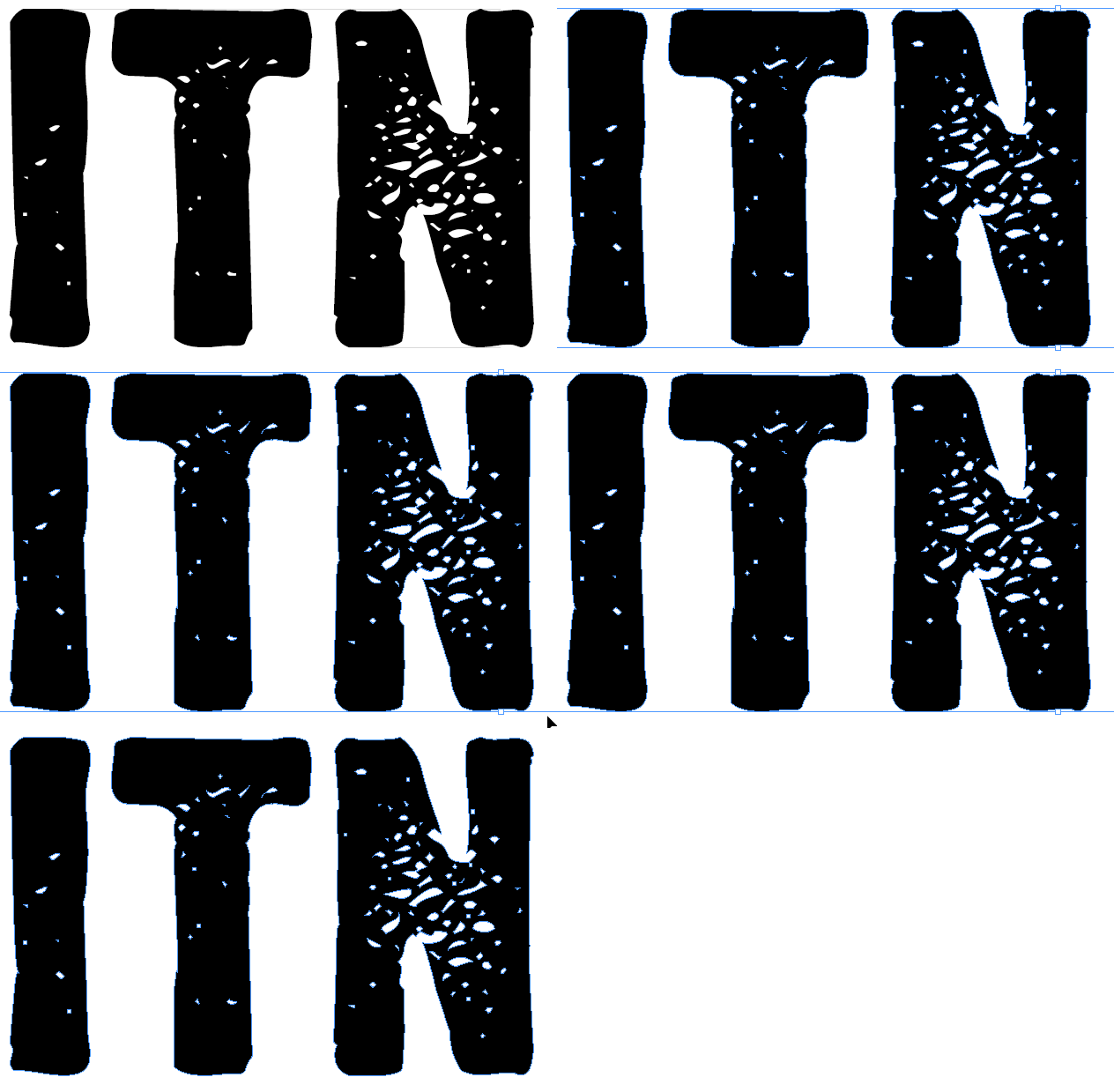
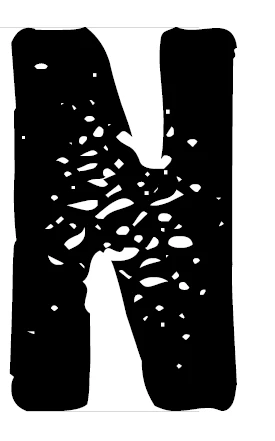
The only surefire way I've found when playing around with it is to convert to outlines (hopefully the GIF renders at high enough resolution to see it):


6 respuestas

Mike Witherell
Community Expert
Community Expert
December 19, 2024

Hi Joel,

You stated: "But I have tools that are expressly made for auditing fonts and finding problems"

Is this proprietary software or are you referring to tools other graphic designers would benefit from knowing about?

Mike Witherell
Joel Cherney
Community Expert
Community Expert
December 19, 2024

Fair question, Mike, and the one tool that I was really thinking of when I said "tools" is proprietary, and ancient. It might even be "abandonware" at this point.


I have ye olde Microsoft Font Validator installed, as well as the fantastically useful BabelMap. Its OTF test framework can come in handy, but I mostly use it for its many other features, like its ability to analyze any set of glyphs from the clipboard and tell you which fonts on your system support all of those glyphs. 

Mike Witherell
Community Expert
Community Expert
December 19, 2024

Thanks, Joel, I'm sure we will all benefit from knowing about those utilities. Thank you for sharing that.

Mike Witherell
Robert at ID-Tasker
Legend
December 18, 2024

@Julie21964325fab6


Do you have - see - those lines in InDesign - or in PDF when viewing in Acrobat?


Participant
December 18, 2024

Hi Robert,


They appear both in indesign and in acrobat


Julie

Dave Creamer of IDEAS
Community Expert
Community Expert
December 18, 2024

What is the font and where did you get it from?


David Creamer: Community Expert (ACI and ACE 1995-2023)
Participant
December 18, 2024

Hi Abhishek,


thanks for your reply.  im experincing the issue on both windows and Mac, both running the latest version of indesign.  exporting as jpg or PDF both display the same lines.  ive also made changes you suggested without any change


thanks 


Julie

James Gifford—NitroPress
Legend
December 18, 2024

No, there's no setting that would cause, cancel or relate to this. It's probably an artifact of a poor, or at least less-than-perfect, font. (Many "art" fonts are not well modeled in things like kerning and hinting.) The important question is whether these lines and other artifacts appear in print or PDF export — do they? or are they only screen artifacts? and do they show up at all zoom levels, and with your display mode set to High Quality Display?


It also looks as if you're using small caps  — unless the font simply has slightly smaller characters for 'lowercase.' Does the fault go away if you, say, manually downsize the text instead of using small caps?

Joel Cherney
Community Expert
Community Expert
December 18, 2024

Well, I went and downloaded the font. I downloaded the 2007 version from Some Random Free Font Site With a Dubious Reputation. Found the guy's blog, and installed the font. Unfortunately, there's no point in asking if the lines persist after PDF export, because he's flagged the TTF to prevent font embedding. It can't be used in a PDF, and according to his freeware font license, the font can't be used for commercial purposes without a commercial license. 


The font's lowercase glyphs are actually just smaller uppercase glyphs; lines are still present in all cases. The lines don't go away unless I convert to outlines. It's not a setting, it's a flaw in the font. 

Joel Cherney
Community Expert
Joel CherneyCommunity ExpertRespuesta
Community Expert
December 18, 2024

Thumbs up for the legwork; all of this is too-too common with the... not-professional font world.


Do the lines go away if you use a character style to just make "lowercase" a few points smaller? That is, is the flaw maybe inherent to the font's lower case letterforms?


You can make some of them go away, but not all of them. Scaling, swapping lowercase for uppercase at reduced font size, inserting zero-width non-joiners between characters... all of these are kinda helpful.. But some of the lines are impossible to remediate like this; e.g. uppercase and lowercase N seem to have a permanent line.

The only surefire way I've found when playing around with it is to convert to outlines (hopefully the GIF renders at high enough resolution to see it):


Abhishek Rao
Community Manager
Community Manager
December 18, 2024

Hi @Julie21964325fab6,


Thanks for reaching out, and I understand how this can be frustrating. To assist you better, could you share the version of InDesign you’re using and the operating system details (Windows or macOS)?

It seems like the issue may be related to font rendering in InDesign. Please try the below: 

1. Go to View > Display Performance > High Quality Display. Sometimes low-quality display settings can cause unexpected artifacts.

2. Go to Edit > Preferences > Display Performance (Windows) or InDesign > Preferences > Display Performance (macOS), and ensure Anti-Aliasing is turned ON.

3. Disable Ligatures and Stylistic Sets (which you mentioned): Double-check by selecting your text and opening the Character panel (Window > Type & Tables > Character). Disable any additional OpenType features.

4. Test how the font looks when you export the file to PDF. Go to File > Export > PDF (Print) and view the result. Sometimes these artifacts do not show in the final output.


Feel free to attach another screenshot or any additional details.

Looking forward to helping you!


Best,
Abhishek