
Copy link to clipboard
Copied
I am working with Indesign and Illustrator documents stored on my computer and synced to Creative Cloud where coworkers can access them too. I thought I was all ready to go to press and had the final PDF made when I noticed the wrong coloration in all of my maps in the book, 15 of them. I went back to the Illustrator map files and figured out the problem was a white base layer I had put under my shaded reliefs, which I had set to 65% opacity. At one time in the process, I thought the white base layer would add more light to the image, but, in the end, it just altered the colors in a negative way. Anyway, that was an easy fix, just delete the layer, save the Illustrator file, and then relink it in InDesign. Right? Not. For some reason, not all 15 of the maps wanted to go back to the version without the white base layer. 11 of them did fine. I opened the Indesign file where those maps were linked into, and Indesign prompted me to update the link, and it brought in the map without the white background, hence the map with the better colors. On most of these updates, I got the following message:
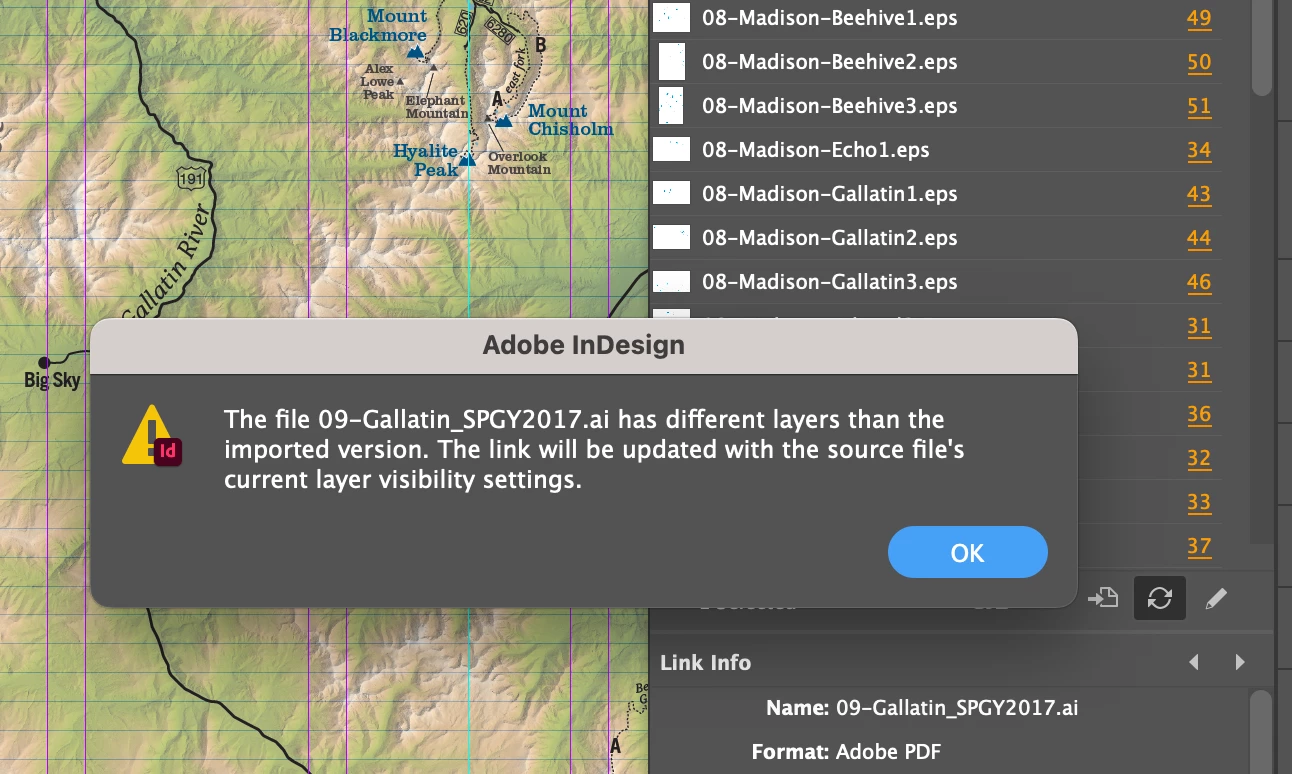
It's a weird message that I have never gotten before when I have added or removed layers from maps and then updated them in Indesign, but it worked nonetheless. I just clicked ok and Indesign brought in the good map.
However, 4 of the maps would not update with the good map. I tried the update icon and the relink icon, and these four maps still had the old bad colors...even though I had deleted the white background layer in those four maps and saved them before trying to update/relink in Indesign.
What is going on? How could Indesign remember data that is no longer there? Why would it not update? I'm going to try again now after spending 15 minutes writing this post to see if maybe the changes hadn't been consummated in CC (although, all the files had green checkmarks when I was trying before). Here goes...Nope. Indesign will allow me to try (the buttons aren't grayed out), but it won't update to the newly saved Illustrator map files.
Copy link to clipboard
Copied
What is really strange is that when I grab the Indesign window corner and resize the Indesign window, the map with the correct color appears, but only while I'm dragging the Indesign window. As soon as I release the mouse, the map reverts to the bad map.
Copy link to clipboard
Copied
I just tried re-Placing one of the Illustrator maps into Indesign and something even stranger happened. The map came in without the 65% opacity that I set in Illustrator! Indesign has a mind of its own...and it's messing with me!
Copy link to clipboard
Copied
I found this, which seemed hopeful to fix the problem, but it did not change anything:
http://jenniferbrowndesigns.blogspot.com/2010/10/indesign-layer-visibility-override.html
Copy link to clipboard
Copied
 I have set Indesign to use the PDF's layer visibility...but it still says "override" after the file in the Links panel and the image still has the bad colors:
 
Copy link to clipboard
Copied
Hi @tturiano , The ICC Profile override doesn’t have anything to do with your Update Link Options choice in Image Import Options. it meand the Illustrator file has an embedded profile and you have overridden the embedded profile so that Coated GRACoL 2006 is assigned instead.
You have chosen to always use the Illustrator file’s layer visibility—is there really only one layer in the AI file?
Are you sure all of the placed Illustrator files have the same When Updating Link: choice? With the AI file selected choose Object>Object Layer Options.
Copy link to clipboard
Copied
Rob, thank you for reply. Good question about the layers. The maps have about two dozen layers, but they're all sublayers of layer 10. In the 11 Indesign files that are holding the 11 Illustrator files that are showing the correct colors, the Object Layer Options panel shows this:
Copy link to clipboard
Copied
Interesting. Why I have all the layers under one main layer? I have no idea. That's just how it got done. I'm now trying to move them out and they won't move. They won't drag out of layer 10.
Copy link to clipboard
Copied
I'm not sure that matters though. What is strange is that I deleted the layer that held the white background, yet Indesign is still holding onto it and creating the olive color.
Copy link to clipboard
Copied
I figured out how to drag the layers out of Layer 10 in Illustrator, resaved, and then relinked the map into the Indesign file. Now I can go to Object Layers Options and see all the layers. But as I mentioned, the layer that held the white background that was causing the problem is not there because I already deleted it in Illustrator.
Copy link to clipboard
Copied
Yet the problem still exists. The left window is the Illustrator map file's colors and the right window is what the Illustrator map looks like when I place it into the Gallatin Indesign file. I wan the left, but am getting the right.
Copy link to clipboard
Copied
You can see how rich the colors of the basemap actually are, in the left window. The rich green. I don't want that because then the overlaid lines would not be very visible. So I made the set the basemap opacity in the artboard to 65%.
Copy link to clipboard
Copied
Why did you override the embedded profile?
If you select the AI file in InDesign and choose Object>Color Image Settings, the actual Illustrator profile would be at the top of the Profile dropdown list. if you choose the embedded profile do the colors match?
Can you share the AI file that is changing color in ID?
Copy link to clipboard
Copied
Rob...I did not know that I overrode the embedded profile...haha...but I somehow did. I adjusted the app's color settings a year ago and have had color troubles ever since. But my designer is also having the same problem with the Illustrator map colors when exporting the INdesign master file to the final pdf.
I don't see a "Color Image Settings" option under Object menu.
Yes I can share the file.
Copy link to clipboard
Copied
ah...I see Object>Image Color Settings....it is grayed out when I select the placed file
Copy link to clipboard
Copied
The link you are showing above with the profile override is an image file—you can’t override the profiles in an AI or PDF file. Is that the link with the wrong color?
Copy link to clipboard
Copied
It's an AI file, not an image. I wonder if it is referring to the linked basemap image file in the Illustrato file.
Copy link to clipboard
Copied
for the illustrator files that I sent you via PM, I resaved them and "included the linked files" so you could see the background image
Copy link to clipboard
Copied
They're 150-200 mb files
Copy link to clipboard
Copied
There are two layers at the bottom of the stack which have complex clipping paths with multiple versions of the same image—a .tiff, .psd and some copies. Looks like something in those layers are the problem. If I show road basemap and hide shaded relief, I get a match in InDesign:
Copy link to clipboard
Copied
I am not sure what you mean by "match". We could delete the road basemap...not needed
Copy link to clipboard
Copied
Oh...color match? I can't see it very well because I am now on my phone.
Copy link to clipboard
Copied
The shaded relief is the one I want… And that has the correct colors in illustrator, but not in indesign
Copy link to clipboard
Copied
I don't think there are multiple versions of the images… just layer name with .tif....But if there indeed are multiple images… This could be the solution… I will look when I get home
Copy link to clipboard
Copied
oh that's weird...I don't have the same layers that you have...I just have this:
 
 
Find more inspiration, events, and resources on the new Adobe Community
Explore Now