Inspiring
February 20, 2019
Answered

Linking images on full pages

  • February 20, 2019
  • 3 replies
  • 1177 views

I have some images that are very large and fit on an entire page. But those pages have no text and there are quite a few pages in a row that have large 1 image per page layouts. How do I anchor these?

??

    This topic has been closed for replies.
    Correct answer vinny38

    Hi

    I concur with Willy about the paragraph style for the paragraph where you'll put your anchored image.

    As Willy said, use Keep option to make it start on next page.

    Instead of space after, you could turn text wrap on for the graphic frame.

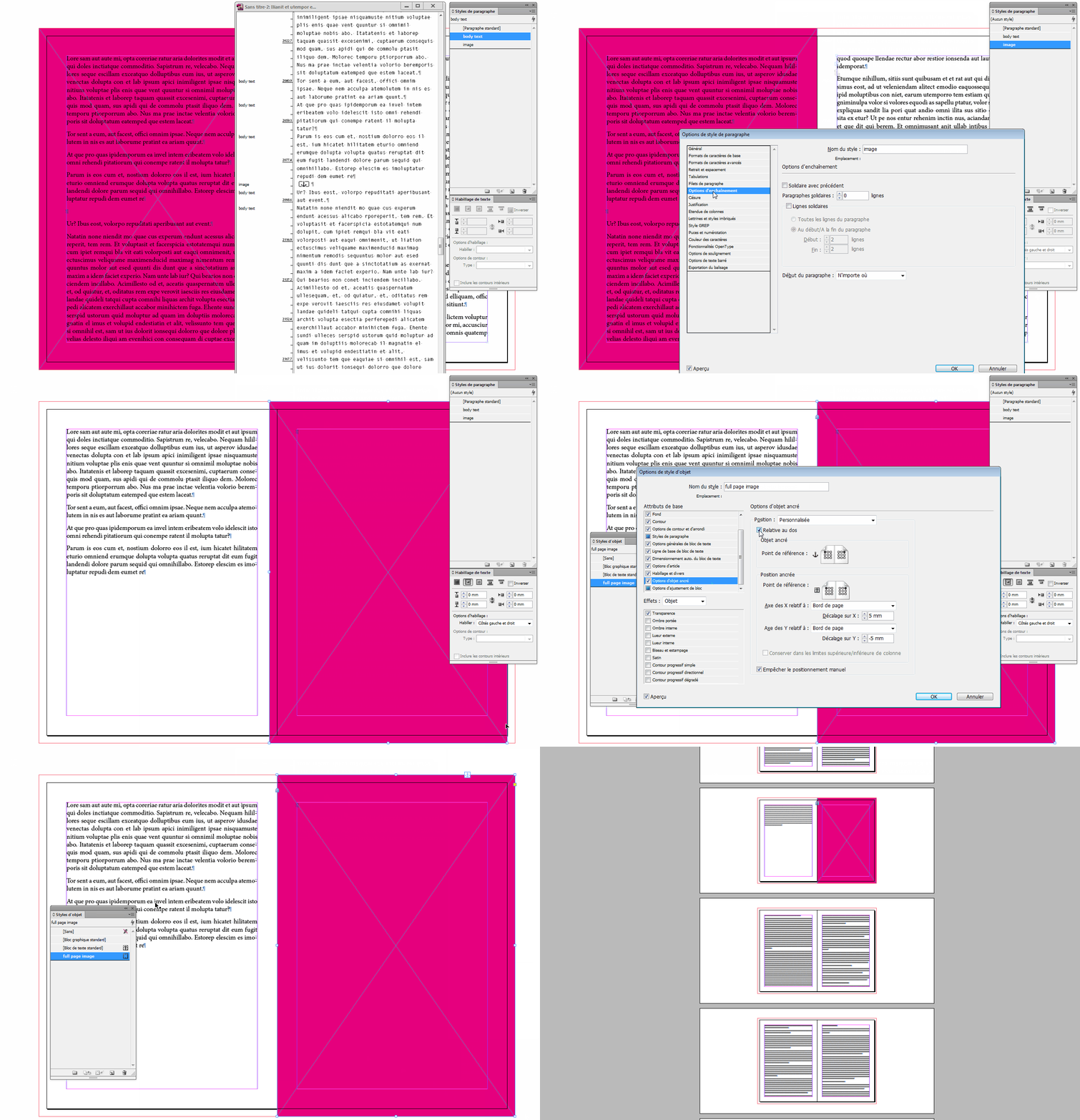
    I suggest using an object style for your full page graphic frames.

    In the Object style options, go to Anchored object options and set it as Custom.

    As Uwe pointed out, you'll probably have to deal with bleed, so make sure "Relative to spine" is checked.

    Set the limits to page borders and add some offset as per your bleed and you should be good to go.
    3 replies

    Willi Adelberger
    Community Expert
    Community Expert
    February 21, 2019

    Use for the anchoring of images a own paragraph with its own style. For full page images use a paragraph style where you can anchor the image, which will start on a new page and a space after which is large enough, so that the next text will be forced to the next page.

    vinny38
    vinny38Correct answer
    Legend
    February 21, 2019

    Hi

    I concur with Willy about the paragraph style for the paragraph where you'll put your anchored image.

    As Willy said, use Keep option to make it start on next page.

    Instead of space after, you could turn text wrap on for the graphic frame.

    I suggest using an object style for your full page graphic frames.

    In the Object style options, go to Anchored object options and set it as Custom.

    As Uwe pointed out, you'll probably have to deal with bleed, so make sure "Relative to spine" is checked.

    Set the limits to page borders and add some offset as per your bleed and you should be good to go.

    Community Expert
    February 21, 2019

    Hi Vinny,

    thank you for the demonstration!

    Did you try this with consecutive page filling frames?

    Page 3 has all text

    Page 4 has a full page image

    page 5 has a full page image

    page 6 has a full page image

    Currently I'm not at my machine and cannot test anything.

    Regards,
    Uwe

    Community Expert
    February 20, 2019

    Hi Matthew,

    should the anchored images be aligned to the bleed area of a facing pages document?

    Regards,
    Uwe

    JonathanArias
    Legend
    February 20, 2019

    here is a tutorial on how to anchor objects:

    InDesign Tutorial: Anchoring Objects - YouTube

    Inspiring
    February 20, 2019

    I'm aware of how to anchor that way, I was referring to this scenerio:

    Page 3 has all text

    Page 4 has a full page image

    page 5 has a full page image

    page 6 has a full page image

    if I anchor to the closest text box the image moves off the page, if I go to options and use off set it only moves the image horizontally.

    Follow?

    Community Expert
    February 20, 2019

    Hi Matthew,

    with InDesign layouts like that cannot be fully automated without a scripting solution.

    I think, you are better off not to anchor the full page images, but to place them on the page with textwrap applied.

    We already discussed that years ago in the forum.

    Regards,
    Uwe