tomv50043752
Participating Frequently
March 16, 2019
Answered

Lock a finished page

  • March 16, 2019
  • 4 replies
  • 11547 views

I am creating a magazine, and I wonder if there is a way to "lock" a finished page.

So, i'm using master pages, all ok. But -maybe- due to the fact i'm a beginner it might sometimes happen that I dis someting that also affect another page that i'm working on. (yesterday for example, my cursor was apearently not correctly placed and I hit the "W" button, and the w was placed inside the text of a finished page)

Most of my answers got answered when I search on the web (never by adobe itself, amazing that they have such a great assortment helpfiles, but never succed to explain it in a way that I understand it )

So, it doesn't have to be a lock, but a workaround is useful as well i guess
    Correct answer Bill Silbert

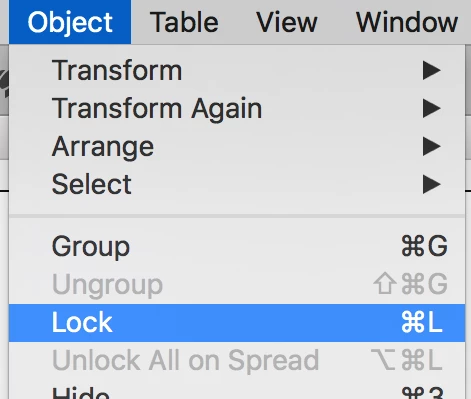
    A simple way to lock all of the elements on a page is to do a "Select All" for that page and use Object>Lock. You can unlock the page with Object>Unlock All on Spread.

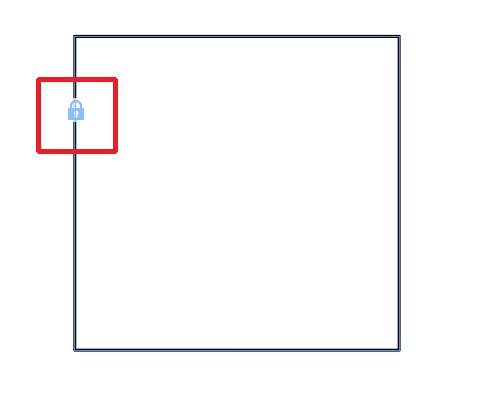
    EDIT: Just to be clear you can also use this method to lock individual items on the page. When you do so a "Lock" icon will appear on the frame. If you click on this lock with the regular selection tool (black arrow) you can unlock the frame. If you click anywhere else on the frame it will remain locked.

    4 replies

    tomv50043752
    Participating Frequently
    March 16, 2019

    Thanks all! Very usefull. But Bills option seems the easiest for my job/need

    Bill Silbert
    Community Expert
    Community Expert
    March 17, 2019

    Happy to help.

    Bill Silbert
    Community Expert
    Bill SilbertCommunity ExpertCorrect answer
    Community Expert
    March 16, 2019

    A simple way to lock all of the elements on a page is to do a "Select All" for that page and use Object>Lock. You can unlock the page with Object>Unlock All on Spread.

    EDIT: Just to be clear you can also use this method to lock individual items on the page. When you do so a "Lock" icon will appear on the frame. If you click on this lock with the regular selection tool (black arrow) you can unlock the frame. If you click anywhere else on the frame it will remain locked.

    Michael Bullo
    Community Expert
    Community Expert
    March 16, 2019

    The following technique allows you to lock off big chunks of your document but it doesn't target specific pages.

    I frequently put similar kind of content on their own layer such as graphics. When not needing to edit this content I will generally lock this layer within the Layers panel to prevent accidentally moving things around. In my example below the "text" layer and "master page content" layers are totally locked off. A layer is locked/unlocked by clicking within the Layers panel where the padlock icon could be or is.

    It's also possible to lock individual elements within a layer although I rarely do this. Click in the corresponding area within the Layers panel or with an object selected choose "Lock" from the "Object" menu. In my example the "rectangle" object is locked while the "oval" object is still editable within the unlocked "graphics" layer.

    Geоrge
    Legend
    March 16, 2019

    Are you paranoid? (Joke).

    1) You can do place .indd to .indd for such things. https://creativepro.com/how-10-techniques-copying-pages-between-indesign-documents/  - method 9 is right for your target.

    2) Or You can move all objects from need it page to into new layer and lock this layer.

    Group, lock, and duplicate objects in InDesign

    https://indesignsecrets.com/indesign-basics-working-with-layers.php

    Remember, never say you can't do something in InDesign, it's always just a question of finding the right workaround to get the job done. © David Blatner