New Participant
January 12, 2017
Answered

LOCKED: why white lines on pdf

  • January 12, 2017
  • 8 replies
  • 69621 views

Hi, I am producing pdfs using the Pass4press profile and am getting thin white lines appearing where there are boxes containing PSDs with transparent backgrounds.


How can I avoid this?


Many thanks

Correct answer rob day

Will there ever be a fix?


There is—PDF/X-4.


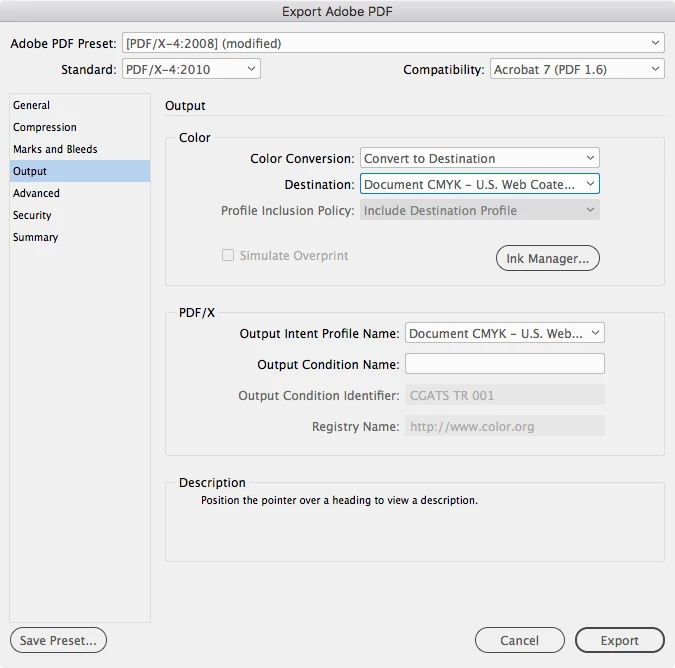
By default PDF/X-4 exports with No Color Conversion, but you can get the same conversion to CMYK the default PDF/X-1a provides by converting to Document CMYK in the Output tab. The output values of a document exported to X-4 or X-1a with the Destination set to Document CMYK would be identical.
 

8 replies

BobLevine
Community Expert
May 15, 2022

This discussion has run its course and has veered off into a new direction. If you're seeing issues not addressed here, please visit this discussion: Placed Photoshop Layer Mask Bug? - Adobe Support Community - 12942849 

Jumpenjax
Community Expert
May 12, 2022
Lee- Graphic Designer, Print Specialist, Photographer
Participating Frequently
May 12, 2022

I have an additional complication on this subject.


Workflow example:

1) Export single page PDF/X-1a of a brochure cover from InDesign

2) Rasterize the PDF in Photoshop

3) Flatten and save cover as PSD and JPG formats for other uses

4) Place the PDF of the cover as a link in new InDesign layouts

5) Export PDF/X-1a of new layouts for printers

 (I know it's an outdated standard and I've tried to get around it, but a lot of printers are still insistent on PDF/X-1a)


My mac was peviously running Catalina OS, using InDesign 2021. I was able to export PDFs using the workflow above and never had any issues with the white lines.


Since updating to Monterey OS, the white lines have returned with a vengeance. I have tried using Indesign 2022 and PDF/X-4, but the white lines continue to be an issue (unless you turn off Smooth Images in Acrobat). But since that is only a page display setting, the white line artifact is still present in the PDF (even though it won't actually print). Becuase of this, I can no longer rasterize a PDF in Photoshop beacuse the white line carries through. It also means I can no longer place those PDFs as links in other layouts. The white line carries through.


I am working around some of this limitation by exporting an EPS from InDesign and then rasterizing that to make the PSD and JPGs that I need. However, every PDF I export that has transparency shows the white lines. It's a big problem because we send PDFs to internal and external users all the time for reviwews and approvals. Explaining the "Smooth Images" setting in Acrobat over and over and over to new people is not efficient or sustainable.


Are there any known white line issues that are related to Monterey?

BobLevine
Community Expert
May 12, 2022

Why are you rasterizing an X/1-a file? Why are you even using that "standard" if it's not the final output?


Your entire workflow is highly questionable and relying on "standards" that are decades old is going to yield the unpredictable results you're getting now.


Time to ditch your printer and find one competent in modern workflows.

Participating Frequently
May 12, 2022

Thank you for your quick reply. We export PDF/X-1a because that is what the printer requires. That format is used throughout our proccesses to stay consistent from initial review to release. Rasterizing the X-1a is how we quickly make PSD and JPGs from a source PDF.


Again, I know it is old and outdated, but choice of printer (we work with multiple vendors) is not something I have any input in or control over. I have to work within given confines, likey using what you have dubbed a "highly questionable workflow" to make it happen.


The main issue is being able to generate a PDF with transparency that displays without white lines so the never-ending conversation of "don't worry, it won't print" and "just turn off this setting" can cease.


And my question is why did the white line issue start reappearig in PDFs after updating to Monterey?

jbarkerhill
Inspiring
February 2, 2022

Sometimes the outputted PDF will be viewed electronically and not printed. So having thin, white artificact lines is unacceptable. 


Does the image file-type used make a difference?


My current situation is being on a tech writing team that's switching from Word to FrameMaker. 

Initial testing with FrameMaker shows that the outputted PDFs have thin white artifact lines on the images. 

These lines don't show up when PDFs are exported from Word. 


One factor is that callouts/text are being added to the images (using Illustraotr), and then the entire image (text and image) is being exported I think as an SVG. Maybe exporting both text and image "flattens" it and causes this artifcact issue. 


I'll do some testing to see if file type makes a difference, e.g. if bitmap works better than vector. 

rob day
Community Expert
February 3, 2022

Does the image file-type used make a difference?


No, you have to export with Compatibility set to Acrobat 5 or later, or avoid transparency effects.

jbarkerhill
Inspiring
February 3, 2022

Thanks for the advice. I'll try that. 


My hunch is that vector images have more issues with unwanted artifacts compared to raster images. 


It seems that this artifact issue is a problem across many Adobe products, as this is an InDesign thread, and I'm also having the problem in FrameMaker. Give that the artifacts don't show up when I export from Microsoft Word, it's an Adobe specific problem. 


In Microsoft Word, I'm using a raster image (JPG), adding text and callouts natively in Word, and exporting a PDF. This images and text look fine on the PDF, no thin white lines. 


With the FrameMaker workflow, I'm taking a raster image into Illustraotr, adding text and callouts, exporting a vector image into FrameMaker, and the outputted PDF has the artifact lines on the images. 


Given that Illustrator and FrameMaker are both Adobe products they should play nicely together. And given that FrameMaker is considered a better tool than Word, it's dissapointing that it's giving a worse looking output. I'll do further testing and respond if I find a solution. 

New Participant
January 22, 2022

It's very frustrating.  I also get these lines in my transparent boxes - I've learned to poke them around until the lines disappear and quickly print, but this is clearly a bug.  I keep expecting InDesign to fix this but it's always the same.  I am not talking about the usual ghost lines on a PDF export, this is not something that disappears on print. 


BobLevine
Community Expert
January 23, 2022

It is NOT a bug. It's a limitation of transparency flattening. Stop using a 20 year old standard and you won't have that problem.

Inspiring
October 11, 2020

While the lines don't show in print, they DO appear in the online version of papers and magazines via Pressreader. It's really not a great look on ads you've paid for.

schroef
Inspiring
October 23, 2020

I also make separate exports optimized for web and email. Lower the res and use complete different export method. 
I also use the bookmarks and other functions, that way its a bit interactive and easier for the viewer. Sometimes i go so far to add navigation buttons inside the PDF That way that can easily return to the TOC and start navigation from there again

kfrissell
Inspiring
June 3, 2020

It bugs me that this continues to be a problem. Customers aren't interested in hearing "this doesn't show in print". And then you end up having to rebuild a file in photoshop to flatten it when you were using Indesign's dropshadow features and other features. It's really frustrating. Will there ever be a fix?

BobLevine
Community Expert
June 3, 2020

The problem is using a 20-year-old workflow. Save you PDFs using a modern standard that supports transparency and you won't wind up with white lines.


There will always be stitching when transparency is flattened!

Günter Heißenbüttel
Inspiring
January 12, 2017

This issue is normally due to image flattening in combination with antialiasing and quite unavoidable. These lines aren't visible at print output. If you go to Acrobat's preferences and switch off "Page Display/ Smooth line art" and "Smooth images" the lines should disappear, if you look at your PDF in 100% size.

Lex WebbAuthor
New Participant
January 12, 2017

star!!

rob day
Community Expert
January 12, 2017

just to clarify, changing your Acrobat Page Display preference has no affect on the actual file and the flattening artifacts are still there.

In general it's best practice keep transparency live unless the printer is using very old equipment—PDF-X-4 is preferred over PDF/X-1a where there will be no stitching because there's no flattening.