Participant
December 17, 2021
Answered

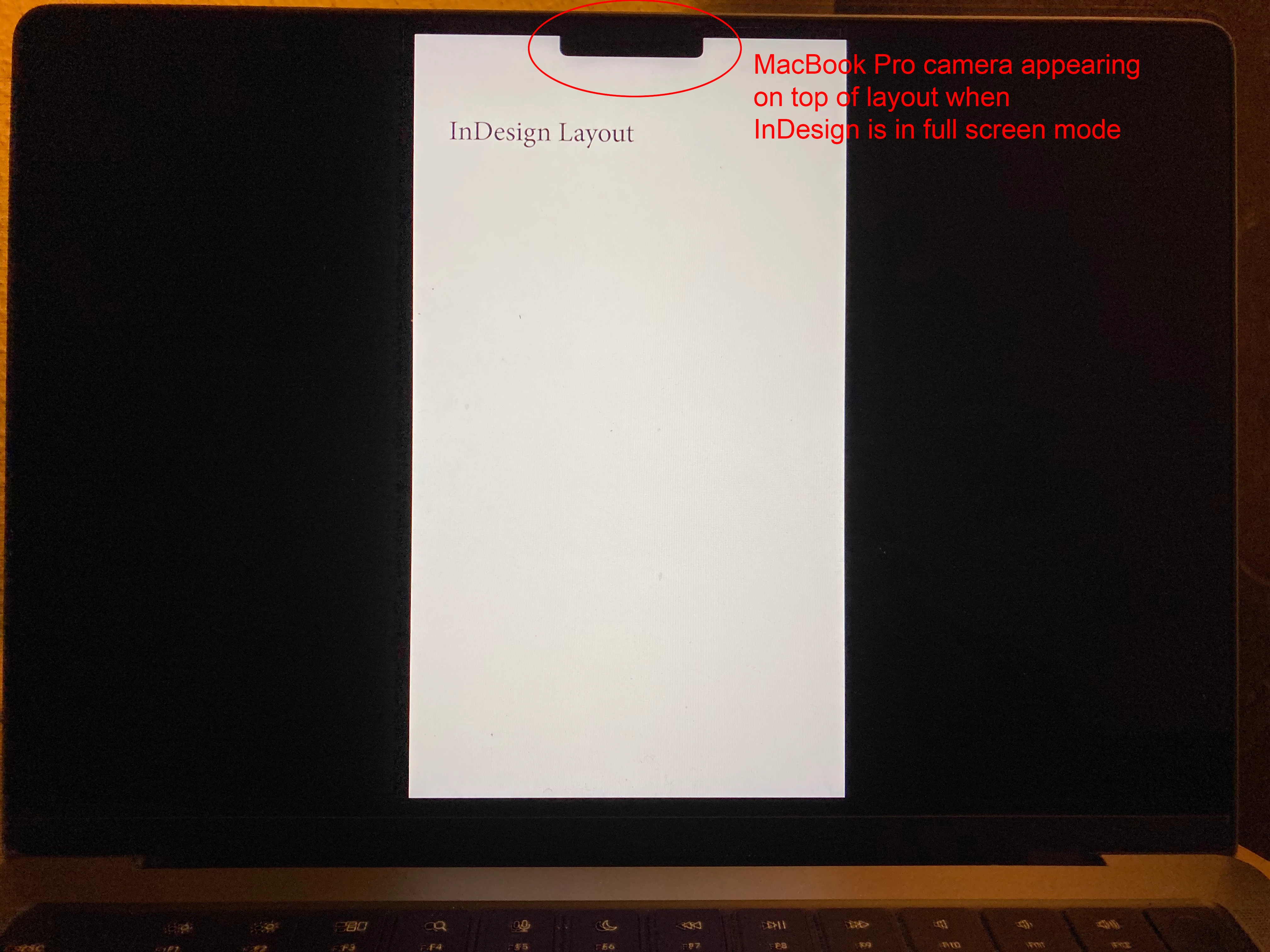
MacBook Pro 14" camera appearing on top of InDesign layout in full screen mode

  • December 17, 2021
  • 7 replies
  • 2436 views

Hello,


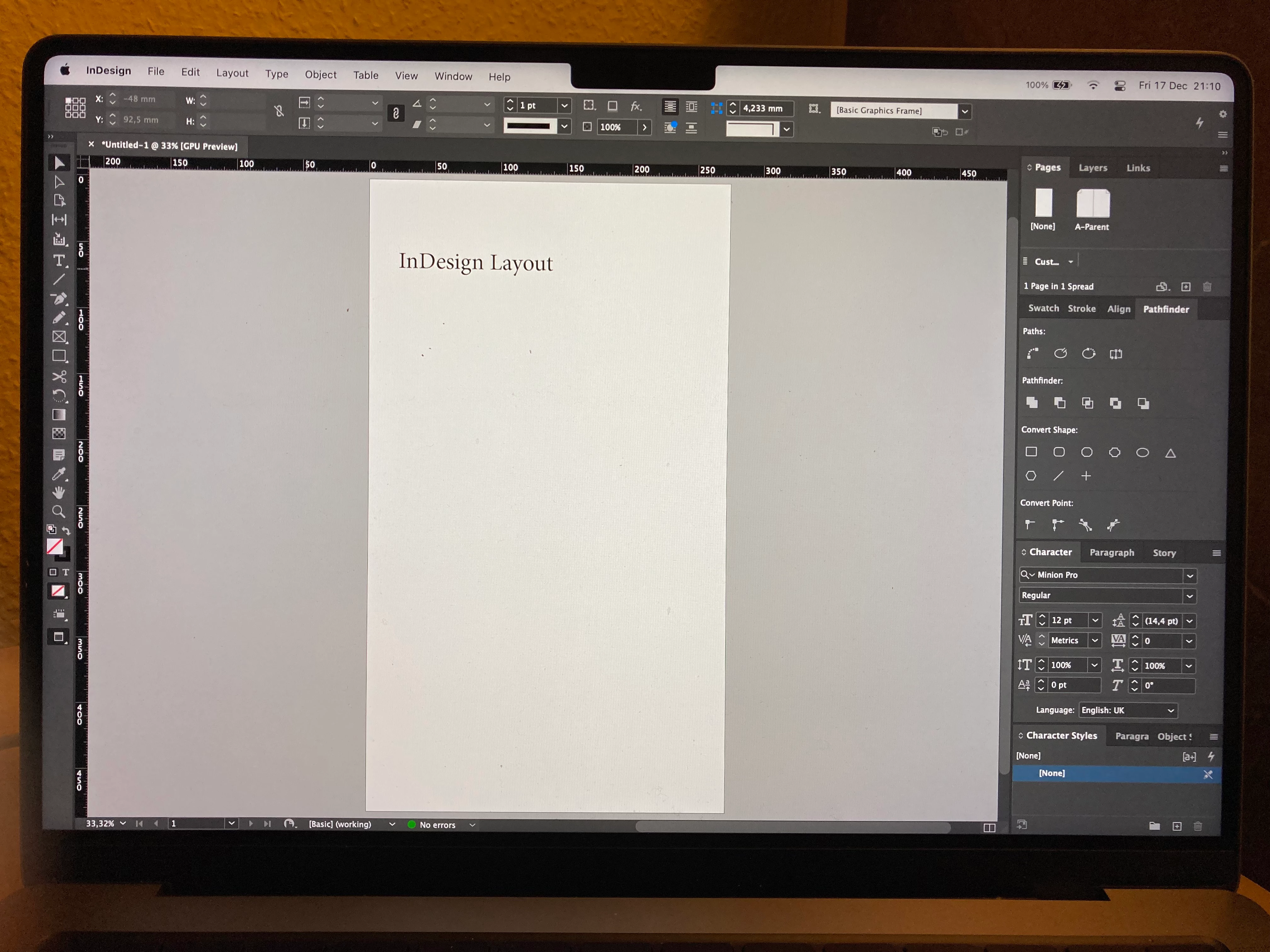
I recently bought a new MacBook Pro 14", which has a 'notch' in the top part of the screen, housing the camera. Unfortunately, when previewing a layout in InDesign in full screen mode, part of the page is hidden behind this notch (see photographs below). Other programs (including Photoshop) will always keep the image below this gap so that the image remains entirely visible, even in full screen mode.


Is Adobe aware of this issue? Is there a chance we could see a fix for it in a next update?


Thanks!

Advl


This topic has been closed for replies.
Correct answer Conrad_C

If by “full screen mode” you mean View > Screen Mode > Presentation (Shift-W), try this macOS option that works with full screen modes in general:

  1. In the Mac Finder, go to /Applications/Adobe InDesign 2022/Adobe InDesign 2022 (the application itself), select the application icon, and choose File > Get Info. 
  2. In the Get Info window, select Scale to Fit Below Built-in Camera. 
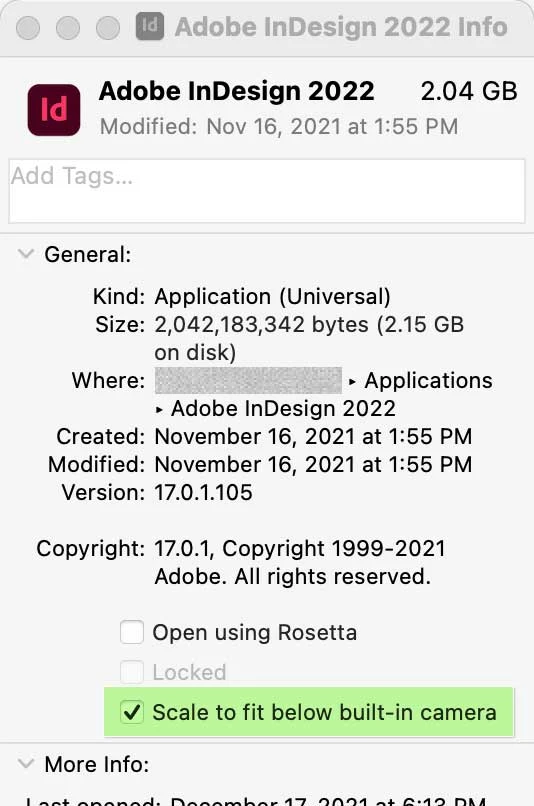


You won’t see the notch any more, but to achieve this, macOS blacks out the top of the usable screen area to the bottom of the camera notch.


If the notch intrudes into the full screen mode in other applications, you will have to enable that option for each application individually. I first came across this when using full screen mode in Adobe Lightroom Classic.


It’s not clear if there is anything Adobe can really do about this, because it’s so much a consequence of how Apple extended the screen area up further on the M1 Pro/M1 Max models to make the bezels look smaller. Because as I said, you’re going to run into this in most applications that have a full screen mode. After you hide the menu bar, you either extend the full screen mode up into the menu bar area (leaving the notch clearly visible), or you extend the black top margin down into the menu bar area (making the notch seem to disappear).

7 replies

Participant
October 31, 2023

How did you get rid of the app bar on top?

Conrad_C
Community Expert
Community Expert
October 31, 2023

Do you mean the menu bar? (There is nothing called the “app bar”)


If so, the method used was the command in the first line of the reply marked Correct Answer.

(Presentation Mode)

Participant
October 31, 2023

Hm, no I mean the app bar on the top of the indesign window in second picture. (the one that usually has three dots) It is missing and I wonder how he managed to do that.

Participant
August 14, 2022

I've created a request on UserVocie in the hopes this would be resolved. @Conrad_C's suggestion does work but is suboptimal as it scales the whole OS down as long as InDesign is open (even in the background). Would appreciate it if you could upvote the issue on UserVoice.

Barb Binder
Community Expert
Community Expert
December 18, 2021

@Randy Hagan: That's making lemonade when life (or Apple) throws us lemons. I love it. 


~Barb

~Barb at Rocky Mountain Training
Randy Hagan
Community Expert
Community Expert
December 18, 2021

Maybe you just need to dress things up a bit.


Just for fun, check out this link for things you can do with your MacBook Pro notch.


Have fun. Happy Holidays.


Randy

Community Expert
December 18, 2021
quote

Is Adobe aware of this issue? Is there a chance we could see a fix for it in a next update?


Thanks!

Advl


By @Advl

Are Apple aware of this?

Another fine design option from the geniuses at Apple.


Apple bring out a new computer, and all of a sudden other companies have to shoehorn their apps to fit their design.

Seems like a poor design from Apple.

I'm sure other computers have a notch for the camera - funny never hear from the other makers of computers with notches.

Asus reversed the notch on their laptops, looks quite cool. 


But the answer is given - you have an option in the Get Info.


I agree with Barb - post a link to the USer Voice and I'll upvote too.


Conrad_C
Community Expert
Conrad_CCommunity ExpertCorrect answer
Community Expert
December 18, 2021

If by “full screen mode” you mean View > Screen Mode > Presentation (Shift-W), try this macOS option that works with full screen modes in general:

  1. In the Mac Finder, go to /Applications/Adobe InDesign 2022/Adobe InDesign 2022 (the application itself), select the application icon, and choose File > Get Info. 
  2. In the Get Info window, select Scale to Fit Below Built-in Camera. 


You won’t see the notch any more, but to achieve this, macOS blacks out the top of the usable screen area to the bottom of the camera notch.


If the notch intrudes into the full screen mode in other applications, you will have to enable that option for each application individually. I first came across this when using full screen mode in Adobe Lightroom Classic.


It’s not clear if there is anything Adobe can really do about this, because it’s so much a consequence of how Apple extended the screen area up further on the M1 Pro/M1 Max models to make the bezels look smaller. Because as I said, you’re going to run into this in most applications that have a full screen mode. After you hide the menu bar, you either extend the full screen mode up into the menu bar area (leaving the notch clearly visible), or you extend the black top margin down into the menu bar area (making the notch seem to disappear).
Barb Binder
Community Expert
Community Expert
December 17, 2021

Hi @Advl:


I know there is a feature request tag on the forum—but not sure why. The place to log feature requests is here: https://indesign.uservoice.com. If you want to come back and post the link to it, I will gladly vote for it. 


~Barb

~Barb at Rocky Mountain Training