
Copy link to clipboard
Copied
Hi there,
I appear to be missing the large anchor point in InDesign. I've taken a screenshot from online of the one I mean. When the cursor moves over it a particular pop-out appears.
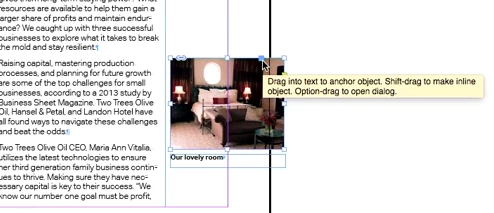
I'm at a complete loss as to how to find it/get it back ![]()
Here's a screenshot of what mine looks like if i select the image with either cursor:
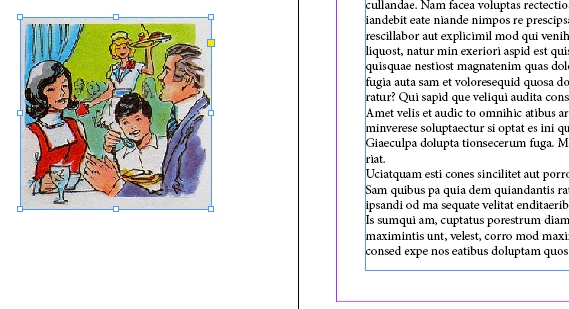
I hope this is just me missing something painfully obvious. Any help appreciated.
edit: I have tried starting a new doc etc. it's the same each time.
I don’t have version 5 at hand anymore, however, I’m pretty sure I used to use this feature with versions prior to 5.5. It just wasn’t so quick and straightforward. From the memory:
with Text tool, click somewhere in your text (usually - at the beginning) and choose Object > Anchored Object > Insert. You’ll get a dialog box where you can define various options (content, position, etc.)
Object, anchored to your current insertion point, will be created.
Further, if you need identical objects tied to
...Copy link to clipboard
Copied
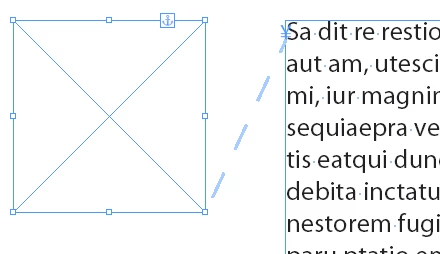
View > Extras > Show Anchored Object Control
Copy link to clipboard
Copied
2023 and this was driving me nuts! Where did the anchor handle go?! Why would one choose to hide it? I sure didn't. Many, many, many thanks!
Working in InDesign 18.1. Cheers!
Copy link to clipboard
Copied
Check in the View menu > Extras
Copy link to clipboard
Copied
Thank you abundantly. You saved my life after dying for so many years LOL
Copy link to clipboard
Copied
What version of InDesign do you have? Versions of InDesign prior to CS5.5 don't have it.
Copy link to clipboard
Copied
Hey, thank you both for your responses. So i'm using CS5, that explains it. Is it still possible to anchor an image in text in CS5?
Cheers.
Copy link to clipboard
Copied
I don’t have version 5 at hand anymore, however, I’m pretty sure I used to use this feature with versions prior to 5.5. It just wasn’t so quick and straightforward. From the memory:
with Text tool, click somewhere in your text (usually - at the beginning) and choose Object > Anchored Object > Insert. You’ll get a dialog box where you can define various options (content, position, etc.)
Object, anchored to your current insertion point, will be created.
Further, if you need identical objects tied to another text portions, you can just copy/paste that Anchor Object Marker (Â¥), as ordinary text.
Copy link to clipboard
Copied
Yeah you're right. Feeling painfully novice at the moment. Thanks for your help everyone!
Get ready! An upgraded Adobe Community experience is coming in January.
Learn more