Participating Frequently
August 8, 2018
Answered

Making text with transparent background

  • August 8, 2018
  • 2 replies
  • 4950 views

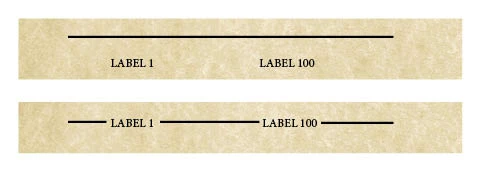
I am wanting to achieve the following in Indesign (see picture).

Background, line and labels (of differing lengths) are all on separate layers.  I want the label text to have a "background" which will cover up the black line, but let the parchment background show through.

I know how to achieve this if the background is plain (by using Underline and matching the colour of the underline to the background) but can't think how to achieve it with a patterned background.

(I know I could draw the line as 3 separate lines, but this is for a project with hundreds of labels.)

Any Indesign wisdom gratefully received!
    This topic has been closed for replies.
    Correct answer Colin Flashman

    Yes.

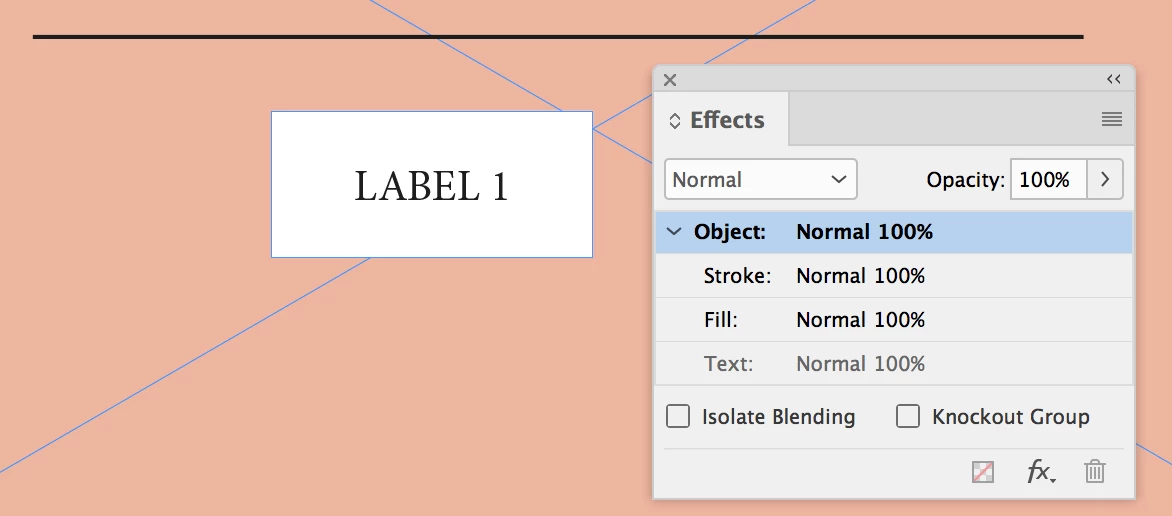
    Begin with the two items: your line and your text frame set with black type and white fill. We'll get to the transparency in a minute.

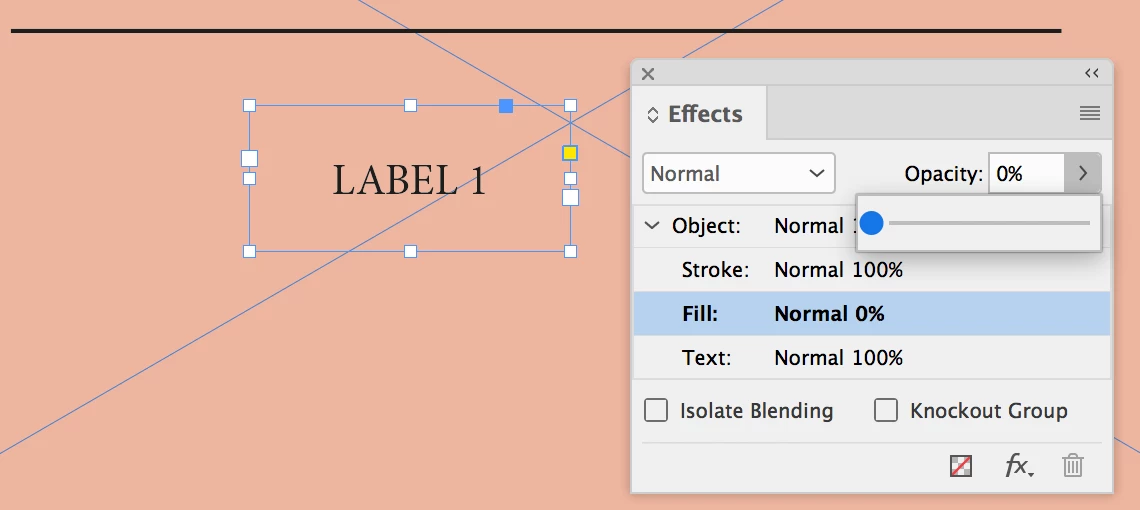
    Next, make the fill of the label 0% in the opacity from the effects panel, while leaving the object, stroke and text:

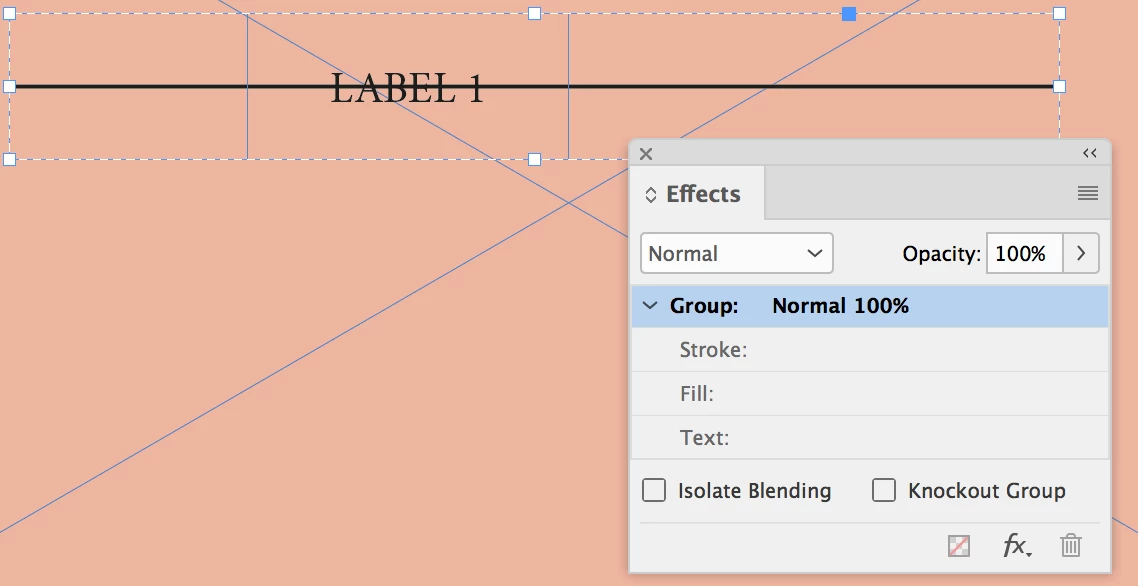
    Next, align the two graphics and group them. The magic will happen in a minute.

    Lastly, click the button in the effects panel that says "Knockout Group".

    Let us know how you go.

    2 replies

    vladan saveljic
    Inspiring
    August 8, 2018

    you did not tell us how your document, your text, etc. are structured

    however you could do it in different ways.

    For example:

    "tab" "En space" LEVEL "En space" "tab" "En space" LEVEL"En space" "tab"

    - Character style "strikethrough" for "tab"

    - Paragraph style > include style grep "strikethrough"

    Participating Frequently
    August 8, 2018

    Thank you - that's really clever too (my lines aren't all horizontal on this occasion, so strikethrough isn't the answer for this one, but a useful idea for the future!)

    Colin Flashman
    Community Expert
    Colin FlashmanCommunity ExpertCorrect answer
    Community Expert
    August 8, 2018

    Yes.

    Begin with the two items: your line and your text frame set with black type and white fill. We'll get to the transparency in a minute.

    Next, make the fill of the label 0% in the opacity from the effects panel, while leaving the object, stroke and text:

    Next, align the two graphics and group them. The magic will happen in a minute.

    Lastly, click the button in the effects panel that says "Knockout Group".

    Let us know how you go.

    If the answer wasn't in my post, perhaps it might be on my blog at colecandoo!
    Participating Frequently
    August 9, 2018

    Hi Colin - I hit a snag - don't know if you can help!  The piece looks perfect in InDesign, but when I export it as a PDF (Print) the lines that were hidden are all showing!

    Indesign :

    PDF :

    Colin Flashman
    Community Expert
    Community Expert
    August 9, 2018

    Ha ha - I love help that starts with "Stop!"  

    I tried these settings - is that right?  (The output looks right).

    It's the first time I've asked a question on here - very impressed by the speed and quality of help!!


    I'd forgotten to ask in my earlier post: the screengrab that was taken with the lines showing through, was that taken from Adobe Acrobat, or another PDF viewer such as Mac Preview?

    how it looks in Adobe Acrobat DC:

    how it looks in Mac Preview

    how it looks in the safari browser:

    But to a modern PDF rip, it will print fine.

    If the answer wasn't in my post, perhaps it might be on my blog at colecandoo!