
Participant
September 14, 2017
Answered

Master pages unwanted rotation

  • September 14, 2017
  • 1 reply
  • 1986 views

So I have a document that includes a four-page wrap that is 7.5" x 5.5". This document also has an 11"x15" insert (The piece is an instruction manual where the installer can unfold the insert to see the details of the specific install; the wrap just includes boilerplate, covers, warranty and contact info). Previously, I had built these two pieces separately. I tried placing the larger document in the middle of the wrap so I can reduce the number of files I'm creating and sending around for proofs. But when I apply the master pages for the insert pages, it rotates the master elements 180 degrees. When I edit the master page, the elements are correct. The wrap pages continue to work as expected.

Two questions:

- Why are the master page elements rotating?

- What can I do to fix it?
This topic has been closed for replies.
Correct answer Barb Binder

So I think I figured it out. I hit "clear rotation" in the master page menu. This rotated the master page elements so they were the same as the thumbnails. I manually rotated the elements, which changed the thumbnails. I applied the fixed master pages to the document pages and I was good. Thanks for your help. I wouldn't have found the solution if you hadn't asked to see the master pages.


That "clear rotation" was available means the spread view was rotated. It was also evident from your first screen shot. Next time, you can right right click the icon on a rotated spread and choose Clear Rotation from there.

For others reading this thread, in InDesign, you can rotate objects, pages (portrait v landscape) or just the spread view which simply controls how you view the spread and makes editing rotated objects easier. Glad you are back on track.

1 reply

Barb Binder
Community Expert
Community Expert
September 14, 2017

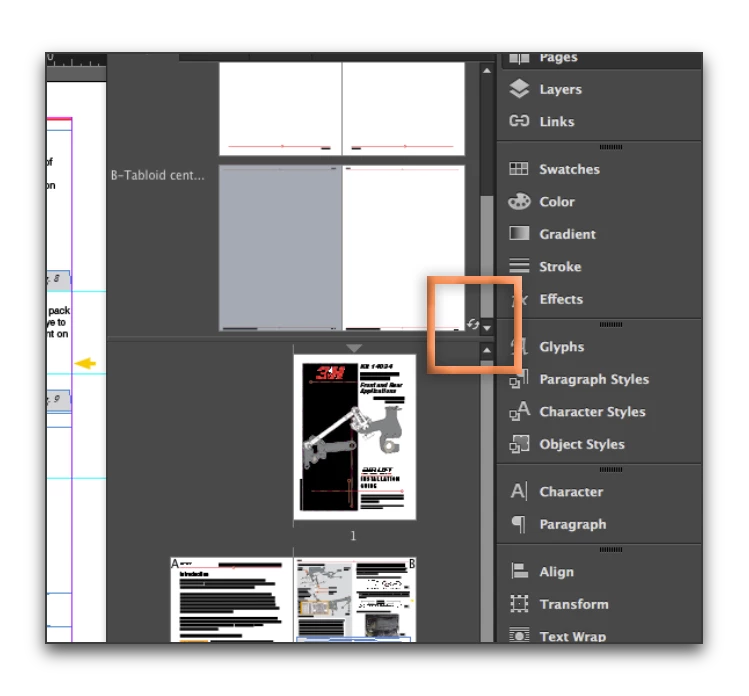
Is the spread view rotated? Can you share a screen shot that includes the master pages panel?

~Barb at Rocky Mountain Training
tylo_laAuthor
Participant
September 14, 2017

Well, this is a little embarrassing. When I blew up the size of the master pages, it showed that master elements are actually rotated. I clicked on this several times and saw that the master pages were in the proper rotation. So I think I've solved my problem. I will rotate those elements and tell you if it worked. Thanks for your very quick response.

tylo_laAuthor
Participant
September 14, 2017

So when I clicked on the master pages, it shows that my master elements are in the proper rotation (although I have the header backward on one of them), but the thumbnails are rotated 180 degrees.