Participant
January 1, 2017
Answered

Missing option for text: vertical alignment buttons

  • January 1, 2017
  • 5 replies
  • 5597 views

Hi,

I've been using InDesign for quite a while now and I've just realized that a tool is now missing when I click on a .  I had this option before and now I can't fin it anywhere.  It is the tool to adjust where the text is aligned vertically.  There was a top middle and bottom option like what is in the blue circle on the image below found in a tutorial.
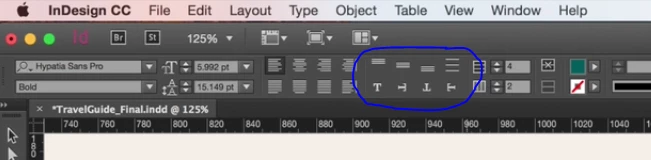
I don't know why it disappeared but mine looks like that now and as you can see on the right the option I'm talking about isn't there.

Is there a way to make it come back ?  What is it called and how to make it appear again ?

Thanks

This topic has been closed for replies.
Correct answer jane-e

Your first screen shot is from a table, as Willie said. The second show Character settings for the frame.

You will also see the controls for vertical alignment if you have a text frame selected with the Selection tool if your monitor and/or resolution allows it.

The solutions are:

• Resize your window bigger if possible (sometimes a quarter inch makes a difference)

• Get a bigger monitor

• Disable something else by using the menu circled by Cinzia

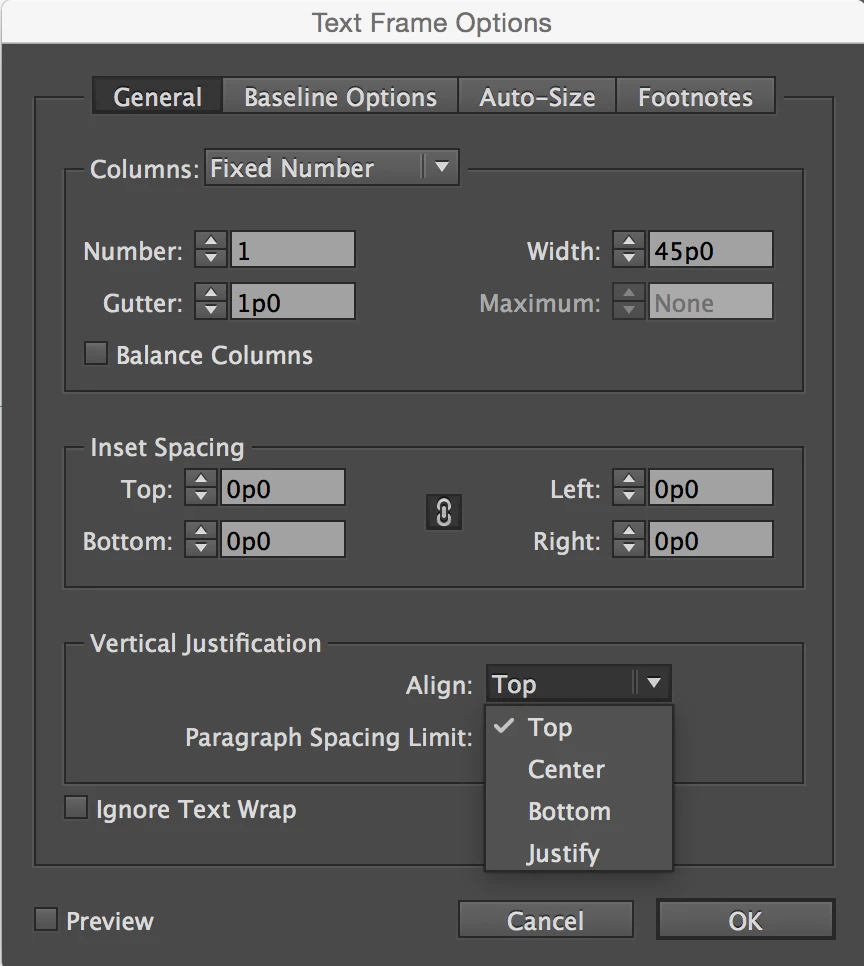
• Option + double-click the frame and change it in Text Frame Options

This is new and very annoying! You can put in a feature request / bug report to the InDesign team here:

http://www.adobe.com/products/wishform.html

5 replies

jonm373Author
Participant
January 1, 2017

Thanks everyone !!

It was as you said a resolution problem and also the difference in selection Text vs text bloc.  My screen is only 1366X768 I know it's bad...

I find odd that there is no way to access the tools not showing without removing the others.

Anyway thanks again !!  Happy new year to everyone !!

jane-e
Community Expert
jane-eCommunity ExpertCorrect answer
Community Expert
January 1, 2017

Your first screen shot is from a table, as Willie said. The second show Character settings for the frame.

You will also see the controls for vertical alignment if you have a text frame selected with the Selection tool if your monitor and/or resolution allows it.

The solutions are:

• Resize your window bigger if possible (sometimes a quarter inch makes a difference)

• Get a bigger monitor

• Disable something else by using the menu circled by Cinzia

• Option + double-click the frame and change it in Text Frame Options

This is new and very annoying! You can put in a feature request / bug report to the InDesign team here:

http://www.adobe.com/products/wishform.html

jane-e
Community Expert
Community Expert
January 1, 2017

Ha! And once again Steve and I start typing at the same time with the same answer and he is a faster typist than I am!

Steve Werner
Community Expert
Community Expert
January 1, 2017

Happy New Year, Jane!

But your answer is more thorough!

cinziamarotta
Participating Frequently
January 1, 2017

The icons on the control panel depend on the resolution of the monitor and on the available space in the InDesign window. If you reduce the window, some icons disappear. Probably now there is not enough space to display them all.

However you can customize the Control Panel by the upper right gear icon:

Steve Werner
Community Expert
Community Expert
January 1, 2017

Both Willi and Cinziamarotta are correct.

The screen capture where you saw the vertical alignment choices was taken when a selection of table cells was selected:

But you need to the Control Panel menu > Customize. You'll need to turn off some of your options to show it when you're in a paragraph.

In the last CC 2015.4 update, the icons were made a little larger, reducing the number of icons you can see in the Control panel.

Willi Adelberger
Community Expert
Community Expert
January 1, 2017

Those options are only available if you are in the cell of a table in InDesign.

barbara_a7746676
Community Expert
Community Expert
January 1, 2017

I see the alignment icons when a text frame is selected with the Selection tool.

Also see rotation icons when selected with the Selection tool. A rotated "T" appears if you rotate the text frame.