Please Adobe help this issue. |
Handjojo, this is a user to user forum. Steve and Barb are both experts with extremely long lists of credentials, but they are not Adobe employees. They are volunteers on this forum. The ACP badge you see by their names means Adobe Community Professional.
They have both given you correct answers, so I won't add anything new there, but do keep trying until you get this worked out!
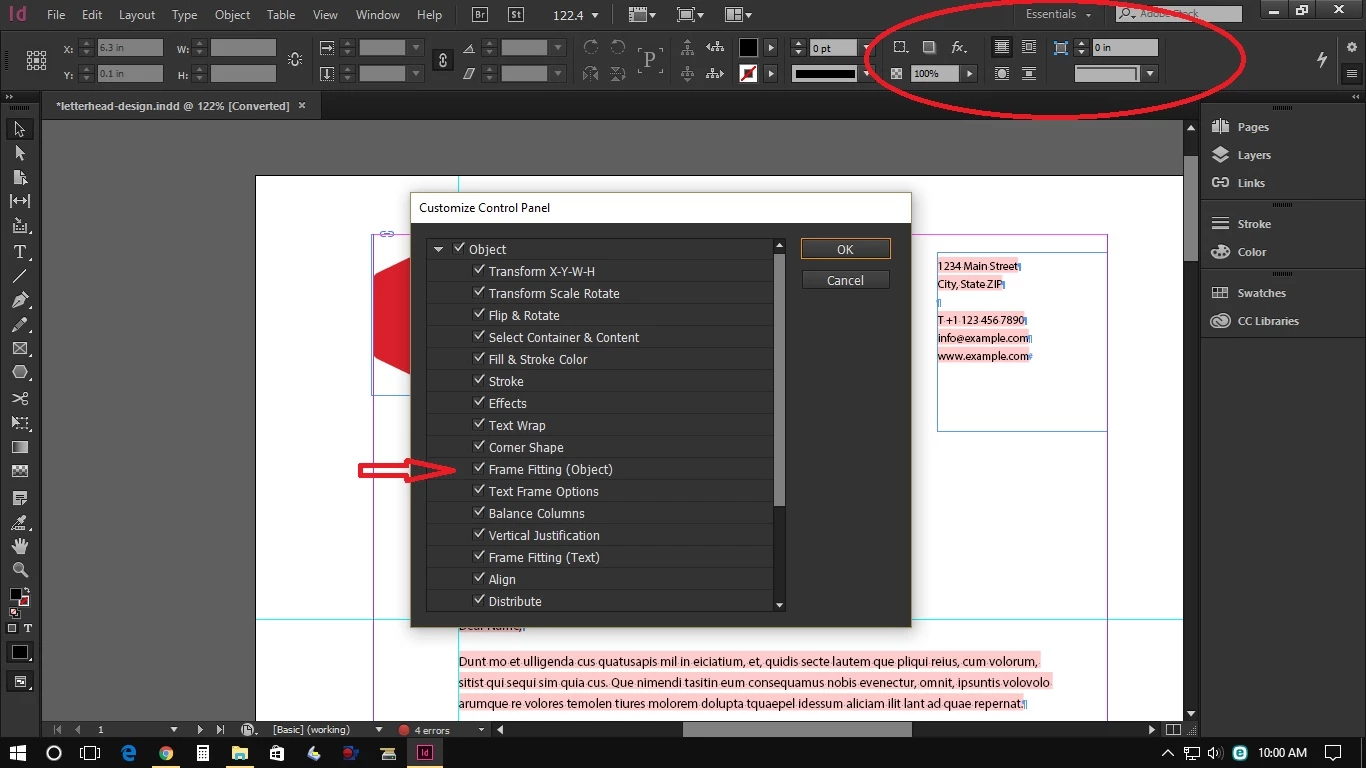
What you are asking about is new behavior in 2017 where some things don't show that used to show in earlier versions. We don't create the software — we can only help you use it.
Thanks, Jane. Let me give this one more shot.
handjojo189@gmail.com, let's look at this as a 2-step process:
- Use the gear to Open Customize Control panel and uncheck the 5 options outlined in the picture below: Flip & Rotate, Select Container & Contents, Effects, Text Wrap and Corner Shapes. Click on OK.
- Use the Selection tool (the black arrow) to select a frame containing a graphic. The frame filling buttons will appear at that time.
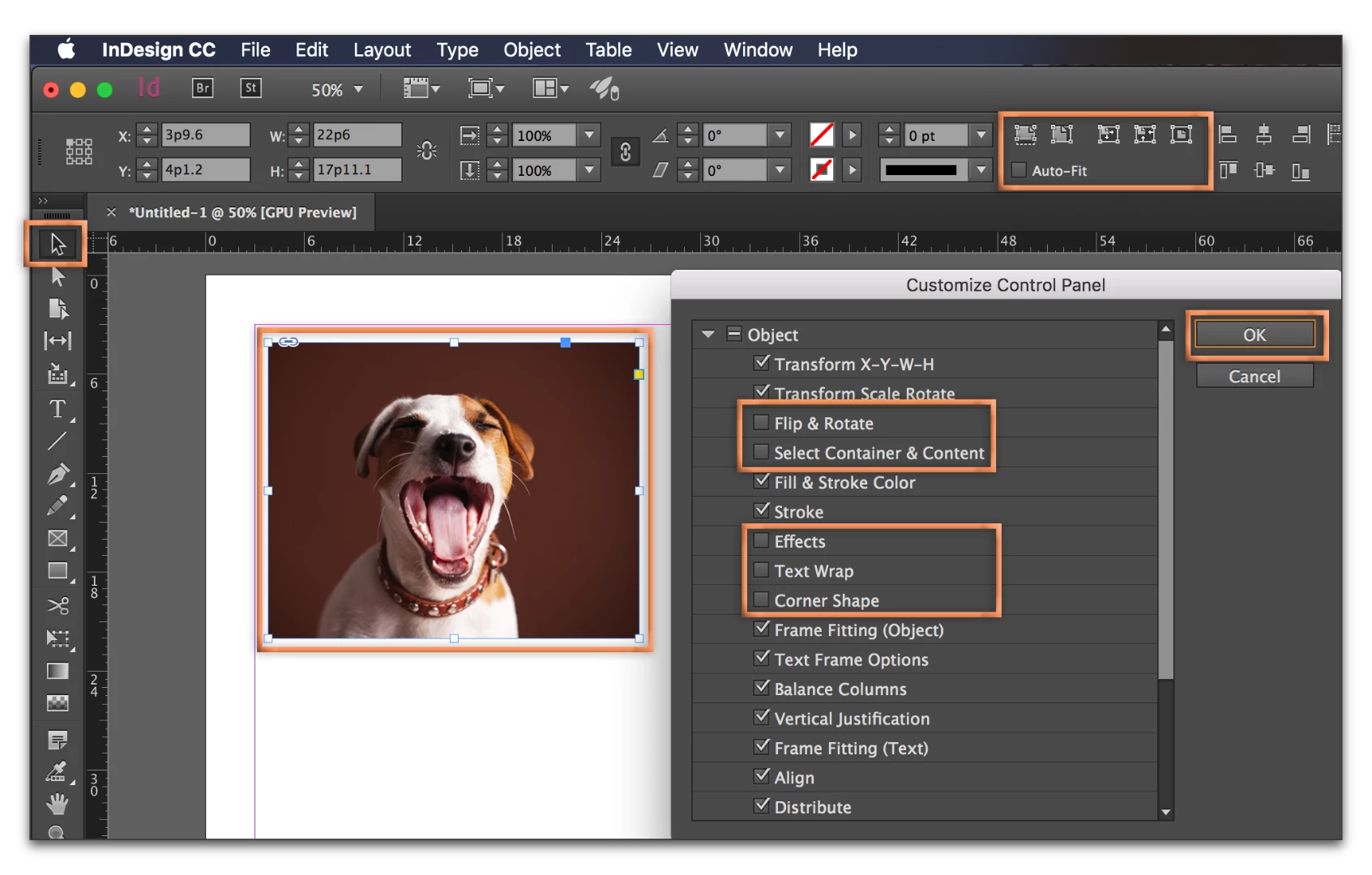
This is not a bug—the larger buttons reflect the growing popularity of HiDPI displays. The older buttons were too small to see on the high-res displays so Adobe made them larger for everyone. On a smaller screen, they no longer fit. If you want to see all the buttons, all the time, you will need to upgrade to a higher resolution monitor.
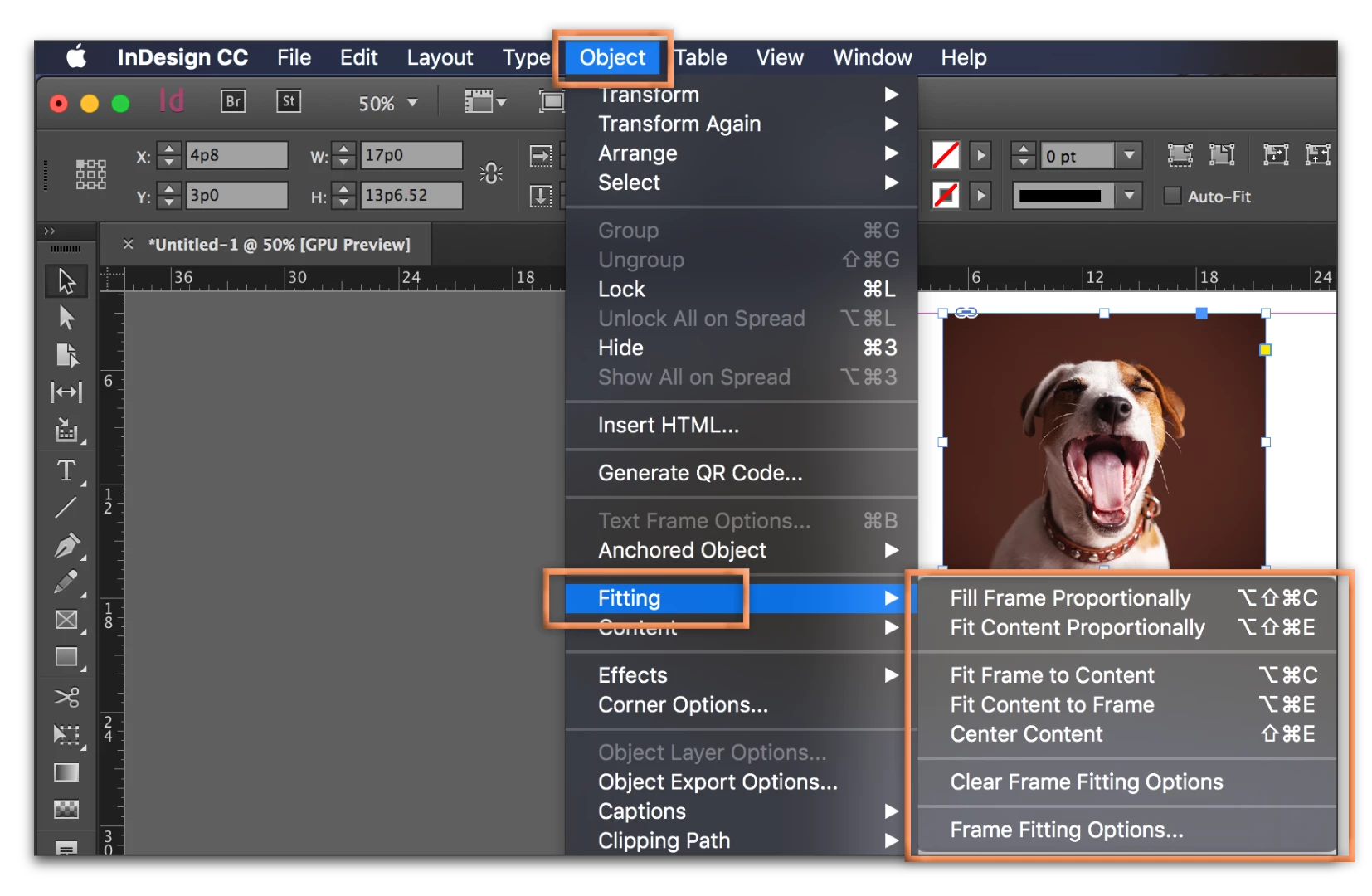
Finally, it is worth mentioning at these buttons are simply shortcuts for the same commands found in Object > Fitting. These commands are available all the time, as long as an image is selected.

 AdChoices