bradleyd1453121
Known Participant
June 25, 2020
Answered

Modifying INSIDE Margins

  • June 25, 2020
  • 6 replies
  • 1425 views

Hi,


I'm trying to increase my INSIDE margins to 23 (from 12.7).

When I go into FILE - DOCUMENT SETUP and make that change, it increases the Inside margin on the Right pages - but increases the OUTSIDE margin on the Left pages.

What gives? I need both Insides modified (in order to keep my images from getting buried in the spine).

Any thoughts?

Thanks!
This topic has been closed for replies.
Correct answer Laubender

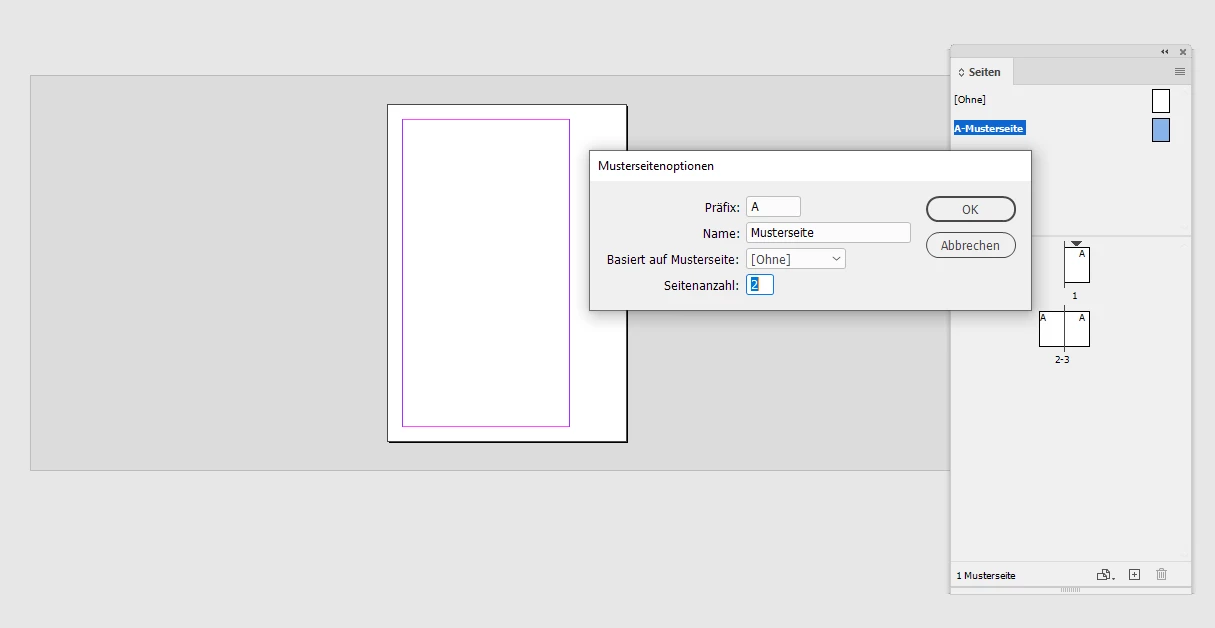
[3] Add one page to master A.

For that select the page on master spread A and use the context menu to get the Master Page Options. From my German InDesign:


Change the number of pages from "1" to "2":

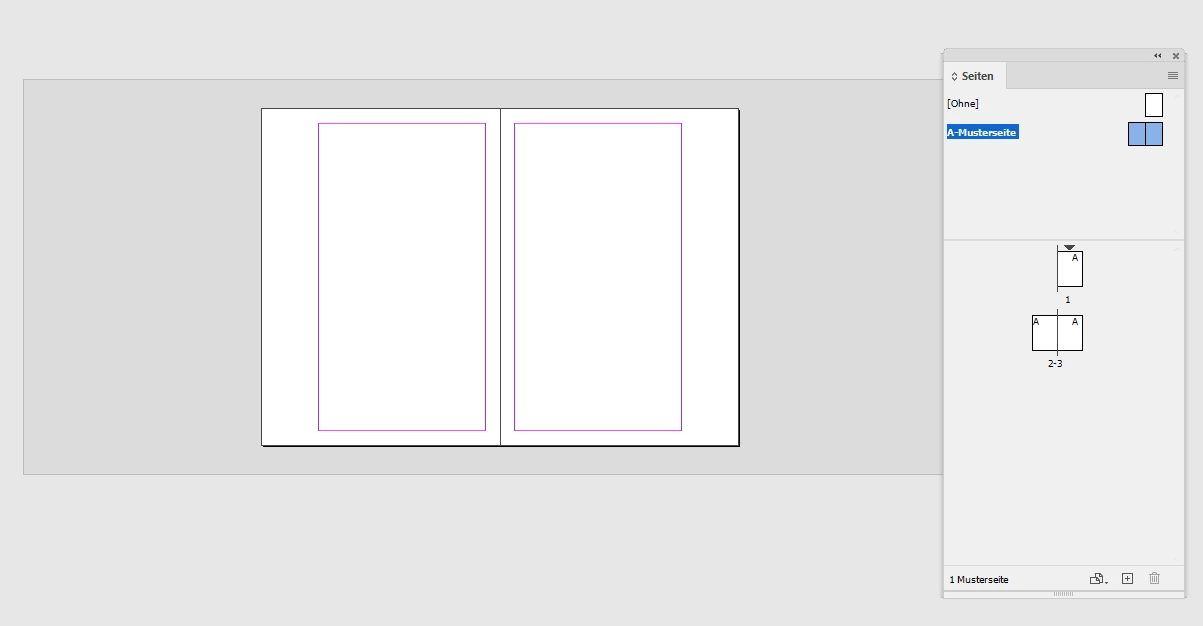
Result:


All pages where master A is applied are now "repaired" :


Regards,
Uwe Laubender

( ACP )

6 replies

Community Expert
June 25, 2020

Hi Bradley,

Barb showed one way why this could happen, here is another one:


[1] You started with a non-facing pages document.

Means: You also started with one single page with master spread A.

[2] You changed your document to a facing-pages document.

Master spread A still has one single page that is responsible as master for all pages left or right from the spine!


In a situation like that changing the vertical margins would mean changing the marigins left or right.

There simply is no outside or inside because of just one page in master spread A.


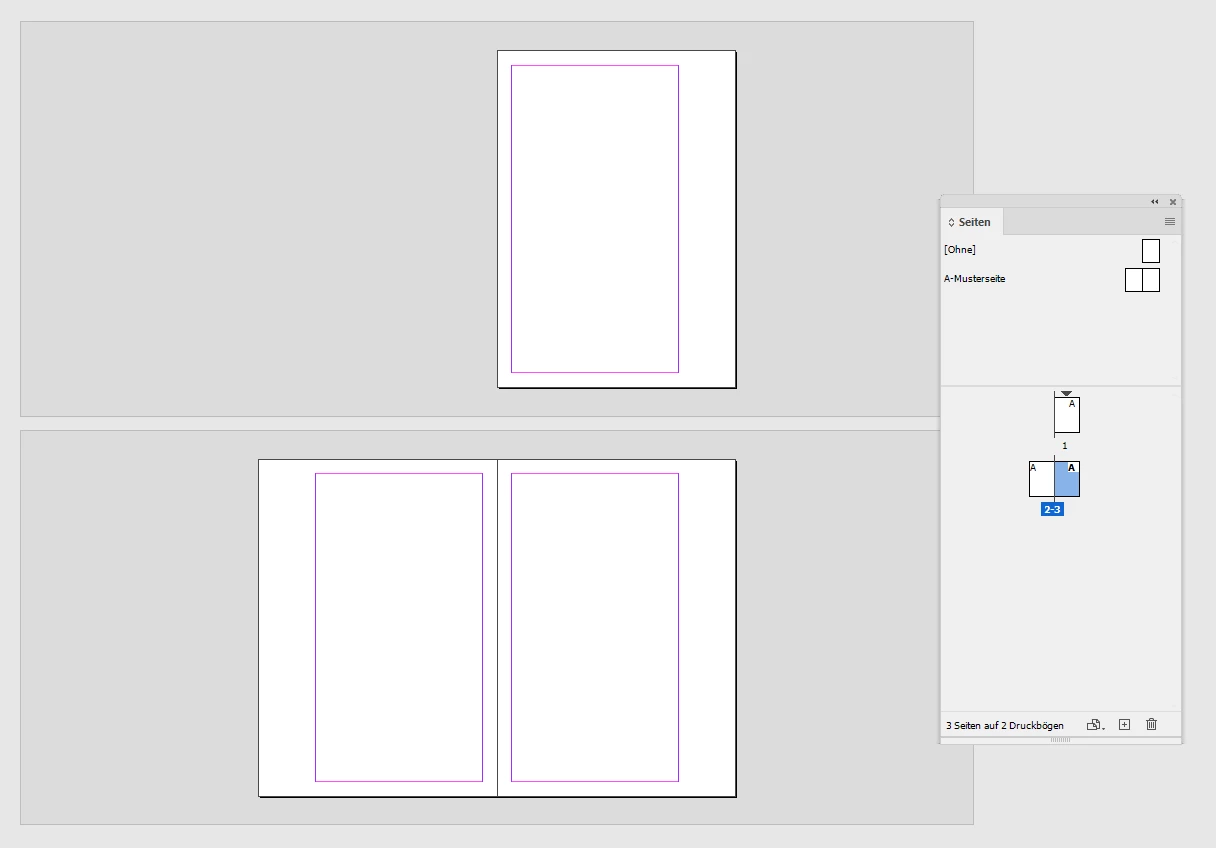
Facing pages like 2 to 3, where Master A is applied below.

I changed the outside margins in document setup from default to 50 mm:


The solution:
[1] Add a new master spread B, there will be two pages by default, one page left, one page right to the spine, change the value for outside margins with the two master pages selected.

[2] Apply master B to all of your pages ( or to the ones master A was applied to ).


Regards,
Uwe Laubender

( ACP )

LaubenderCommunity ExpertCorrect answer
Community Expert
June 25, 2020

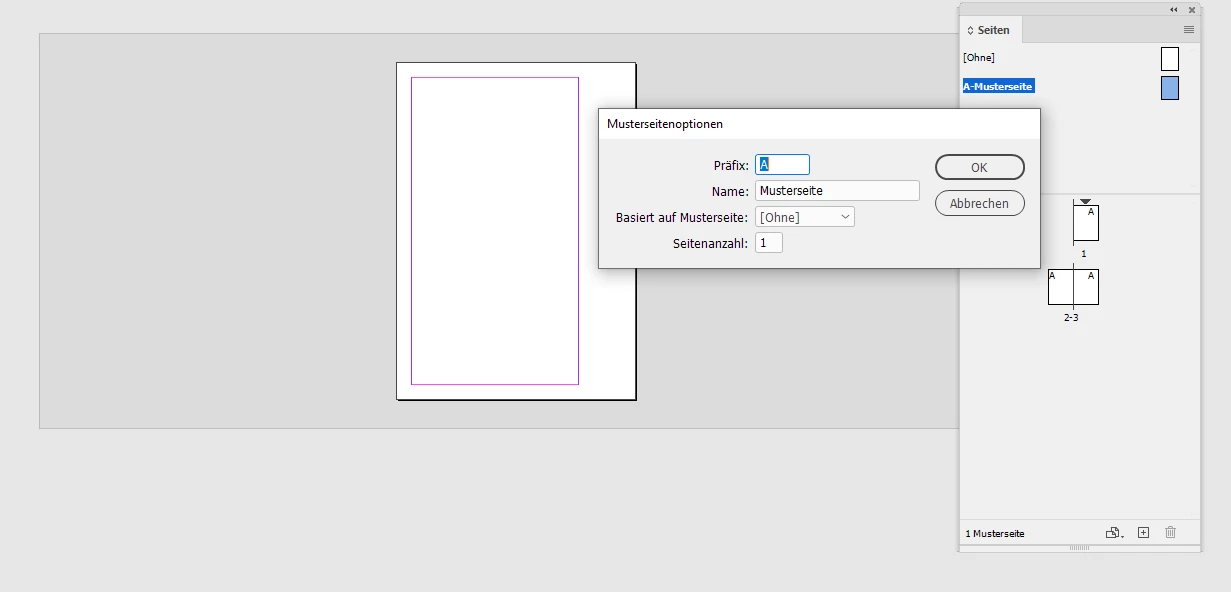
[3] Add one page to master A.

For that select the page on master spread A and use the context menu to get the Master Page Options. From my German InDesign:


Change the number of pages from "1" to "2":

Result:


All pages where master A is applied are now "repaired" :


Regards,
Uwe Laubender

( ACP )

Barb Binder
Community Expert
Community Expert
June 25, 2020

Yes, you did. I'll happily mark your response as correct if we get confirmation. 🙂


~Barb 

~Barb at Rocky Mountain Training
Barb Binder
Community Expert
Community Expert
June 25, 2020

These responses are out of order, but I was able to replicate the problem. See the animation, above.


~Barb 

~Barb at Rocky Mountain Training
jmlevy
Community Expert
Community Expert
June 25, 2020

Barb, that is exactly what I wrote in my first answer: It looks like the 2 pages act as right pages. Did you move them (unintentionally) on the right side of the spine?

Barb Binder
Community Expert
Community Expert
June 25, 2020

I think it is the same paper size for both pages, but it is odd that the bleed is extending over the right page. 


On that note, have you been shuffling pages? Save your file first, then select the spread in the Pages panel and restore the checkmarks in front of both Allow Document Pages to Shuffle and Allow Selected Spread to Shuffle in the Pages panel menu.


~Barb


~Barb at Rocky Mountain Training
bradleyd1453121
Known Participant
June 25, 2020

Hi. I included a screenshot above. 

Not sure if I did it correctly, as it's not show automatically...

Barb Binder
Community Expert
Community Expert
June 25, 2020

I see the attachment—it shows the issue clearly.


Does the left hand page have an override? What happens if you reapply the master page? On that note, are the left/right master pages picking up the change correctly?


~Barb

~Barb at Rocky Mountain Training
jmlevy
Community Expert
Community Expert
June 25, 2020

No screen shot. Did you use the image icon?


jmlevy
Community Expert
Community Expert
June 25, 2020

Can you show a screenshot of your pages panel, especially this spread? It looks like the 2 pages act as right pages. Did you move them (unintentionally) on the right side of the spine?