
Inspiring
February 6, 2023
Answered

Multi page document (Facing Pages) help

  • February 6, 2023
  • 2 replies
  • 849 views

When i'm doing multi page layout and have facing pages on i get 1 page at the top how can i get rid of this?

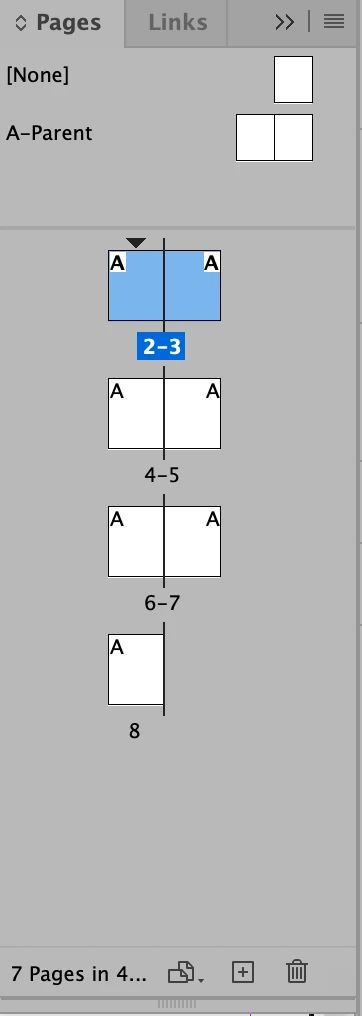
I want pages 1&2 to be sidse by side but right now it goes 1, 2-3,4-5 etc.. i dont want the lone page at top. I dont want it to display or be printed.
This topic has been closed for replies.
Correct answer Steve Werner

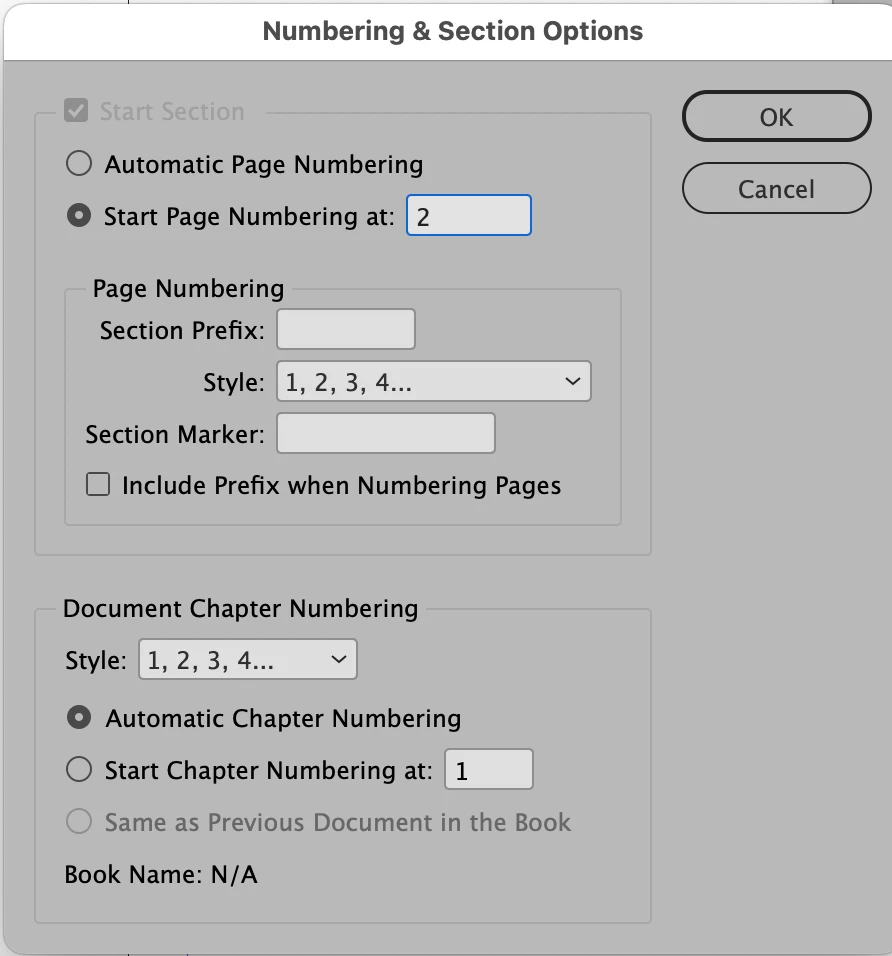
In a left-to-right reading InDesign document, printing tradition determines that odd-numbered pages are on the right, and even-numbered are on the left. So to create left-right, left-right spreads you need to start your numbering on page 2.


From the Pages panel menu choose Numbering and Section Options, and set the start page to be 2.


This will give you what you want.


2 replies

rob day
Community Expert
Community Expert
February 6, 2023

Hi @cbishop01 , With the Pages panel flyout menu’s Allow Document Pages to Shuffle unchecked, delete page 1


If your document is going to be printed and bound, and the 1-2 spread is folded at the spine, where’s the page that would have to print on the back of page 1?


Steve Werner
Community Expert
Steve WernerCommunity ExpertCorrect answer
Community Expert
February 6, 2023

In a left-to-right reading InDesign document, printing tradition determines that odd-numbered pages are on the right, and even-numbered are on the left. So to create left-right, left-right spreads you need to start your numbering on page 2.


From the Pages panel menu choose Numbering and Section Options, and set the start page to be 2.


This will give you what you want.


cbishop01Author
Inspiring
February 6, 2023

Perfect!!!!!!! thanks so much