Answered
My text frame will not close in on the text completely
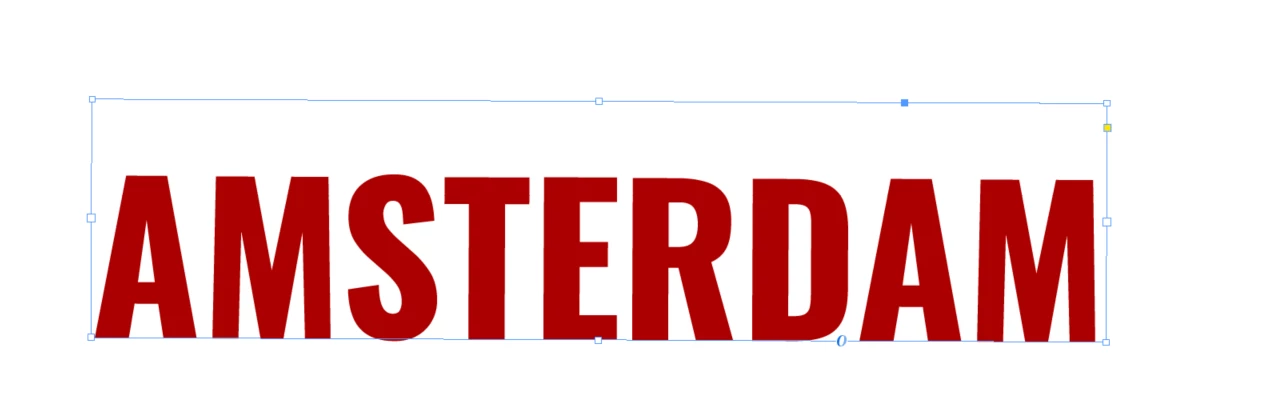
Here is the problem I have with my text frame when I double click the corner
How come there is still space at the top? Do I have a setting on that will fix this?

Here is the problem I have with my text frame when I double click the corner
How come there is still space at the top? Do I have a setting on that will fix this?
Change the Frame settings baseline off-set to Caps or X-height, just try out what gives the result you want.
To change the first baseline options of a selected text frame, choose Object > Text Frame Options, and click the Baseline Options tab. The following options appear in the Offset menu under First Baseline:
Ascent
The height of the “d” character in the font falls below the top inset of the text frame.
Cap Height
The top of uppercase letters touch the top inset of the text frame.
Leading
Use the text’s leading value as the distance between the baseline of the first line of text and the top inset of the frame.
X Height
The height of the “x” character in the font falls below the top inset of the frame.
Fixed
Specify the distance between the baseline of the first line of text and the top inset of the frame.
Min
Select a minimum value for the baseline offset. For example, if Leading is selected and you specify a minimum value of 1p, InDesign uses the leading value only when it’s greater than 1 pica.
Already have an account? Login
Enter your E-mail address. We'll send you an e-mail with instructions to reset your password.
 AdChoices