marisaa55373970 said:
"I create a box and color it yellow. Then I select the circle tool and create a circle - hoping it will also be yellow because the last object was yellow. But it isn't."
Hi marisa,
you first have to understand the tools and panels in the screenshot first. Especially how they interact together.
Then you could do what you want with a few clicks and moves of icons.
Selected is the Rectangle Tool. For this tool you can set some preferences like stroke weight, stroke type, stroke color and fill color. You cannot do this for the tool above, the Rectangle Frame Tool. Very important is that little icon to the right of the [Basic Frame Style]. That indicates the default object style for frames shaped like rectangles, ovals, polygons and graphic lines drawn with the Rectangle Tool.
Currently, by default, because of the positon of that little icon, the properties for the default style are:
No fill, a solid stroke of 1 Pt stroke weight with color [Black]:
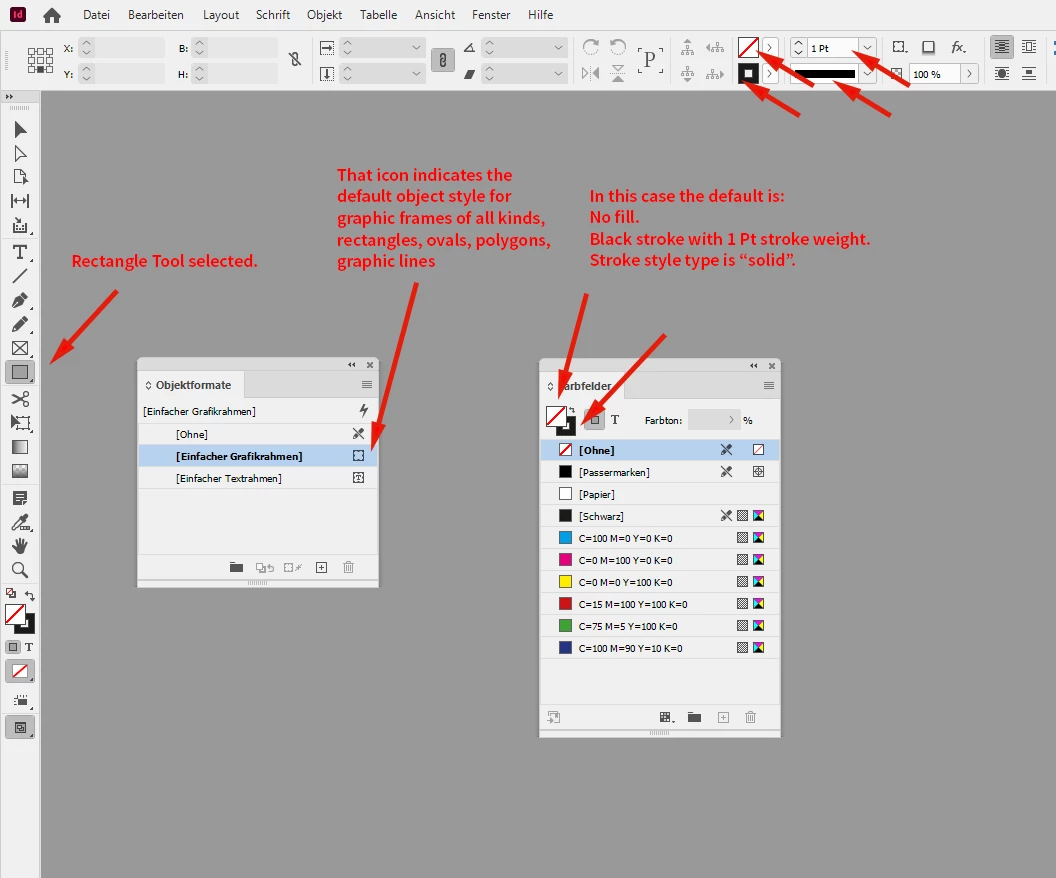
If you now have a document open with the defaults like that you will be able to draw out a rectangle with the said properties. Or an oval if you switch the tool to the Ellipse Tool:

Now, if you change the fill color of that drawn oval to e.g. Yellow like that:
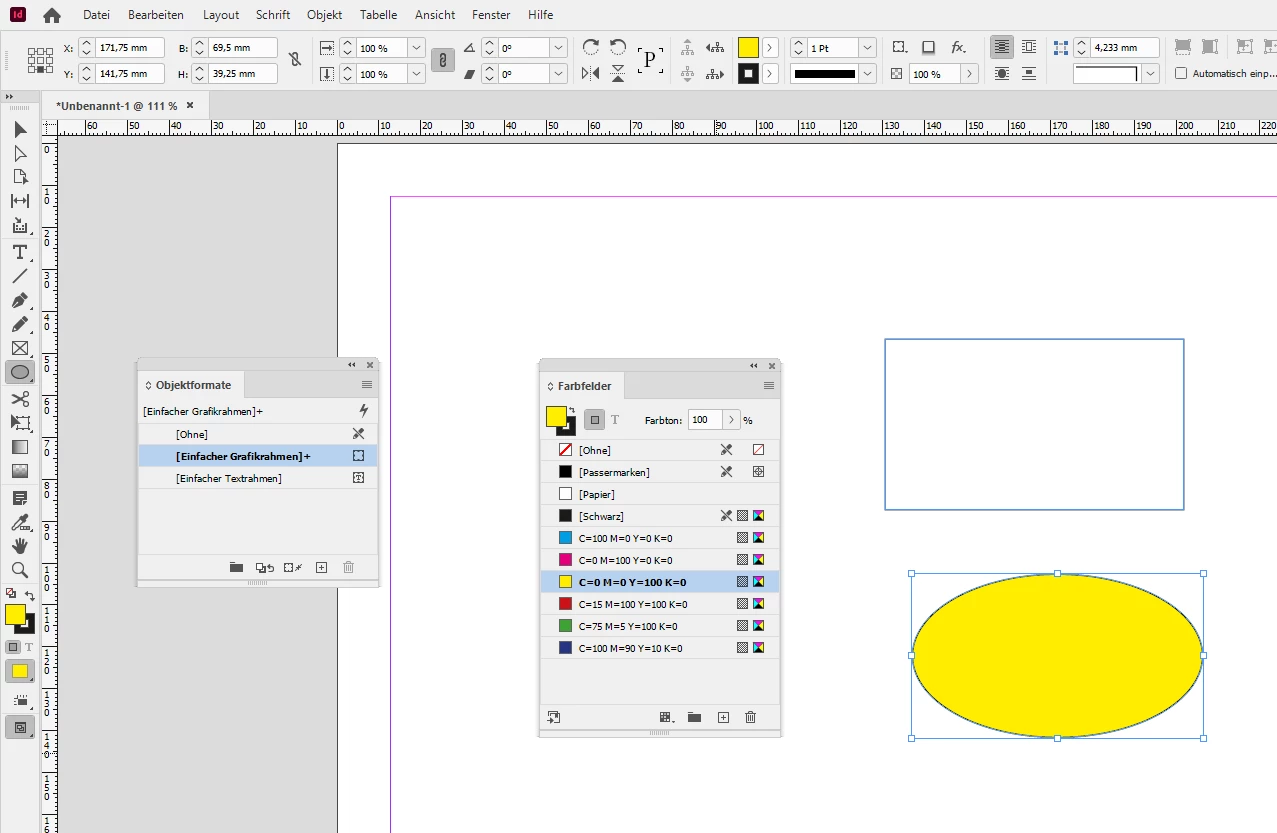
you did an override to the [Basic Frame Style] which is indicated by a little + sign to the right of the object style's name.
To make the fill the new default you could do two things:
[1] You could redefine the overrides as the new properties of the [Basic Frame Style] like that:
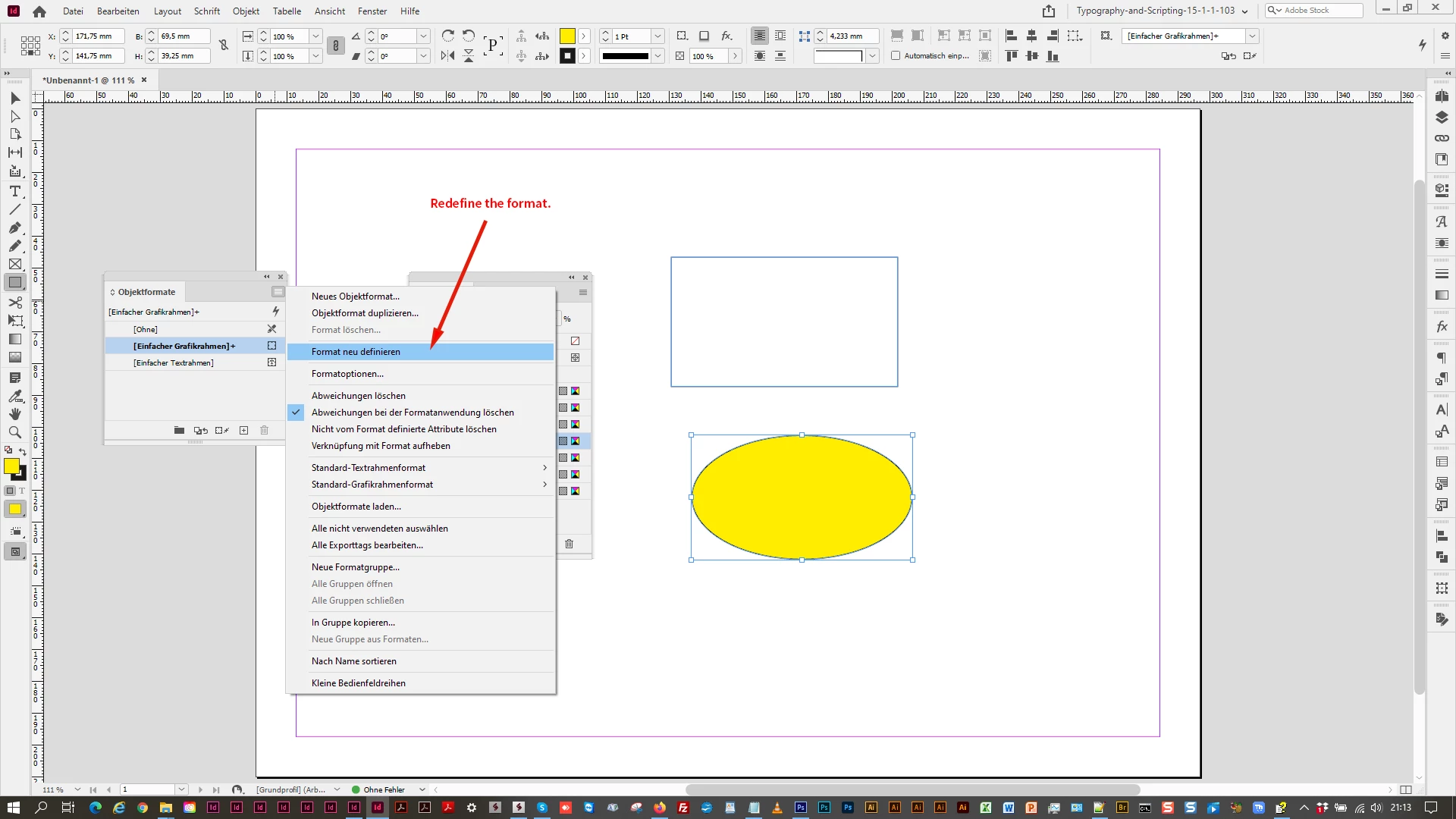
But that has the negative side effect that the rectangle above will follow. And all other objects with the same object style somewhere in the document as well. So changing an object style is no option at all, I think!
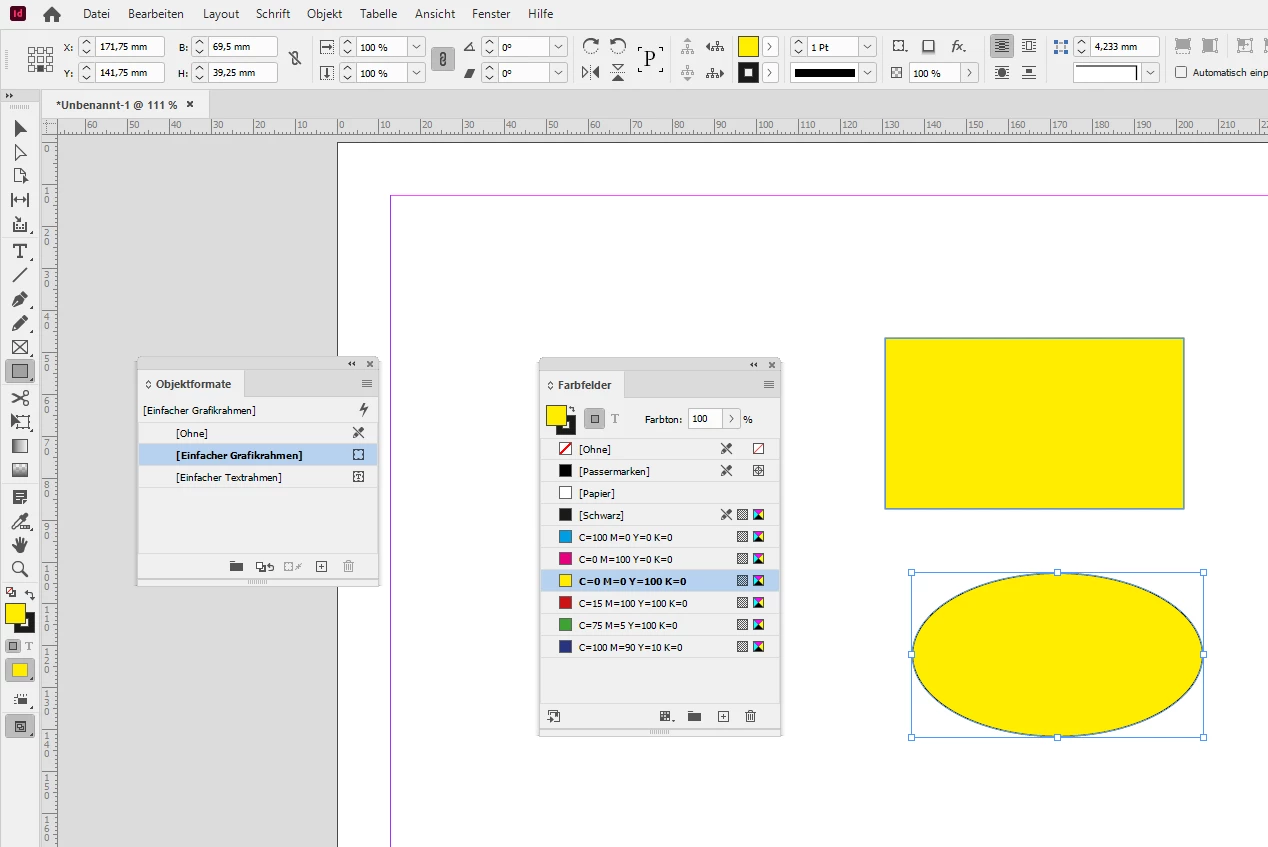
But you will be able to draw out other rectangles, ovals and polygons with the same new properties.
The alternatives:
[2] Keep the oval selected with the overrides and create a new object style.
Make it the default frame style for a while ( until you decide you need a different design for the next object you draw 😞

To make that new style the default move that little icon I talked about before to the name of the new object style in the Object Styles Panel. You may also apply that new style to the oval:
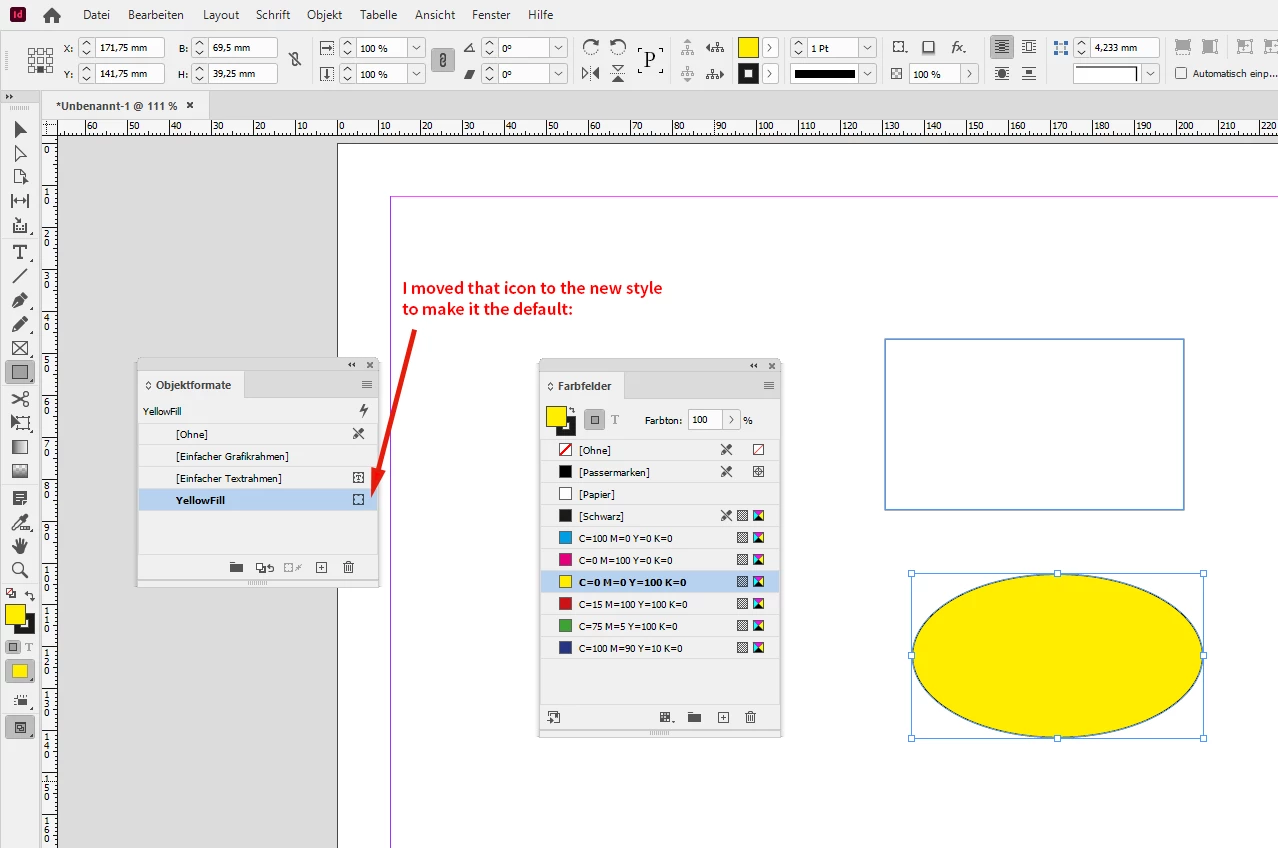
When done you can draw out new rectangles, ovals and polygons with the tools under the Rectangle Tool and the fills and strokes will follow the new default. Again: You cannot do that with the Rectangle Frame Tool that is above the Rectangle Tool. Best move the little icon back to the [Basic Frame Style] when done.
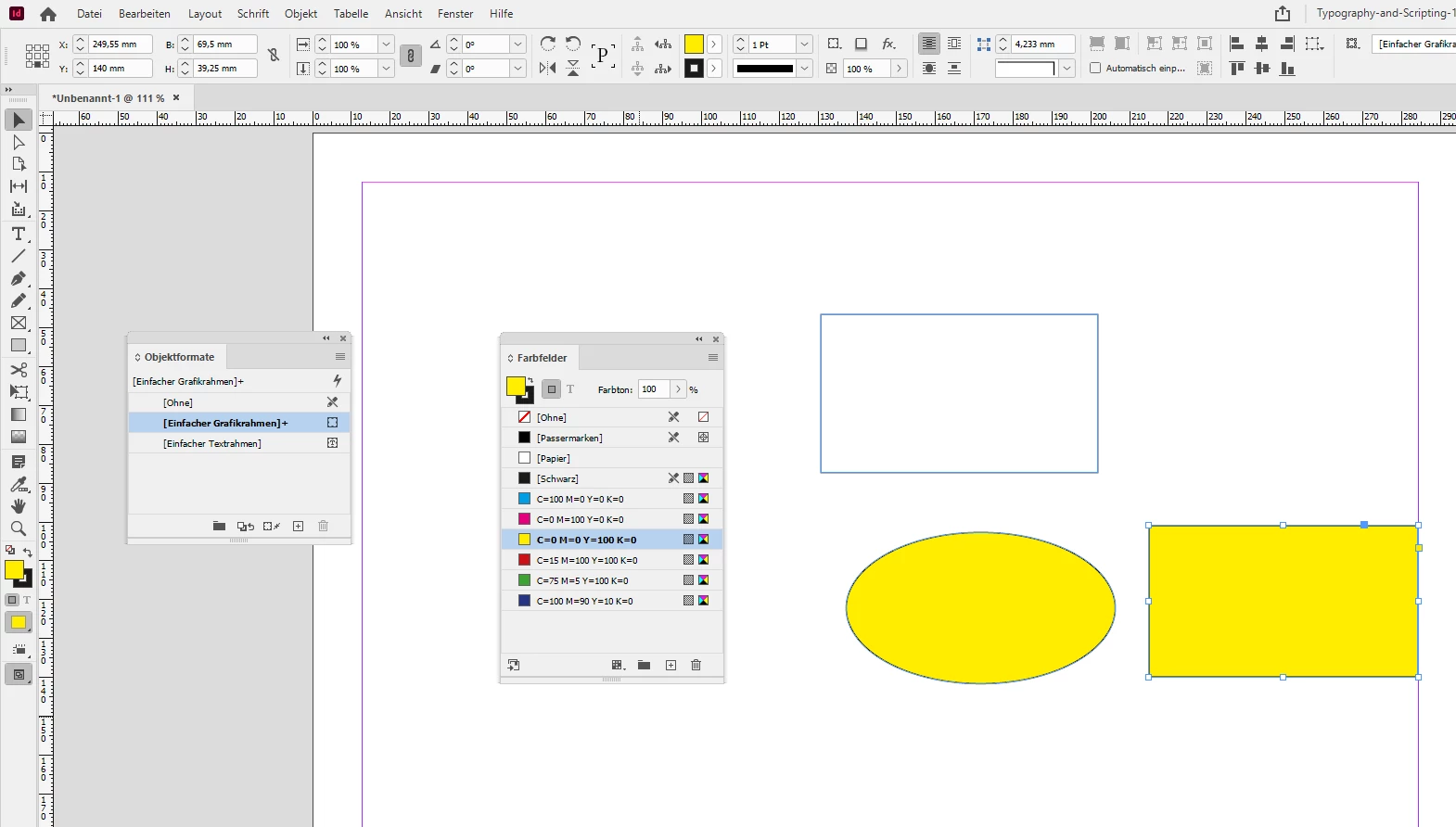
[3] Duplicate the yellow oval and convert its shape from oval to rectangle with a menu command.
Or from oval to polygon if you like. There are several shapes available, also with rounded corners.
The duplicated item has the [Basic Frame Style] applied with the same overrides.

The result of the conversion from shape oval to shape rectangle:
Regards,
Uwe Laubender
( ACP )

 AdChoices