
Known Participant
August 4, 2020
Answered

North American Prepress setting

  • August 4, 2020
  • 2 replies
  • 5553 views

My question is about colour profiles in InDesign.


I will be sending off a manuscript created in InDesign to an offset printing company in the next few weeks. I was told by the company that it may be best to use North American Prepress colour settings in my document. So, I have done some research, and have now changed the Color Settings within Adobe Bridge to North American Prepress 2 which seems to have a RGB profile of Adobe RGB (1998) and a CMYK profile of U.S. Web Coated (SWOP) v2. Before, the RGB profile seems to have been sRGB IEC61966-2.1 and the CMYK profile was apparently Coated FOGRA39 (ISO 12647-2:2004).


Once I made the North American Prepress 2 modification in Adobe Bridge, my InDesign file looked significantly different than before (see screenshot called “after-change.png”). The file has a saturated orange/red colour compared to before. Nevertheless, when I actually export the file to a PDF, this saturated orange/red colour is no longer there and the file seems to return to the way I wanted it to look (see “exported-pdf.pdf”). Why am I seeing these differences if the working InDesign file as well as the exported PDF are in Adobe RGB (1998)?


Why does the version in InDesign look so different from the exported PDF?  I would appreciate any simple guidance with respect to all of this.
This topic has been closed for replies.
Correct answer rob day

Thank you, rob_day.


I have now packaged the InDesign file, as I think it may be more efficient to have an expert look over it. Here is a link to access the packaged contents:

https://drive.google.com/drive/folders/1sn0w-80xlrBRCIeWsPZqd8TCj0I1q981?usp=sharing


Could you let me know if you have trouble downloading the files?


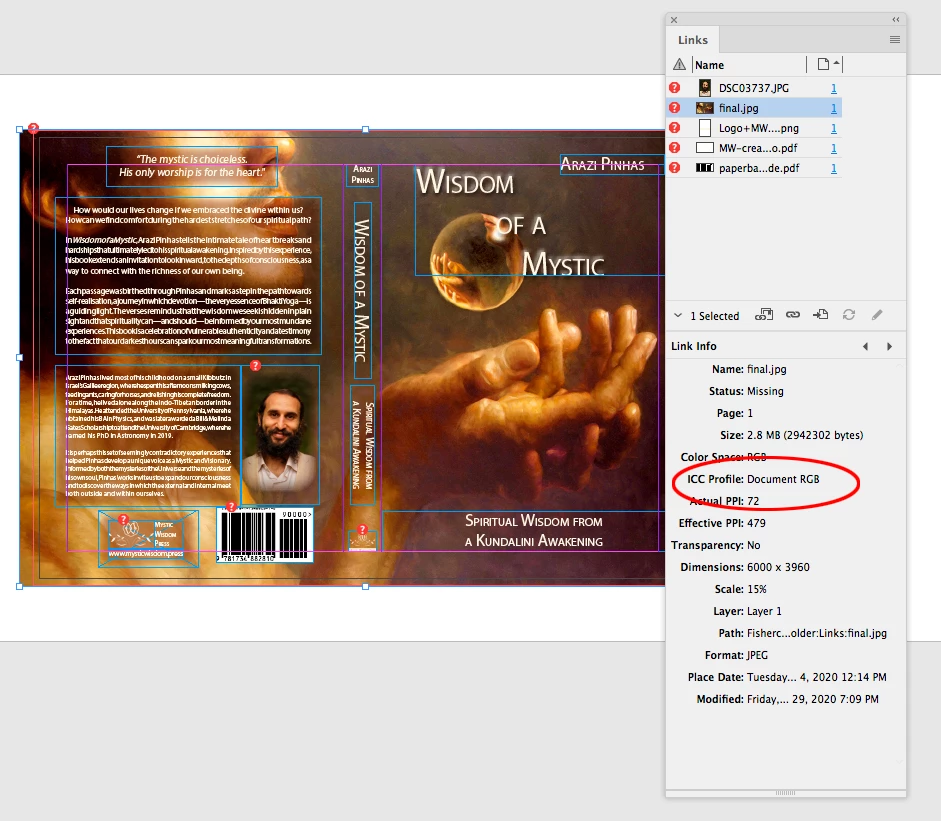
The 3 RGB image links have no assigned profile, and that’s the root of your problem. Images with no embedded profile get listed in the link Info panel as DocumentRGB. With no embedded profile, the profile you assign to the document gets used for the image display—reassigning sRGB to AdobeRGB changes the preview.


If you want to literally follow the North American Prepress guidance, you would have to open the 3 image files into Photoshop and do the Convert to Profile there and resave with the profile embedded. But I think you would be better off going back to the sRGB assignment, and Export using the PDF/X-4 preset which will embed the sRGB profile. For RGB images the profile has to be included because the RGB images get converted to CMYK at output and there needs to be a source profile to make an accurate conversion.


For images where there are saturated cyans and greens AdobeRGB is a better choice because sRGB tends to clip those colors at output, but the earthy colors of you image wont have that problem, so the easiest approach is to make sure the document RGB assignment is sRGB, and the sRGB profile gets included in the export—PDF/X-4 will do that and your ID and PDF previews will match.

2 replies

rob day
Community Expert
Community Expert
August 4, 2020

The color change is happening because your full bleed artwork is an RGB file with no assigned color profile, and I’m guessing your InDesign file also has no RGB profile assigned. When there’s no RGB profile assignment the color changes depending on the viewing application’s default Working RGB profile.


You can open your background art into Photoshop, use Convert to Profile with sRGB set as the source and AbobeRGB set as the Destination, save the file as a PSD making sure you check Embed Color profile, and update the link in InDesign. If you open your Links panel the artwork’s profile should now be listed as AdobeRGB (not Device RGB).


Also sync’ing Color Settings doesn’t necessarily have an affect on existing documents, so with your ID document open, use Edit>Assign Profiles and make sure Adobe RGB and US Web Coated SWOP are assigned to the document (and not Discard use current working space).


apinhasAuthor
Known Participant
August 4, 2020

Thank you for your willingness to help, rob_day.


I tried your second piece of advice (Edit>Assign Profiles), but now I am having issues in the output file. Perhaps I can share screenshots of what I am seeing and get feedback on how to correct things for this project? Before I made the profile changes in Adobe Bridge, I was not experiencing any of these issues. Perhaps I should not have made changes in the first place.


I went to Edit>Assign Profiles. I first assigned the profile to be Adobe 1998. Then, I changed the profile to be sRGB. In both cases, the CMYK profile is assigned to US Web Coated (SWOP) v2. Attached are two screenshots showing what my screen looked like after making these two changes (see “Adobe1998-version.png” & “sRGB-version.png”). The Adobe 1998 version seems saturated, which I do not like. I want my exported PDF to look like the sRGB version because it is does not have a saturated orange/red colour; thesRGB screenshot version does not show these strong orange colours — it is truer to the look of the original image. Nevertheless, when I export my PDF in either case, I get the Adobe1998 saturated look.


To further help diagnosis of my confusion, I have attached two screenshots showing the tabs from Edit>Colour Settings & Edit>Convert to Profile.


I hope you might be willing to advise further as to what I should do.


“Adobe1998-version.png”:


 “sRGB-version.png”:


Edit>Colour Settings:


Edit>Convert to Profile:


rob day
Community Expert
Community Expert
August 4, 2020

My Convert to Profile was not from InDesign, I was in Photoshop converting an image.


Is the backgound art in your InDesign file a linked image, or are you placing a PDF? If it is an image can you select the image and show us a screen capture of your Link Info panel?


You can also package your InDesign file and assets and share it via Dropbox or your CC account.

Derek Cross
Community Expert
Community Expert
August 4, 2020

Which country are you printing your book in?

Are your printers printing on web or on sheet feed machines?

Are your images in RGB color mode?

How are you creating your PDF - and which version?


(By the way, re terminology; you may Place your MS in, possibley as a MSWord file, in InDesign and create your artwork/document/file and then produce a suitable PDF for your printer, i.e. you're not sending your manuscript to the printer -- just saying!)

apinhasAuthor
Known Participant
August 4, 2020

Thank you for your response.


I am printing in the US with a company called Gorham Printing (gorhamprinting.com).
I am not too sure about the difference, but I think it is sheet-fed.
The ICC profile of the .jpg images is “Document RGB”.
I create the PDF by going to File>Export, and choosing Adobe PDF (Print). The Adobe PDF Preset is Press Quality, with Acrobat 5 (PDF 1.4) Compatability.