Chris Panny
Inspiring
November 18, 2025
Question

Number List Indentation Issue

  • November 18, 2025
  • 3 replies
  • 244 views

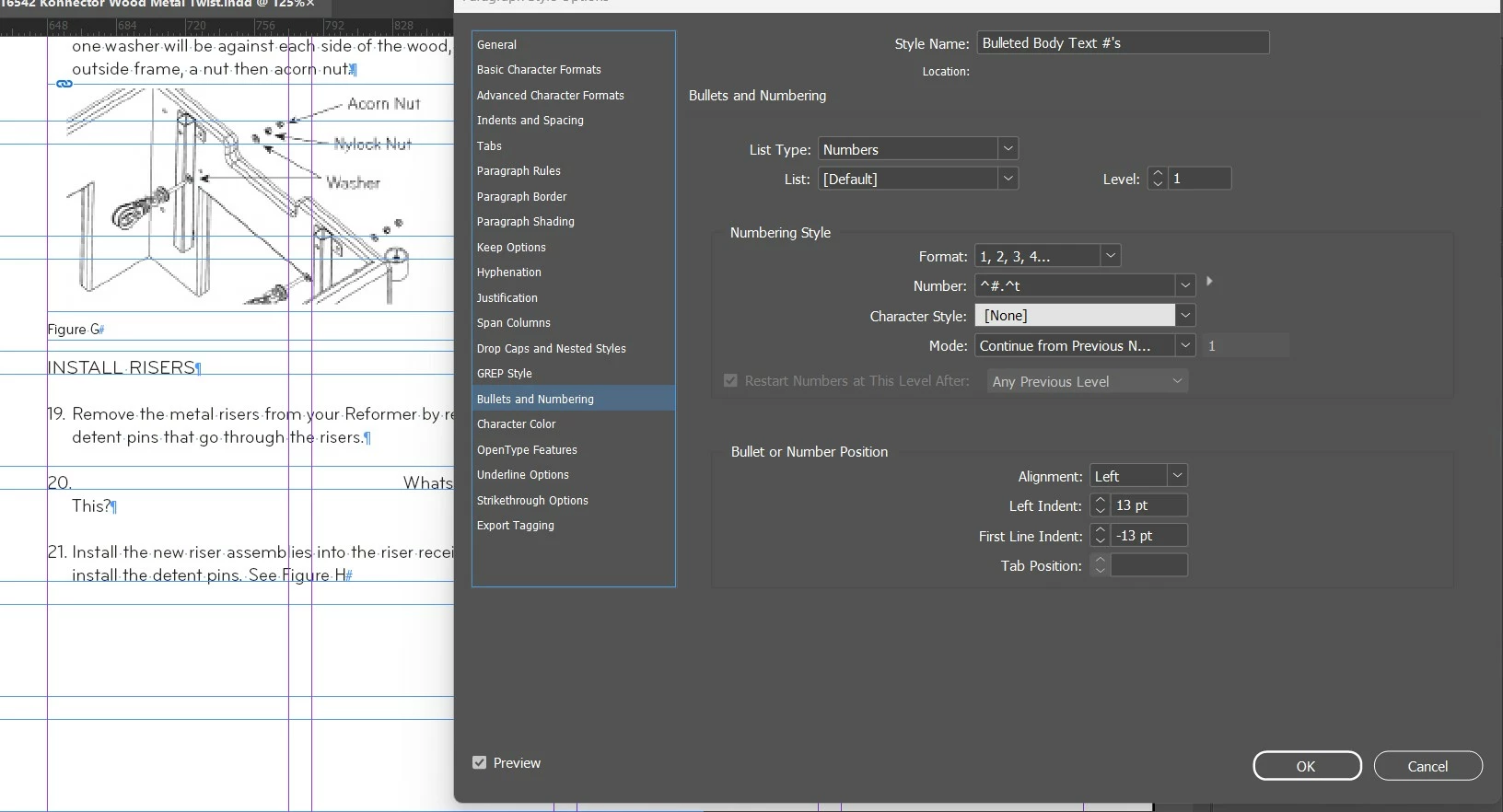
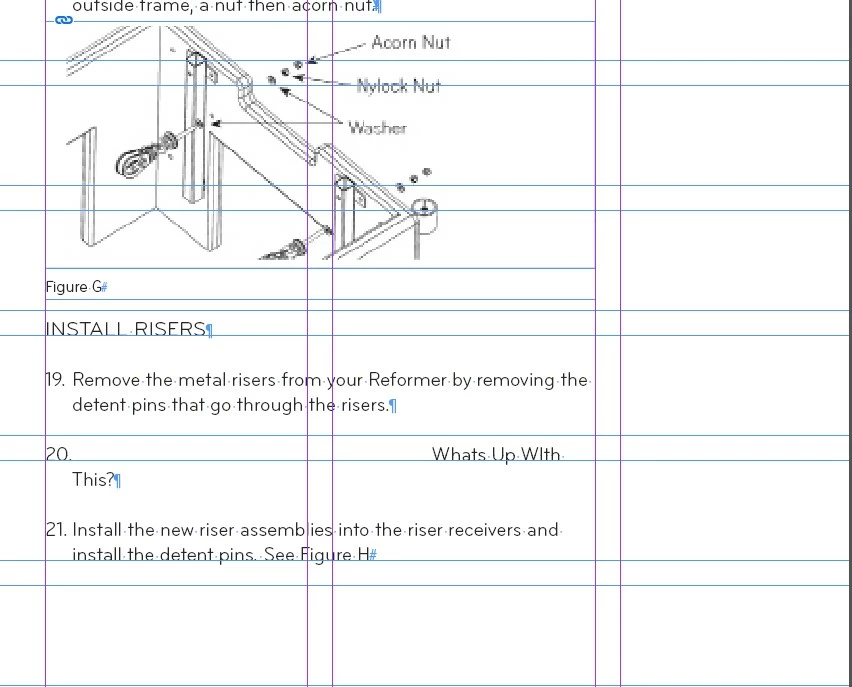
I have a document with a numbered list. For some odd reason when the list increments to 20, I'm seeing a big increase in indentation. When it increments to 21-29, it returns to normal (13, -13) but at 30, I see the increase in indentation. It doesn't happed at 10 - only 20, 30, 40, etc. There is nothing there like a shape with text wrap. I tried different left and 1st line indent values including zeroing them out, but nothing changes the bevahior. I tried creating a new paragraph style but still end up with this. I created a new text frame off canvas and each time I get to 20, 30, etc. i see the same thing happens. I tried swapping out fonts - no go. Any help would be grateful. 


3 replies

Chris Panny
Inspiring
November 18, 2025

Thanks for your comments. As you can see in my 2nd screen, there is no value in the tab position. However, when I added a tab value, starting at 1pt, I kept incrementing it. I wasn't keeping track but I believe when i got to the equivilent indent value, the problem corrected itself, but the tab value was also cleared out. Although this fixed it, how come InDesign is flushing out the value so I can't see it anymore? I know it's in the Tab section of the paragraph style, but it's odd it's not listed in the bullet list. 

It's only an island if you look at it from the water.
Joel Cherney
Community Expert
Community Expert
November 19, 2025
The blank tab setting is when InDesign automatically sets the tab setting. 


It's supposed to do that, but sometimes the field behaves in a half-baked way. I do not believe that this is currently functioning as intended:


I've noticed that the values in the Bullets and Numbering section, specifically in the "Bullet or Number Position" area

that you are talking about, are displayed unreliably. They should be duplicates of other values elsewhere in the Paragraph Style - for instance, you can change the left indent and first line indent in the "Tabs" section of the paragraph style, and those values are reflected immediately in the "Indents and Spacing" section. That's clearly the intended behavior. 


Unfortunately there seem to be some UI issues with those values immediately propogating to the Bullets and Numbering area, so I would suggest that you not rely on that value. Hammering on the More Tab Button until the numerical value disappears seems like a weird solution, so I'd suggest using the Indents and Spacing section, or the Tabs section, to set these values.  I couldn't tell you why it's happening; the only resolution I can think of would be to go file a bug report over at indesign.uservoice.com.  

Dave Creamer of IDEAS
Community Expert
Community Expert
November 19, 2025

What platform and version are you using? When I try to override the tab setting it returns to the "auto" setting.

Windows 11, InDesign 21.0.1


David Creamer: Community Expert (ACI and ACE 1995-2023)
Dave Creamer of IDEAS
Community Expert
Community Expert
November 18, 2025

If a tab can't fit in the space alloted (13 pts in this case), it will jump to the next tab setting.

You must have a tab setting about 2 inches in. Check  your tab panel and edit the second tab position accordingly (or add another tab between the two existing tabs).


David Creamer: Community Expert (ACI and ACE 1995-2023)
Joel Cherney
Community Expert
Community Expert
November 18, 2025

I think that the easiest explanation is that your hanging indent isn't deep enough to fit the zero, in any of the fonts you've tried. In this little mockup, note the tooltip on the guide I've pulled off the ruler - at 13 points, the depth of your hanging indent, there still isn't enough room to fit the zero and the period.


If you want to verify that it's the tab from your numbered list pushing the Whats Up, that's easy enough:

1) Make sure your Type -> Hidden Characters are turned on

2) Select all three numbered items 

3) Go to Type -> Bulleted & Numbered Lists -> Convert Numbering to Text