
keithconover
Inspiring
September 27, 2023
Question

One document freezing

  • September 27, 2023
  • 2 replies
  • 3720 views


I am working on one document that gave me problems with freezing when I tried to add some text. I tried exporting to an .idml file and then saving as an .indd file but it still started freezing again. This had been created in a previous version, I don't know which. The problem started with 18.4, as I remember, and I am now on 18.5.


I edit this file on both my desktop workstation (a high-end gaming computer I use as a workstation) and also on my laptop which is where I started having the problem again, it's a Lenovo X1 carbon 11th generation with the following specs:

13th Gen Intel(R) Core(TM) i7-1365U 1.80 GHz

32.0 GB (31.7 GB usable)

Windows 11 Pro 22H2

2 TB SSD drive

My PC workstation has even better specs.


I thought this might have something to do with this file having both Master and Parent Pages (had problems during the change Master > Parent). So, I created a brand-new file, created new Parent Pages with settings that matched what I wanted, then carefully pasted text and graphics into the new file. It worked fine for a while, got everything put back in, did some editing, and then started locking up on me when I tried to add text. The screen would still be showing where I was in the file, but on that screen I couldn't see a mouse cursor, and the only way to close InDesign was with Task Manager or a reboot.


The text I was adding would have pushed the end of the article into overflow, but then adding a couple of pages (automatic text reflow is off) and threading them didn't help much: I was able to add five more words before it locked up.


Here is a screenshot of what I see when InDesign locks up:
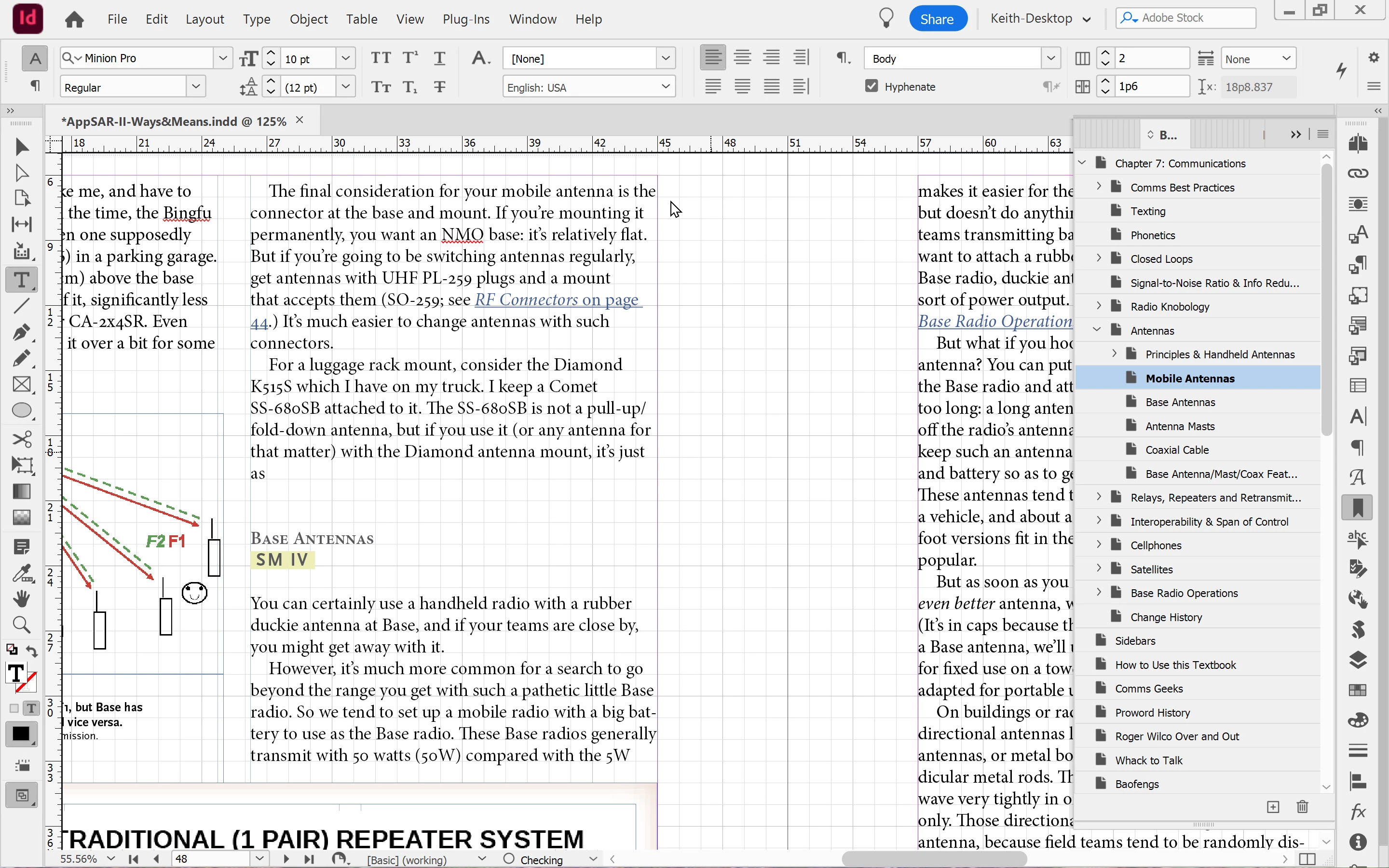
 

Note the "O Checking" at the bottom. I did try turning off automatic Preflight but it still locked up after typing a few letters.


Here is the relevant part of what I saw in Task Manager (two screenshots to capture a long list of InDesign processes):
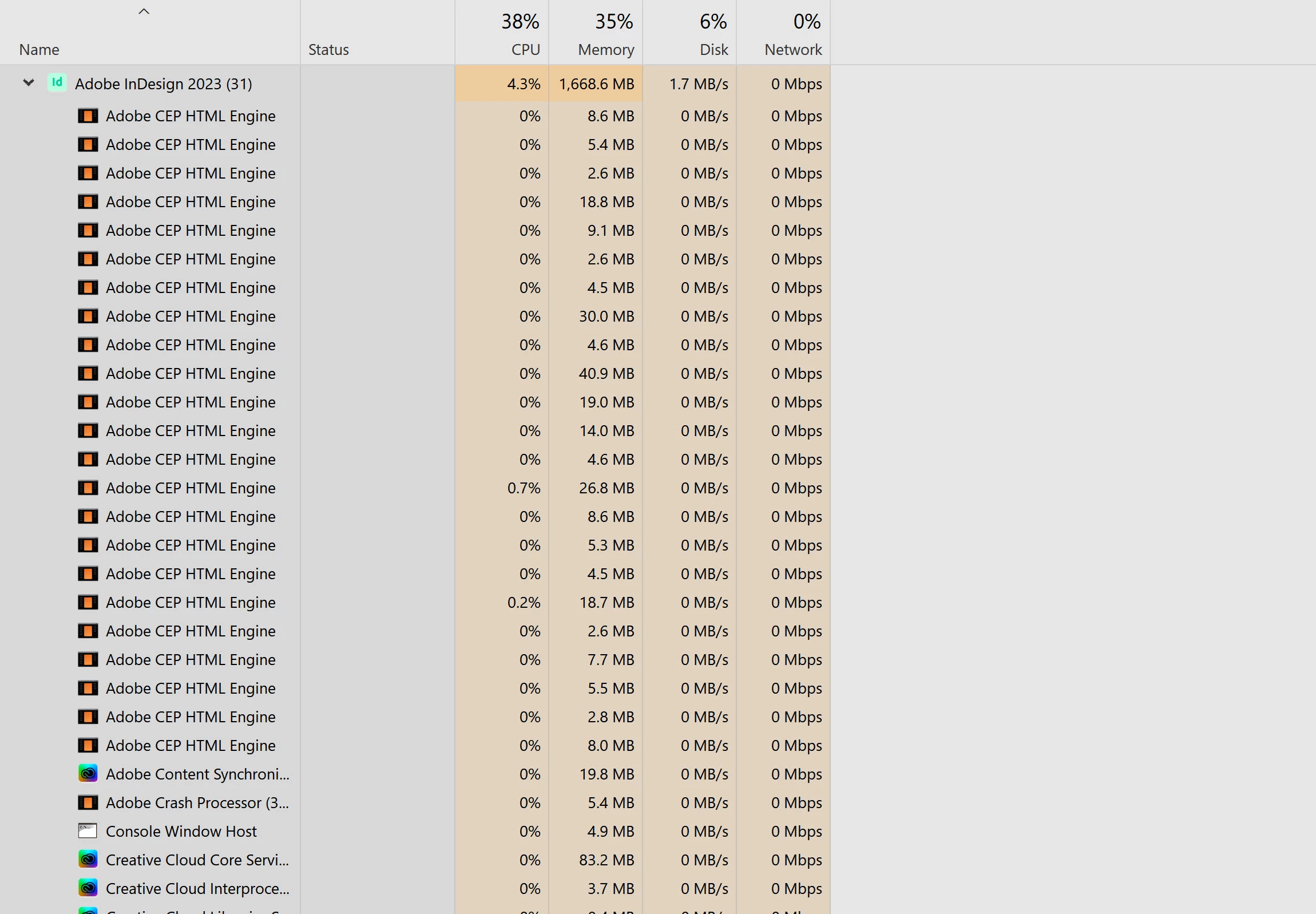
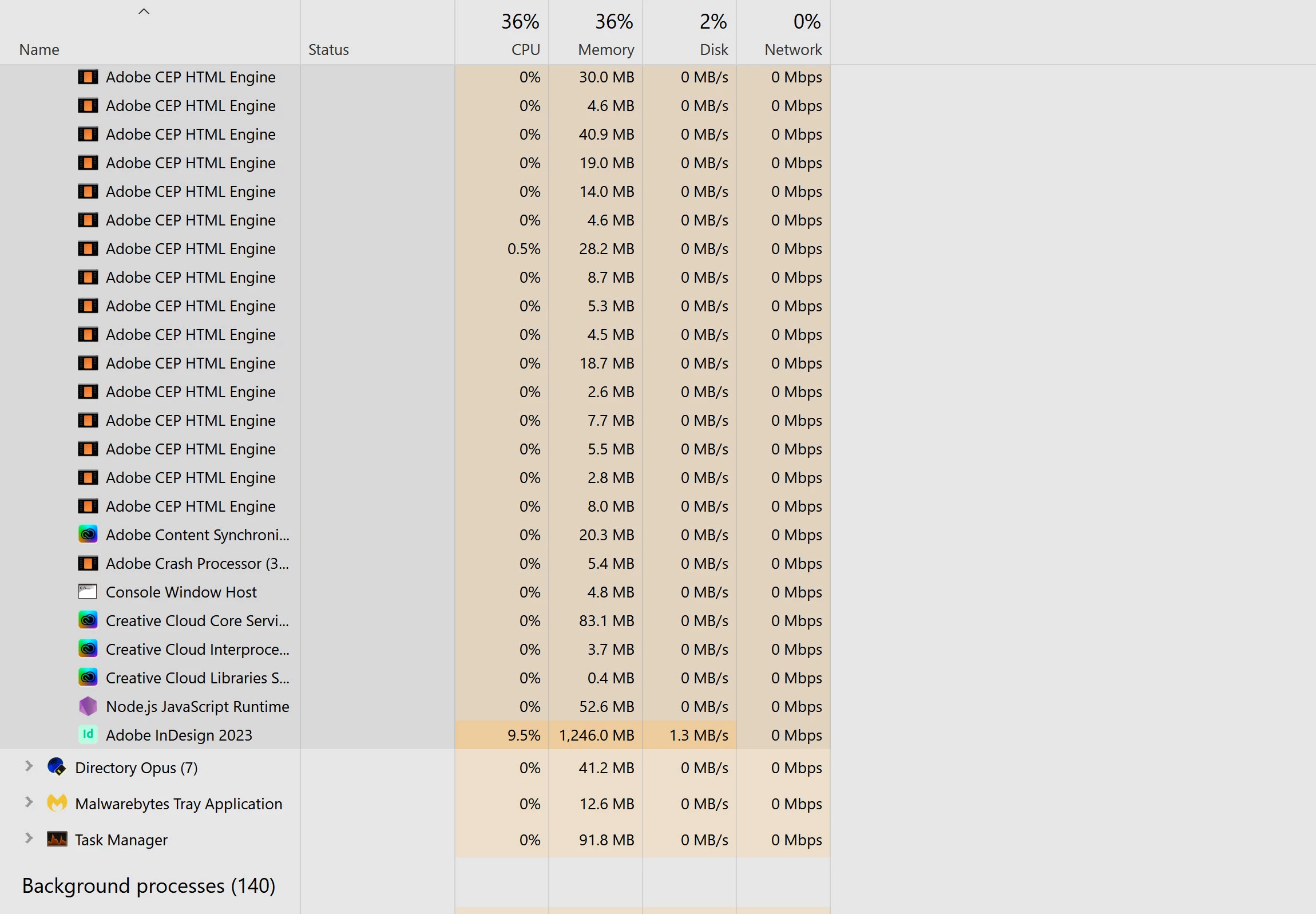
 

I worried that these lockups were causing hard disk errors. However, checking the disk drive for errors showed no evidence of errors. In case anyone wants to know the procedure:


  • Start > type “cmd” then right-click and open file location, then use right mouse button to drag to desktop and from popup menu select “copy here.” This puts a command prompt icon on your desktop, which is handy if you want to run chkdsk in a situation like this.
  • Right-click that icon and select "Run as Administrator" and then cleck "Yes" on the popup confirm that you want to run it as adminstrator.
  • Into the DOS prompt (command prompt) type: CHKDSK C: /F /R (not case sensitive) and press Enter
  • You will probably see a message asking if you want to schedule this for the next reboot; the answer is yes; if so, reboot your computer.
  • After your computer, to see if there were any errors, you will need to follow a complex procedure:
    • press Win + R ype in eventvwr.msc and press Enter; in the resulting program

      • On the left, click the + icon to expand Windows Logs

      • click on Application which will show Application Events in top center window

      • [right window, near top] click Filter Current Log

      • Within the Filter Current Log window, navigate to the Event sources drop-down menu [slightly above center]

      • check the checkboxes for only Chkdsk and Wininit then click the drop-down menu's down-arrow to close it

      • Click OK to finish filtering for these two sources.

      • In theApplication window [top center]: double-click "Information"

      • You should see a report like the following, look for the information in bold


Checking file system on C:
The type of the file system is NTFS.
Volume label is Windows.

A disk check has been scheduled.
Windows will now check the disk.

Stage 1: Examining basic file system structure ...
629504 file records processed.
File verification completed.
Phase duration (File record verification): 5.04 seconds.
14999 large file records processed.
Phase duration (Orphan file record recovery): 9.67 milliseconds.
0 bad file records processed.
Phase duration (Bad file record checking): 4.32 milliseconds.

Stage 2: Examining file name linkage ...
2230 reparse records processed.
840406 index entries processed.
Index verification completed.
Phase duration (Index verification): 10.46 seconds.
0 unindexed files scanned.
Phase duration (Orphan reconnection): 956.12 milliseconds.
0 unindexed files recovered to lost and found.
Phase duration (Orphan recovery to lost and found): 47.88 milliseconds.
2230 reparse records processed.
Phase duration (Reparse point and Object ID verification): 15.87 milliseconds.

Stage 3: Examining security descriptors ...
Cleaning up 13 unused index entries from index $SII of file 0x9.
Cleaning up 13 unused index entries from index $SDH of file 0x9.
Cleaning up 13 unused security descriptors.
Security descriptor verification completed.
Phase duration (Security descriptor verification): 31.03 milliseconds.
105452 data files processed.
Phase duration (Data attribute verification): 4.56 milliseconds.
CHKDSK is verifying Usn Journal...
38954256 USN bytes processed.
Usn Journal verification completed.
Phase duration (USN journal verification): 78.59 milliseconds.

Stage 4: Looking for bad clusters in user file data ...
629488 files processed.
File data verification completed.
Phase duration (User file recovery): 8.75 minutes.

Stage 5: Looking for bad, free clusters ...
412738966 free clusters processed.
Free space verification is complete.
Phase duration (Free space recovery): 4.23 minutes.

Windows has scanned the file system and found no problems.
No further action is required.

1998066687 KB total disk space.
346037100 KB in 472183 files.
274148 KB in 105453 indexes.
0 KB in bad sectors.
799575 KB in use by the system.
65536 KB occupied by the log file.
1650955864 KB available on disk.

4096 bytes in each allocation unit.
499516671 total allocation units on disk.
412738966 allocation units available on disk.
Total duration: 13.26 minutes (795675 ms).

Internal Info:
00 9b 09 00 63 ce 08 00 14 1e 0f 00 00 00 00 00 ....c...........
17 01 00 00 9f 07 00 00 00 00 00 00 00 00 00 00 ................


In my case, I rebooted twice after an InDesign lockup and there were no hard disk errors. Very reassuring.


However, I still can't keep working on this file.


Any help appreciated.


This topic has been closed for replies.

2 replies

Randy Hagan
Community Expert
Community Expert
October 10, 2023

Have you tried breaking your problem file into two sections, or three or four sections, to see if the problem continues?


I do a fair amount of catalog and directory work, and I've found that breaking up the document into a couple of pieces can make the resulting two pieces easier to work with again. Like you I had no problems working with a given problem catalog file, until I did. I think it may be a function of having a lot of separate text frames and images that causes hiccups when I go back to given problematic files.


I couldn't fix the issue, but I could work around it. Hopefully if you try this you may get the same helpful results.


Randy

keithconover
Inspiring
October 10, 2023

Well, I am using one big file because I have lots of links (cross-references) within the file, and breaking it into smaller files breaks readers' ability to click on the links to go to a different section. Well, maybe this will be better in version 19.0 and I can finish my textbook.

Randy Hagan
Community Expert
Community Expert
October 14, 2023

Randy, at least as far as the actual linked graphics in the file, and for my problem, I don't understand the advantage of File > Package over simply looking in the Links Panel. As shown in the attached graphic, there are no problems with my links, as there are no yellow triangles with exclamation points. Yes, I didn't scroll down and take a screenshot of the lower portion of the panel, but take my word for it, there were no yellow triangles there. But perhaps there is a font problem?


As I am not submitting this to a publisher - it's self-published as PDF - I don't need to actually package. But when I selected File > Package (for the first time in decades of using InDesign), I saw a panel with a lot of yellow triangles on it (attached). Not reassuring. But then, when I looked at File > Package > Links and Images (also attached) it looked like everything was fine.


Maybe I'm off-base here, but you'd specifically asked how to quickly relink files to your document.


Frankly for all the argument above, if you click on update links in either the Links panel or through the Package dialog box they bring you to the same dialog box for updating links. I'd call it moot, but some folks live to argue. Either would perform the same task in the same way. There are additional benefits, that may be handy for your own archiving needs, but if you choose not to use them, that's fine.


But the great thing about the File>Package... dialog is that you don't have to package the job. It does the automatic file checking before you package it.. And lets you know quickly problems you might have with your document.


If we look at the second screen capture, of the Package Summary report, we can see there are some issues. They may or may not be relevant to you, but they can be fairly easily addressed:


Regarding Fonts:

  • The report points out that you've Used 33 fonts.
  • Nine are Embedded, probably because placed vector graphics in your book contain text in them.
  • One font is Subsetted (again, probably in a placed graphic, because fonts on your system would be the complete font used).
  • And rather than being a liability, as argued above, you know that five of the fonts are Protected, which means they can't be packaged with the file. The font copyright doesn't allow users to package/transfer the fonts to someone else. This primarily, but not exclusively, means use of a service like Adobe Fonts, which would require anyone else who wants to reproduce your InDesign document to have rights to the service to reproduce your document.

Bottom Line: It never hurts to thouroughly proof your resulting PDFs, but since you're creating a PDF at the end of the process, you should be fine.


Regarding Links:

  • The report points out you have 47 Links.
  • Zero are Modified, or have changes in the linked file on your system, since you placed them in your document.
  • Zero are Missing, or have been moved/deleted from the place they were placed in your document.
  • Zero are Inaccessible, as in none of them were placed from an external location (external drive, network drive, chould service) that is not available to your system now.
  • Zero are Embedded, or copied/locked into your document rather than linked to graphic files.
  • 28 of them use the RGB color space, which conflicts with settings below.

Bottom Line: First, the good news is you don't need to update links/relink to anything. On that count, you're all set. On the 28 graphics using the RGB color space, the report is also alerting you that 19 of your links do not use that color space. While it's generally best to place all graphics into your document using the same color space, this can also be fixed easily for your purposes when you create the PDF.


Regarding Inks and Colors:

  • The report says that your InDesign document is set to output four process inks (as in Cyan, Magenta, Yellow and BlacK for 4 color process printing) and contains two spot colors.
  • In addition, you have one Duplicate Spot Color(s) which generally means different color definitions for the same spot color.
  • CMS is On means that InDesign is set to include color profiles that make it easier for commercial printers to dial in your output for better reproduction results.

Bottom Line: You have a conflict between the RGB color settings for 28 of your placed files and the CMYK and/or spot color settings for 19 of your linked files and/or your InDesign document. In addition, the InDesign document itself isn't set to correctly process color separation from the placed RGB files. Ideally, this would all have to be resolved if you were going to send your document out for commercial printing. But since you're just creating a PDF you're distributing yourself, all you need to do is when you create your PDF is to create a custom setting in the Color tab under Color Management Policies, and change the first options box from Leave Color Unchanged to Convert All Colors to sRGB.


If you wanted to isolate the problems, you could click on each of the categories in the list at the left of the dialog box, select the Show Problems Only check box to see exactly where the reported problems are in your InDesign document. And if you don't want to package your file after learning all this information, just click the Cancel button in the Package dialog box and address specific problems as you see fit.


As I said, it serves many masters.


Randy


keithconover
Inspiring
September 27, 2023

I should mention that the file that's doing this is 31.1 MB. However, I continue to work on files that are very similar (different volumes of the textbook) and are up to 227 MB with no problems.


I just tried it on my desktop and noticed something else I should have mentioned. A couple of times when it happened on my laptop, and I closed InDesign via Task Manager, I got an error message. I am home now and figured I would try it on my desktop workstation. In case you're interested, here are the specs:

from silentpc.com:

ASUS ROG Maximus 2690 Hero (WiFi 6E) LGA 1700 Intel 12th Gen A TX Gaming Motherboard

Kingston FURY Beast 32GB (2 x 16GB) 288-Pin DDRS SDRAMDDRS 5200 (PCS 41600) [31.7 GB usable]

ASUS Dual GeForce RTX 3050 8GB GDDR6 PCI Express 4.0 Video Card DUAL-RTX3050-O8G

SAMSUNG 980 PRO 2TB PCie NVMe Gen4 Internal Gaming SSD M.2

Windows 11 Pro 22H2

I only remember seeing this error message about every other lockup. But after using Task Manager to close it on my desktop, I saw it 3-4 times in a row when I used Task Manager to close InDesign once. I have no idea what this means, but in case someone else does, here it is:

keithconover
Inspiring
October 10, 2023

I'm beginning to think this is some problem with InDesign 18.5. I have another large document with many crosslinks, another volume of the textbook. I just tried expanding a sidebar box to add some material and InDesign locked up. Sigh. I tried rolling back to InDesign 18.4 but the same thing happened. Sigh again.