Known Participant
January 17, 2024
Answered

Open IDML file in InDesign

  • January 17, 2024
  • 1 reply
  • 9927 views

Hello,


I was supposed to translate an INDD file from InDesign in SDL Trados, so this file had to be saved as IDML file.

Now that the translation is complete, I need to open this IDML file back in InDesign (i.e. import it). It is a catalogue that should be printed next.

How should I do it, please?


I have no experience with InDesign.


Thank you very much.


This topic has been closed for replies.
Correct answer Joel Cherney

Thank you all for your replies, but I would like to ask a quite urgent question now: I have the 7-day free trial version of InDesign and when I try to set English as the language of the User Dictionary for hyphenating words, the setting always returns to the default English. I right click on a word in the text, then Spelling → User Dictionary → Language: Slovak → Add → Done. The point is that I need the German client to get the text with split Slovak words right - so that e.g. he doesn't have German as the default language there, as a result of which the Slovak words could possibly be split incorrectly and the Slovak language could not be set for hyphenation. Could such a thing be a real threat, please? How could this be prevented or set up correctly?

Thank you


The first thing to do is to ensure that you are marking text as English or German or Slovak correctly. The User Dictionary settings aren't the right place. Here's where you would select it if you were just taking a paragraph and marking it as German (two different locations, same setting):
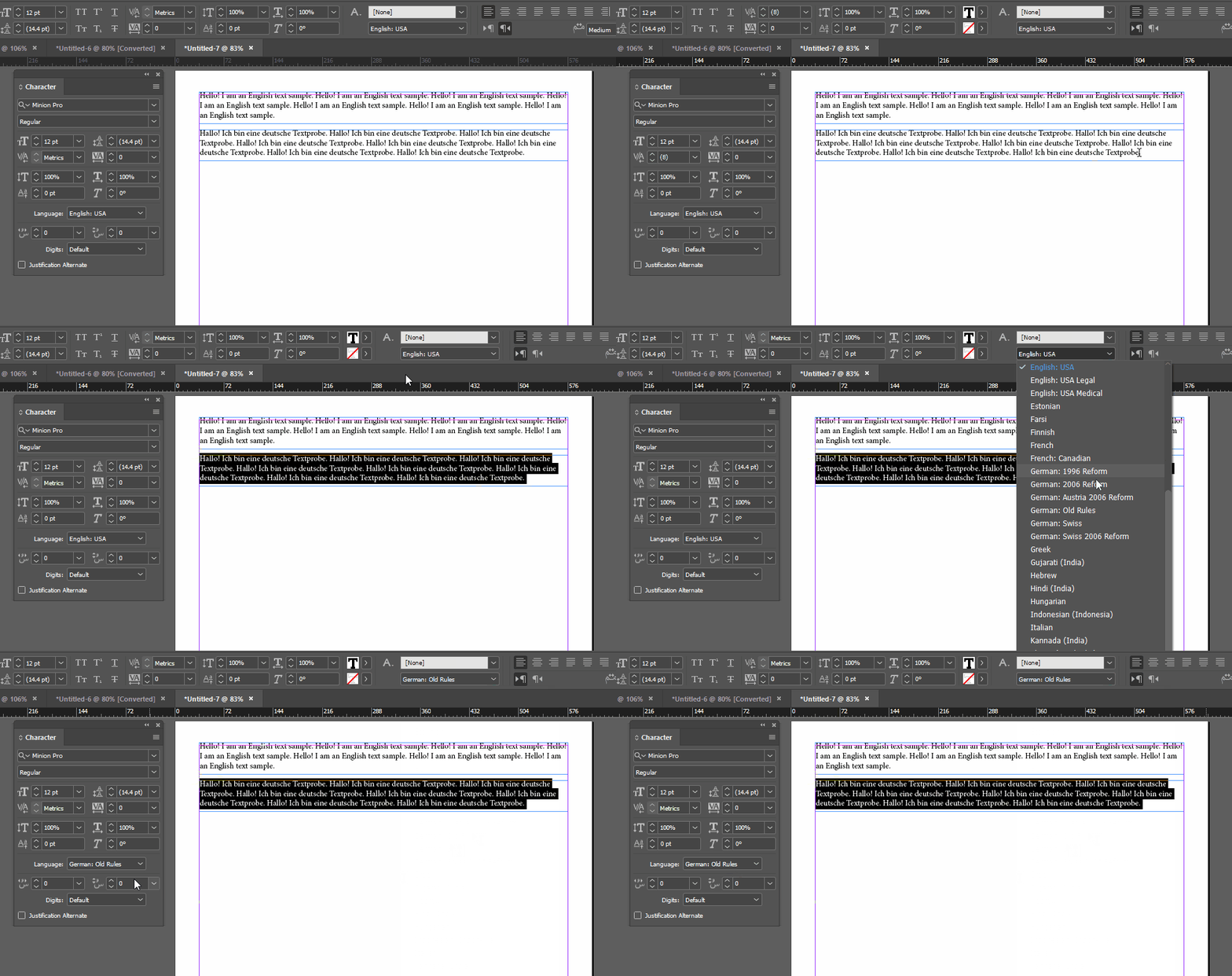


(I left Slovak out only because it was so far down the list that the animation would have been unnecessarily tall.  But it's in the list.)


Once you've marked text as German (or Slovak) then the spellcheck and hyphenation settings should work. This isn't the best way to do it, of course, but we can't tell if your client's designer made paragraph and character styles correctly. If they did, you should be able to just edit the paragraph styles:
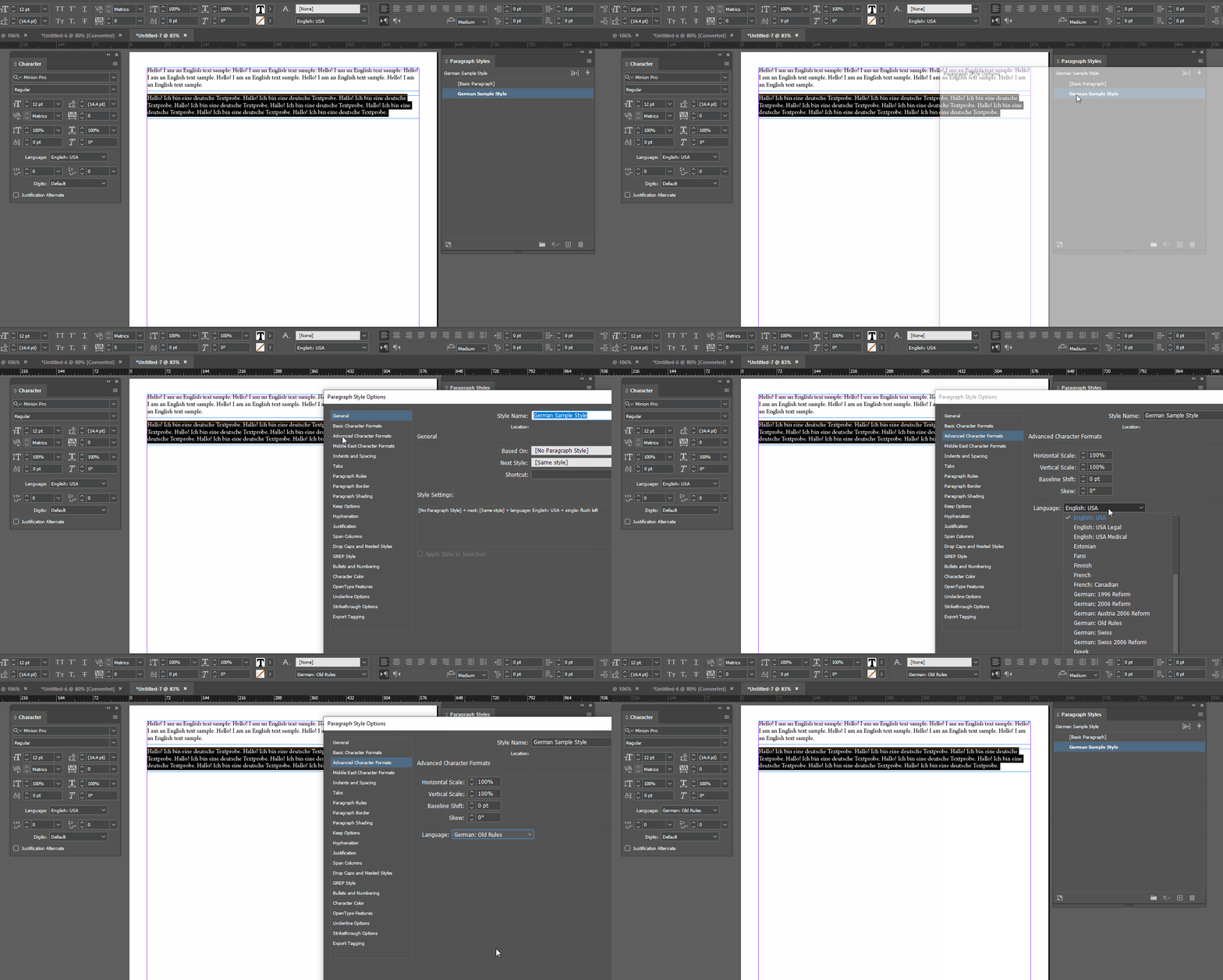



1 reply

Willi Adelberger
Adobe Expert
January 17, 2024

The IDML file should be on the very same place as its INDD original was, when the origina, IDML was saved or exported. Otherwise  the Font folder fonts and links ma not be detected correctly. Then you can open it as it would be an INDD file. Save the opened file now as iNDD on the same place. Take care not to overwrite any needed existing INDD file. Give it a new name.

Miriam348Author
Known Participant
January 17, 2024

Yes, the fonts and links do not work now. So I guess I have to ask my client to provide me with the INDD file, so that I can save it in my PC as IDML files, and I will have to create the translation project again, unfortunately... Then I should save the translation again as IDML, open it in InDesign (would have to buy the licence) and save it as an INDD file with a different name.

Is it then possible to send this new INDD file to my client by wetransfer, for example?


Thank you again for your reply.

Abambo
Adobe Expert
January 17, 2024
quote

Yes, the fonts and links do not work now.


By @Miriam348

Fonts: If your client used any fonts that are not available to you, then you will need to acquire the font. 

Links: InDesign is working a lot with external references for graphics and pictures, sometimes also text. You will need all that data to be able to work correctly with the file. An IDML is indeed only an InDesign file under a different format. It is used to "downgrade" an InDesign file, as older InDesign versions do not read newer files. 


By asking an InDesign file, you will have the same issues as with an IDML file. 


(When getting an InDesign licence for temporary use, be sure to take it as a monthly subscription. You can cancel that one anytime. Do not take the annual subscription paid on the month. Canceling that one early asks for an early termination fee of half of the remaining due!)

ABAMBO | Hard- and Software Engineer | Photographer