
Participant
October 23, 2025
Answered

Out of Gamut Issue - No idea how to correct it

  • October 23, 2025
  • 2 replies
  • 209 views

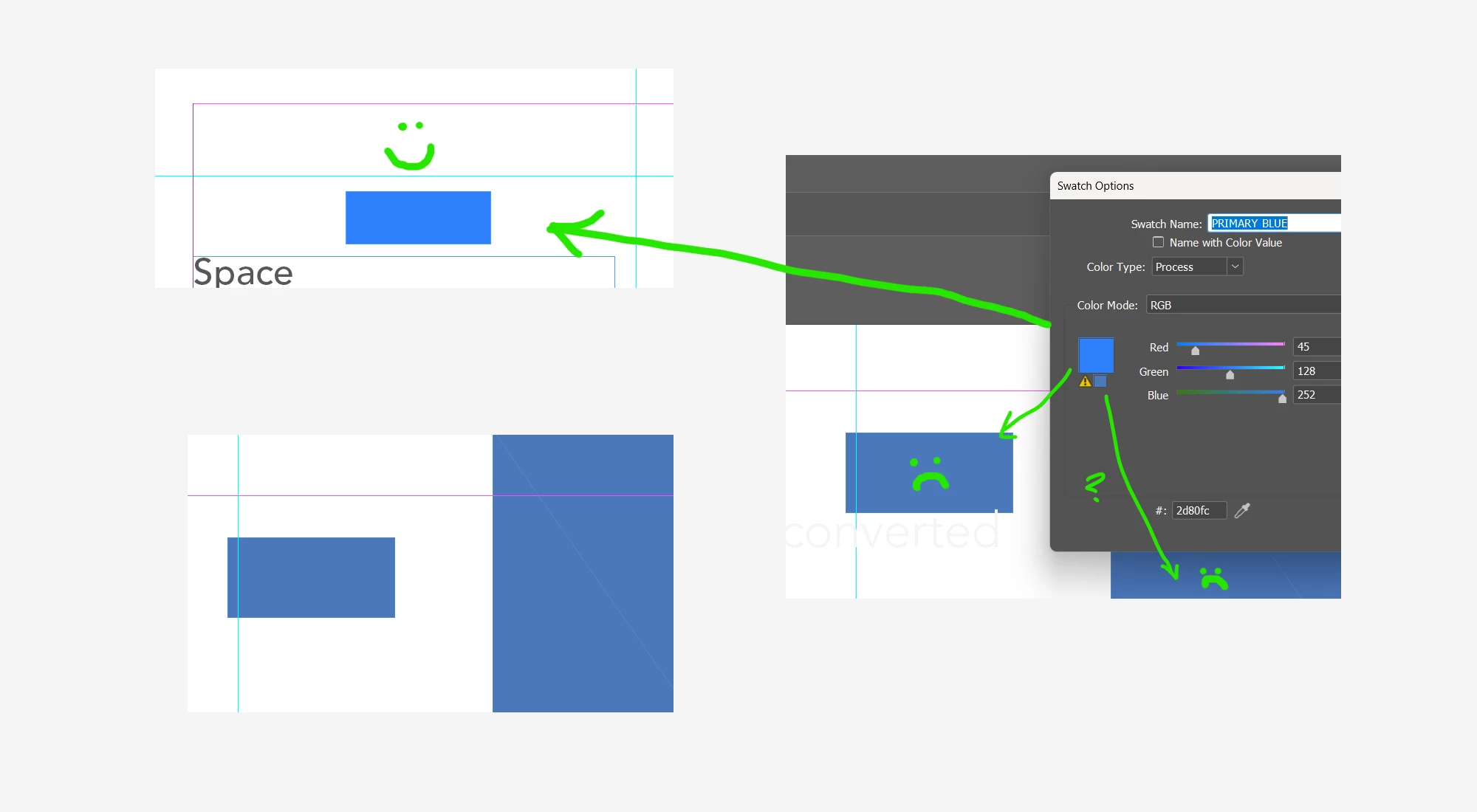
Hi, everyone. This is the first time I've run into this. Basically, I have a client that is wanting to switch to a specific blue. When I went into our brand guide InDesign document and entered the new blue (45 /128 / 252), I get the Gamut Warning (fine, I've seen that before) but for some reason the the blue was being converted to this drab CMYK friendly color even though the RGB reflects correctly in the swatch.

Here's the kicker though. There is another shape in the document that is reflecting the correct blue from that same swatch. So some of the pages the shape appears washed out (converted), the other pages the blue looks correct. I tried dragging the shape with the 'correct' blue to one of the pages with the converted blue and it converts itself! But they are using the same layout page. So, then, I tried duplicating the page that was reflecting the 'correct' blue and the shapes look fine. Absolutely no clue what is going on.
Correct answer david_la9449

Sounds like the image has transparency or you've applied an effect like drop shadow (if you see a little checkerboard icon next to the page in the Pages Panel that will confirm it). Make sure the transparency blend sapce is set to RGB if you are working with RGB colors.

BUT, remember that if you are going to print, your out of gamut color is not going to match that nice blue you are seeing on screen.


Nope, I figured it out (with the help of ChatGPT). Bascially the PSD 'Convert to Profile' setting was on 'Working CMYK'. Not sure how it got changed, but I can't remember the last time I've gone into that window to change anything. Anyway, problem solved.

2 replies

rob day
Community Expert
Community Expert
October 23, 2025

Hi @david_la9449 , Will the document be printed or is this for screen viewing only?


If it’s for print, the 45|128|256 blue is outside the gamut of most print devices. Even if there is no transparency on the page, turning on Overprint or Separation Preview will display the RGB color as it is expect to print to the assigned print profile. You can Export a PDF with no color conversion and preserve the out-of-gamut RGB display, but the PDF color will have to get converted downstream at print output:


Peter Spier
Community Expert
Community Expert
October 23, 2025

Is there any sort of effect or transparency on the washed out pages? Transparency blend space set to RGB?

Participant
October 23, 2025

Hi, there! So it seems I'm not able to edit my original post. Here is what is happening. The colors in InDesign are apparently fine. What is happening is when I place an image file like a PNG or a PSD, the gamut conversion is automatically kicked in and the color for all the shapes immediately switches. So now I'm trying to understand how bringing a PSD file in could do that and if I need to change the settings somehow.

david_la9449AuthorCorrect answer
Participant
October 23, 2025

Sounds like the image has transparency or you've applied an effect like drop shadow (if you see a little checkerboard icon next to the page in the Pages Panel that will confirm it). Make sure the transparency blend sapce is set to RGB if you are working with RGB colors.

BUT, remember that if you are going to print, your out of gamut color is not going to match that nice blue you are seeing on screen.


Nope, I figured it out (with the help of ChatGPT). Bascially the PSD 'Convert to Profile' setting was on 'Working CMYK'. Not sure how it got changed, but I can't remember the last time I've gone into that window to change anything. Anyway, problem solved.