


- Home
- InDesign
- Discussions
- Re: Overprint black text turning to knockout durin...
- Re: Overprint black text turning to knockout durin...

Copy link to clipboard
Copied
Hello… I have an InDesign problem, which Adobe Help hasn't been able to resolve. I'm on a Macbook using InDesign 2021.
I'm trying to export a document to a print-ready PDF. The document is set up using the FOGRA39 colour profile I'm outputting to, and Appearance of Black in preferences is set to overprint at 100%. However, whenever I output a PDF, any black text on a solid colour becomes knocked-out, which will look awful and be a nightmare for print registration.
I've checked the ink values in the document vs the PDF and it's definitely happening during the PDF conversion. Eg. the colour value of black text on a magenta block in InDesign will be M 100 K100, but on the PDF the same text in M 00 K100.
Help!


 1 Correct answer


Hi @stuartm1980, I’m also not seeing any overprint problems with either your InDesign Sample exported to PDF/X-1a or the PDF/X-4 sample. Rather than using the Simulate Overprinting checkbox you can use Preview>Object Inspector to check the actual overprint property of the texts when you click on them:

Your ID sample exported to PDF/X-1a:
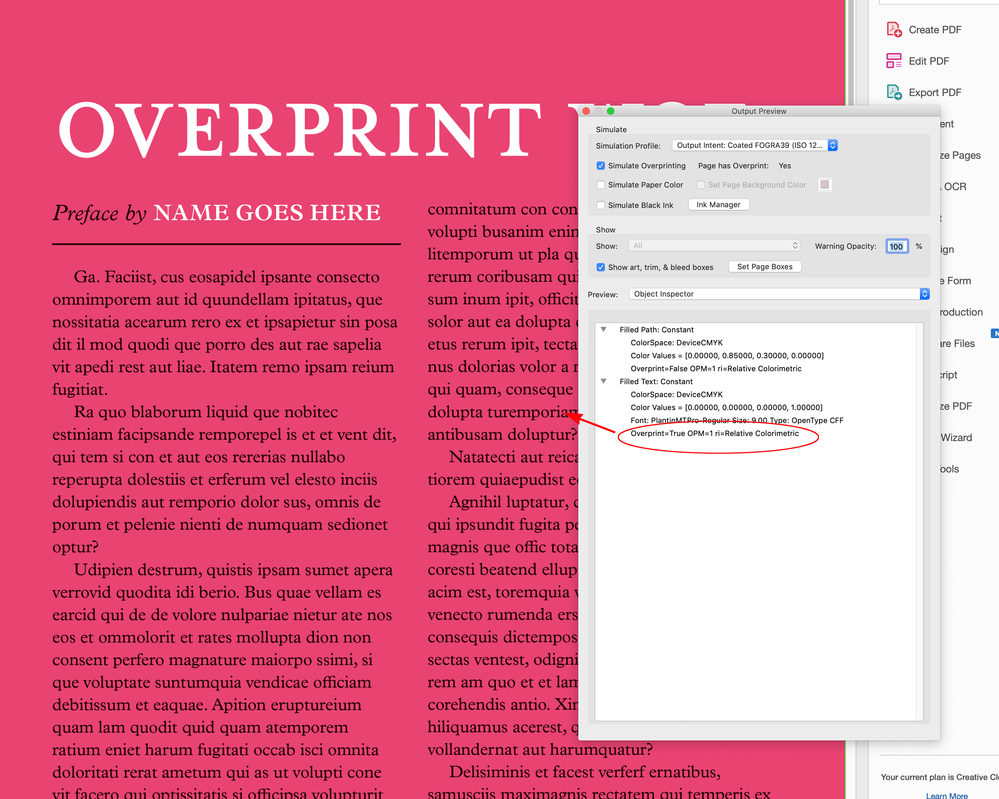
Also, it sounds like there is a communication problem—it seems like for some reason the printer wants to remove the overprint, which is clearly set
...
 20
Replies
20
20
Replies
20


Copy link to clipboard
Copied
Are you using the default [Black] swatch? How are you exporting to PDF? If you choose PDF/X-4 does it work okay?
Copy link to clipboard
Copied
I've been using PDF/1-a, as that was requested by the printer, but having just tried outputting in X-4, that fixes it. I'll see if they'll accept PDFs in this format.
Thank you! Do you know what causes the problem in 1a?
Copy link to clipboard
Copied
It's archaic; a more than two-decade-old standard.
I haven't used it in so long, I help with it.

Copy link to clipboard
Copied
If you created your own black swatch delete it and replace it with indesigns default black swatch.
Or change the Window>Output>Attributes and set the fill colour to Overprint.
Copy link to clipboard
Copied
It's not either of those things. It's the default solid black and overprint is selected. Hmmmmmmm...
Copy link to clipboard
Copied
Very hard to troubleshoot when the file is on your system - can you share a sample document with the issue?
Copy link to clipboard
Copied
Copy link to clipboard
Copied
Everything looks good in your file.
In Acrobat when you're previewing the separations make sure 'Simulate Overprinting' is turned on.
Copy link to clipboard
Copied
Thanks for taking a look. My understanding was that the 'simulate overprinting' setting was the correct way to view these files, but my printer is insisting otherwise. Here's their message about it:
"I wanted to do was put into writing exactly what we are seeing from our side. The latest artwork that we are working with, has overprint on it. I’ve attached a few screenshots for you to show this, the White Overprint – No Black screenshot, is what happens when we knock the black out on the artwork we have, leaving the white print left. Sadly, no matter what we do, this is what we are left with when we try and send your artwork through for a proof, and we cannot remove this overprint. The Removed Overprint – No Black screenshot shows what happens when we toggle the option to remove the overprint, this is for show only. This is how we need the artwork to look when it is sent through to us, for reference, what you can see in this screenshot is a toggle only, and it is not a removal, as we do not have the function to remove this completely from your artwork. The final screenshot First File – Overprint Options Shown, is a full screenshot of this main page that has caused an issue, and in the box on the left, is say Overprint: Yes."
So is the problem with the printers and the PDFs are fine?
Copy link to clipboard
Copied
Can you share a sample PDF using the same settings?
I'm a bit dubious as what the printers are saying - Acrobat has a preflight function that can fix knocked-out black text and make it overprint. Perhaps you can pass on the info.
It's in the preflight section

Really worrying that they can't fix this. I would imagine this to be right up there with the basics of prepress and printing.
Copy link to clipboard
Copied
Thank you for this. I'll pass it on. I would have thought it was elementary too, but they've been adamant. I've never encountered this problem elsewhere.
The more I think about it, I don't see how their assessment of the overprint only being a preview can be correct. If I output a photograph with single-colour black text on it, the overprint disappears when I switch off the black plate. Surely if it was a true knock-out, the photo wouldn't be visible beneath?
Copy link to clipboard
Copied
Without seeing what the PDF supplied was like it's impossible to tell what's going on.
Copy link to clipboard
Copied
Copy link to clipboard
Copied
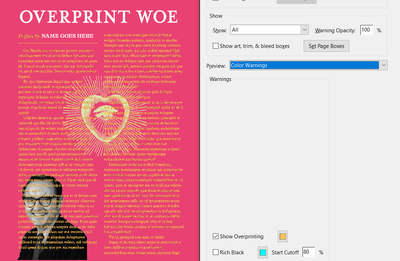
Not seeing any issue here at all
You can go to the settings and view overprint fills
Anything that is overprint will show with the selected colour
Copy link to clipboard
Copied
Thanks for taking a look. I'm going to go back to the printers with this and see what they say.
Copy link to clipboard
Copied
Also, from their message, there seems to be a reference to white overprinting, which would be a problem. Is there any chance there is some white text or a white object, which somehow has an overprint applied, somewhere in the document?
...I’ve attached a few screenshots for you to show this, the White Overprint...
Copy link to clipboard
Copied
few screenshots for you to show this, the White Overprint
Also, in case they are actually referring to a white overprint, you might want to Preflight the PDF you sent and run the List white objects set to overprint Profile:

Copy link to clipboard
Copied
Hi @stuartm1980, I’m also not seeing any overprint problems with either your InDesign Sample exported to PDF/X-1a or the PDF/X-4 sample. Rather than using the Simulate Overprinting checkbox you can use Preview>Object Inspector to check the actual overprint property of the texts when you click on them:
Your ID sample exported to PDF/X-1a:
Also, it sounds like there is a communication problem—it seems like for some reason the printer wants to remove the overprint, which is clearly set in your PDF.
...when we try and send your artwork through for a proof, and we cannot remove this overprint....
Copy link to clipboard
Copied
The printers message is unclear.
When you check the overprinting items via the checkbox it only shows black text overprinting as expected.
Sounds like a communication breakdown.

Copy link to clipboard
Copied
I've just exported a PDF/X-1a file from your sample and it has no overprint problem when I print seps from Acrobat. Yes, the simulate overprint view knocks out the text on screen when turned off, but it still separates correctly when printing the actual separation plates. Your printer is doing something strange if they are getting knockouts, and you should find another printer if that's a noption.


Find more inspiration, events, and resources on the new Adobe Community
Explore Now
 AdChoices