
Inspiring
October 9, 2025
Answered

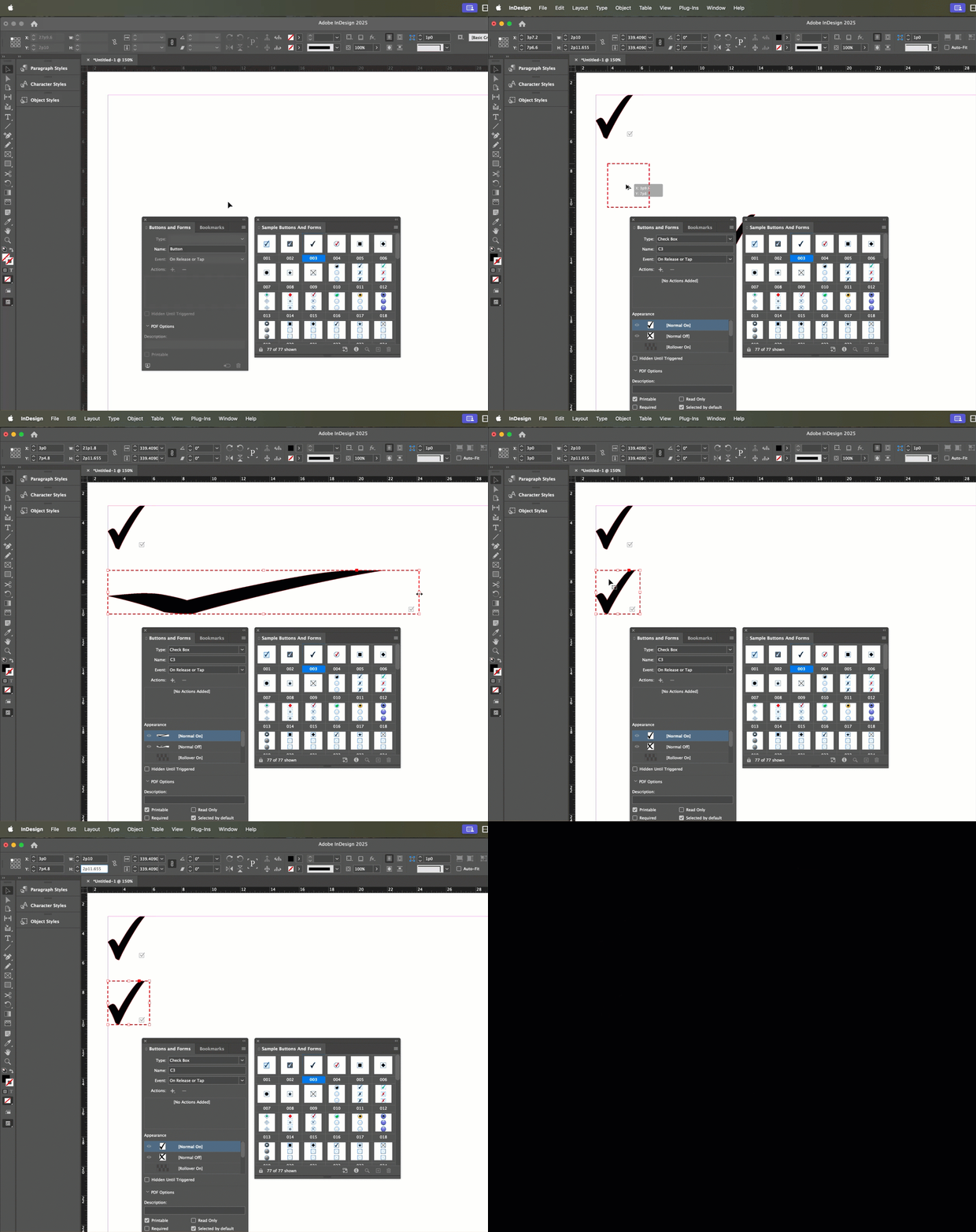
Oversized check mark when creating check box

  • October 9, 2025
  • 4 replies
  • 772 views

Every time I turn a box into a check box using the Buttons and Forms panel, a giant check mark appears and takes up the entire screen. How do I fix this behavior?

Correct answer Barb Binder

Hi @defaultk3r9x9kb5ocq:


A checkbox is a group containing a graphic frame and a text frame. If you resize the group non-proportionately, both will resize. You could resize it back by eye, or if you have another one correctly sized elsewhere on the page, make a note of the width and height and then enter those values for this one. 


~Barb
 

4 replies

Barb Binder
Community Expert
Community Expert
October 15, 2025

Hi @defaultk3r9x9kb5ocq:


I teach online InDesign classes, but there's enough InDesign content out there that I don't post tutorials as I do for FrameMaker, Adobe's other page layout application. I do have a blog, however, that posts my student's questions as submitted after they attend training with me. You may find that helpful: https://www.rockymountaintraining.com/category/indesign/


I'm always happy to answer questions here and because I'm a visual thinker, I tend to record these 30-second tutorials to illustrate the answers. 😊


Come back and see us next time you get stuck.


~Barb

~Barb at Rocky Mountain Training
Barb Binder
Community Expert
Community Expert
October 14, 2025

Hi @defaultk3r9x9kb5ocq:


It happens when you designate a frame as a check box. I really think that keeping an eye on the Layers panel while you work in InDesign (and in Illustrator and Photoshop) is so helpful... you can see what is happening as it unfolds. 


~Barb


~Barb at Rocky Mountain Training
Inspiring
October 14, 2025

@Barb Binder , super helpful, and I can see how this applies more broadly, too. Very much appreciate the to-the-point tutorial. I bet you already post lessons somewhere but if you don't I hope you do sometime. 

Barb Binder
Community Expert
Barb BinderCommunity ExpertCorrect answer
Community Expert
October 13, 2025

Hi @defaultk3r9x9kb5ocq:


A checkbox is a group containing a graphic frame and a text frame. If you resize the group non-proportionately, both will resize. You could resize it back by eye, or if you have another one correctly sized elsewhere on the page, make a note of the width and height and then enter those values for this one. 


~Barb


~Barb at Rocky Mountain Training
Inspiring
October 14, 2025

Hi @Barb Binder, thanks for your demonstration. I see what you mean, the grouped graphic and text frame. The desired (and from what I understand, normal) behavior is after creating the text frame and turning it into a check box, the graphic frame will automatically get grouped, proportionately, within the text box. 


This is now happening for me, though I don't know exactly what I did to achieve it, and I don't know why my original issue, which, thanks to you I understand, was happening (when text box was turned into check box, the graphic frame containing the check mark was not proportionally grouped inside, or at all).

Bill Silbert
Community Expert
Community Expert
October 9, 2025

That looks like possible program corruption. Try resetting your InDesign preferences. This process will restore the program to its defaults. Hopefully, it will fix the issue.

To reset preferences:

For Macintosh Users: The User Library folder in which InDesign’s preferences are stored is hidden by default on most Macintoshes. To access it make sure that InDesign is closed and click on the desktop to launch a Finder Window (Command-N). With this window in column view follow the path User>Home folder (it’s the folder with an icon that looks like a house—it may have the user’s name rather than “Home”) and click on the Home folder. With the Option Key pressed choose Library from the Finder Go Menu. “Library” will now appear within the Home folder. Within the Library folder find the folder called Preferences and within it find the folder called “Adobe InDesign” and the file called “com.adobe.InDesign.plist” and delete both that folder and that file. When InDesign is next launched it will create new preference files and the program will be restored to its defaults.

For Windows Users: You can try the quick way of resetting on a PC which is to hold down Ctrl + Alt + Shift when launching InDesign and respond affirmatively when asked if you want to reset. There have been some recent reports that the window asking if you want to reset is not popping up but that the prefs are being reset anyway. If this works great but if it doesn’t you may have to manually delete them.

To do so: On Windows 7 and above the preference files are hidden. To find them go to the Control Panel and open Folder Options and then click the View tab. Then select “Show hidden files and folders” or “Show hidden files, folders or drive options” in Advanced Settings. Then delete (or rename) the folder at the end of this path: C:\Users\<USER>\AppData\Roaming\Adobe\InDesign\<Version #>\<Language>. Make sure that InDesign is closed when you do this. When you relaunch the program it will create new preference files and the program will be at its default settings.

The advantage of manually deleting preference files is that after you’ve reset up the program (make sure that no document window is open) to your liking, you can create copies of your personalized “mint” preference files (make sure that you quit the program before copying them—that finalizes your customization) and use them in the future to replace any corrupt versions you may need to delete.

Inspiring
October 10, 2025

@Bill Silbert , thanks for your reply. I followed the steps for manually deleting preferences in Windows but when I restarted and tried to create a check box the same way, I got the same result, unfortunately. Any other ideas?

leo.r
Community Expert
Community Expert
October 10, 2025
quote

@Bill Silbert , thanks for your reply. I followed the steps for manually deleting preferences in Windows


By @defaultk3r9x9kb5ocq


Try also to clear caches - sometimes it fixes unusual UI issues:

https://www.rockymountaintraining.com/adobe-indesign-rebuilding-preferences-cache/