
Dilan_T
Participant
February 22, 2019
Answered

Page numbering starts with "1."

  • February 22, 2019
  • 1 reply
  • 3506 views

Hi you all,

I am having an issue with page numbering and i really hope i find some help here. I am creating a 60 page portfolio and wanted to add page numbers through the master pages. In the text frame i went the usual path Type>Insert Special Character>Markers>Current Page Number but instead of "A" i got "1.   A". It repeats the same "1.   current page number" on every page but it is not a prefix and i cant find a way to make any sort of change on "1.". If i erase A, it is also erased.

Here i found a thread of someone having the same issue apparently: https://forums.adobe.com/message/10362918#10362918. He was just lucky because this issue was only on one of the master pages and it simply worked for him to copy from the other page that had no issue. And i am just unlucky because both of my pages are showing the same issue. I wish people on this thread followed the root of the issue as one of them suggested but the discussion seems to be getting hot and i didnt wanna revoke it tbh.

Any ideas how i might have messed up with my document?

Sincerely,

Dilan
Correct answer Barb Binder

I guess i dont know how that is. I just open a new text frame and insert the character. Could you guide me through that?


Hi Dilan:

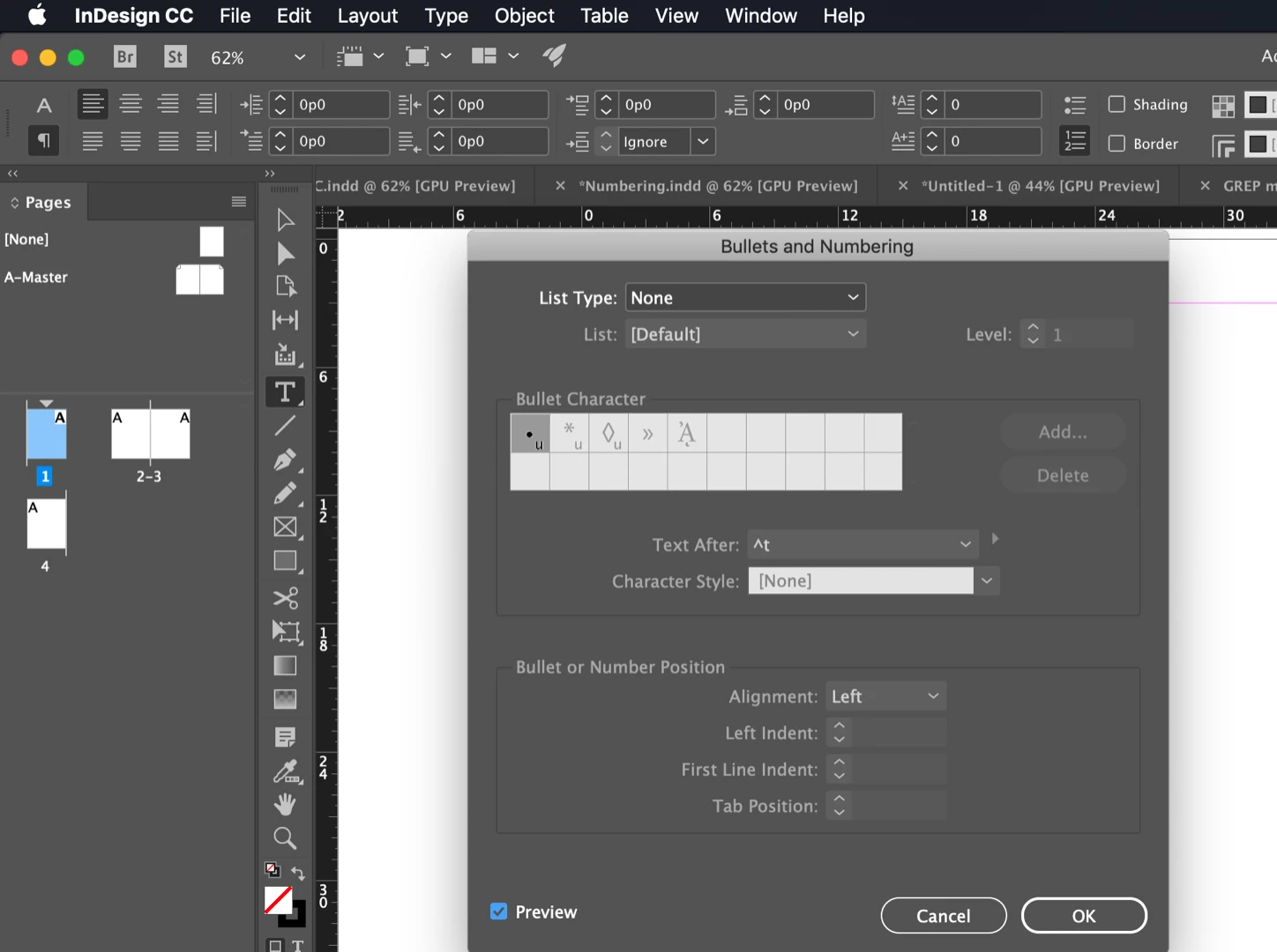
  1. Click on 1.  52 with the Type tool.
  2. Change to the Paragraph view of the Control panel (the ¶)
  3. Alt + click the numbering icon in the Control panel.
  4. Choose List Type: None

Did that work? If so, redefine your style.

~Barb

1 reply

Barb Binder
Community Expert
Community Expert
February 22, 2019

Hi Dilan:

This is starting out correctly. To add page numbers, navigate to the master pages, draw a text frame and insert the page number via Type > Insert Special Character > Markers > Current Page Number. If you are on the A-Master an A will appear. On the B-Master, a B will appear.

When you return the the body pages, you should see a 1 on page 1, a 3 on page 3, etc.

So are you saying that you are seeing a 1 on each body page? Can you share an image of your Pages panel? Are the body pages showing the correct numbers underneath?

~Barb

~Barb at Rocky Mountain Training
Dilan_T
Dilan_TAuthor
Participant
February 22, 2019

oh sure, much easier! So it does show the page number changing on every page but with an additional "1." at the beginning. Like maybe "(Chapter) 1. (Page) 52"? I am just tossing ideas, i am not working with chapters so i dont know really.

Master Page:

Page 52:

Dilan_T
Dilan_TAuthor
Participant
February 22, 2019

Hi Dilan:

  1. Click on 1.  52 with the Type tool.
  2. Change to the Paragraph view of the Control panel (the ¶)
  3. Alt + click the numbering icon in the Control panel.
  4. Choose List Type: None

Did that work? If so, redefine your style.

~Barb


OMG that works! I have no idea how it happened in the first place - never used it -, but anyway such a relief! Thank you both for your insights and guidance ^.^