
mary gracec91971894
Participant
August 22, 2017
Answered

Page numbers off in book

  • August 22, 2017
  • 5 replies
  • 8458 views

Hi all! For some reason when I added a new document into my book it set the page numbers off in the documents that follow it.  See screenshot below:
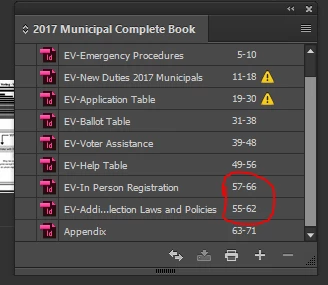
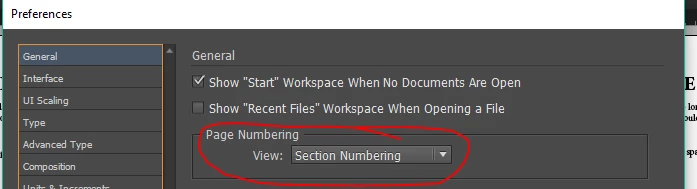
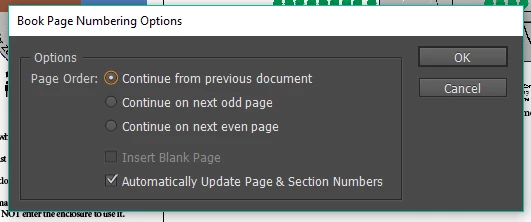
I have all of the documents set to Section numbering and the book page numbers set to Continue from previous document. Help! What am I doing wrong?
Side note: There seems to be no rhyme or reason to when the yellow exclamation point appears to warn me that a document was modified outside of book.  I would love to know the easiest way to get rid of this.  Right now my method is to ignore it and they seem to fix themselves on their own once I save it the correct way.

Correct answer Chameera5EEB

This is the solution !

https://creativepro.com/book-panel-shows-wrong-page-number-fixed/

5 replies

Participant
May 18, 2023

Hi all, I found another way to deal with it if everything else fails, like in my case. What worked for me; Open the indesign doc with pages you have issues with, right click on the small pages on the right ( see image ) and click numbering and section options, then simply change whatever number you see there to the number that should be next in your book. That should then automatically fix the problem. 

Chameera5EEBCorrect answer
Participant
September 11, 2021
ppppppppgonzaga
Inspiring
January 1, 2022

thanks, this worked for me!

Betsey Dempsey
Participant
April 23, 2021

I had the same problem. Unintentionally, I was in the file that was causing the problems with numbering and I put the blinking curser at the very beginning of the first page and then saved it. It worked! So, for the problem in the image above, I'd open the file that's just above the Appendix (p55-62). Try putting the curser so it's blinking at the very beginning of the first page of that document and try saving it, then reimporting the file.

Inspiring
July 8, 2022

I had this same problem this week and none of the other answers were helping, so I tried yours. Just putting the cursor there was not enough chance that a save would do anything, so I deleted the first letter, retyped it, and then saved. When I opened the Numbering menu, all of the sudden "start numbering at 1" was selected instead of "automatic numbering", which had been previously selected. I change it to automatic and voila! 


So thank you for your comment. It wasn't the exact answer, but it got me there!

Betsey Dempsey
Participant
July 8, 2022

Glad it helped! I've saved your note, just in case I need your method as well!

Legend
August 23, 2017

You could also try this:

  1. Delete the chapters (Remove Documents) from the book pallet (not the actual files, though)
  2. Open each file
  3. Go to the Numbering and Section Options and set each to Automatic Page Numbering (make sure the Start Page Numbering field isn't selected, but that it reads 1)
  4. Put the chapters back into your book pallet

It's a longer way around, but maybe worth a try if nothing else works.

mary gracec91971894
Participant
August 23, 2017

I tried creating a new book with the documents set to Automatic page numbering.  When I added the documents into a new book it did the same thing at the same document.

Jongware
Community Expert
Community Expert
August 22, 2017

Try forcing an update of the page numbering in the Book panel drop down menu: "Update Numbering > Update All Numbers".

InDesign will open and close all book documents to update; it's a lot faster if you open the documents in advance, update, then save all.