Inspiring
June 4, 2018
Answered

pages view is not in spreads of two

  • June 4, 2018
  • 2 replies
  • 688 views

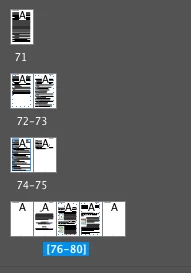
I removed some pages from a document and my pages page looks like the image now. How can I correct this?

    This topic has been closed for replies.
    Correct answer Barb Binder

    I'll add that you have this set to a single-sided document so...
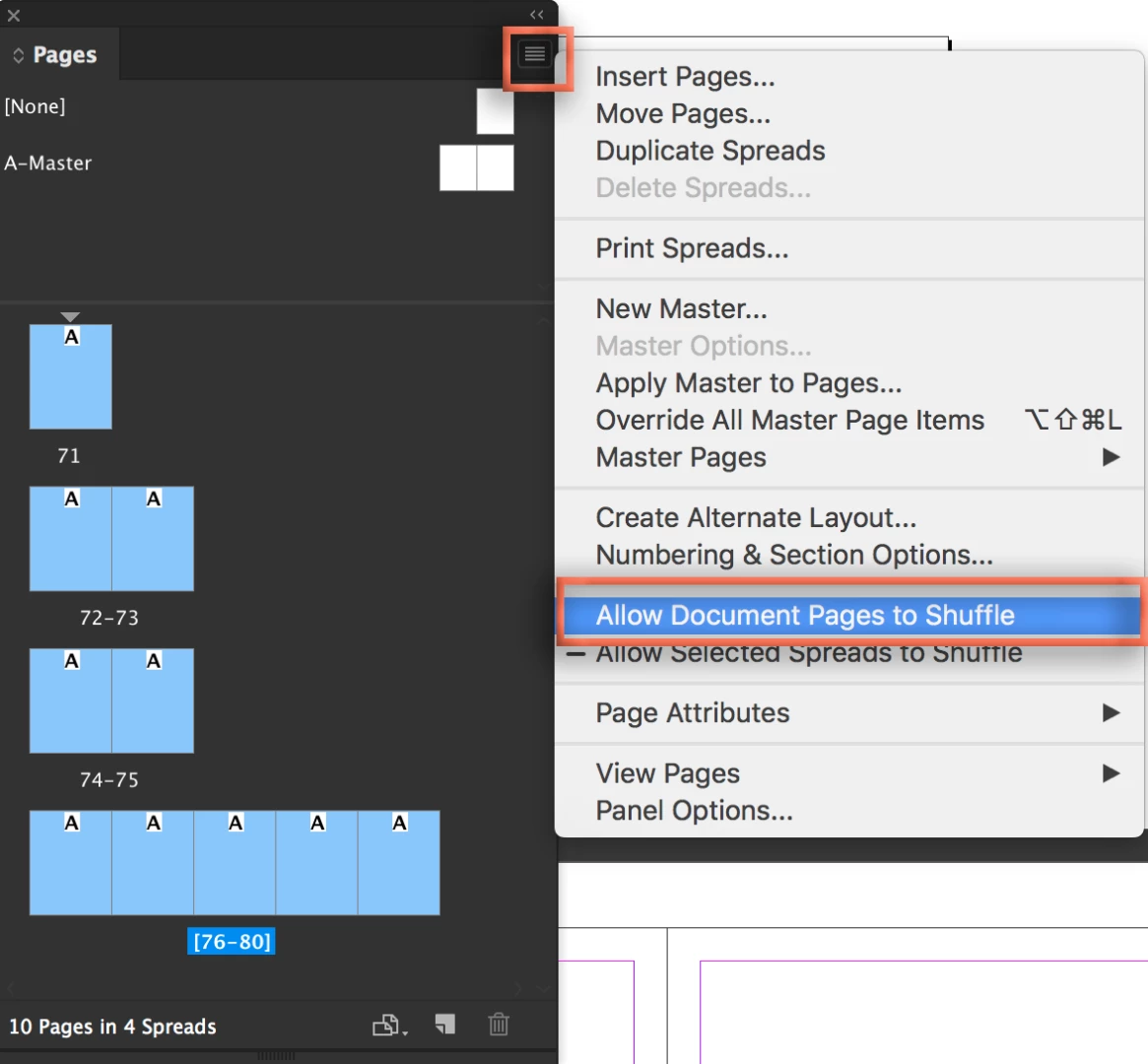
    1. Select all the spreads (click on the first spread icon, shift+click on the last), then check Allow Document Pages to Shuffle (in Window > Pages > Panel menu).
    2. Choose No for maintaining current number of pages on these spreads.
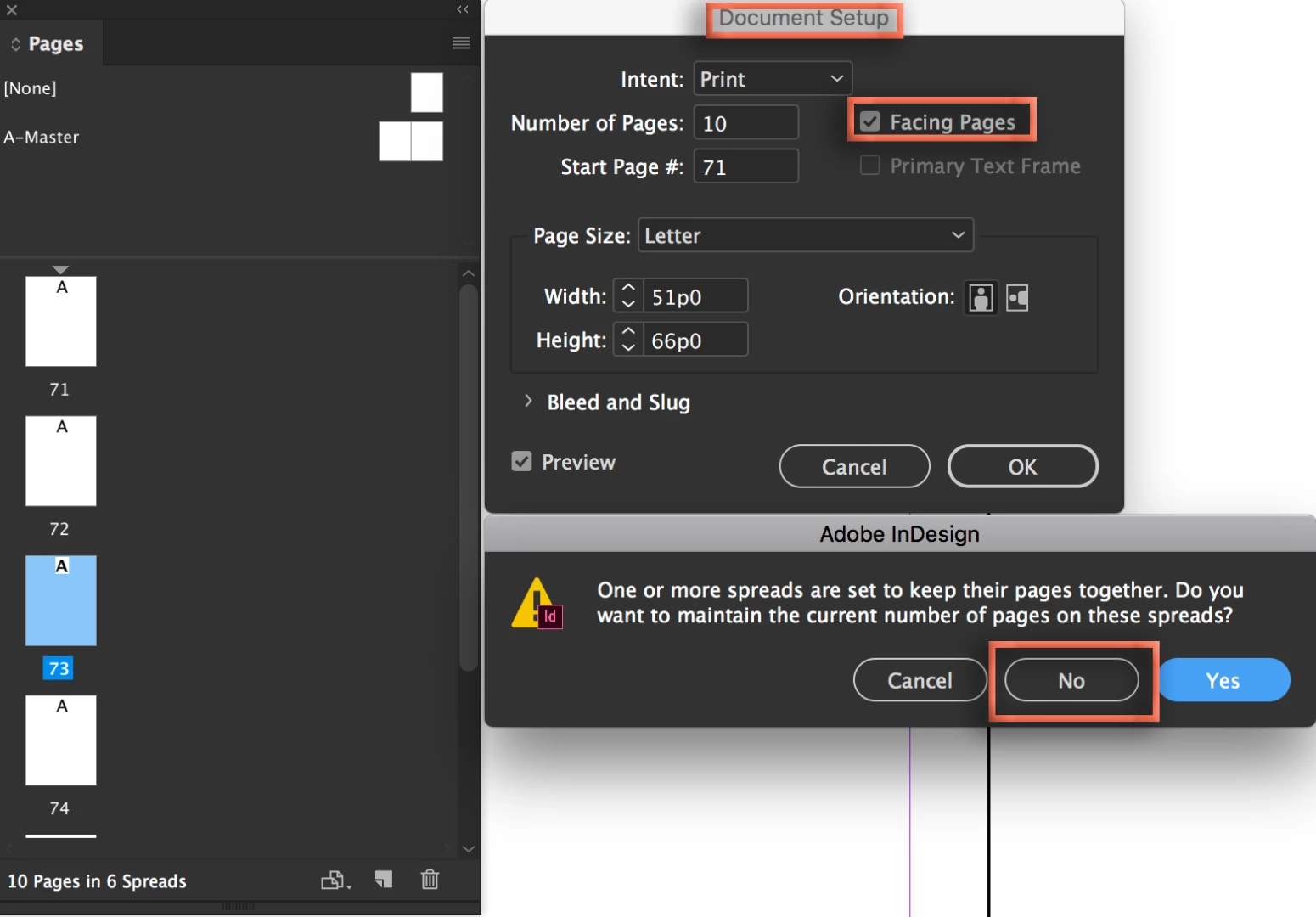
    3. To get two-page spreads, go to File > Document Setup > Facing Pages, OK. Again choose No to maintain current number of pages on these spreads.

    ~Barb

    2 replies

    Barb Binder
    Community Expert
    Barb BinderCommunity ExpertCorrect answer
    Community Expert
    June 4, 2018

    I'll add that you have this set to a single-sided document so...
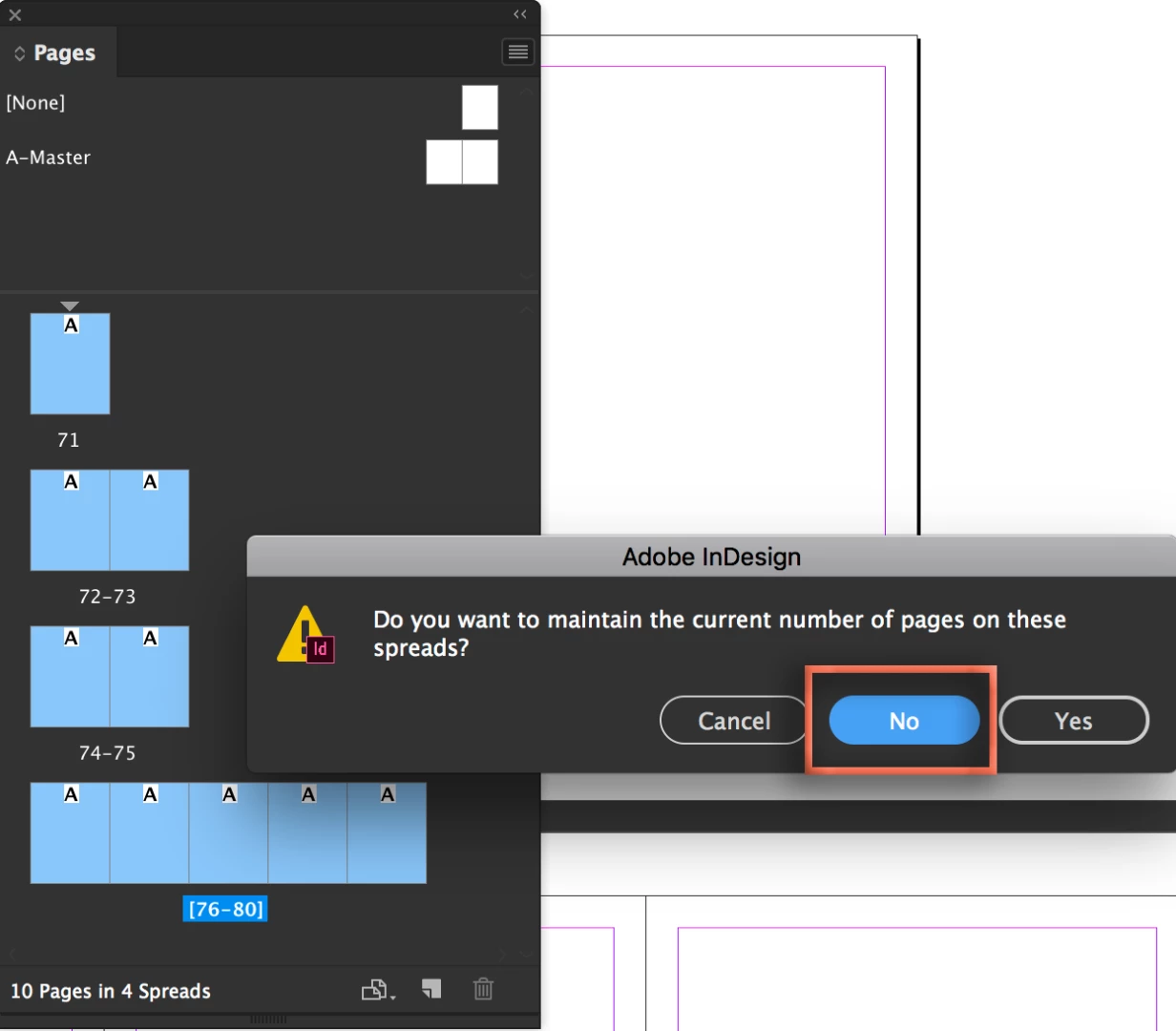
    1. Select all the spreads (click on the first spread icon, shift+click on the last), then check Allow Document Pages to Shuffle (in Window > Pages > Panel menu).
    2. Choose No for maintaining current number of pages on these spreads.
    3. To get two-page spreads, go to File > Document Setup > Facing Pages, OK. Again choose No to maintain current number of pages on these spreads.

    ~Barb

    ~Barb at Rocky Mountain Training
    Inspiring
    June 4, 2018

    Thanks for this but just to make sure going forward. if I have a 100 page book and I need to DELETE pages 45 , 60 and 72 HOW DO I DO This so everything flows correctly?

    Barb Binder
    Community Expert
    Community Expert
    June 4, 2018

    Hi Matthew:

    First of all, since you are unsure, work on a copy of the file.

    To remove pages, you select them in the Pages panel (shown above) and click the trash can button at the bottom of the same panel. Depending on how your file was set up, either that's it, or InDesign regenerates the pages. Give it a shot and let us know. If the pages come back, we'll give you a hand.

    ~Barb

    ~Barb at Rocky Mountain Training
    Legend
    June 4, 2018

    Under the page menu, choose Allow Pages to Shuffle - if that doesn't do it, then select that spread, and choose Allow Selected Spread to Shuffle