
Participant
February 16, 2020
Answered

Paper color is not the same as page background color.

  • February 16, 2020
  • 2 replies
  • 3821 views

Hi, I am doing little project in InDesign for the first time, but I ran into an issue. When I export my graphics into pdf, the “paper” color isn’t the same white as the background white.


I have white rectangle in my project covering part of the photo. I set the rectangle color as paper. But when I export it to pdf it is different shade of white then background which is in default color. Displaying color for the page background is #FFFFFF but for the rectangle #FFFEFD.


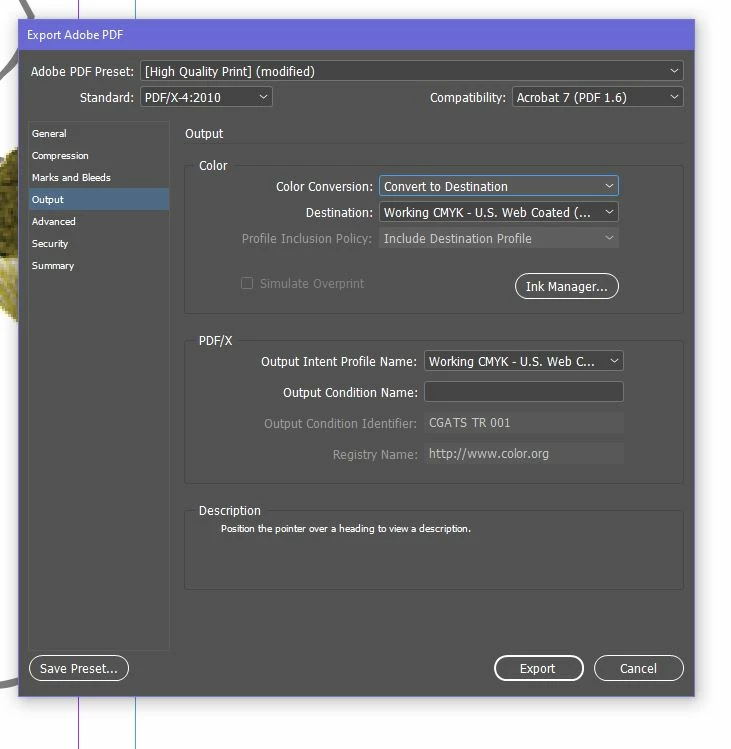
I attach my pdf settings. Can anyone tell my why is it happening?  


This topic has been closed for replies.
Correct answer rob day

The Tint Ramp field showing at the bottom Properties Fill should be displaying as your [Paper] definition, which is C=0 M=0 Y=0 K=0. I don't think the gray preview should be happening—the gray color looks like what you would get with a custom proof setup when you have Simulate Paper Color checked. You might want to try deleting you InDesign caches folder, and see if that changes the field to white.


Where are you viewing the exported PDF? If you open it in AcrobatPro with Print Production>Output Preview showing, do you see the difference? Are the Separation output values showing 0|0|0|0 CMYK when you mouse over the rectangle?


Also, is there a reason you are modifying the [High Quality] preset Standard to PDF/X4:2010? Why not use the PDF/X-4 preset and change the Output tab to the desired Destination?

2 replies

Derek Cross
Community Expert
Community Expert
February 16, 2020

It's only an approximation.

AMZAuthor
Participant
February 16, 2020

So, I should not worry about it? 

Randy Hagan
Community Expert
Community Expert
February 16, 2020

I wouldn't say don't worry about it.


[Paper] is defined within InDesign as the absence of color. But in real terms that translates as opaque white. Trying to color-match to the substrate (whatever you're ptinting on) is fraught with peril. Don't do that.


If you want transparent results, you should use the [None] color option for element(s) you want to be transparent to the substrate's background.

rob day
Community Expert
Community Expert
February 16, 2020

Can you show a screen capture of the page with the rectangle selected, and the Color panel showing? Something like this:


AMZAuthor
Participant
February 16, 2020


Hi, here it is

rob day
Community Expert
rob dayCommunity ExpertCorrect answer
Community Expert
February 16, 2020

The Tint Ramp field showing at the bottom Properties Fill should be displaying as your [Paper] definition, which is C=0 M=0 Y=0 K=0. I don't think the gray preview should be happening—the gray color looks like what you would get with a custom proof setup when you have Simulate Paper Color checked. You might want to try deleting you InDesign caches folder, and see if that changes the field to white.


Where are you viewing the exported PDF? If you open it in AcrobatPro with Print Production>Output Preview showing, do you see the difference? Are the Separation output values showing 0|0|0|0 CMYK when you mouse over the rectangle?


Also, is there a reason you are modifying the [High Quality] preset Standard to PDF/X4:2010? Why not use the PDF/X-4 preset and change the Output tab to the desired Destination?