jleigh987 wrote … Uwe, I started reading about text-to-paths and to see if I can separate the fields. I didn't have enough time to accomplish anything, but will hopefully be able to return to that on Monday also.
|
Hi Jodi,
you need to do nothing with the converted text-to-paths.
My script will convert text to path without changing the original text formatted with Chartwell Pie.
And it will throw away the group of paths after the calculation of labels is done.
And more: You even need not provide any text frames before the datamerge process for the labels in the template.
The script would create them on-the-fly using an object style one could provide with the InDesign template document.
Below just a sequence of screenshots showing a sample that is working with a selection of the text frame holding the chart.
The contents of the frame is: 76+6+18+B
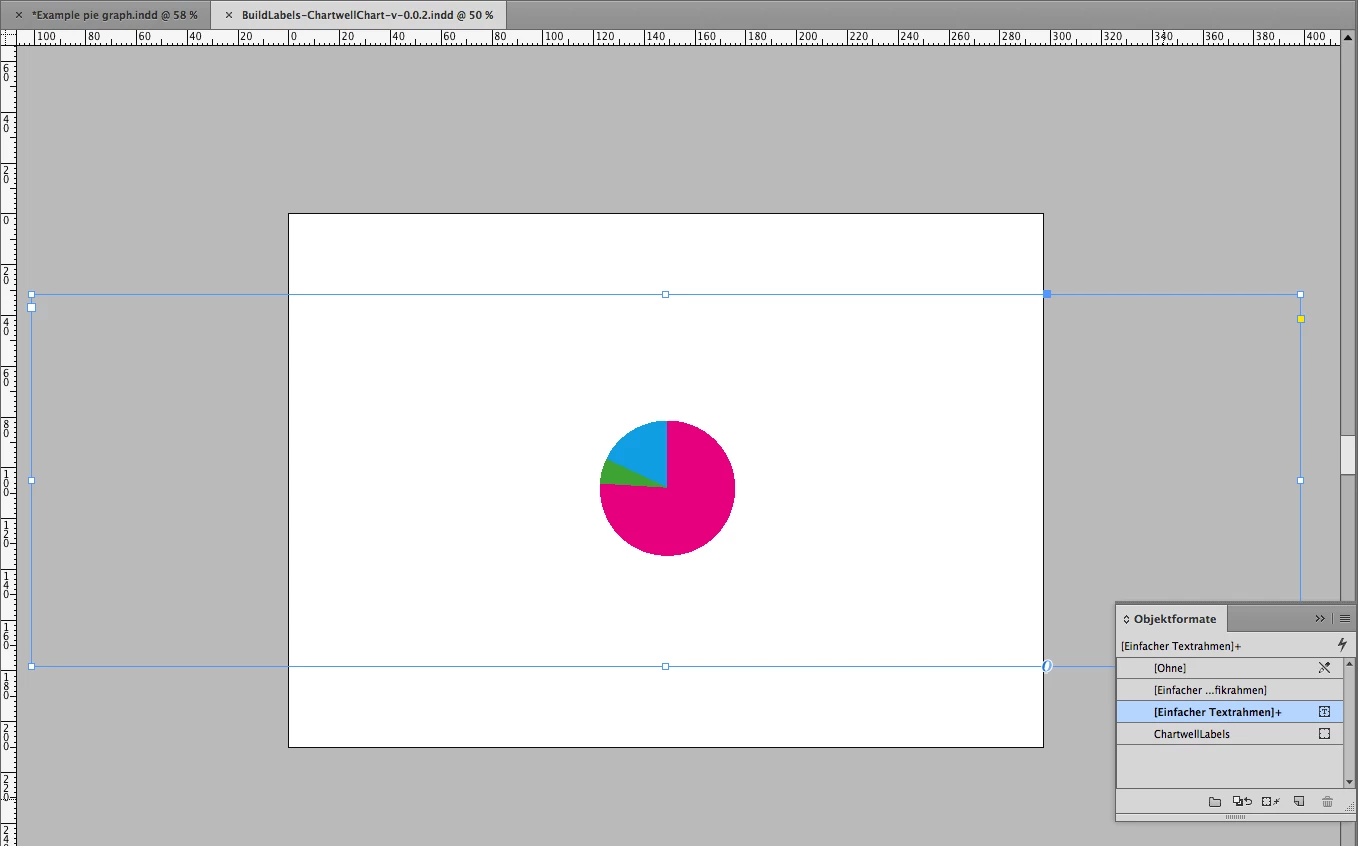
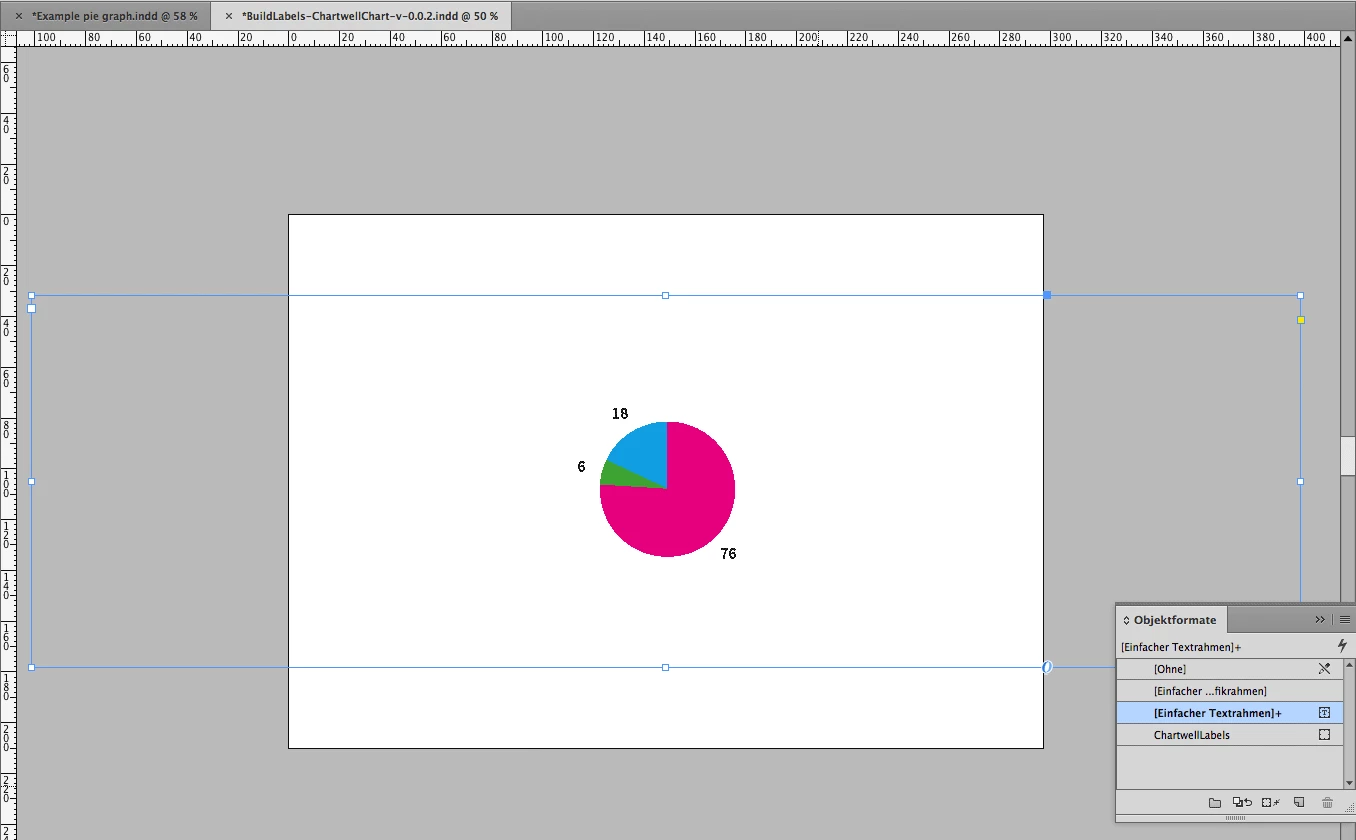
Means, the chart is build with pies from values of 76%, 6% and 18% of a circle. B means make a "ring" form. This is not showing here, because after doing text to path with the text the inner circle is stacked behind the pie segments. All paths are grouped.
I'm showing the converted paths only, because I have no Chartwell font at hand and doing all calculations from the formatted text contents provided.
The typography of the label and the look of the labels' text frames is dictated by an object style provided in the document:
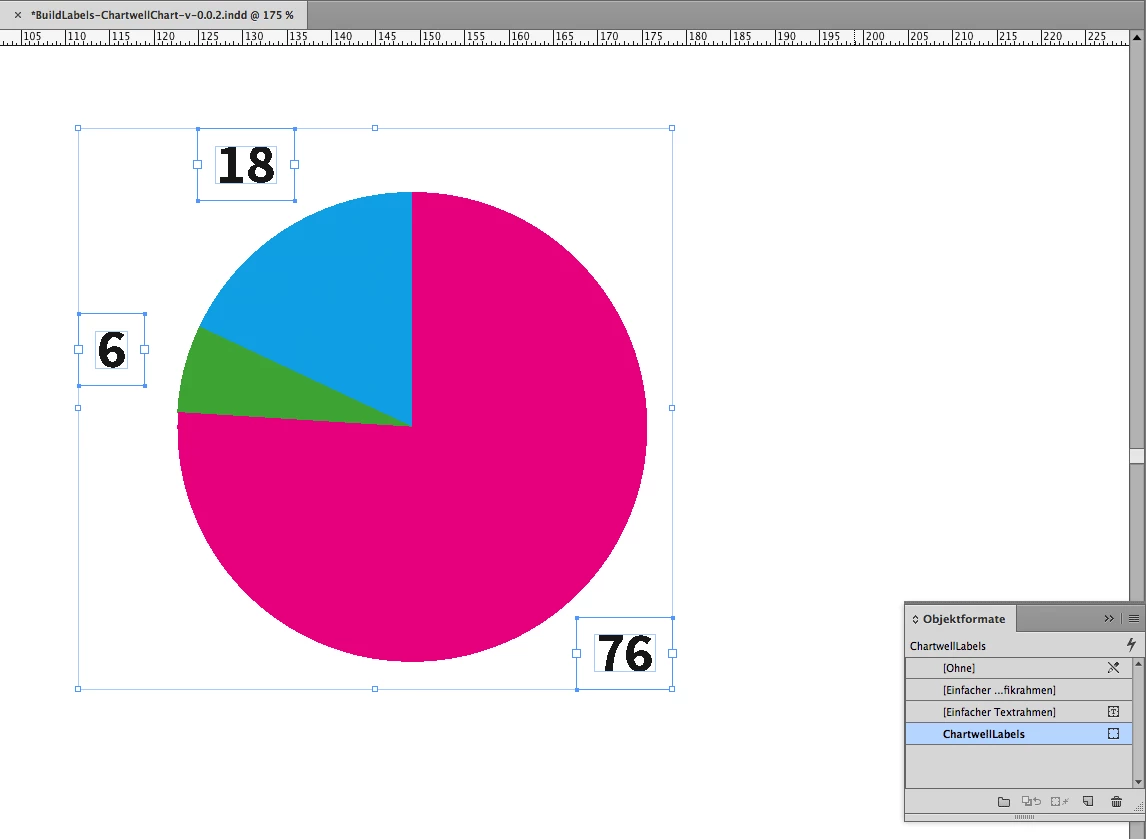
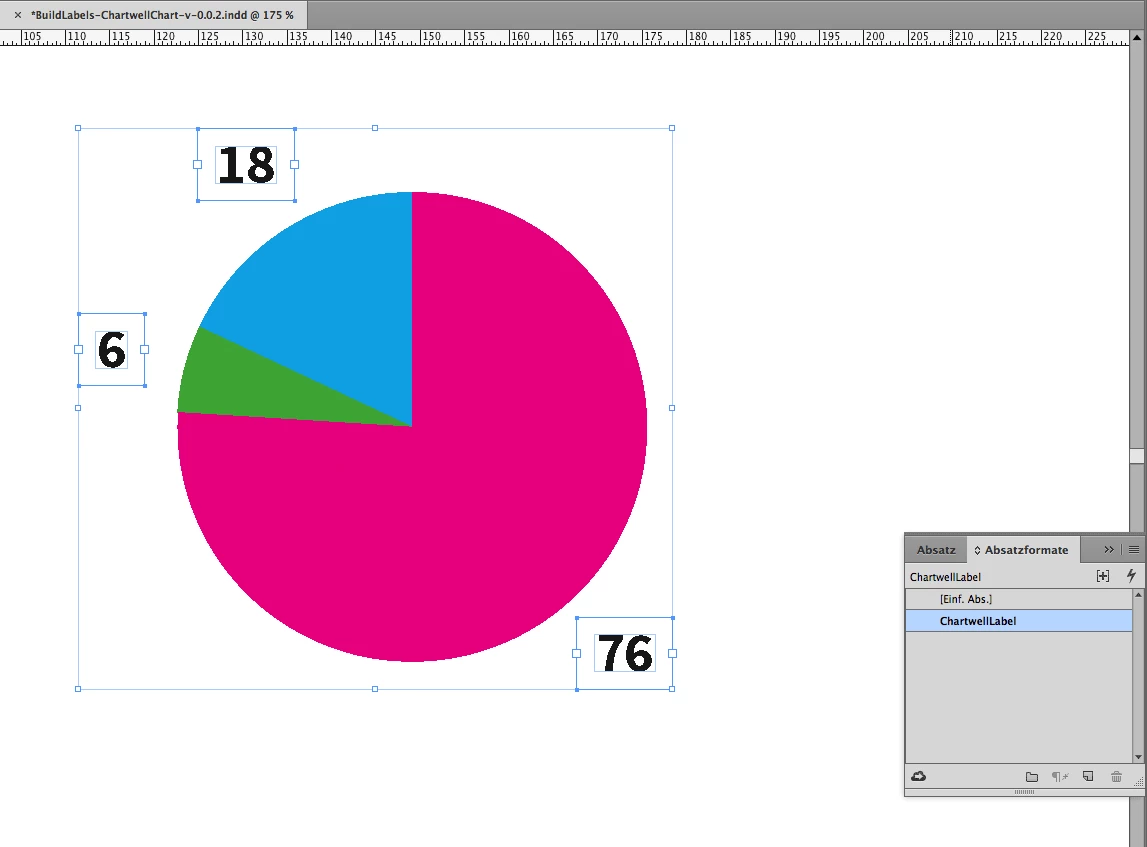
"ChartwellLabels". The applied paragraph style for this style is named "ChartwellLabel". If the object style is not there the script will build a default style you can later change to your needs.
1. Before doing the script action
To run the script select a text frame holding the necessary information: 76+6+18 for calculating the angle of the label text frames. You cannot see the contents here for demonstration purposes. Usually it would be in color to dictate the fill color of the pie segements.
Note: To make the script action work, the selected text frame must be not overset.
2. After running the script.
I assume, that the label text frames should be positioned to the half of the angle of every individual piece of pie:
3. The label frames are formatted by the object style.
in my German InDesign you can see the Object Styles panel where object style "ChartwellLabels" is selected.
4. The text is formatted with a paragraph style that comes with the object style: "ChartwellLabel".
5. As you can see below, the text frames of the labels are all centered around the pie chart.
The center of each text frame is on an imaginary outer circle.
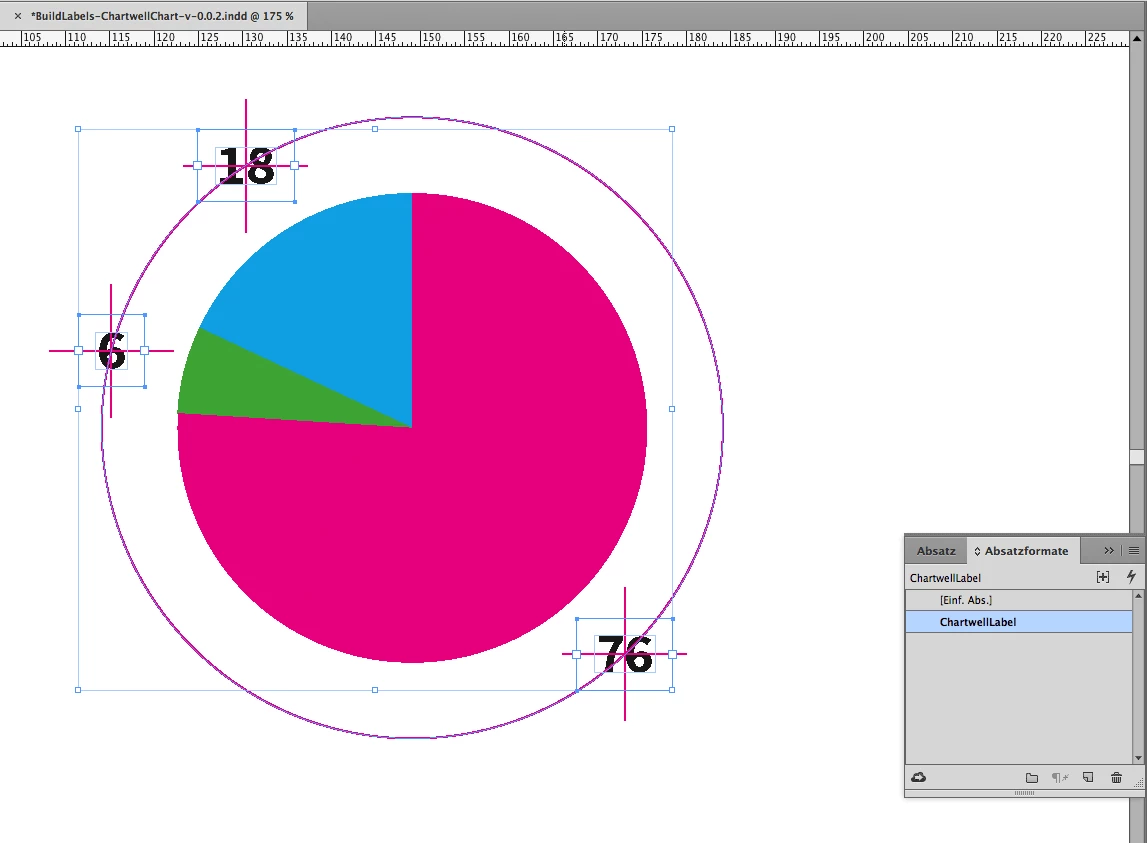
6. After changing the text size the center of text frames is still on the outer circle.
This effect is possible because the object style is coming with a fit to center setting.
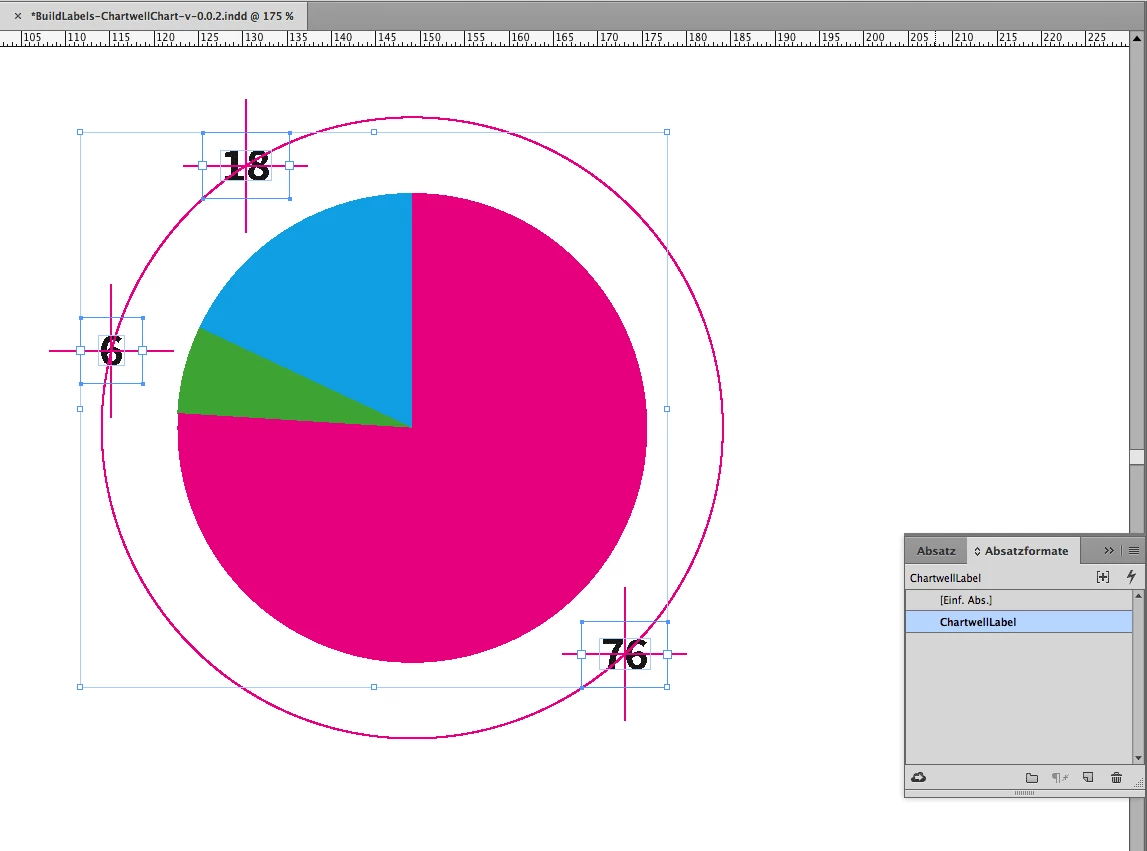
But please do not hold your breath, the script is not ready yet.
Regards,
Uwe

 AdChoices