dzgnr89
Inspiring
July 31, 2020
Answered

Precise alignment of text

  • July 31, 2020
  • 5 replies
  • 3623 views

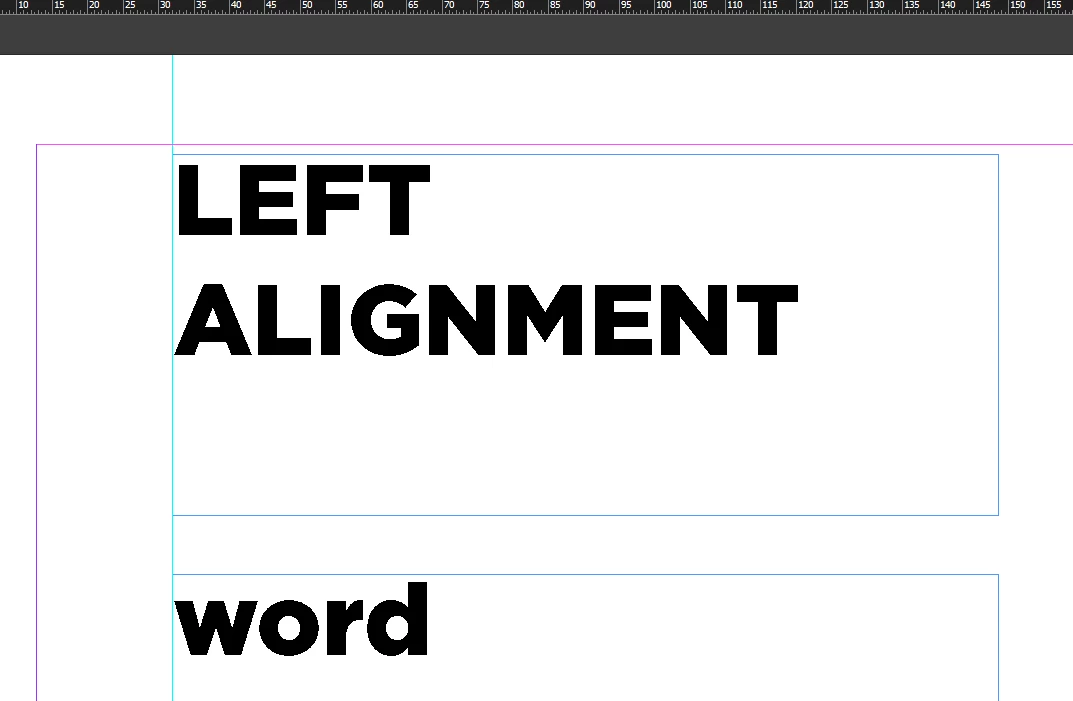
How can I align the first alphabet of the word to the left most edge of the text box? By default InDesign leaves some gap on left even when I create text in text box within a new document.



This topic has been closed for replies.
Correct answer Laubender

Ok. Below another screenshot and the link to that document on my Dropbox.

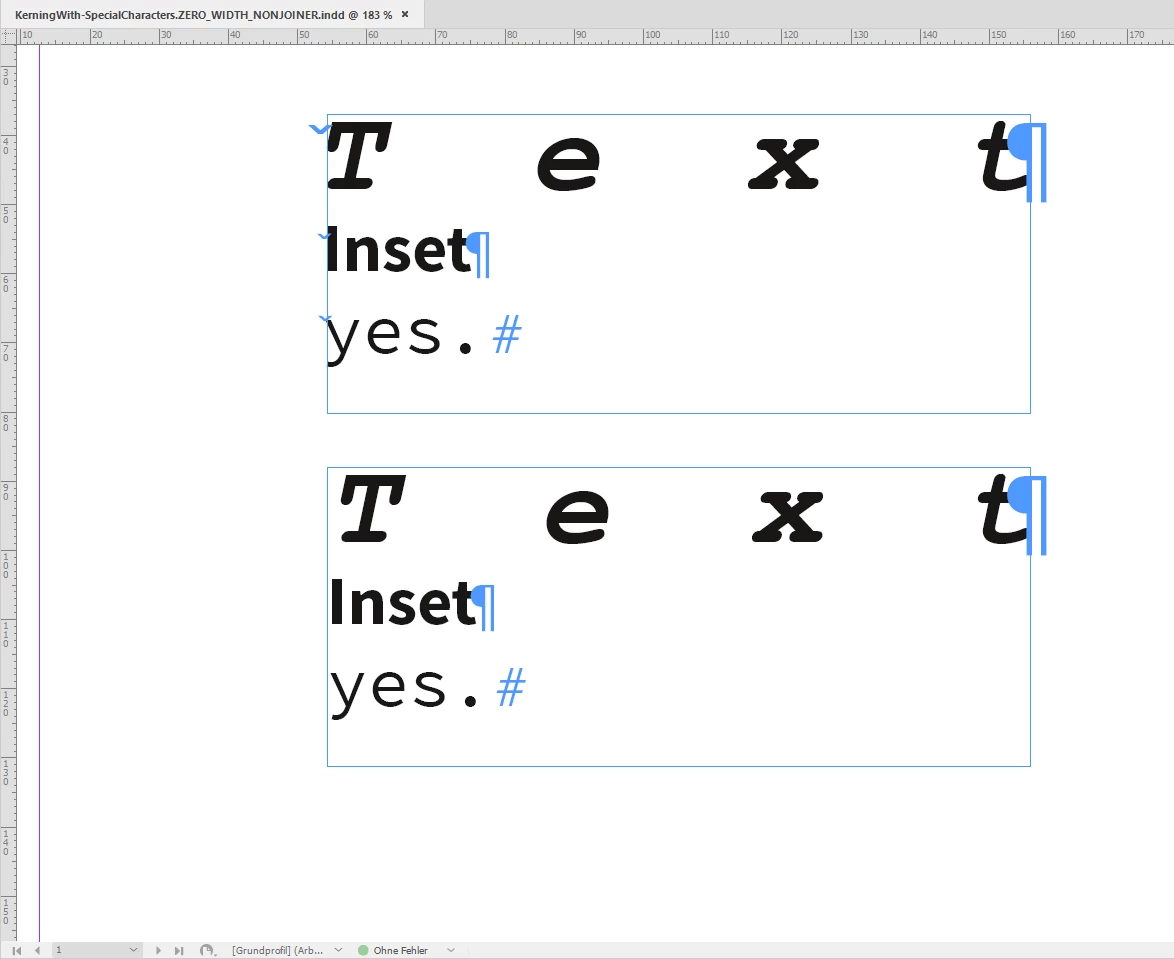
Text frame on top with kerning the special character and the first character of the paragraph.

Text frame at the bottom: No special character and no kerning.
Download my sample document ( InDesign 2020 version 15.1.1.103 ) :

https://www.dropbox.com/s/mrqkykc81xkdql6/KerningWith-SpecialCharacters.ZERO_WIDTH_NONJOINER.indd?dl=1


Regards,
Uwe Laubender

( ACP )

5 replies

Peter Kahrel
Community Expert
Community Expert
October 18, 2021

> well, the alignment, the values for kerning, could be scripted.

See https://creativepro.com/files/kahrel/indesign/kern.html

It contains (among other things) a section on how to use the method described by Uwe.


P.

Community Expert
August 6, 2020

Hi Arjun,

well, the alignment, the values for kerning, could be scripted.

However, with fancy fonts, eg. for handwriting, you still have to this individually.


Regards,
Uwe Laubender

( ACP )

LaubenderCommunity ExpertCorrect answer
Community Expert
August 4, 2020

Ok. Below another screenshot and the link to that document on my Dropbox.

Text frame on top with kerning the special character and the first character of the paragraph.

Text frame at the bottom: No special character and no kerning.

Download my sample document ( InDesign 2020 version 15.1.1.103 ) :

https://www.dropbox.com/s/mrqkykc81xkdql6/KerningWith-SpecialCharacters.ZERO_WIDTH_NONJOINER.indd?dl=1


Regards,
Uwe Laubender

( ACP )

dzgnr89
dzgnr89Author
Inspiring
August 6, 2020

Thanks a ton. Now I understand completely. So eventually there's no easy way to snap the edges of the alphabets to the edge of the textbox. One has to do manual adjustment and there's no magic number. 

rob day
Community Expert
Community Expert
August 6, 2020

It’s because all fonts have a side bearing dimension:


Community Expert
August 4, 2020

A blank character is invisible by default. Depending on the justification you would best do this with a fixed width character without any width: A SpecialCharacters.ZERO_WIDTH_NONJOINER would do.

Sorry, but I did not save the document after doing my screenshot.


Best try this yourself. Add a blank character at the beginning of a paragraph.

And kern between that blank character and the first character of your inital paragraph.

Basically that's it. And yes, the kerning values are up to you and your typographical eye.


You may ask how to add that special character I mentioned above:
Just put your text cursor in front of your first character and execute the following ExtendScript (JavaScript) script code:

app.selection[0].texts[0].insertionPoints[0].contents =
SpecialCharacters.ZERO_WIDTH_NONJOINER;


Or select the paragraph and do a GREP Find/Change action:


Find pattern:

(^.)

Change pattern:

\x{200C}$1

Scope:

Selection


Regards,
Uwe Laubender

( ACP )

Community Expert
August 3, 2020

Hi arjun2,

if the two lines are one paragraph each you could add a blank character as the first character in each paragraph and do kerning between the blank and the first reading character in the paragraph. From my German InDesign where I used a text frame inset of 2 mm to better show the first blank in every paragraph:


The first two character pairs in every paragraph are differently kerned.

Above the text cursor is between the blank and the character I of the second paragraph where I did a manual kerning of -280.


Regards,
Uwe Laubender

( ACP )

dzgnr89
dzgnr89Author
Inspiring
August 4, 2020

Thanks a lot for replying. I'm not totally able to understand your method. But what I can figure out is that you are doing some manual adjustment till the alphabets are perfectly aligned. Can you please share a soft copy of this file? I will be able to understand fully your method after going through the settings of each line. 


You remove the colour for the blank characters so that they remain invisible?

rob day
Community Expert
Community Expert
August 4, 2020

•Type a space in front of the line’s first letter

• Set your cursor between the space and the letter

• Adjust the Character Panel’s Kerning to a negative amount. You can also select the space character, and set the Tracking to a negative amount.