
Inspiring
March 7, 2024
Answered

Precisely rotate multiple objects

  • March 7, 2024
  • 4 replies
  • 2604 views

If I want to rotate any single object I just click it and either free rotate it with the handles or use the drop-down selection to select 0°, -90°, 180°, etc. Easy enough. But I often find myself wanting to grab numerous items and rotate them all a precise value (for the sake of discussion, 23.7°, etc).  Or take a dozen previously-rotated boxes and return them to 0° or -90°, etc. I can't use the rotate angle dropbox for more than one item, and that's a problem.

How can I select multiple ungrouped items and rotate them as needed without doing one at a time? This is something I need to do on a daily basis. Please and thanks.
This topic has been closed for replies.
Correct answer Barb Binder

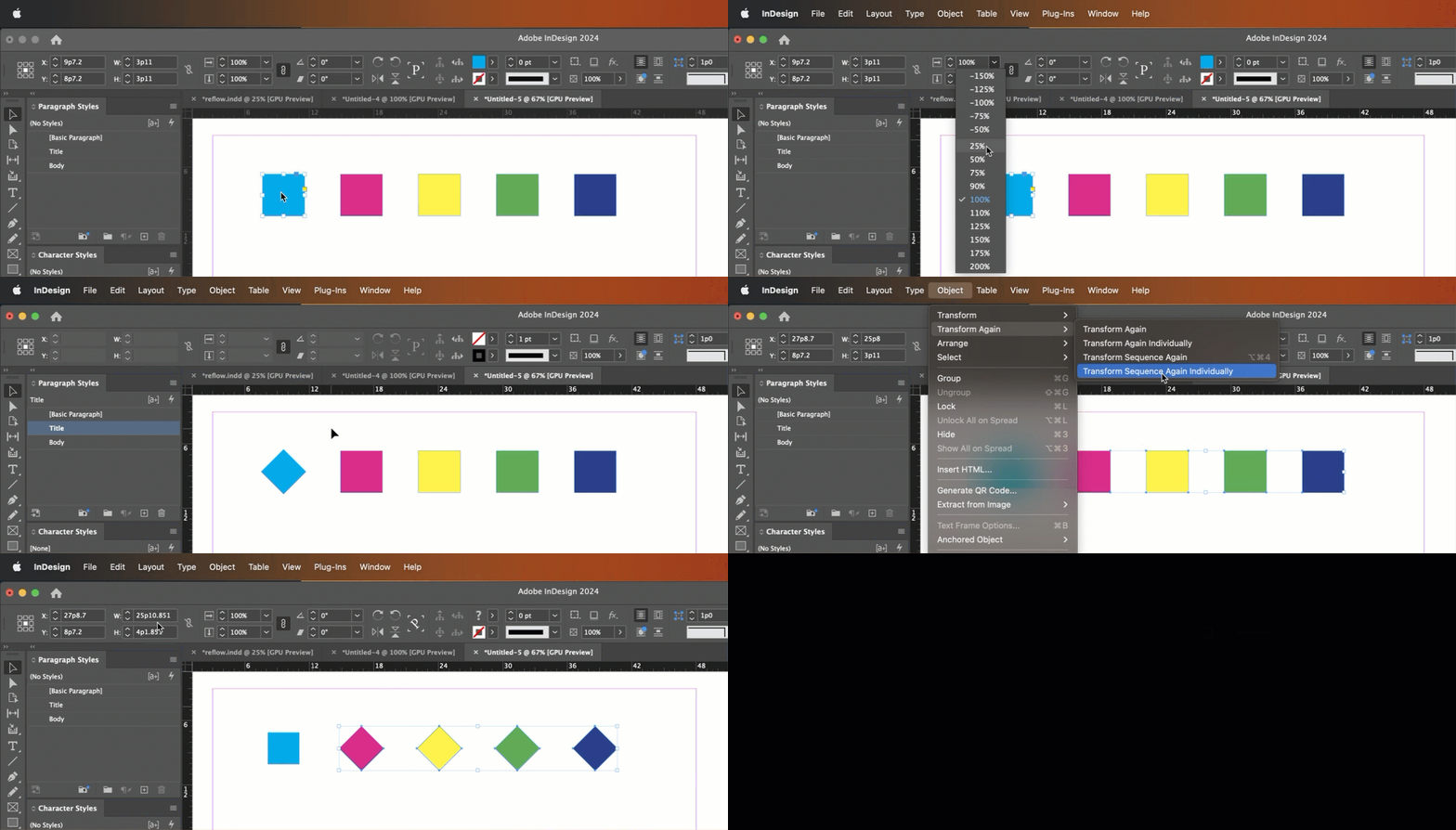
Here's how I teach this, Peter: InDesign is watching our transformations (move, scale, rotate, skew and flip). If we perform one or more transformations on one object, we can immediately select others, and use Object > Transform Again > Transform Sequence Again Individually. (If you only perform one transformation, then you can use Transform Again Individually, as per @John D Herzog or Transform Sequence Again Individually—both work.)


~Barb


4 replies

Barb Binder
Community Expert
Community Expert
March 8, 2024

Hi Peter:


How about using the Align and Distribute commands to line them up/space them out and then grouping before rotating?


~Barb


~Barb at Rocky Mountain Training
PeterD-NJAuthor
Inspiring
March 8, 2024

I tried that. Just as much work and they never line up perfectly since some of the lines on the underlying graphic are not evenly spaced.

Robert at ID-Tasker
Legend
March 8, 2024

Except the graphic and other annotations are perfectly placed already, and I don't want to add that complexity. There are a ton of moving parts on each page, far far more than on a typical page. All the graphics are set then I add the track numbers over top. They're all finished now, but done by hand. I'd vastly prefer to re-do the ones that are iffy, but without blowing up the page, which moving or changing the graphic would certainly do.


quote

Except the graphic and other annotations are perfectly placed already, and I don't want to add that complexity. There are a ton of moving parts on each page, far far more than on a typical page. All the graphics are set then I add the track numbers over top. They're all finished now, but done by hand. I'd vastly prefer to re-do the ones that are iffy, but without blowing up the page, which moving or changing the graphic would certainly do.


By @PeterD-NJ


If you rotate contents of the WHOLE PAGE / SPREAD - do alignment - then select everything again and rotate it back - everything will go back in place - as long as overall size won't change.


If it would - you would've to first add a Rectangle bigger than the current total and try again. 


Barb Binder
Community Expert
Community Expert
March 8, 2024

Hi @PeterD-NJ:


I can't see the text boxes. Can you share the same image but this time choose View > Extras > Show Frame Edges so that I can see what you are dealing with. Type > Show Hidden Characters may also be helpful.


~Barb

~Barb at Rocky Mountain Training
PeterD-NJAuthor
Inspiring
March 8, 2024

Here are a couple; there are many more.


Barb Binder
Community Expert
Barb BinderCommunity ExpertCorrect answer
Community Expert
March 8, 2024

Here's how I teach this, Peter: InDesign is watching our transformations (move, scale, rotate, skew and flip). If we perform one or more transformations on one object, we can immediately select others, and use Object > Transform Again > Transform Sequence Again Individually. (If you only perform one transformation, then you can use Transform Again Individually, as per @John D Herzog or Transform Sequence Again Individually—both work.)


~Barb


~Barb at Rocky Mountain Training
PeterD-NJAuthor
Inspiring
March 8, 2024

@Barb Binder Works great! But now I'd like to take this one step further. Is it possible to align multiple text boxes along an angled path? This is a typical example of my desired result. All these were aligned by eye/hand; there was no command invoked to do this. 


John D Herzog
Inspiring
March 7, 2024

You can rotate one box then use the "transform again individually" to do the rest.