
December 11, 2018
Answered

Preventing Line Breaks

  • December 11, 2018
  • 3 replies
  • 4946 views

It would be great to know where/how in the Text Frame Options to have InDesign automatically prevent line spaces at the top of text frames.  For example, when there is a carriage return between paragraphs, I have been manually deleting it when the subsequent paragraph ends up one line from the top of a text frame.  But this manual method is messy because the positioning will change as we edit text before this point.  How can I fix the text frame options to prevent carriage returns from existing at the top of text frames?  Thanks!
    This topic has been closed for replies.
    Correct answer Barb Binder

    Instead of needing extra returns here or there, take another look at your layout.

    Define two paragraph styles:

    1. Body text with no paragraph spacing defined
    2. Quote with Space Before defined.

    Assign the paragraph styles to the appropriate paragraphs.

    ~Barb

    ~~~~~~~~~`

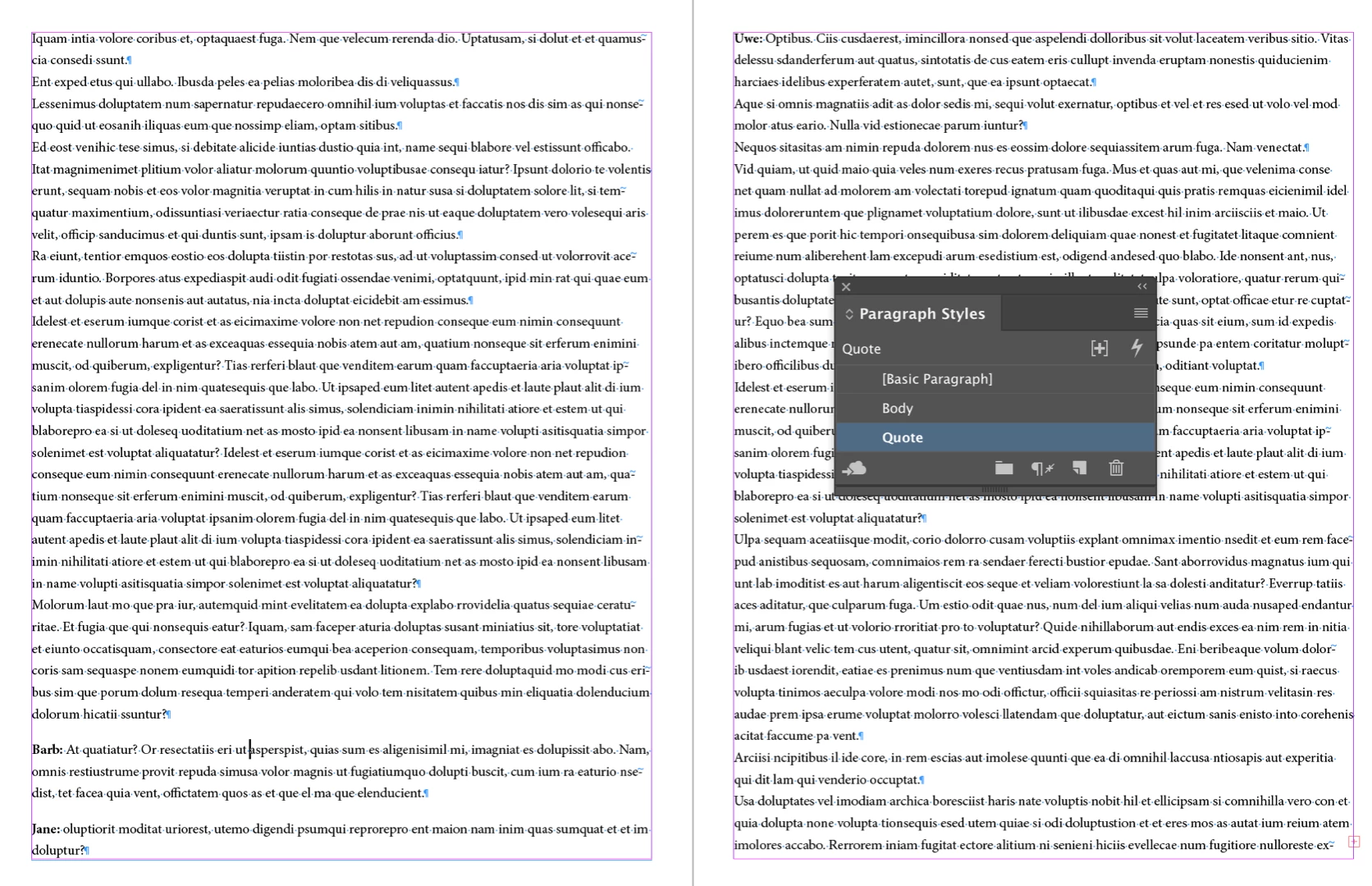
    Hmmm. I thought I added this screen shot earlier, so editing my post and adding it now.

    3 replies

    jane-e
    Community Expert
    Community Expert
    December 11, 2018

    JonSimons  wrote

    But this manual method is messy because the positioning will change as we edit text before this point.  How can I fix the text frame options to prevent carriage returns from existing at the top of text frames?

    The direct answer to your question is that if you use multiple returns, you can’t prevent a return at the top of the page, and it will be messy because you delete them now and reinsert them later when you get the next edit.

    The best way to set up an InDesign document is the one that will save you time when the edits come in, and Barb’s answer of space after is what works here. Use the same number as the leading in your body text if you want one exact line.

    ~ Jane

    December 11, 2018

    Dear all,

    Thanks for the very helpful suggestions.  I will attach a screenshot of my layout.  You can see that I need both normal carriage returns (between paragraphs) and something equivocating a double-return (separating interview questions and sections).  You will also notice at the top-right how my archaic double-return has created an unnecessary space at the top of the right column.  But the "Space After" setting would add space everywhere, so that's not an option.  How can I keep the general paragraph "Space After" setting the same but somehow prevent this "ghost line break" which can be seen at the top of the right column?  Thanks!  This forum is extremely helpful to me.

    Barb Binder
    Community Expert
    Barb BinderCommunity ExpertCorrect answer
    Community Expert
    December 11, 2018

    Instead of needing extra returns here or there, take another look at your layout.

    Define two paragraph styles:

    1. Body text with no paragraph spacing defined
    2. Quote with Space Before defined.

    Assign the paragraph styles to the appropriate paragraphs.

    ~Barb

    ~~~~~~~~~`

    Hmmm. I thought I added this screen shot earlier, so editing my post and adding it now.

    ~Barb at Rocky Mountain Training
    Community Expert
    December 11, 2018

    Hi Jon,

    you are looking at the wrong place.

    It's not in the Text Frame Options.

    Simply make sure that there are no empty paragraphs in your text.

    If you need space between paragraphs define this space in the Paragraph panel or better in the custom Paragraph Style you assigned to the text: Space Before and/or Space After.

    To remove empty paragraphs you can do this using Find/Change with the GREP tab.

    Find expression:

    ^.{0,0}\r

    Change leave empty.

    Press Change All after setting the scope of the Find/Change action to the document, the story of the selection or the selection itself.

    Regards,
    Uwe

    EDIT: Barb was faster :-)

    Nevertheless I will not remove my reply.

    Barb Binder
    Community Expert
    Community Expert
    December 11, 2018

    Hi Jon:

    Using double ¶s as a way to add spacing between paragraphs is a mistake that carries over from typewriters and word processors, and you have discovered why it is not a good idea.

    Take a few minutes to remove the double (and potentially triple) returns, and then use the paragraph spacing commands to define the same spacing, which eliminates this issue.

    Before:

    After running the Remove Trailing Whitespace* query in Edit > Find/Change. (Save the file first):

    Define Space After in the Control panel. (Redefine your style after you do this if you are using styles):

    ~Barb

    * You can use Remove Trailing Whitespace -or- Multiple Returns to Single Returns. Both come with the software.

    ~Barb at Rocky Mountain Training