
Participant
November 13, 2022
Question

Printing art book with rich blacks

  • November 13, 2022
  • 7 replies
  • 3797 views

I feel like there are tons of posts about how to print with rich blacks but I can't figure out how to solve this issue I'm having. 
I'm formatting an art book (full page illustrations) that relies on having deep blacks -- all the CMYK tiffs the artist sent me show as the 100K regular black during the print preview and separations preview. I'm working in US Web Coated SWOP. Example below with a section of the original image vs print preview. 
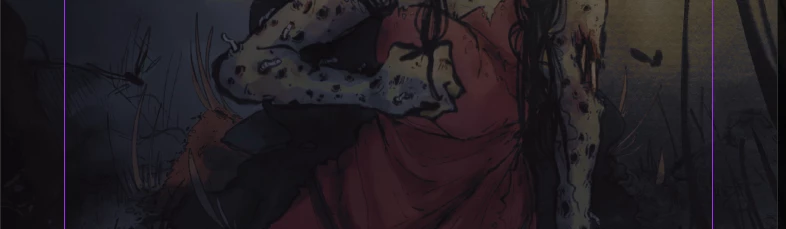


I have a lot of images, is there a way to adjust the images or the InDesign file settings to use a rich black? There has to be an easier way that going through each individual image in photoshop and editing the blacks. I feel like I'm missing something very simple with this.

This topic has been closed for replies.

7 replies

Brad @ Roaring Mouse
Community Expert
Community Expert
November 13, 2022

A few questions before I weigh in:

First question, why they gave you pre-converted CMYK TIFFs to begin with. Unless they know exactly what press situation your are delaing with, that has the very definite possibility of "baking in" incorrect mixes. i.e. if they preconverted to an old profile like US Sheetfed, or even US Web Coared, which is so old and assumes a certain amount of press gain of "the day" that would make the blacks darker, you can very well get what I call "hollow" blacks now, as the press sitiations now are more accurate with less gain.

Is there a profile assigned to the CMYK TIFFS you were given? If you are viewing soft proofs on your screen (saving PDFs) where you are converting to a particilar Profile, you might be excasperating the problem.

"all the CMYK tiffs the artist sent me show as the 100K regular black"

This is troubling. Unless they were using a custom GCR curve with a Maximum Black assigned, this shouldn't happen.

Can you upload a small sample section of one of your problematic TIFFs?


M.RezvaniAuthor
Participant
November 14, 2022

First off, thank you so much for replying. I'm new to formatting images/books for print (clearly). 
The embedded color profiles are all over the place -- they're a mix of SWOP coated, generic CMYK, Japan 2001, no embedded profile, and a few RGB. I've attached a couple of the files I was given for this. 
I went back to spot check the CMYK values across the images -- that was an error on my end, only one of them seems to be giving 100K black, "2 high priestess". But all of them show very greyed out blacks when proof colors or overprint preview are selected. I don't color manage images when I receive them, but I keep the CMYK values the same, if that is helpful to know. I also reached out to the printer to get more info on what printing process will be used, in case it turns out I just have my settings wrong.
Thank you for all your help, this isn't a professional project so I'm very much learning as I go.

reproo2773183
Inspiring
January 4, 2023


With Proof Colours I think choosing the Document CMYK is the same as Custom... >SAME PROFILE> with "Simulate Black Ink" checked.

If you choose Custom... >SAME PROFILE> without "Simulate Black Ink" checked. I dont think you get the On Screen reduction.

I don't see how you can choose which option is more correct?

rob day
Community Expert
Community Expert
November 13, 2022

Example below with a section of the original image vs print preview.

 

Hi @M.Rezvani , Without seeing your CMYK files it looks like you might have Overprint/Separation Preview turned on and Proof Colors on with the Proof Setup set to Document CMYK (your print preview?). If your InDesign document has the US Web Coated SWOP CMYK profile assigned and the CMYK image is also assigned US Web Coated SWOP, there is no need to turn on Proof Colors because Overprint/Separation Preview is already showing the expected US Web Coated SWOP soft proof.


I can replicate your captures by double proofing. These examples have the same CMYK output values, but the bottom soft proof is wrong because I have both Overprint Preview and Proof Colors to Document CMYK turned on.


If I export to the default PDF/X-4 preset Acrobat’s Output Preview uses the SWOP Output Intent profile for the default Simulation Profile, and the blacks are close to the SWOP 4-color black point:


Anselm Hannemann
Community Expert
Community Expert
November 13, 2022

InDesign can’t handle this for you. Photoshop could maybe help here, depending on your source files (TIFF? PSD?) If the black gradients are a separate layer, you could alter this layer/settings via batch processing or if that’s not enough, via scripting in Photoshop. For more help on this idea, it’s probably better to ask the question in the Photoshop sub-forum where the experts for this look at.

Robert at ID-Tasker
Legend
November 13, 2022

What black gradients? Those are full color illustrations - CMYK TIFFs.


Anselm Hannemann
Community Expert
Community Expert
November 13, 2022

Wait, why would they result in 100K if it’s a picture that was photographed in raw format (TIFF)? Then it’d be a matter of choosing the right raw files and importing them with the proper color profiles. Or am I wrong here?

Robert at ID-Tasker
Legend
November 13, 2022

Unfortunately, there is no other way - you need to edit each TIFF individually - you can't just treat all TIFFs the same way or you'll end up with some TIFFs too dark or still too dull.


rob day
Community Expert
Community Expert
November 13, 2022

Hi @M.Rezvani , can you share one of the images? You should be able to attach one to your reply.

M.RezvaniAuthor
Participant
November 14, 2022

Hi @rob day , I attached some files to a different response below.

Derek Cross
Community Expert
Community Expert
November 13, 2022

Are you sure this book is being printed on a web press, more likely on a sheet-fed press?

Don't use rich black for text, it'll probably reduce its readability. 

M.RezvaniAuthor
Participant
November 14, 2022

I reached out to the printers to confirm -- there will be little to no text in this book, just illustrations.

Scott Falkner
Community Expert
Community Expert
November 13, 2022

You cannot adjust the images in InDesign. If the images are RGB InDesign can convert them to CMYK on print or export, but it cannot greatly affect the colour in the images. This looks like a job for Photoshop.

Robert at ID-Tasker
Legend
November 13, 2022

They are CMYK.