Participant
November 8, 2022
Answered

Printing with VIVID Toner – Knockout CMYK object from VIVID layer, but keep it unprinted

  • November 8, 2022
  • 4 replies
  • 1016 views

We have a Xerox Versant 180 Press that is capable of printing with a VIVID Toner Set (white, gold, silver, clear). I'm designing an invitation and I have a silver border in the background that I want to be knocked out by some floral PNG shapes above it.


I can't figure out how to set it up so that the VIVID document has the Silver box with the knocked out areas... I either get the CMYK floral images "converted" to the VIVID set, or I just get a complete box, uninterrupted. 


Below is a screenshot of the screen preview. So I would like to export JUST the Silver border where it is visible here, and it be cut out where these flowers overlap. I hope that makes sense.


I have tried setting the flower objects to "Knockout Group" but that didn't work. I'm not sure where to look!



This topic has been closed for replies.
Correct answer Robert at ID-Tasker

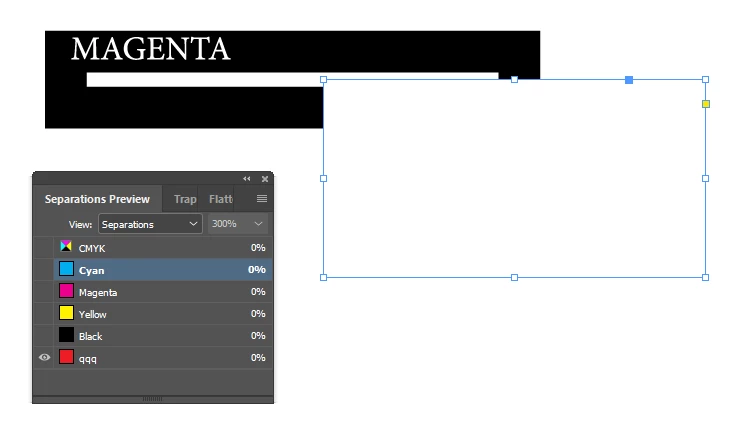
So if you have it as a SPOT color - then your preview should look like this - rectangle on the right is filled with Cyan, MAGENTA is a text converted to outlines - qqq is a rectangle with Gold stroke 😉


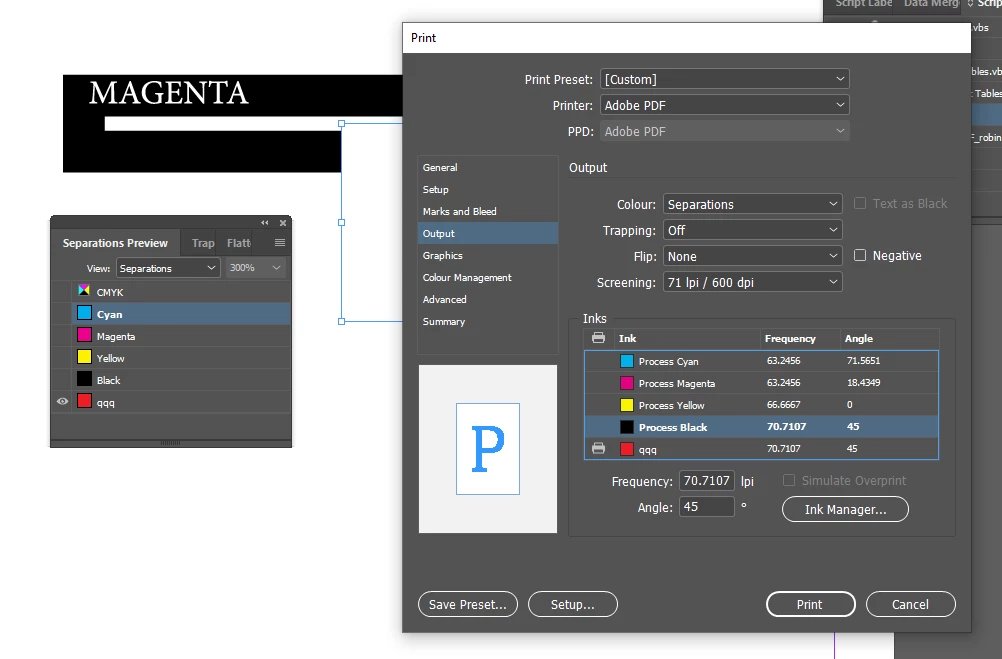
Then PRINT separations:


and the PDF will look like this:


Good old days 😄


4 replies

Kevin Stohlmeyer
Community Expert
Community Expert
November 8, 2022

We have the same machine and the answer is KISS. Keep it simple...

Run your document as is with the original CMYK toner/drums in place.

Then - take your flowers into Photoshop and convert them to white and replace the linked graphics with the white versions "knocking out" your silver frame. Run your vivid toner for the silver overprinting on the same document again.

This requires two passes - you can't run CMYK and VIVID at the same time.

Robert at ID-Tasker
Legend
November 8, 2022

And your solution is simpler than mine? 😉


Kevin Stohlmeyer
Community Expert
Community Expert
November 9, 2022

Yes, the graphics are raster and not spot. They are process.

Legend
November 8, 2022

Don't create a knockout group. This is a kind of transparency. Use normal objects with no transparency and without overprint. This must knockout as normal. 

Robert at ID-Tasker
Legend
November 8, 2022

How have you defined your silver color? It should be defined as a spot color - so you'll have in your document CMYK + Silver on separations preview.


Participant
November 8, 2022

It is a spot color.


The way I have to print these VIVID colors has to happen on an entirely separate pass than CMYK. I have to turn off the machine, switch out the toner sets, and run the paper through again to print one or the other.

Robert at ID-Tasker
Robert at ID-TaskerCorrect answer
Legend
November 8, 2022

So if you have it as a SPOT color - then your preview should look like this - rectangle on the right is filled with Cyan, MAGENTA is a text converted to outlines - qqq is a rectangle with Gold stroke 😉


Then PRINT separations:


and the PDF will look like this:


Good old days 😄


Legend
November 8, 2022

You cannot use overprint/knockout control at the same time as transparency. Try to get rid of all transparency everywhere on this page. A knockout group requires transparency to start with.

Participant
November 8, 2022

I'm sorry, but I don't understand at all what you mean. How can they not be used at the same time AND knockout requires transparency?


I have frames in which those transparent floral PNGs are placed... how else would I achieve the overlap and knockout?