Inspiring
October 26, 2020
Answered

Problems with baseline shift when editing text boxes

  • October 26, 2020
  • 11 replies
  • 11599 views

I've had this issue for ages now and still cannot find a solution that doesn't involve editing the Text Frame Options on every single text box on a page.


I am working with supplied artwork templates from a specific client in Germany. Whenever I select the text in a text box to edit it, the baseline shifts downwards, throwing off the templated text.


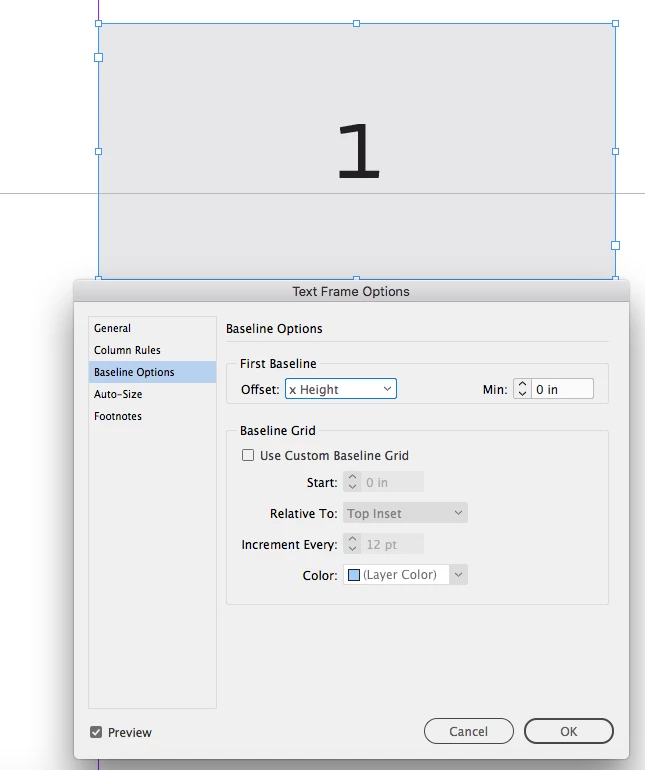
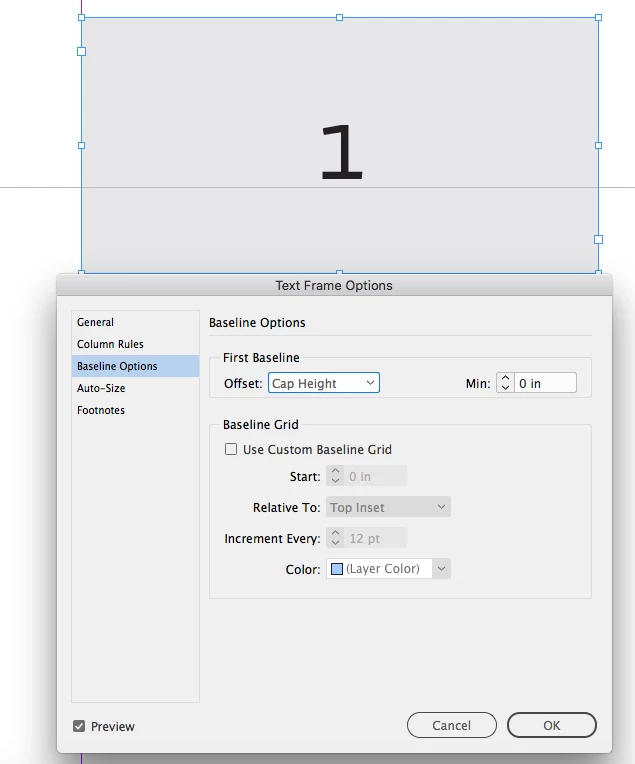
I have researched online and found, by trial and error, the only solution is to customise using Text Frame Options > Baseline Options, then select 'Use Custom Baseline Grid' and set Offset to 'Cap Height'. This re-sets the baseline again but I'm never confident it is exactly the same as the template I have been supplied as I am, essentially, tampering with a client's approved layout.


Is there a permanent solution to resolving this? I know this has been an issue going back quite a few versions of InDesign now and each update is supposed to have fixed this issue but it never has (and yes, I've used the old Preferences trash/re-set fob-off a number of times but this doesn't work, either).


Will this problem ever be resolved? It's not a good use of time to use the workaround every time I create a new file for this client as there are 20 - 30 text boxes on each artwork, which is a lot of extra unecessary editing that I can't bill onto the client.


I need to understand what is happening. Is it not retaining the custom preferences when I try to edit the text? I'm as at a loss as I was with this problem 2-3 years ago.
This topic has been closed for replies.
Correct answer rob day

I have researched online and found, by trial and error, the only solution is to customise using Text Frame Options > Baseline Options, then select 'Use Custom Baseline Grid' and set Offset to 'Cap Height'.


It’s the Offset that affects the starting baseline of the text frame, so with a text frame set to Center Vertical Justification, Cap Height would center upper and lower case text in the frame—you wouldn’t want to check Use Custom Baseline Grid if the object is to center the text.


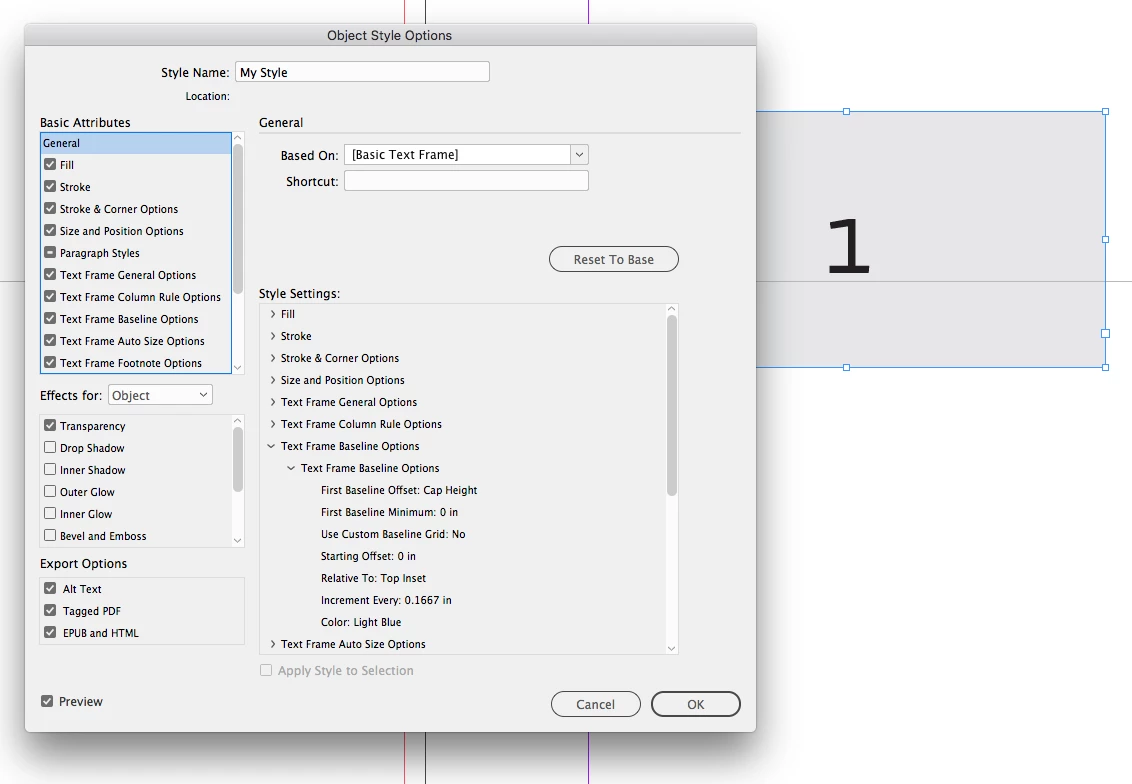
You might want to check if the template is using Object Styles, which can include a First Baseline Offset setting. If the text frame has an Object Style assigned, which is Based on [Basic Text Frame] that might cause a conflict.


11 replies

Participant
January 19, 2023

I've also recently started encountering this problem, and it's certainly not trivial for us. I am 90% of the way through a 6-month project building an updated catalogue of approx.130 spreads, averaging about 4-5 text boxes per spread plus a couple of tables with anywhere up to 250 cells. We're hard into the review & editing phase so there are lots of edits to do, including duplicate spreads and copied tables, and the print deadline is approaching. The text boxes can start with any one of about 10 different paragraph styles, the table cells another 6 or 7, so there is no one-size-fits-all text box style that I could apply to make the re-alignment quick & easy.

Every edit, copy or duplication results in all involved text being shifted down, resulting in almost all text boxes and cells being overset. This is costing us weeks worth of man-hours to manually correct, reposition and verify everything - I had considered editing the paragraph styles to suit but then all the as-yet unedited text ends up being too high on the page.

I find it hard to accept that the "Correct Answer" can possibly be to manually customise text boxes using the Text Frame options - it would take weeks to implement and double-check every alignment, a serious threat to our print schedule. Furthermore, the cost of the extra time is coming straight off our bottom line.

It's not just the one document affected, our bi-monthly customer magazine often uses recyled & updated content from prior editions. I'm now having to manually adjust the position of every text-containing element that I paste-in-place into the new document, again costing extra time.

I can't be the only one having this nightmare, please tell me work is being done on a proper fix for this unexpected issue, one that can be applied to my existing documents?

Participant
January 19, 2023

For me this was a font issue. Adobe was substituting the original font used in the document, stored locally, with their version of the font stored in the cloud. The two versions of the font positioned the first line of text differently in a text box. You can stop Adobe's font being subbed in in your preferences. This should be the "correct answer" to this post.

Participant
February 25, 2022

I wasted about two hours today trying to solve this same problem with my own document.


My document uses a locally saved version of the font Omnes, sitting in an adjacent "Document fonts" folder. What I've realised is that when I go to edit a text box, InDesign replaces my local font with the Adobe version synced from the cloud, and the Adobe version has a different baseline setting that lowers it in the text box. (Or maybe it's activating the Adobe version prior to this.) Anyway this is super frustrating.


My solution is to stop InDesign auto-activating Adobe fonts by turning off this setting in Preferences/File Handling/


This is essentially the solution @cyclopsdx and @Tibo5CBE arrived at. It'd be good if their post could be moved to the correct answer position at the top of the page so people can easily see it.

cyclopsdxAuthor
Inspiring
February 25, 2022

I can confirm that my issue does lie with the Roboto font. My workaround is still the original fix suggested by @rob day as I have pre-existing projects I still need to manage, but the other solution will resolve the issue from the get-go. This is just one problem we face with cloud-based asset retention and font activation, but that's a discussion for another thread.

rob day
Community Expert
Community Expert
February 25, 2022

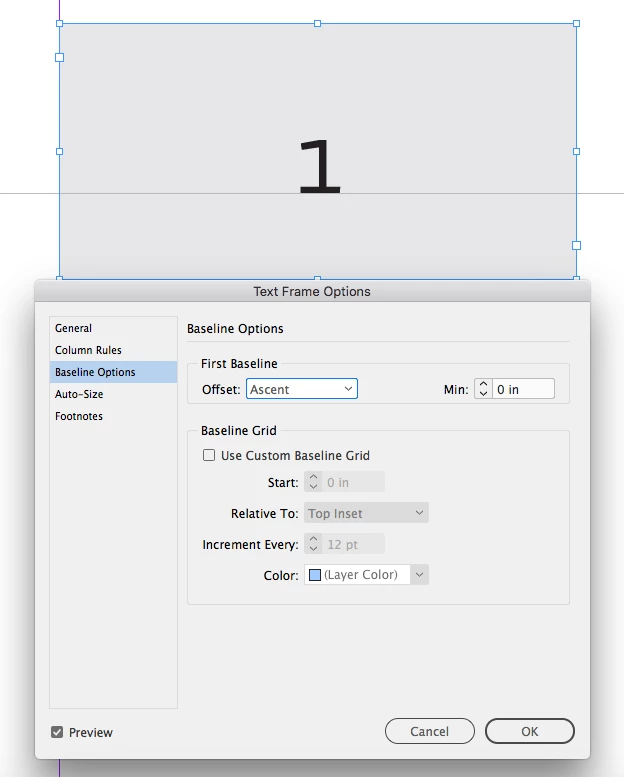
Hi @cyclopsdx I haven’t taken the time to reread this entire thread, but a font’s Ascent line is set by the font’s designer, so the problem could occur with any font, local or cloud based, if font substitution is allowed, or different versions of the same font are substituted.


This thread has a more detailed discussion of how the font’s designer might handle the ascent line, which would affect the First Baseline Offset when the default Ascent is used.


https://community.adobe.com/t5/indesign-discussions/baseling-grid-for-font-different-between-adobe-google-font/m-p/12735361#M464929

Community Expert
July 27, 2021

Hi Tibo5CBE,

below a comparison, Google Fonts vs Adobe Fonts.

Opened your document with Roboto not installed. The missing font's version is from 2017:


Here a view on the document where I provided the Google Font's Roboto files. The baseline's position is marked with a guide:


The following happens when I substitute the missing fonts with Adobe Fonts. Baseline is somewhere else and the text frame is running into overset. Also note that the font version is totally different and from 2015 now. A mismatch between the two documents:


Regards,
Uwe Laubender

( ACP )

cyclopsdxAuthor
Inspiring
July 27, 2021

Hi Uwe

This is an interesting discovery as the client's templates I am having problems with uses the Roboto family also. I shall do some tests to see if that helps me.

Best regards

Eddie

Community Expert
July 27, 2021

Hi Tibo5CBE,

my assumption is: The document you provided needs some Roboto fonts from Google Fonts and not from Adobe Fonts:

Roboto Bold, Roboto Light, Roboto Regular.


Not Roboto Slab Bold, that's possibly a missing OTF font from Adobe Fonts.


Download the TrueType font files from Google Fonts for Roboto and make them available through a Document fonts folder or the Fonts folder of your InDesign Application folder.


For me this is working with your document. Duplicated the text frames, copy/pasted the text frame, did a new text frame and pasted the text, edited the text in the original text frame: No issues with jumping baselines. 


Download the test document with the provided TrueType font files in a Document fonts folder from my Dropbox:


DocWithDocumentFontsFolder.zip

https://www.dropbox.com/s/s5xbgu9s3aj3ptj/DocWithDocumentFontsFolder.zip?dl=1


Regards,
Uwe Laubender

( ACP )

Participating Frequently
July 27, 2021

Hi Uwe,


I don't understand. I have google Roboto font installed and the Roboto Slab is just a variable of the Roboto and also a google font. 

Community Expert
July 27, 2021

Hi Tibo5CBE,

check your CC Desktop App > Fonts if there is ALSO a Roboto installed with Adobe Fonts.

Deactivate it from Adobe Fonts if that's the case.


Did you download my sample zip file and tested the document I saved side by side with that Document fonts folder that contains Roboto TrueType font files? What do you see? Also a baseline shift if you edit the text?


Regards,
Uwe Laubender

( ACP )

Community Expert
July 26, 2021

Hi Tibo5CBE,

we need a sample document of this text frame where you do not see the issue. Just this. Nothing more.

Some questions:

[1] Do you see the issue if you edit the text in the left text frame?

[2] If you do, is there the original document where you did not change anything?

If yes to [1] it could be a different version of the used font. We could trace that in the original document when the needed fonts are not installed.


Thanks,
Uwe Laubender

( ACP )

Participating Frequently
July 27, 2021

Hi Uwe,


To answer your questions:

[1] Yes, if I just edit the text in the text frame the baseline changes

[2] Attached is a example of an ID document where this happens


I hope you can help me with this problem.

cyclopsdxAuthor
Inspiring
July 27, 2021

Hi Tibo5CBE

I've just downloaded your file to test it and get exactly the same problem as you, whether I copy the text block and paste back in, duplicate it or just start to edit the text in the block. Screenshot attached.

I have this same problem on one specific client's design templates and have done for years.

My colleagues do not have this issue.

rob day
Community Expert
rob dayCommunity ExpertCorrect answer
Community Expert
November 3, 2020

I have researched online and found, by trial and error, the only solution is to customise using Text Frame Options > Baseline Options, then select 'Use Custom Baseline Grid' and set Offset to 'Cap Height'.


It’s the Offset that affects the starting baseline of the text frame, so with a text frame set to Center Vertical Justification, Cap Height would center upper and lower case text in the frame—you wouldn’t want to check Use Custom Baseline Grid if the object is to center the text.


You might want to check if the template is using Object Styles, which can include a First Baseline Offset setting. If the text frame has an Object Style assigned, which is Based on [Basic Text Frame] that might cause a conflict.


cyclopsdxAuthor
Inspiring
December 16, 2020

Hi Rob


Many thanks for that info and breakdown. It's definitely apparent that they've applied customised settings to the text boxes but my issue is that, if I copy/paste one of these boxes to re-use on a current or alternative layer, the settings are lost and that's when I have to use my Text Frame Options workaround. This is what I've found causes it:


If I open my client-supplied artwork template and edit the text within boxes, or copy/paste into a layer and edit, everything works fine.


If I save/rename the document, close or quit and then reopen to work on it again (which I frequently have to do) and execute the same process, that's when I get the problem with the options resetting. With the exception of the existing template boxes which retain their attributes until you edit them it's like it loses all that information once you copy or duplicate the boxes. I don't understand why it's not retaining any attributes and why I have to customise them just because I'm editing the text or duplicating the item. Is there a setting in my Preferences that needs to be ticked to allow me to honour or retain their assigned attributes? It's seems an overly complicated process.


I can't believe that ID would expect me to edit all the sections on first editing of the artwork file to be able to retain those attributes. That simply won't happen in my line of work!


rob day
Community Expert
Community Expert
December 16, 2020

I think we need a sample file to help.

Diane Burns
Inspiring
October 26, 2020

Just to check this off: are the text styles in any way based on Basic Paragraph? If so, Basic Paragraph could be defined differently on your end. Doesn't fully explain exact behaviors of it not occuring until you rename the file, but something to check. p.s. Basing styles on Basic Paragraph is *not* a good practice.

cyclopsdxAuthor
Inspiring
October 27, 2020

Hi Diane


No, the text boxes are all set up with custom styles, so I shouldn't have to make any adjustments there. Interestingly, when I select an alternative Paragraph Style and then re-select the original style was assigned, the text box baseline shift problem occurs as it does when I'm just changing the text within the box.


I can also confirm that the issue is only occuring when I make further changes to the text boxes after I've resaved/renamed the file and closed then re-opened it. If I make the edits when I first open it, they are fine and the baseline stays where it should be; it's only when I close the file and re-open and make further changes (which is always going to be the case) that the baseline changes. The error happens whether the file is an .indd or .idml - I've tried both ways.


Diane Burns
Inspiring
October 29, 2020

That is--if I may use the technical term--weird. 🙂

Suggestion: can you make a one page file of client's text (say, delete all pages but one so it starts with the original file), then use Find/Change to garble all the characters, e.g. change every "e" to "b", every "t" to "y", etc. Then post the file?

vladan saveljic
Inspiring
October 26, 2020

Can you upload on dropbox one page of your indesign file with text boxes and share the link with us?

cyclopsdxAuthor
Inspiring
October 26, 2020

Unfortunately, not this particualr suite of templates. I am heavily restricted by NDAs and as an agency I cannot share the templates to third parties. Sorry - I know this doesn't help at all. I can ask the client but I already know what their response will be.

cyclopsdxAuthor
Inspiring
October 26, 2020

This is what's happening with the file. If I open it and edit the text boxes for the first time, there is no issue with the baseline on the text boxes. If I rename the file, close it and reopen it to edit the text boxes again, that's when I'm finding an issue. See image below - box 1 (left) is the original template layout, box 2 (middle) is when I attempt to edit the text and the baseline shifts, box 3 (right) is when I've applied my workaround, but you can still see a tiny discrepancy on the baseline compared to the box 1.


vladan saveljic
Inspiring
October 26, 2020

Did you check "Align paragraphs to the baseline grid"?

Select text. In the Paragraph panel or Control panel, click "Don't Align To Baseline Grid"


cyclopsdxAuthor
Inspiring
October 26, 2020

Hi Vladan


It's already set to "Do Not Align..." 

If I switch between the two options to check the settings it resets the text box as per (2) in my screenshot above. With the exception of undoing (command Z) I cannot get it to reset to the original baseline setting - it just resets as per box 2 of my image.