


- Home
- InDesign
- Discussions
- Re: Problems with Page Numbering and Sections.
- Re: Problems with Page Numbering and Sections.

Copy link to clipboard
Copied
Wondering if this is a NEW ID 14.0 bug or just me. 
I can't seem to change the page numbering and sections in a 100+ page ID document. The front matter (pages 1-8) I'm trying to label with lower case roman numerals, and the rest of the book, page 9 onwards, should be numbered page 1, etc. Any ideas why I can't change ANYTHING? I can't seem to turn the first 8 pages into section 1 with roman numerals, and pages 9- onward to another section with page counting starting at 1.


 1 Correct answer
I solved in, in a roundabout manner. I just had to create an alternative layout, delete the original layout and re-number. I assume

 8
Replies
8
8
Replies
8



Copy link to clipboard
Copied
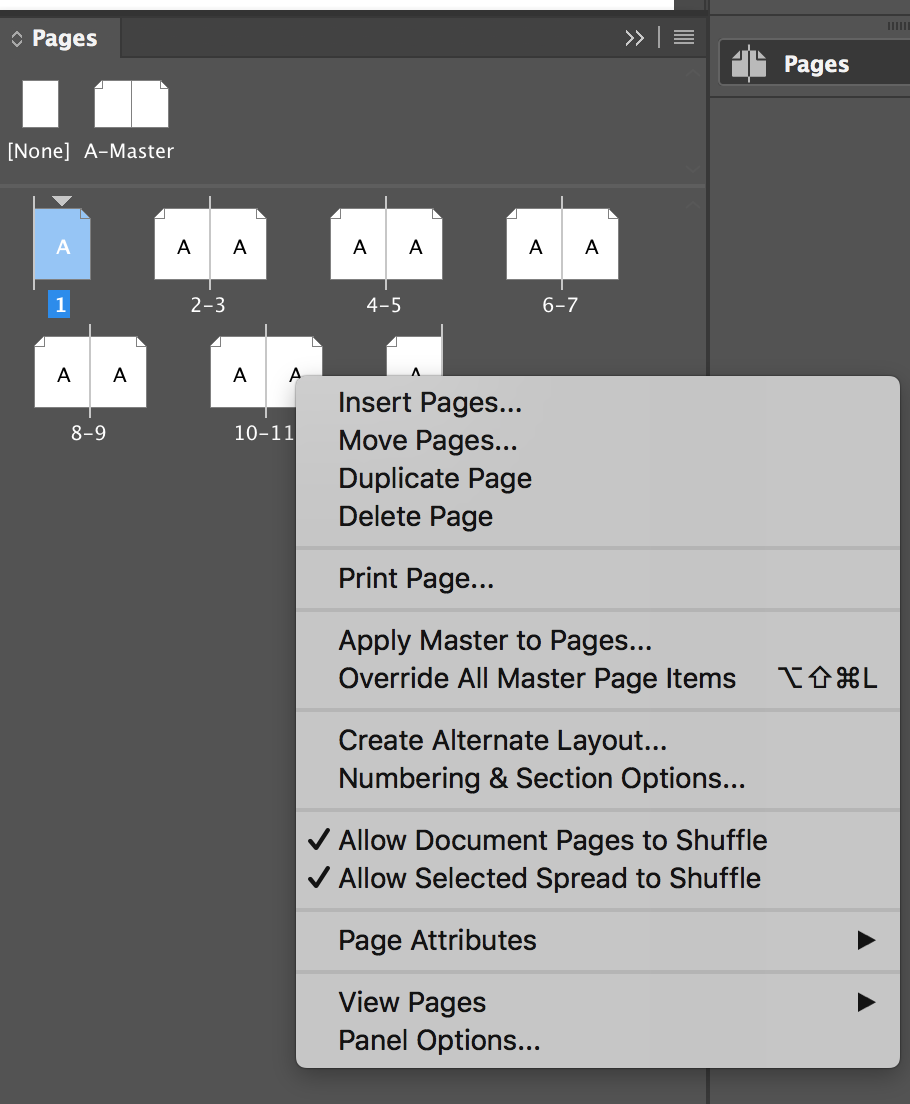
Click twice on the thumbnail of page 9, in the panel menu go to section & numbering and start now a new section.
BTW Why do you have for each chapter a separate master? It seems wrong to me.
Copy link to clipboard
Copied
Each Chapter NEEDS a separate master because each chapter has a title and that title needs to be on the opposing page header.

Copy link to clipboard
Copied
scottmosher wrote
Each Chapter NEEDS a separate master because each chapter has a title and that title needs to be on the opposing page header.
You could achieve that with just one Master if you used Running Headers to pick up the Chapter Title
Copy link to clipboard
Copied
scottmosher schrieb
Each Chapter NEEDS a separate master because each chapter has a title and that title needs to be on the opposing page header.
Nope, that is definitively wrong. The title has to be created via text variables/running headers based on Paragraph Styles. This would reduce the master to a single one.
Copy link to clipboard
Copied
Sorry Willi, that is 'defintiely NOT wrong'. This isn't absolute mathematics here, there's more than 1 way to do it, and I explained WHY I do it - which is fairly common in book design. That is one of the obvious reasons why MULTIPLE MASTER PAGES is even a design tecnique in InDesign, but regardless, outside of you tell me what I'm doing is wrong, we're getting OFF the subject of my post.
Copy link to clipboard
Copied
We'd like to help, but you haven't explained what steps you are taking to try changing the page numbering, and what happens when you try.
You should be able to right-click on the first page and bring up Numbering and Section Options. From there you can change the numbers to i, ii, etc.
Then do the same on the page that you want to be page 1 to make it start over at 1, and use 1,2,3 etc.
Copy link to clipboard
Copied
I solved in, in a roundabout manner. I just had to create an alternative layout, delete the original layout and re-number. I assume
Copy link to clipboard
Copied
You should not have needed to use Alternate Layout to get this done. Numbering and Section Options should do it.





Get ready! An upgraded Adobe Community experience is coming in January.
Learn more
 AdChoices