
Participating Frequently
February 12, 2023
Question

Problems with placing illustrator files in InDesign

  • February 12, 2023
  • 7 replies
  • 2088 views

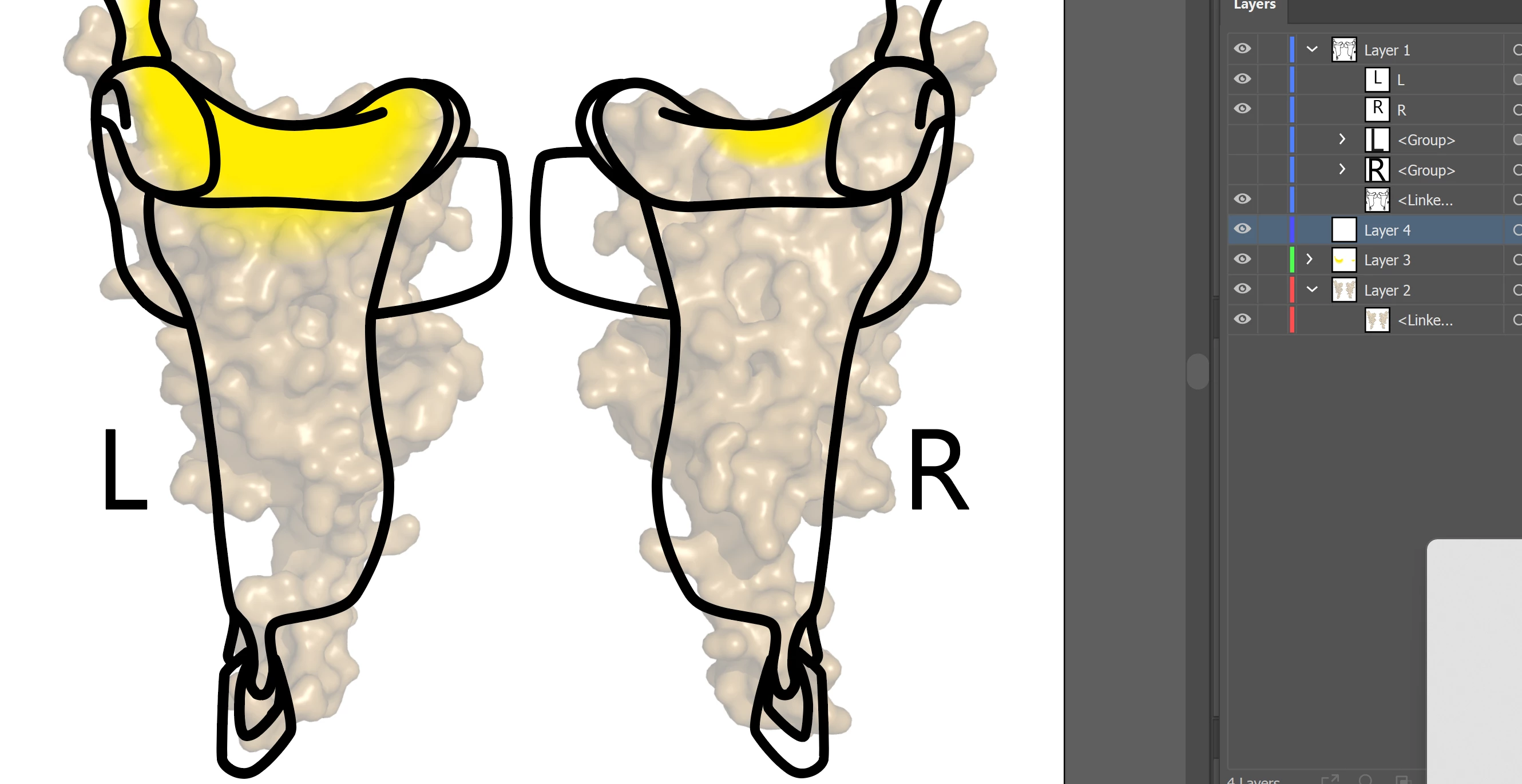
I am working on a table figure in InDesign, and around a mounth ago I started having an issue with placing illustrator files into the table. For some reason, some of the elements in the illustration disapear once I place them into indesign. 
File in illustrator:
Placed in InDesign:
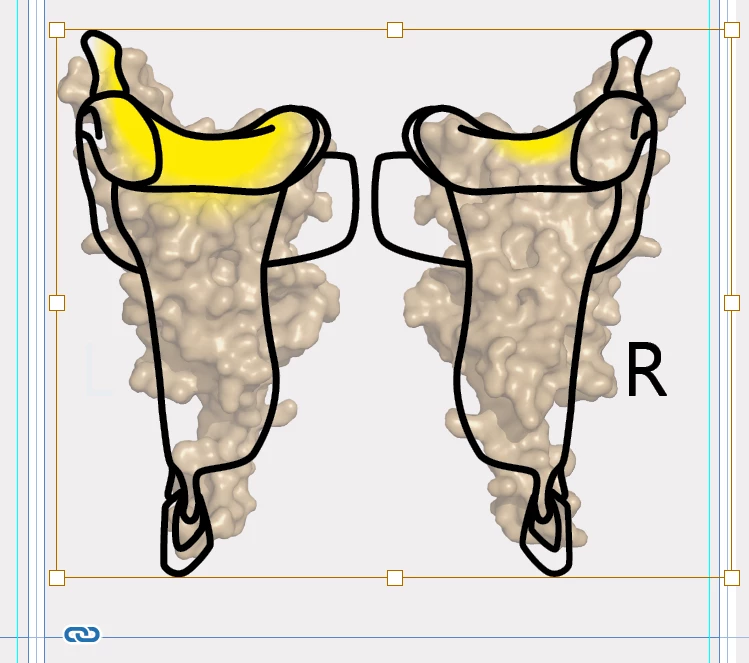
When I export the file (I have 6 of those illustrations) the R, L or both just disapear. I tried changing the font or making them into vectors so it won't be a font problem, but nothing works. The only solution was placing PNG file instead, but it lowers the quality, so it is not desirable. 
I tried also uninstaling and reinstalling. At the beginning the problem was fixed if I closed and opend InDesign, but now it does'n help as well. 

I don't know how to solve the problem. 

7 replies

John Kallios
Participating Frequently
March 1, 2026

Open the placed graphic in Acrobat. Check the output separations with overprints turned on. Does the placed graphic look the same as in InDesign with overprint preview on or separations preview on? 
 

If the same, issue is upstream in Illustrator.


If different, place in a new InDesign document. Does the view change?


Don't uninstall and reinstall. You will only increase your headache. 

Peter Spier
Community Expert
Community Expert
February 12, 2023

I'm wondering if perhaps the objects are set to non-printing. A look at the Attributes panel might be instructive.

BobLevine
Community Expert
Community Expert
February 12, 2023

I really wish the OP would just post the file so we could stop guessing.

Willi Adelberger
Community Expert
Community Expert
February 12, 2023

What file type do you use? AI or PDF.

If you use PDF, use PDF/X-4.


BobLevine
Community Expert
Community Expert
February 12, 2023

The default from Illustrator is going to be PDF/X-4 and that's going to be used regardless of whether the file is saved as AI or PDF.

BobLevine
Community Expert
Community Expert
February 12, 2023

Can you post one of the troublesome files? If you open them in Acrobat, how do they look? Do you have any special effects in the AI file?

ponetiumAuthor
Participating Frequently
February 12, 2023

Unfortunally I can't because it is a figure for a jurnal article, so it is "secret" untill published. Some of the R/L letters just disapear. Iam honestly at my wits end with this. I tried to chet with adobe agent but I can't catch them on working hours. 

here is the problamatic part on typical display: (seems to be working)

high quality display: (not working)

exporting doesn't work either.


BobLevine
Community Expert
Community Expert
February 12, 2023

Again, sounds like an Illustrator issue. Are those letters on a layer? If not, create a new, top layer and move them there. Make sure there are no effects assigned to them and try again being sure to save with the default PDF settings.

Inspiring
February 12, 2023

One more thing – check if AI file is compatybile with PDF. When You save AI file an options windows appeare and in otpions section. I haxe polish AI but this checkbox should be in the same position

BobLevine
Community Expert
Community Expert
February 12, 2023

Absolutely NOT the issue here. If you don't save with PDF compatibility nothing would be displayed except and alert that there's no PDF data.

Community Expert
February 12, 2023

If a document is not behaving well then try 

File>Export 

Choose IDML

Open the IDML in InDesign
Save the file as a new InDesign file with a new name
See if the issue persists.


-------

Try resetting your preferences:

Windows: Start InDesign, and then press Shift+Ctrl+Alt. Click Yes when asked if you want to delete preference files.
macOS: While pressing Shift+Option+Command+Control, start InDesign. Click Yes when asked if you want to delete preference files.
A dialog will appear asking to delete the InDesign Preferences, select 'Yes' on this dialog.
Further info and instructions here if needed:
https://helpx.adobe.com/in/indesign/kb/indesign-preferences-support-file-locations.html


----

Reinstalling rarely fixes everything - you can do a complete reinstall using the
Creative Cloud Cleaner Tool https://helpx.adobe.com/creative-cloud/kb/cc-cleaner-tool-installation-problems.html


ponetiumAuthor
Participating Frequently
February 12, 2023

I tried everything you suggeted, but nothing works. (the second one - I pressed and pressed ctrl+alt+shift, but nothing happend) The last one - I thought it worked, but once I canged to high quality display, I discoverd it didn't. It shows fine in Typicak dispkay, but once I export/change to high quality display, it disapears. 

Community Expert
February 12, 2023

Possibility the layer visibility is turned off you can select the image in InDesign and go to object and the menu item there for layer options

Inspiring
February 12, 2023

It looks like ID have lost some data. Try reinstalling ID

BobLevine
Community Expert
Community Expert
February 12, 2023

That is very, very poor advice for something like this. If you're going to contribute here, please make a concerted effort to provide reasonable solutions to problems.