Inspiring
April 22, 2022
Answered

question about image frame

  • April 22, 2022
  • 8 replies
  • 922 views

Hello,

I have made an image frame on all the width of the page : 
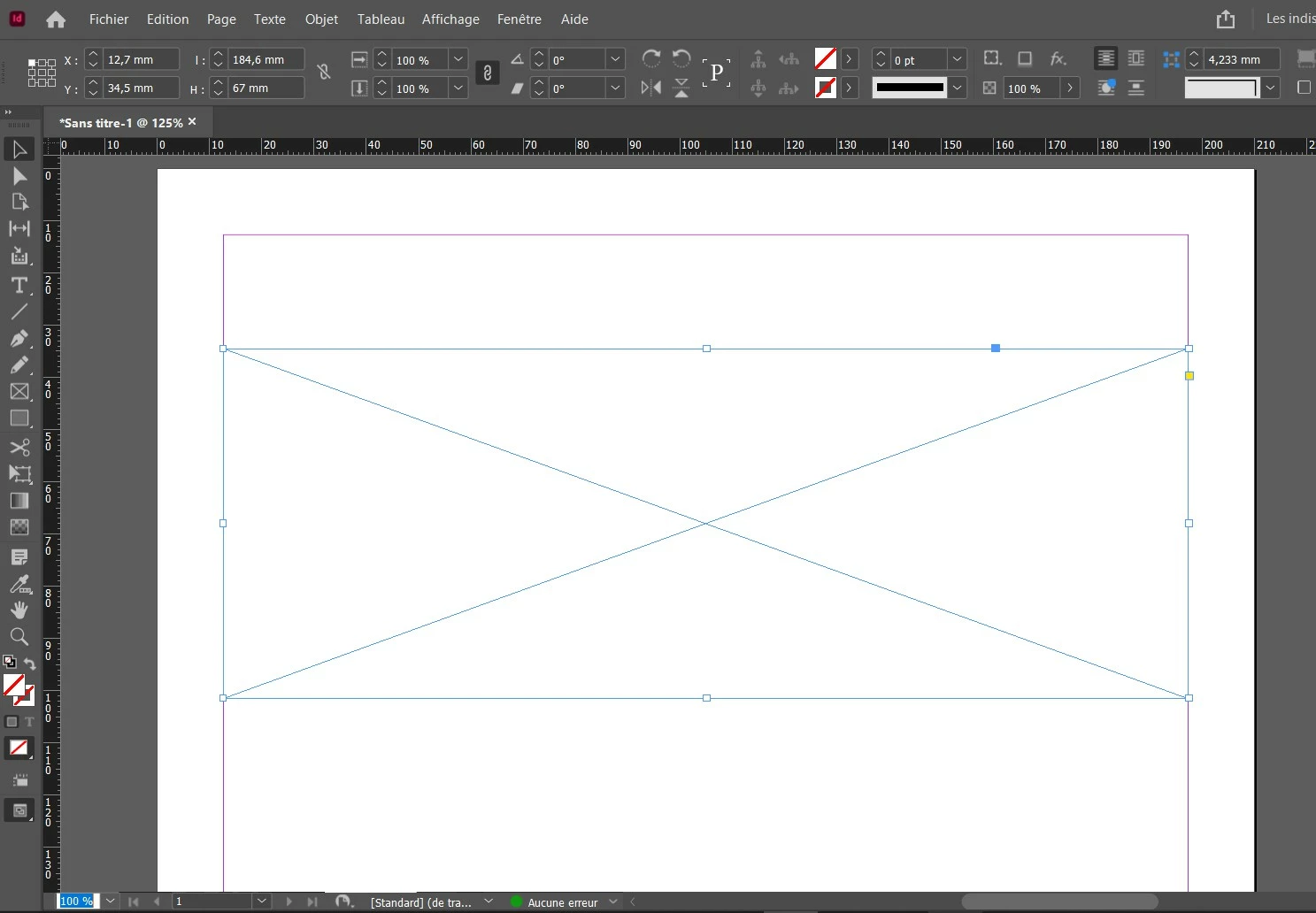
 

About this single image frame, I would like to split it into 3 image frame (with 3 identical width).

How to do this ?

This topic has been closed for replies.
Correct answer Laubender

Use the MakeGrid.jsx script that comes with every installation of inDesign.

From my German InDesign 2022 where I have the Scripts panel open and the rectangle selected.

And of course did a double-click on MakeGrid.jsx to show its interface:
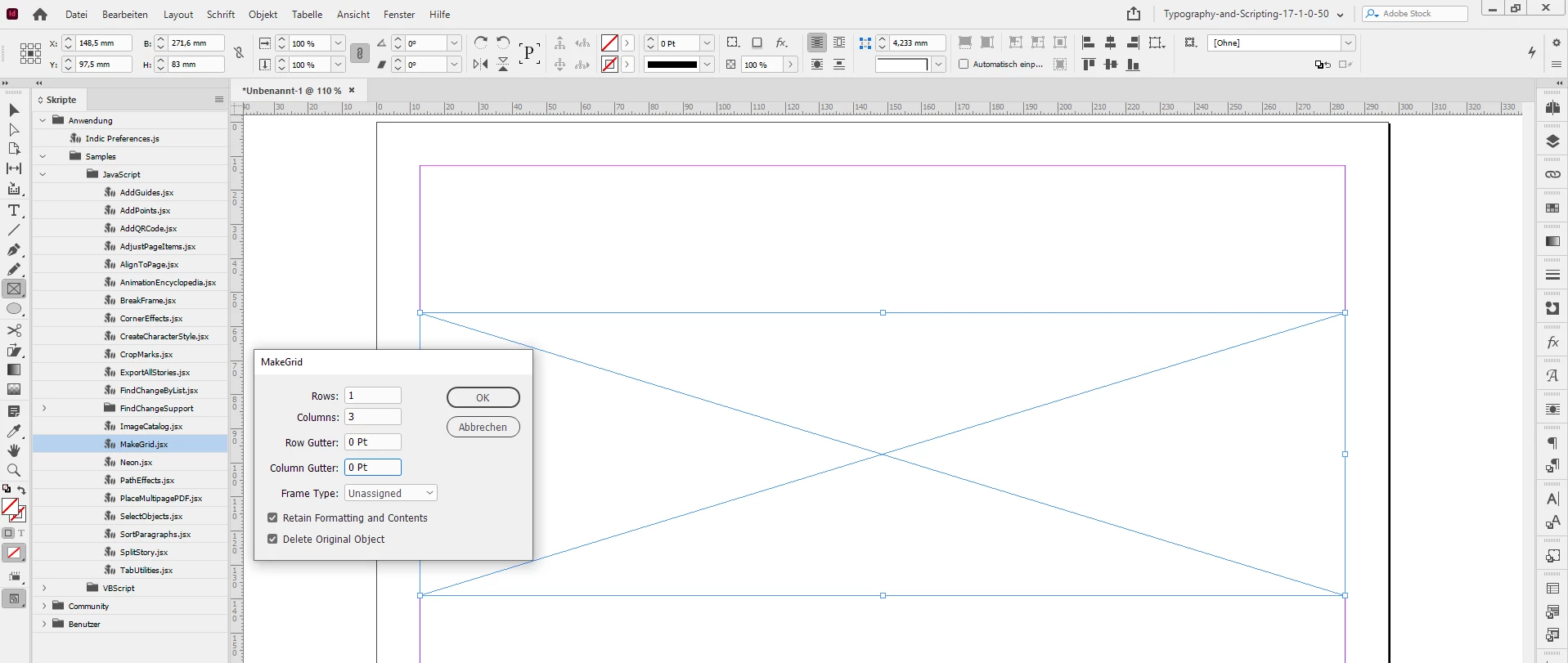
 

One row, three columns. Zero gap.

The result after hitting the OK button:
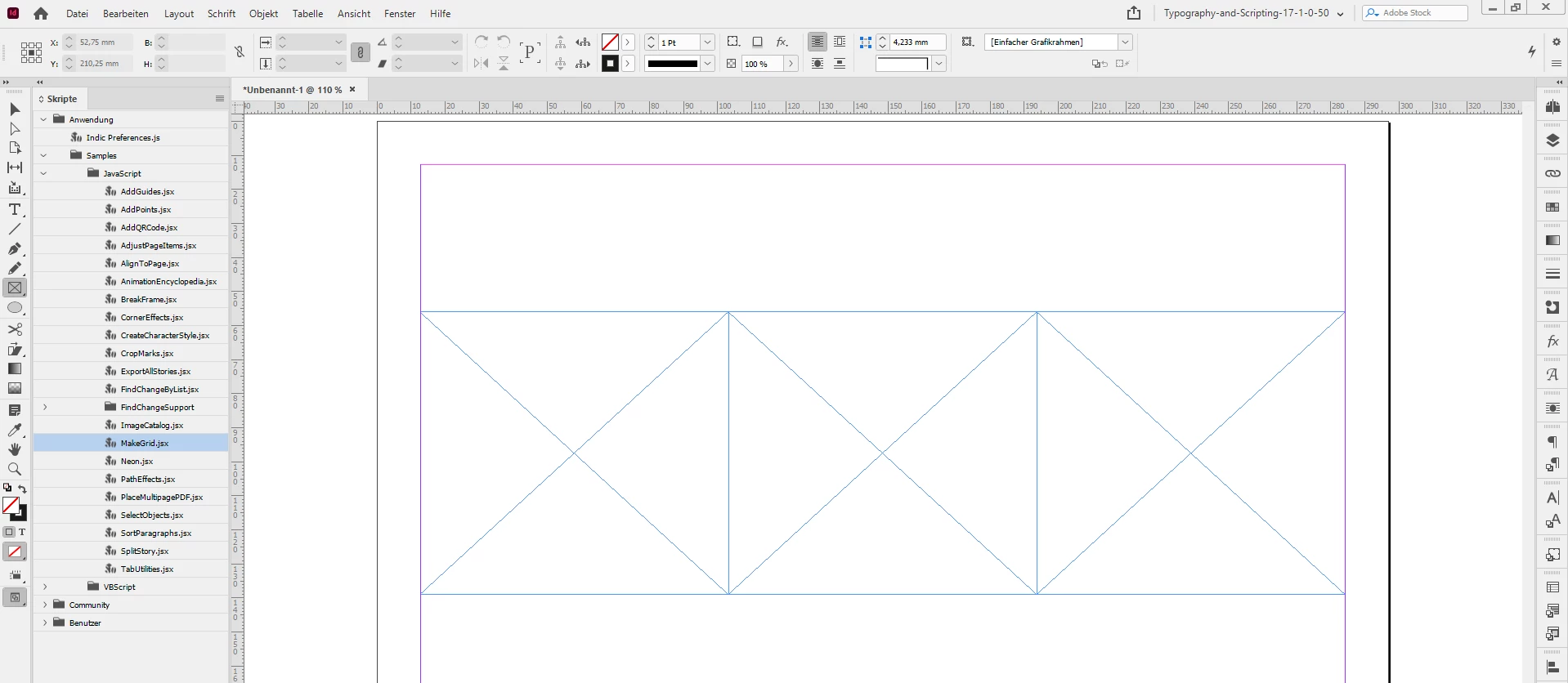


Regards,
Uwe Laubender

( ACP )

8 replies

Participant
October 18, 2022

can you make 3D clouths on here

Inspiring
April 22, 2022

@jmlevy  About the 3 image frame with apples, I have noticed that each imported image was not at the good size (one apple was bigger, one other was smaller), so I needed to resize each image itself (not the container) in order to have 3 apples at the same size. That is the resaon why I needed to resize the image itself.


jmlevy
Community Expert
Community Expert
April 22, 2022

If you want to resize the image itself, you can do it by multiple ways.

  • either use the direct selection tool (the white arrow) and click on the image: it will be selected, now select it by a corner and resize it. Don't forget to hold the shift key to constrain proportions
  • you can also use the selection tool (the black arrow) if  “afficher la saisie du contenu” is enabled (menu Affichage > Extras). Note that when it is enabled, the menu displays “masquer”. So, if it is enabled, the black arrow will act as the white arrow. Click on the “donut” icon and the image will be selected, not the frame.
Inspiring
April 22, 2022

@jmlevy You have said : "An image is ALWAYS in a frame."


Ok, now I understand concerning the red apple below (I thought it was only an image, but you said it is always an image inside a frame). And I understand now that the "auto adjust" works only on the frame.

As I need to resize the image itself, I will use the shift key feature.


jmlevy
Community Expert
Community Expert
April 22, 2022

As I need to resize the image itself, I will use the shift key feature

As @Laubender wrote, it depends how the frame fitting options are set.

For my part, since I am a very long InDesign user and since the auto adjust feature came very late, I never use it.

If you uncheck the auto adjust check box, you will need to hold the command key (and the shift key if you want to contrain the proportions) if you want to resize the frame and its content. 

Inspiring
April 22, 2022

@Laubender  You have said  : "It depends what you have selected."


1) In the example of the green apple, I had selected the image inside the image frame +  "auto adjust", but the "auto adjust" does not works to resize proportionally  (so obliged to hold shift key to resize proprtionnally) :


2) In the example of the red apple, I had selected the single image + "auto adjust" and "auto adjust works because I succeed to resize proprtionally (without holding shift key) :

So why "auto adjust" does not works when the image is inside an image frame ?

jmlevy
Community Expert
Community Expert
April 22, 2022

An image is ALWAYS in a frame. Auto adjust works only if you select the frame (the container) and resize it. It avoids you to hold the Command key to resize also the image itself (the content) when you resize the frame (the container).

Inspiring
April 22, 2022

Ok, I succeeded to resize proportionaly the image (green apple) inside the image frame, by holding shift key :


But, in that case below, where I have a single image, by checking only "auto adjust" (see red arrow) (without holding shift key), it resize the image proportionaly. So why this "auto ajust" feature does not works when the image is inside an image frame ?


Community Expert
April 22, 2022

It depends what you have selected. The frame holding the image or the image inside the frame.

And of course what frame fitting options are applied to the frame holding the image.

Proportionally fitting or not for example.


Regards,
Uwe Laubender

( ACP )

Inspiring
April 22, 2022

Ok, I succeeded to do it.

I have also tried to import 3 different apples. 

About the green apple, I have checked "auto adjust" (see red arrow), so by resizing manually the image, I should have an image without deformation (proportional during the manual resize), but it is not the case. Why ?


jmlevy
Community Expert
Community Expert
April 22, 2022

You have applied the transformation to the content only, not the frame.

LaubenderCommunity ExpertCorrect answer
Community Expert
April 22, 2022

Use the MakeGrid.jsx script that comes with every installation of inDesign.

From my German InDesign 2022 where I have the Scripts panel open and the rectangle selected.

And of course did a double-click on MakeGrid.jsx to show its interface:


One row, three columns. Zero gap.

The result after hitting the OK button:


Regards,
Uwe Laubender

( ACP )

jmlevy
Community Expert
Community Expert
April 22, 2022

In the width field, type /3 after the existing value. Then duplicate the frame twice by alt shift drag

BobLevine
Community Expert
Community Expert
April 22, 2022

Or...use step and repeat.